
UPKJJ K3F-tuya
UPKJJ Smart Key Safe User Manual
Model: K3F-tuya
Introduction
Thank you for choosing the UPKJJ Smart Key Safe. This device provides a secure and convenient solution for managing access to your valuables, spare keys, or important documents. Featuring multiple unlocking methods including fingerprint, passcode, and app control, it offers flexible security for various scenarios such as homes, cars, or rental properties. Constructed from durable zinc alloy, this key safe is designed for robust protection and long-lasting performance.
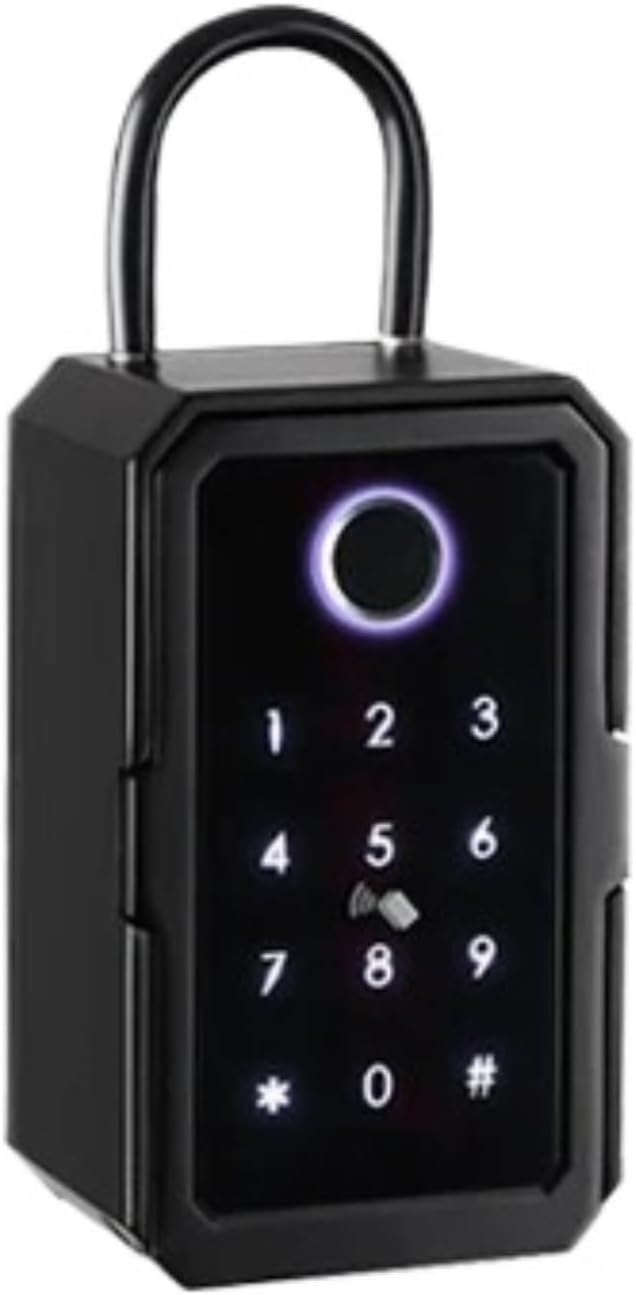
Image: The UPKJJ K3F-tuya Smart Key Safe, a black rectangular device with a top handle, a numeric keypad, and a central fingerprint sensor. This image shows the overall design of the product.
Package Contents
Please check the package contents carefully upon unboxing to ensure all items are present:
- 1 x UPKJJ K3F-tuya Smart Key Safe Unit
- 1 x User Manual
- Mounting Screws and Wall Plugs (if applicable for wall-mount models)
- Reset Pin (if applicable)
Specifications
The following table outlines the key specifications of the K3F-tuya Smart Key Safe:
| Feature | Description |
|---|---|
| Connection | Bluetooth 4.0, WiFi (requires Tuya M1 Bridge for WiFi functionality) |
| Material | Zinc Alloy |
| Unlock Methods | Tuya/Smart Life App, Fingerprint, Passcode, IC Card |
| Battery Type | 3 x AAA Alkaline Batteries |
| Color | Black |
| Net Weight | 1.0 Kg (K3F model) |
| Protection Level | IP54 (K3F model) |

Image: Diagram highlighting key features of the K3F Tuya model, including fingerprint unlock, zinc alloy material, IP65 waterproof (note: K3F is IP54 as per description), anti-peeping passcode, IC card support, low power consumption, and audit trial records.

Image: Comparison of K3F and K5F smart key boxes, showing their physical differences and shared features like Tuya APP management and IP65 waterproof rating (note: K3F is IP54 as per description).

Image: Illustration of the smart key box's outdoor waterproofing, showing its tempered glass touch screen keypad, protection box to prevent water and sunshine, and aluminum alloy material.
Setup
1. Battery Installation
Locate the battery compartment, usually at the back or inside the safe. Insert 3 AAA alkaline batteries, ensuring correct polarity. Close the compartment securely.
2. App Download and Pairing
Download the "Tuya Smart" or "Smart Life" app from your smartphone's app store (iOS or Android). Register an account if you don't have one. Follow the in-app instructions to add your K3F-tuya Smart Key Safe. This typically involves putting the device into pairing mode (refer to the device's specific instructions for this, often by pressing a button or holding a key on the keypad) and connecting via Bluetooth.
3. Fingerprint, Passcode, and IC Card Setup
Once paired with the app, you can set up various unlocking methods:
- Fingerprint: In the app, navigate to the fingerprint management section. Follow the prompts to register your fingerprints by placing your finger on the sensor multiple times from different angles.
- Passcode: Create a numeric passcode through the app. You can set temporary or permanent passcodes. The device supports anti-peeping passcodes, allowing you to enter random digits before or after your actual code for added security.
- IC Card: If your model supports IC cards, register them via the app by tapping the card on the designated sensing area.

Image: A diagram showing the components of a K5F smart key box, including the touch keypad, card sensing area, fingerprint reader, Type-C port, sealed silicone pad, cylinder hole, and rainproof cover. This provides a general understanding of component locations applicable to similar models like K3F.
Operating Instructions
Unlocking the Key Safe
- Fingerprint Unlock: Place your registered finger on the fingerprint sensor. The safe will unlock if the fingerprint is recognized.
- Passcode Unlock: Enter your registered passcode on the keypad, followed by the '#' key. For anti-peeping, you can enter random digits before and/or after your actual passcode.
- App Unlock: Open the Tuya Smart/Smart Life app, select your key safe, and tap the unlock button. This method requires Bluetooth proximity or a connected M1 bridge for remote access.
- IC Card Unlock: Tap your registered IC card on the card sensing area.
Managing Users and Access
The app allows you to manage multiple users, assign different access permissions, and view unlock records. You can generate temporary passcodes for guests or service providers, which can be time-limited or one-time use.
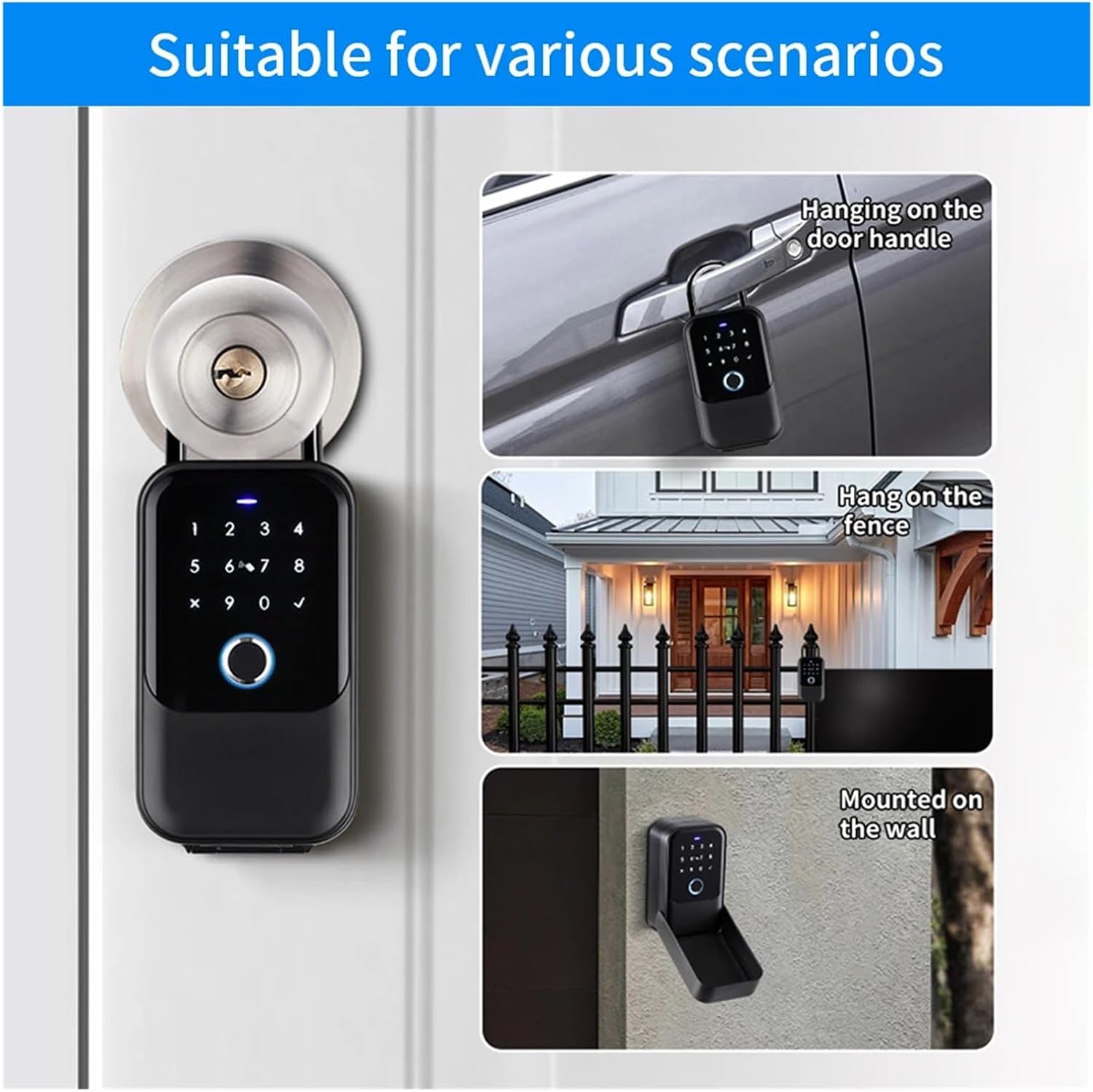
Image: Demonstrates various installation scenarios for the smart key box, including hanging on a door handle, hanging on a fence, and mounted on a wall, highlighting its versatility.
Maintenance
- Cleaning: Wipe the exterior of the key safe with a soft, damp cloth. Avoid using abrasive cleaners or solvents.
- Battery Replacement: Replace batteries promptly when the low battery indicator appears on the device or in the app. Use only new AAA alkaline batteries.
- Firmware Updates: Check the Tuya Smart/Smart Life app regularly for any available firmware updates for your device to ensure optimal performance and security.
- Environmental Protection: While the K3F-tuya has an IP54 protection level, it is recommended to install it in a location that offers some shelter from direct heavy rain or extreme weather conditions to prolong its lifespan.
Troubleshooting
| Problem | Possible Cause / Solution |
|---|---|
| Key safe does not unlock with fingerprint. |
|
| Passcode not working. |
|
| Cannot connect to app via Bluetooth. |
|
| Low battery warning. |
|
Warranty and Support
The UPKJJ Smart Key Safe comes with a standard manufacturer's warranty against defects in materials and workmanship. Please refer to your purchase documentation for specific warranty terms and duration.
For technical support, troubleshooting assistance, or warranty claims, please contact UPKJJ customer service through the contact information provided on your product packaging or the official UPKJJ website. When contacting support, please have your product model (K3F-tuya) and purchase details ready.
Online Resources: For the latest FAQs, video tutorials, and software updates, please visit the official UPKJJ support page.
Ask a question about this manual
Ask about setup, troubleshooting, compatibility, parts, safety, or missing instructions. Manuals+ will review the question and use this page’s manual context to help answer it.