1. Introduction
The VEVOR Digital Voice Recorder GL-89 is a portable audio recording device designed for capturing high-quality audio in various environments such as lectures, meetings, and interviews. This manual provides detailed instructions for its setup, operation, and maintenance, ensuring you can utilize all its features effectively.
2. Product Overview
The GL-89 recorder features a compact design, 128GB of internal storage, a 1.4-inch high-definition display, and advanced noise cancellation technology. It supports various recording modes and offers password protection for your audio files.
2.1. What's in the Box
- 1 x VEVOR Digital Voice Recorder (Model GL-89)
- 1 x User Manual
- 1 x Earphones
- 1 x Data Cable (USB)
2.2. Device Components

Image: The VEVOR Digital Voice Recorder GL-89, shown with its included earphones and USB data cable. The recorder features a display screen, control buttons, and microphones.

Image: A detailed view of the recorder's 1.4-inch HD display, highlighting key information such as battery level, recording status, and recording duration. This display provides real-time operational feedback.
3. Initial Setup
3.1. Charging the Device
Before first use, fully charge the recorder. Connect the provided USB data cable to the recorder's USB port and the other end to a computer or a USB power adapter (not included). The battery indicator on the display will show charging status. A full charge typically takes a few hours.
3.2. Powering On/Off
- To Power On: Press and hold the Power button (or designated button) until the screen illuminates.
- To Power Off: Press and hold the Power button until the device shuts down.
3.3. Language Settings
The device supports seven different languages. To change the language, navigate to the 'Settings' menu using the navigation buttons, select 'Language', and choose your preferred option.
4. Operation
4.1. Recording Audio
The GL-89 offers multiple recording modes:
- One-Touch Recording: Press the 'REC' button to start recording immediately. Press 'STOP' to save the recording.
- Voice Activated Recording (VOR): In the settings menu, enable VOR. The recorder will automatically start recording when sound is detected and pause when silence occurs.
- Timed Recording: Schedule specific times for the recorder to start and stop recording automatically via the settings menu.

Image: Visual representation of the three primary recording modes available on the VEVOR GL-89: One Click Recording for instant capture, Voice Activated Recording for efficient use of storage, and Timed Recording for scheduled sessions.
The built-in condenser microphone provides high sensitivity and fidelity, capturing sound from up to 5 meters within a 180-degree range. A default noise reduction function helps ensure clear audio in various environments.

Image: A graphic illustrating the sound reproduction capabilities of the VEVOR GL-89, emphasizing its high sensitivity, high fidelity, and automatic noise cancellation for clear audio capture.
4.2. Playback
To play back recordings, navigate to the 'Files' or 'Recordings' menu. Select the desired file and press the 'Play' button. The device supports:
- A-B Repeat Playback: Repeat a specific segment of an audio file.
- Variable Speed Playback: Adjust the playback speed to listen faster or slower.
The device also functions as an MP3 player, supporting lossless music formats like MP3, WMA, FLAC, and APE.
4.3. File Management and Transfer
Connect the recorder to a computer or mobile phone using the USB 2.0 data cable to transfer files. The device will appear as a removable storage drive. You can then copy, move, or delete files as needed.

Image: The VEVOR GL-89 digital voice recorder connected to a laptop via its Micro-USB cable, illustrating the process of backing up files quickly and easily.
4.4. Password Protection
To protect your recordings, you can set a four-digit password lock. Access this feature in the 'Settings' menu. Once enabled, the password will be required to access the device's content.

Image: A close-up of the VEVOR GL-89's screen displaying the four-digit password entry interface, indicating the device's security feature.
4.5. Other Features
- Line-in Phone Recording: Connect the recorder to a phone via a line-in cable (not included) to record phone conversations.
- Auto Save on Low Battery: The device automatically saves current recordings when the battery level is critically low to prevent data loss.
5. Maintenance
To ensure the longevity and optimal performance of your VEVOR Digital Voice Recorder GL-89, follow these maintenance guidelines:
- Cleaning: Use a soft, dry cloth to clean the device's exterior. Avoid using liquid cleaners or abrasive materials.
- Storage: Store the device in a cool, dry place away from direct sunlight, extreme temperatures, and high humidity.
- Battery Care: For optimal battery life, avoid fully discharging the battery frequently. If storing for extended periods, charge the battery to about 50% every few months.
- Software Updates: Periodically check the VEVOR official website for any available firmware updates to improve performance and add new features.
6. Troubleshooting
If you encounter issues with your VEVOR Digital Voice Recorder GL-89, refer to the following common problems and solutions:
- Device will not power on:
- Ensure the battery is charged. Connect the device to a power source and allow it to charge for at least 30 minutes before attempting to power on again.
- Check if the power switch is in the 'On' position.
- Poor recording quality:
- Ensure the microphone is not obstructed.
- Reduce the distance between the recorder and the sound source.
- Enable the noise reduction function in the settings.
- Avoid recording in excessively noisy environments.
- Cannot transfer files to computer:
- Ensure the USB cable is securely connected to both the recorder and the computer.
- Try a different USB port on your computer.
- Ensure the recorder is powered on when connected.
- Check if your computer's operating system recognizes new USB devices.
- Screen is unresponsive or frozen:
- Press and hold the Power button for 10-15 seconds to force a restart.
- If the issue persists, contact customer support.
7. Specifications
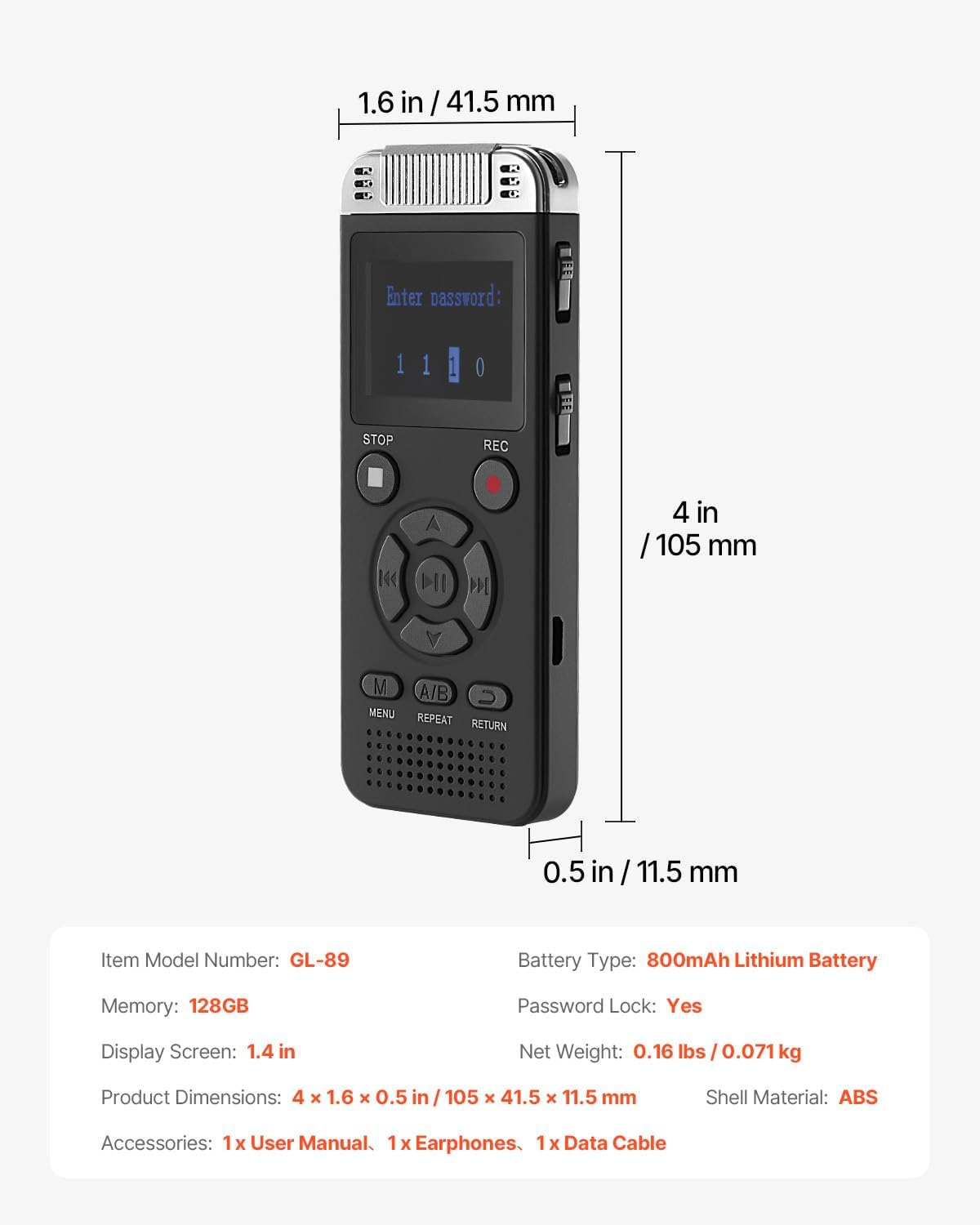
Image: A technical diagram illustrating the physical dimensions of the VEVOR GL-89 digital voice recorder, including its length, width, and thickness in both inches and millimeters.
| Feature | Detail |
|---|---|
| Model Number | GL-89 |
| Brand | VEVOR |
| Memory Storage Capacity | 128 GB |
| Screen Size | 1.4 Inches |
| Product Dimensions | 4.13 x 1.63 x 0.45 inches (105 x 41.5 x 11.5 mm) |
| Item Weight | 2.56 ounces (0.071 kg) |
| Battery Type | 1 Nonstandard Battery (included) |
| Hardware Interface | USB 2.0 |
| Microphone Form Factor | Built-In |
| Audio Format Support | MP3, WMA, FLAC, APE |
| Headphones Jack | 3.5 millimeters |
| Continuous Recording Time | Up to 40 hours |
| Compatible Devices | MP3 Player functionality |
8. Warranty and Support
For warranty information, technical support, or service inquiries, please refer to the official VEVOR website or contact VEVOR customer service directly. Keep your purchase receipt as proof of purchase.
Official VEVOR Website: www.vevor.com


