
1. Introduction
Thank you for purchasing the VenirCool N5 Essential Mini Projector. This manual provides detailed instructions for setting up, operating, and maintaining your projector to ensure optimal performance and longevity. Please read this manual thoroughly before use and retain it for future reference.
2. Product Overview
Key Features
- Immersive Visual Experience: Supports Full HD 1080P and 4K resolution with native 720P display. Features 5000 ISO lumens and 330 ANSI brightness.
- Smart Connectivity: Integrated WiFi and Bluetooth capabilities for seamless device connection.
- Portable and Versatile: Ultra-thin, lightweight design with an adjustable stand and 360° rotation for flexible viewing angles.
- User-Friendly Interface: Built-in VenirCool operating system for easy navigation.
- Advanced Image Adjustment: Features ±15% keystone correction and electric remote focus.
Projector Dimensions and Portability
The N5 Essential projector is designed for portability, featuring a compact and lightweight form factor. Its dimensions are approximately 7.91 inches (21cm) in length, 7.87 inches (20cm) in width, and 2.3 inches (5.8cm) in height, making it easy to carry and set up in various locations.

Image: The VenirCool N5 Essential Mini Projector showcasing its compact dimensions and portability. It is depicted as sleek, small, light, and thin, easily fitting into a bag.
Display Quality
The projector offers a native 720P resolution with support for 1080P and 4K input, providing a brighter display, richer colors, and sharper details compared to standard 720P projectors.

Image: A visual comparison demonstrating the superior image quality of the N5 Essential's native 720P display with 4K/2K/1080P support, showing brighter display, richer color, and sharper detail against a standard 720P projector.

Image: A side-by-side comparison illustrating the vivid colors and brilliant image quality of the VenirCool N5 Essential projector (1080p Native, 4K Supported) versus a typical 720P projector.
Package Contents
Upon unboxing, please verify that all components are present:
- VenirCool N5 Essential Mini Projector
- Power Adapter
- Remote Control
- User Manual (this document)
- HDMI Cable (may vary by package)
3. Setup
Initial Placement
Place the projector on a stable, flat surface. Ensure there is adequate ventilation around the device to prevent overheating. The built-in portable stand allows for flexible positioning.
Power Connection
- Connect the power adapter to the projector's power input port.
- Plug the power adapter into a wall outlet.
- Press the power button on the projector or remote control to turn it on.
4. Operation
Basic Controls
Use the remote control to navigate the projector's interface. The main controls typically include:
- Power Button: Turns the projector on/off.
- Navigation Buttons (Up/Down/Left/Right): For menu navigation.
- OK/Enter Button: Confirms selections.
- Back/Return Button: Returns to the previous menu.
- Source Button: Selects input sources (HDMI, USB, Screen Mirroring).
Input Source Selection
To display content, select the appropriate input source using the remote control's 'Source' button or through the on-screen menu. Available inputs include HDMI, USB, and wireless screen mirroring options.

Image: The projector displaying a home screen with various streaming applications, illustrating its capability to provide access to a wide range of video content.
5. Connectivity
WiFi Connection (WiFi6)
The projector supports WiFi6 for a stable and fast wireless connection. To connect to a WiFi network:
- Go to the 'Settings' menu on the projector.
- Select 'Network' or 'WiFi Settings'.
- Enable WiFi and select your desired network from the list.
- Enter the password if prompted and connect.

Image: The projector demonstrating its WiFi6 connectivity, showing a smartphone mirroring content with high-speed 5G/2.4G (1200Mbps/1800Mbps) connection for smooth streaming.
Bluetooth Pairing
To connect Bluetooth audio devices (e.g., speakers, headphones):
- Go to the 'Settings' menu.
- Select 'Bluetooth Settings'.
- Enable Bluetooth and put your audio device into pairing mode.
- Select your device from the list of available devices to pair.
Video: This video demonstrates the VenirCool N5 Essential Mini Projector's features, including its ultra-slim design, compatible ports (USB, HDMI), built-in portable stand, 360-degree free rotation, vibrant colors, and wireless audio output. It shows the projector mirroring content from a phone and connecting to external speakers wirelessly.
Wireless Screen Mirroring (iOS/Android)
The projector supports wireless screen mirroring from iOS and Android devices. Ensure your device and the projector are connected to the same WiFi network.
- Select the 'Screen Mirroring' option from the projector's input source menu.
- On your mobile device, activate the screen mirroring feature (e.g., 'Screen Cast', 'Smart View', 'AirPlay').
- Select the projector's name from the list of available devices.

Image: The projector wirelessly mirroring content from both a laptop and a smartphone onto a large screen, demonstrating compatibility with iOS, Android, and Windows devices.
Compatible Multimedia Devices
The projector features various ports for connecting a wide range of multimedia devices, including Pads, Laptops, TV Sticks, Chromecasts, USB Disks, Smartphones, Speakers, and gaming consoles like Xbox/PS5.

Image: A diagram showing the rear ports of the projector and icons of various compatible multimedia devices, including tablets, laptops, TV sticks, Chromecasts, USB drives, smartphones, external speakers, and gaming consoles.
6. Image Adjustment
Focus Adjustment
The projector supports both manual and electric remote focus for precise image clarity.
- Manual Focus: Adjust the focus ring on the projector lens until the image is sharp.
- Electric Remote Focus: Use the dedicated focus buttons on the remote control to fine-tune the image sharpness.

Image: A visual representation of the projector's ±15% keystone correction and remote focus capabilities, demonstrating how to achieve a perfectly rectangular and sharp image.

Image: The projector showcasing its Electric Remote Focus and Auto Keystone correction features, ensuring a clear and properly shaped image automatically.
Keystone Correction
The projector features automatic keystone correction and can also be adjusted manually to correct distorted images when the projector is not perfectly perpendicular to the screen.
360° Rotation
The N5 Essential projector includes a built-in adjustable stand that allows for 360° free rotation, enabling projection onto ceilings, walls, or floors from any angle.

Image: The projector positioned with its 360° adjustable stand, projecting an image onto the ceiling, illustrating its versatility for different viewing setups.

Image: A bedroom scene showing the projector's 360° rotation capability, allowing projection onto walls or ceilings from various angles.
7. Installation Methods
The VenirCool N5 Essential Mini Projector supports multiple installation methods to suit various environments and viewing preferences.
- Tabletop Placement: Position the projector on a flat surface. The built-in stand can be adjusted for optimal angle.
- Tripod Mount: The projector includes a standard tripod mounting hole for use with a compatible tripod.
- Ceiling Mount: For a permanent setup, the projector can be mounted to the ceiling using a compatible ceiling mount kit (sold separately).
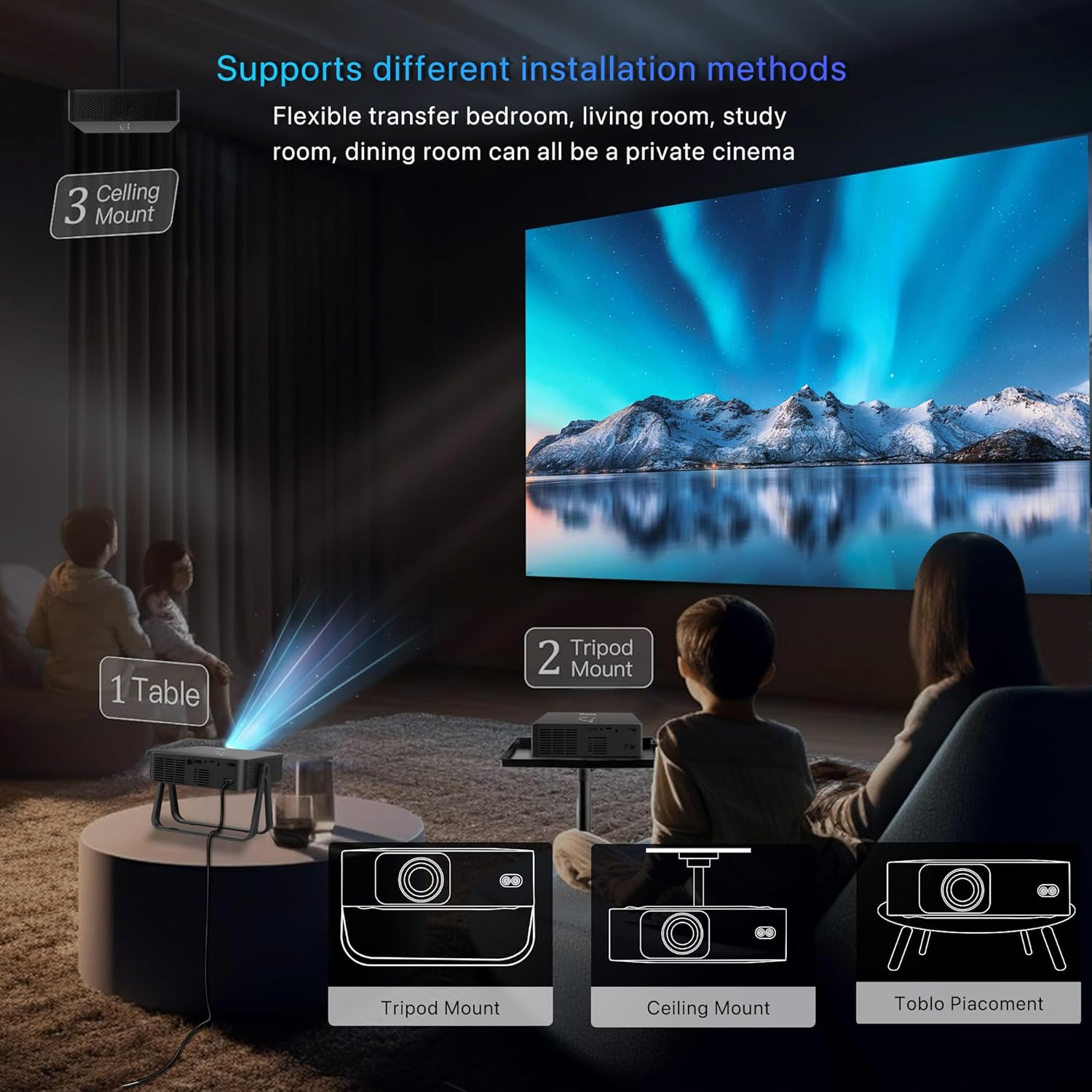
Image: An illustration depicting various installation methods for the projector, including tabletop, tripod mount, and ceiling mount, suitable for different room setups.
Projection Size and Distance
The projector can adapt to various projection sizes depending on the distance from the screen, ranging from 50 inches to 300 inches. Refer to the table below for recommended projection distances.

Image: A chart illustrating the relationship between projection size (50"-300") and the required projection distance, providing guidance for optimal setup in various scenarios.
8. Maintenance
Cleaning the Lens
Use a soft, lint-free cloth specifically designed for optical lenses to gently wipe the projector lens. Avoid using abrasive cleaners or excessive force, as this can scratch the lens.
Ventilation
Ensure the projector's ventilation openings are clear and unobstructed. Do not place the projector on soft surfaces that may block airflow. Regularly check for dust accumulation and gently clean the vents with a soft brush or compressed air.
Storage
When not in use for extended periods, store the projector in a cool, dry place, away from direct sunlight and extreme temperatures. It is recommended to cover the lens to protect it from dust.
9. Troubleshooting
If you encounter issues with your VenirCool N5 Essential Mini Projector, please refer to the following common problems and solutions:
| Problem | Possible Cause | Solution |
|---|---|---|
| No image displayed | Power cable disconnected, incorrect input source, lens cap on. | Check power connection, select correct input source, remove lens cap. |
| Image is blurry | Out of focus, incorrect keystone correction. | Adjust focus using the focus ring or remote, perform keystone correction. |
| No sound | Volume too low, incorrect audio output selected, external speaker not connected. | Increase volume, check audio output settings, ensure Bluetooth speaker is paired. |
| Cannot connect to WiFi | Incorrect password, out of range, router issue. | Verify password, move closer to router, restart router and projector. |
| Remote control not working | Dead batteries, obstruction. | Replace batteries, ensure no obstruction between remote and projector's IR receiver. |
If the problem persists after trying these solutions, please contact customer support.
10. Specifications
Below are the technical specifications for the VenirCool N5 Essential Mini Projector:
- Brand: VenirCool
- Model Number: N5 Essential
- Item Weight: 2.64 pounds
- Product Dimensions: 7 x 10 x 10 inches (approximate, as per product data)
- Native Display Resolution: 1280 x 720 (720P)
- Max Display Support: 4096 x 2160 (4K)
- ISO Lumens: 5000
- ANSI Lumens: 330
- Rotation: 360°
- Special Features: Short Throw, Speakers, Native 720P, 360° Rotation, Max Display 4K, 5000 ISO Lumens, 330 ANSI Lumens
- Connectivity Technology: Wireless (WiFi, Bluetooth)
- Recommended Uses: Indoor
11. Warranty and Support
The VenirCool N5 Essential Mini Projector comes with a manufacturer's warranty. For specific warranty details, please refer to the warranty card included in your product packaging or visit the official VenirCool website.
For technical support, troubleshooting assistance, or any inquiries regarding your product, please contact VenirCool customer service through the contact information provided on the official website or your purchase platform.