
1. Introduction
The RF Explorer WSUB1G is a handheld digital spectrum analyzer designed for professionals working across various popular ISM frequency bands. It provides wide band coverage for sub-1GHz ISM bands, specifically from 240MHz to 960MHz. This device is an essential tool for applications in Ham Radio, wireless device analysis, WiFi network diagnostics, and for audio engineers.

Figure 1: The RF Explorer WSUB1G handheld spectrum analyzer with its included telescopic antenna.
2. Key Features
- Handheld Digital Spectrum Analyzer: An essential tool for professionals in various RF applications.
- Wide Band Coverage: Covers all popular sub-1GHz ISM bands, specifically from 240MHz to 960MHz.
- Included Antenna: Comes with a dual-band telescopic 144/430MHz wideband telescopic antenna.
- Dynamic Range: -115dBm to 0dBm.
- Absolute Max Input Power: +5dBm.
- Average Noise Level (typical): -110dBm.
- Frequency Stability and Accuracy (typical): ±10ppm.
- Protective Carrying Case: Includes an EVA carrying case to protect the device and organize components.
3. Setup
- Charging the Device: The RF Explorer WSUB1G includes a Lithium Ion battery. Before first use, ensure the device is fully charged using the provided USB 2.0 port. Connect the device to a standard USB power source.
- Attaching the Antenna: Carefully screw the dual-band telescopic antenna onto the antenna connector (RF 50Ω) located on the top of the device. Ensure it is securely fastened but do not overtighten.
- Powering On: Locate the ON/OFF switch on the top right side of the device. Slide the switch to the "ON" position to power on the spectrum analyzer.
- Initial Screen: Upon powering on, the device display will show the main operating screen.
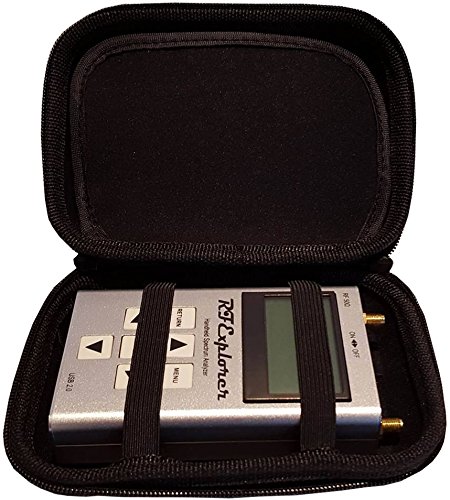
Figure 2: The RF Explorer WSUB1G stored securely in its EVA carrying case.
4. Operating Instructions
The RF Explorer WSUB1G features a simple button interface for navigation and control. The main controls include RETURN, ENTER, MENU, and directional arrow buttons.
- Navigation: Use the UP/DOWN arrow buttons to scroll through options or adjust values. Use the LEFT/RIGHT arrow buttons to navigate between different parameters or screens.
- Selection: Press the ENTER button to confirm a selection or enter a menu.
- Menu Access: Press the MENU button to access the main menu, where you can configure settings, select frequency ranges, and choose display modes.
- Returning: Press the RETURN button to go back to the previous screen or exit a menu.
- Frequency Range Selection: Within the menu, navigate to frequency settings to define the start and stop frequencies for your scan. The device supports 240MHz to 960MHz.
- Display Modes: Explore different display modes available in the menu, such as spectrum view, waterfall display, or peak hold, to best visualize the RF environment.
- Connecting to PC: The USB 2.0 port can be used to connect the RF Explorer to a computer for advanced analysis, firmware updates, and data logging using compatible software (software not included, typically available from manufacturer's website).
5. Maintenance
- Cleaning: Use a soft, dry cloth to clean the device. Do not use abrasive cleaners or solvents.
- Storage: When not in use, store the RF Explorer WSUB1G in its provided EVA carrying case to protect it from dust, impacts, and scratches.
- Battery Care: To prolong battery life, avoid fully discharging the battery frequently. If storing for extended periods, charge the battery to approximately 50% and recharge every few months.
- Antenna Care: Handle the antenna carefully. Avoid bending or applying excessive force to prevent damage.
6. Troubleshooting
- Device Not Powering On:
- Ensure the battery is charged. Connect the device to a USB power source and allow it to charge for at least 30 minutes.
- Verify the ON/OFF switch is fully in the "ON" position.
- No Signal Detected:
- Check that the antenna is securely connected to the RF 50Ω port.
- Ensure the frequency range settings are appropriate for the signals you are trying to detect.
- Verify that there are actual RF signals present in the environment within the device's operating frequency range.
- Display Issues:
- If the display is frozen or unresponsive, try powering the device off and then on again.
- Ensure the device is not exposed to extreme temperatures.
- Connectivity Issues with PC:
- Ensure the USB cable is properly connected to both the device and the computer.
- Verify that the necessary drivers (if any) are installed on your computer. Refer to the manufacturer's website for driver and software information.
For further assistance, please refer to the support section or contact EMR Shielding Solutions directly.
7. Specifications
| Feature | Specification |
|---|---|
| Model | WSUB1G |
| Frequency Coverage | 240MHz to 960MHz (sub-1GHz ISM bands) |
| Dynamic Range | -115dBm to 0dBm |
| Absolute Max Input Power | +5dBm |
| Average Noise Level (typical) | -110dBm |
| Frequency Stability and Accuracy (typical) | ±10ppm |
| Battery Type | 1 Lithium Ion battery (included) |
| Connectivity | USB 2.0 |
| Package Dimensions | 6.89 x 4.88 x 3.39 inches |
| Weight | 13.62 ounces |
| Manufacturer | EMR Shielding Solutions |
8. Warranty and Support
For information regarding product warranty, technical support, or service, please contact EMR Shielding Solutions directly. You can typically find contact information and support resources on their official website.
EMR Shielding Solutions
Visit EMR Shielding Solutions on Amazon