1. Introduction
Thank you for choosing the QZUKOY QZ-K618 RGB Backlit Gaming Keyboard and Mouse Set. This manual provides detailed instructions for setting up, operating, and maintaining your new gaming peripherals. Please read this manual thoroughly before use to ensure optimal performance and longevity of your product.
2. Product Features
- RGB Backlighting: Features 16 vibrant lighting modes with customizable effects, including 7 monochrome options, easily switchable using FN + number keys for personalized gaming ambiance.
- Ergonomic Design: Includes built-in wrist support and phone/card holder for maximum comfort during extended gaming sessions.
- Gaming Bundle: Complete set includes a matching RGB gaming mouse with precision tracking and complementary lighting effects.
- Keyboard Features: Full-size layout with dedicated multimedia controls and anti-ghosting technology for reliable keystroke registration.
- Versatile Compatibility: Works seamlessly with Windows systems, plug-and-play setup without requiring additional software installation.
3. Package Contents
- QZUKOY RGB Backlit Gaming Keyboard
- QZUKOY RGB Gaming Mouse
- User Manual
4. Setup Instructions
The QZUKOY QZ-K618 Gaming Keyboard and Mouse Set is designed for plug-and-play functionality with Windows operating systems.
- Connect the Keyboard: Locate an available USB port on your computer. Plug the USB connector of the keyboard into the USB port.
- Connect the Mouse: Locate another available USB port on your computer. Plug the USB connector of the mouse into the USB port.
- Driver Installation: Your computer should automatically detect and install the necessary drivers. This process may take a few moments. No additional software installation is required.
- Verify Connection: Once drivers are installed, the keyboard and mouse backlighting should illuminate, indicating a successful connection.
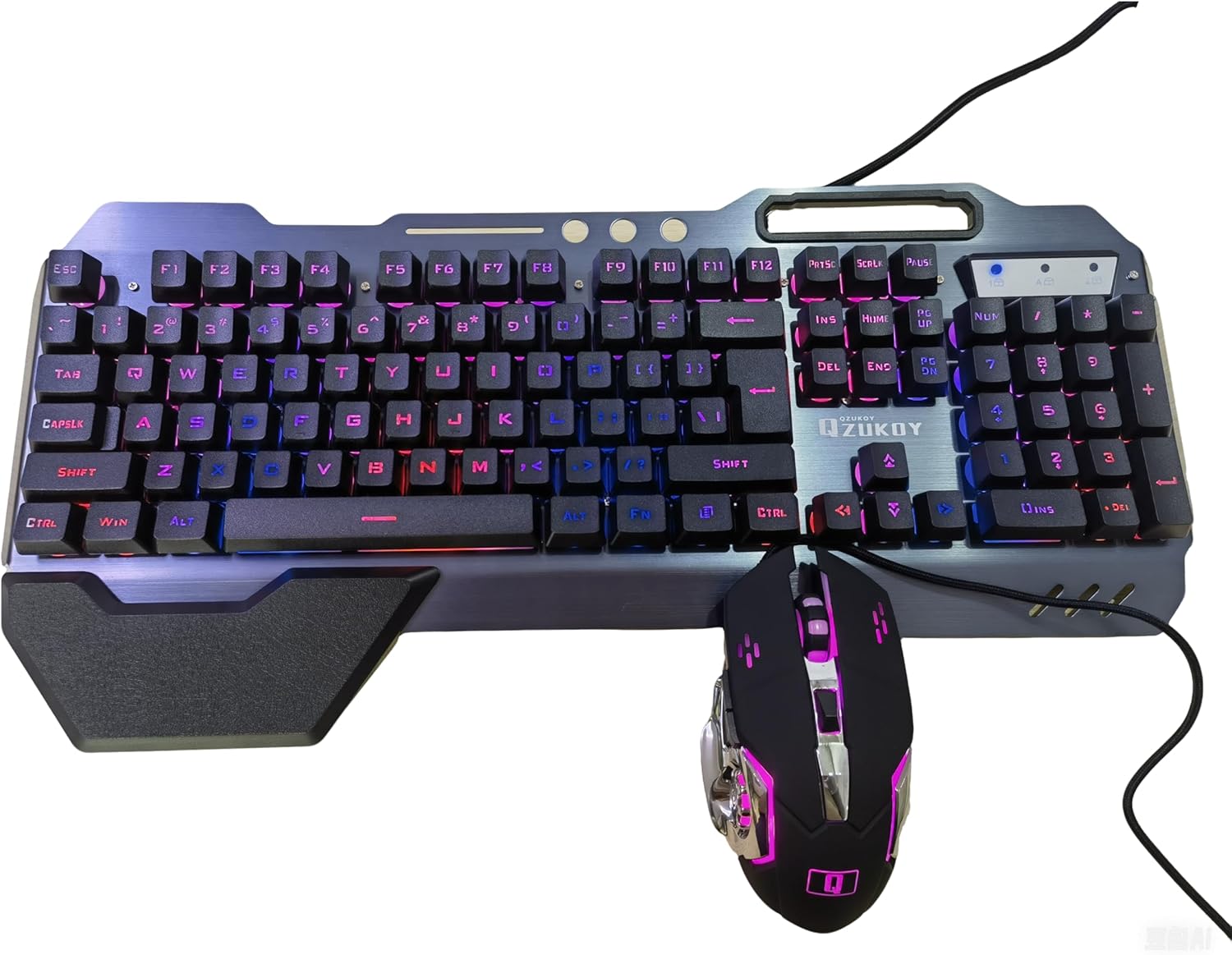
Image: The QZUKOY RGB Gaming Keyboard and Mouse Set connected and illuminated, ready for use.
5. Operating Instructions
5.1 Keyboard Functions
- RGB Backlight Control:
- Press FN + 1-0 to cycle through 16 different backlight effects.
- Press FN + 4 to switch between 7 monochrome backlight options.
- Multimedia Shortcuts: Use the FN key in combination with the F-keys for quick access to multimedia functions.
Key Combination Function FN + F1 Open Media Player FN + F2 Volume Down FN + F3 Volume Up FN + F4 Mute FN + F5 Stop Playback FN + F6 Previous Track FN + F7 Play/Pause FN + F8 Next Track FN + F9 Open Email FN + F10 Open Web Browser Home Page FN + F12 Open Calculator - Anti-Ghosting: The keyboard features anti-ghosting technology to ensure accurate registration of multiple simultaneous key presses, crucial for gaming.
- Ergonomic Wrist Rest: The keyboard includes a magnetic and detachable wrist rest for enhanced comfort during prolonged use. Attach or detach as preferred.
- Integrated Phone/Card Holder: Utilize the slots at the top of the keyboard to hold your smartphone or cards for convenient access.
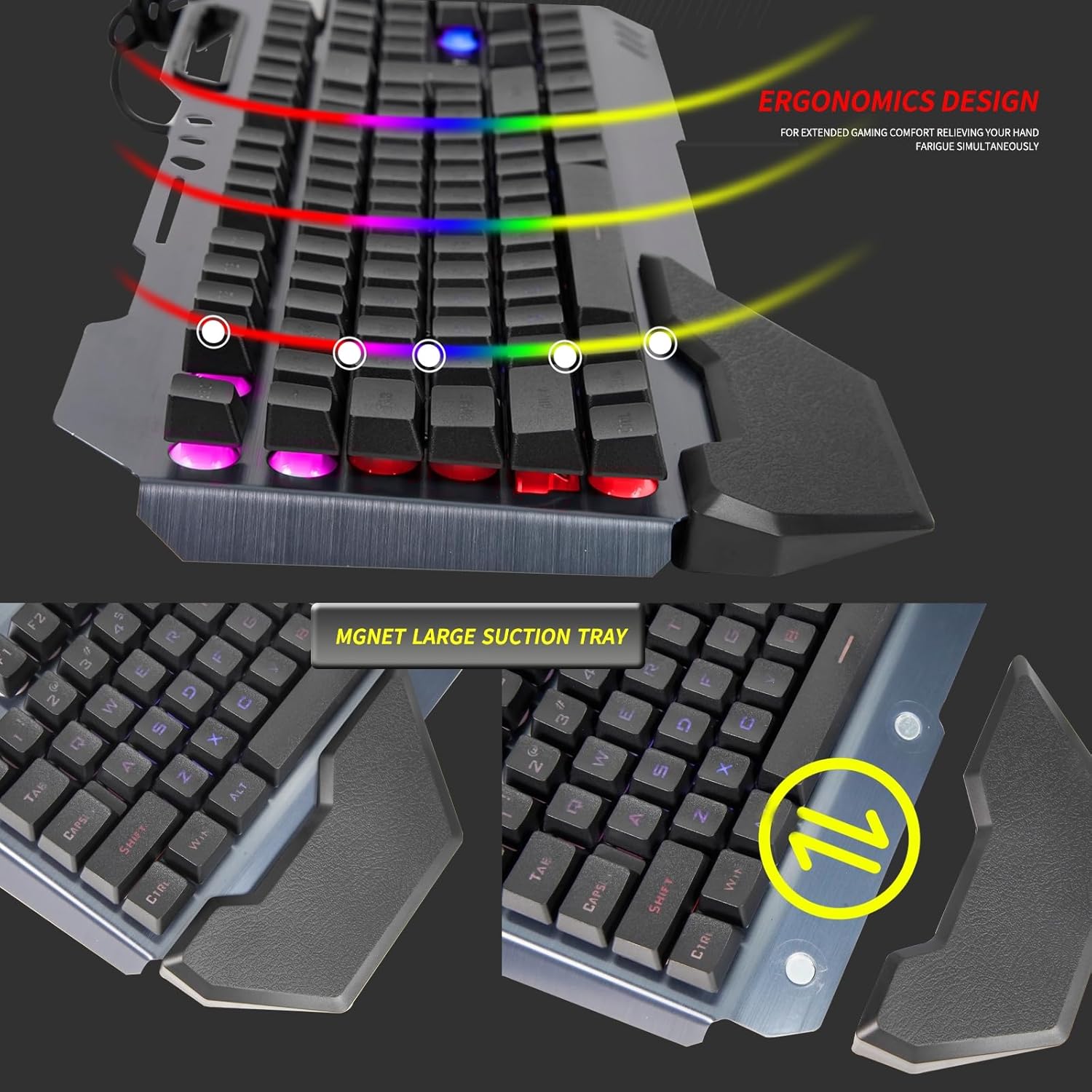
Image: The QZUKOY RGB Gaming Keyboard showcasing its integrated phone holder and ergonomic wrist rest.
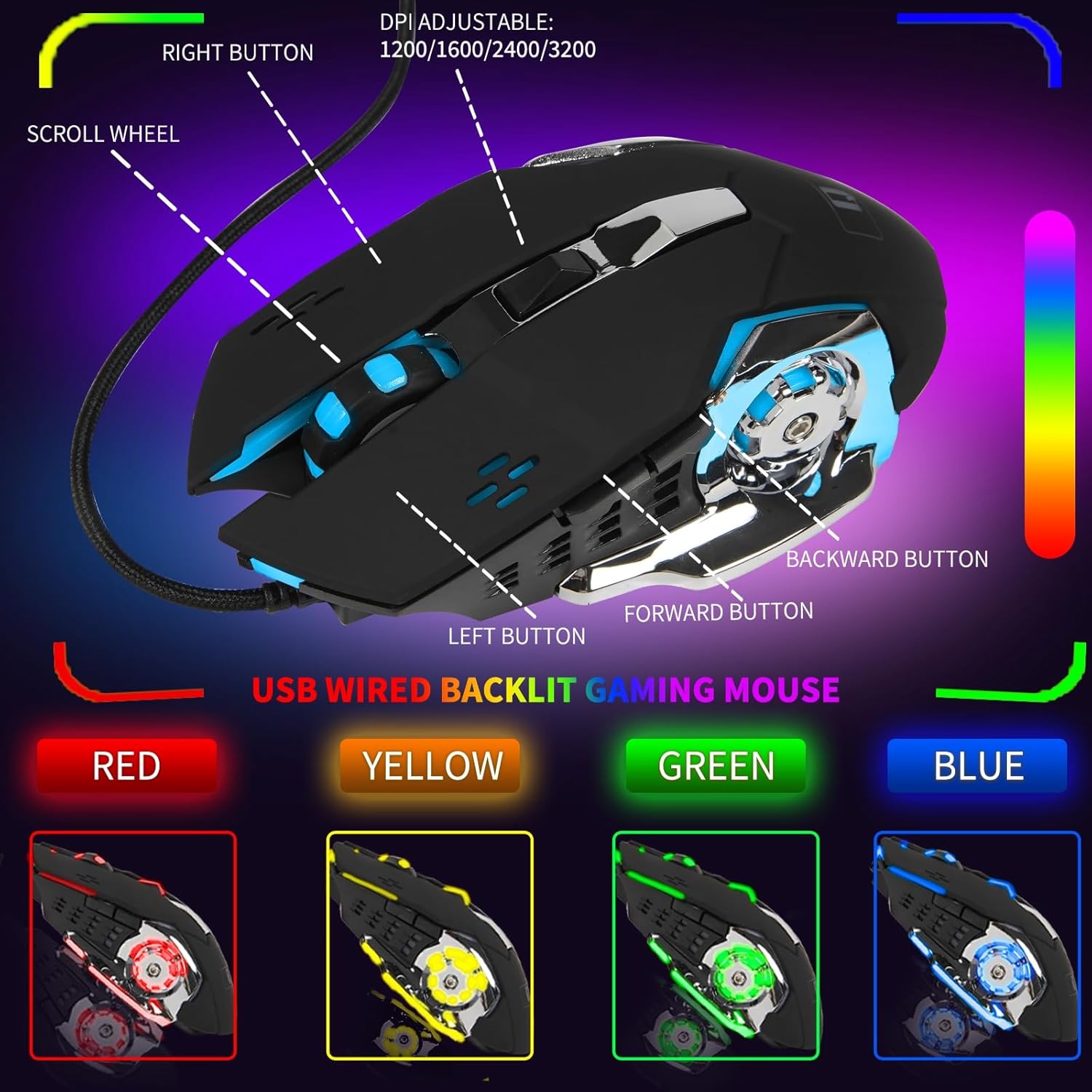
Image: A visual representation of the 16 different RGB backlight modes available on the QZUKOY Gaming Keyboard.
5.2 Mouse Functions
- DPI Adjustment: The mouse features a dedicated DPI button to cycle through different sensitivity levels (e.g., 1200/1600/2400/3200 DPI). Press the DPI button to change sensitivity.
- RGB Lighting: The mouse also features RGB lighting. To adjust mouse lighting:
- Press and hold the forward side button (left side of the mouse) while clicking the DPI button to cycle through color options.
- Press and hold the backward side button (left side of the mouse) while clicking the DPI button to cycle through two levels of dimming or turn off the lights.
- The mouse lighting typically features a "breathing" effect, slowly dimming and brightening.
- 4-Button Design: The mouse includes left-click, right-click, scroll wheel, and DPI adjustment buttons for versatile control.
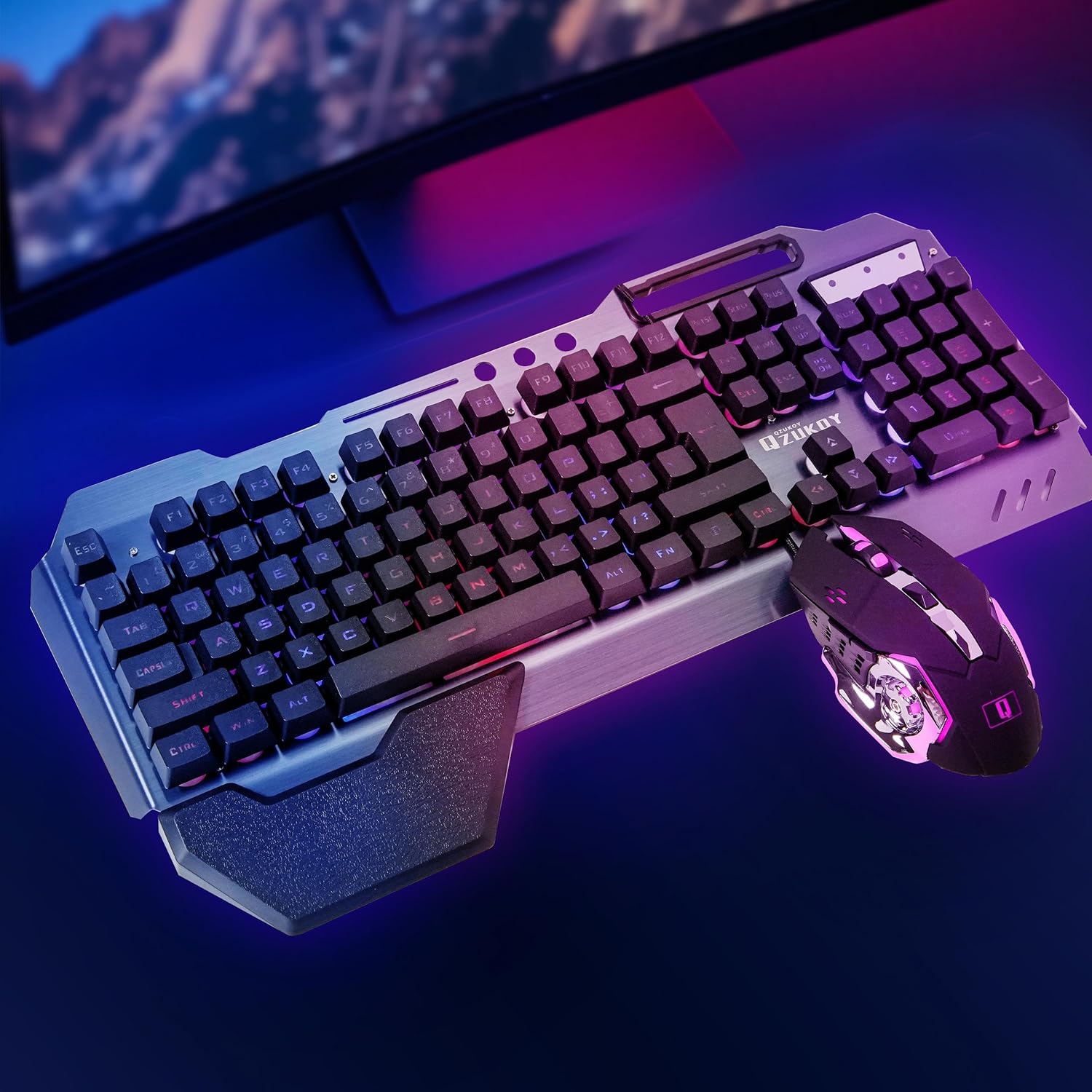
Image: The QZUKOY RGB Gaming Mouse, highlighting its buttons and adjustable DPI settings.
6. Maintenance and Care
- Cleaning: Use a soft, dry cloth to clean the surfaces of the keyboard and mouse. For stubborn dirt, a slightly damp cloth can be used, ensuring no liquid enters the device.
- Avoid Liquids: Do not expose the keyboard or mouse to excessive moisture or liquids.
- Storage: Store the devices in a cool, dry place away from direct sunlight when not in use for extended periods.
- Cable Care: Avoid sharp bends or excessive pulling on the USB cables to prevent damage. The braided cables are designed for durability.
7. Troubleshooting
| Problem | Possible Cause | Solution |
|---|---|---|
| Keyboard/Mouse not responding | Loose USB connection, faulty USB port, driver issue. |
|
| Backlighting not working | Lighting mode turned off, power issue. |
|
| Mouse cursor erratic or unresponsive | Dirty sensor, incorrect DPI setting, surface issue. |
|
8. Specifications
| Feature | Detail |
|---|---|
| Product Dimensions | 18 x 8.26 x 1.18 inches (Keyboard) |
| Item Weight | 2.5 pounds (Combined) |
| Model Number | QZ-K618 |
| Connectivity Technology | USB, Wired |
| Keyboard Backlight | RGB, 16 Lighting Modes (7 monochrome options) |
| Mouse DPI | Adjustable (e.g., 1200/1600/2400/3200) |
| Mouse Buttons | 4 (Left, Right, Scroll, DPI) |
| Special Features | Ergonomic Design, Phone Holder, Wrist Rest, Anti-Ghosting |
| Compatible Devices | Laptop, Personal Computer (Windows OS) |
| Manufacturer | XINMENG |
9. Product Demonstration Video
Video: This official product video from QZUKOY demonstrates the RGB lighting effects, ergonomic features, and overall design of the QZ-K618 Gaming Keyboard and Mouse Set.
10. Warranty and Support
For warranty information and customer support, please refer to the contact details provided by your retailer or visit the official QZUKOY website. Keep your purchase receipt for warranty claims.
Typical return policy: 30 days for refund/replacement.
For further assistance, you may contact the seller, "QZUKOY official store".