1. Introduction
This manual provides essential information for the proper setup, operation, and maintenance of your BEYNIVAN L60-EEA 10-inch Android 14 Tablet. Please read this manual thoroughly before using the device to ensure optimal performance and longevity.
2. Package Contents
Verify that all items listed below are included in your package. If any items are missing or damaged, please contact customer support.

Image: The BEYNIVAN L60-EEA tablet displayed with its accompanying accessories, which include a Bluetooth keyboard, wireless mouse, charger, stylus pen, OTG interface, data cable, and a protective case.
- BEYNIVAN L60-EEA 10-inch Tablet
- Bluetooth Keyboard
- Wireless Mouse
- Protective Case
- Stylus Pen
- Charger
- USB-C Data Cable
- OTG Interface Adapter
- User Manual (this document)
3. Setup
3.1 Initial Power On
- Press and hold the Power button located on the side of the tablet until the BEYNIVAN logo appears on the screen.
- Follow the on-screen prompts to complete the initial setup, including language selection, Wi-Fi connection, and Google account login.
3.2 SIM Card and MicroSD Card Installation
The tablet supports dual SIM cards (Nano-SIM) and a MicroSD card for expandable storage.

Image: A detailed view of the tablet's side, illustrating the insertion of a SIM card into the dedicated slot, which also supports MicroSD expansion.
- Locate the SIM/MicroSD card tray on the side of the tablet.
- Use the provided SIM ejector tool to gently push into the small hole next to the tray until it pops out.
- Place your Nano-SIM card(s) and/or MicroSD card into the tray with the gold contacts facing down, ensuring they are correctly aligned.
- Carefully reinsert the tray into the tablet.
3.3 Network Connection
- Wi-Fi: Go to Settings > Network & internet > Wi-Fi, turn on Wi-Fi, and select your desired network. Enter the password if required. The tablet supports 2.4GHz and 5GHz dual-band Wi-Fi.
- Mobile Data (4G LTE): After installing a SIM card, go to Settings > Network & internet > Mobile network to enable mobile data and configure APN settings if necessary.
- Bluetooth: For connecting accessories like the included keyboard and mouse, go to Settings > Connected devices > Bluetooth, turn on Bluetooth, and pair with your devices.
4. Operating Instructions
4.1 Android 14 Features
Your BEYNIVAN L60-EEA tablet runs on Android 14, offering enhanced performance, privacy, and customization options.
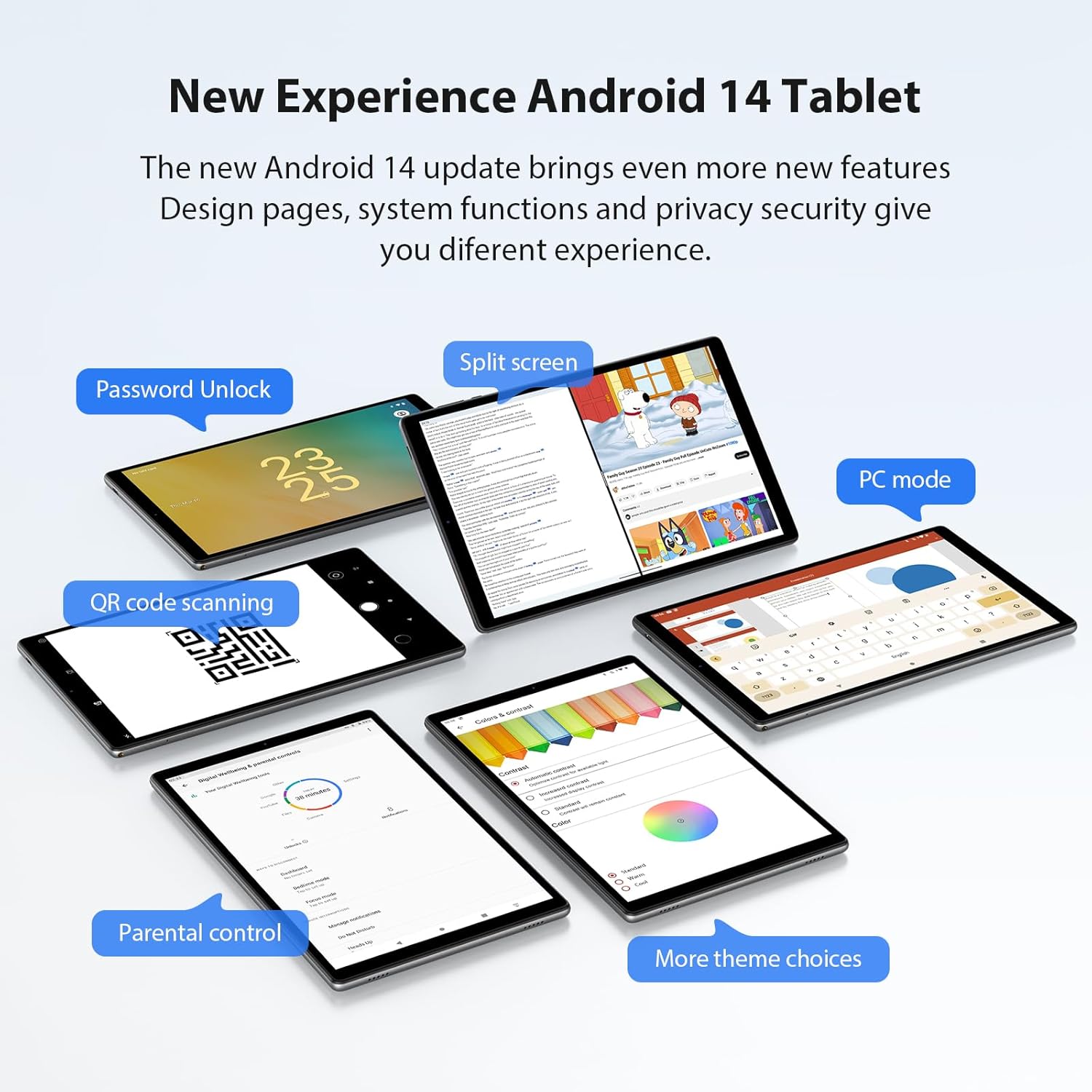
Image: Multiple tablet screens showcasing Android 14 functionalities such as password unlock, split-screen multitasking, PC mode, QR code scanning, parental controls, and diverse theme options.
- Split Screen: To use two apps simultaneously, open a recent apps view, tap the app icon at the top of one app, and select 'Split screen'. Choose another app to open in the second pane.
- PC Mode: Connect the included keyboard and mouse to transform your tablet into a more desktop-like experience for productivity tasks.
- Parental Control: Manage app usage and content access for children through the device settings.
- Customization: Explore new UI enhancements, personalized settings, and theme choices to tailor your tablet experience.
4.2 Face ID Unlock
The tablet supports Face ID for quick and secure unlocking.
- Go to Settings > Security & privacy > Face unlock.
- Follow the on-screen instructions to register your face.
- Once registered, you can unlock your tablet by simply looking at the front camera.
4.3 Wireless Projection
Cast your tablet's screen to a compatible external display (e.g., smart TV) for a larger viewing experience.
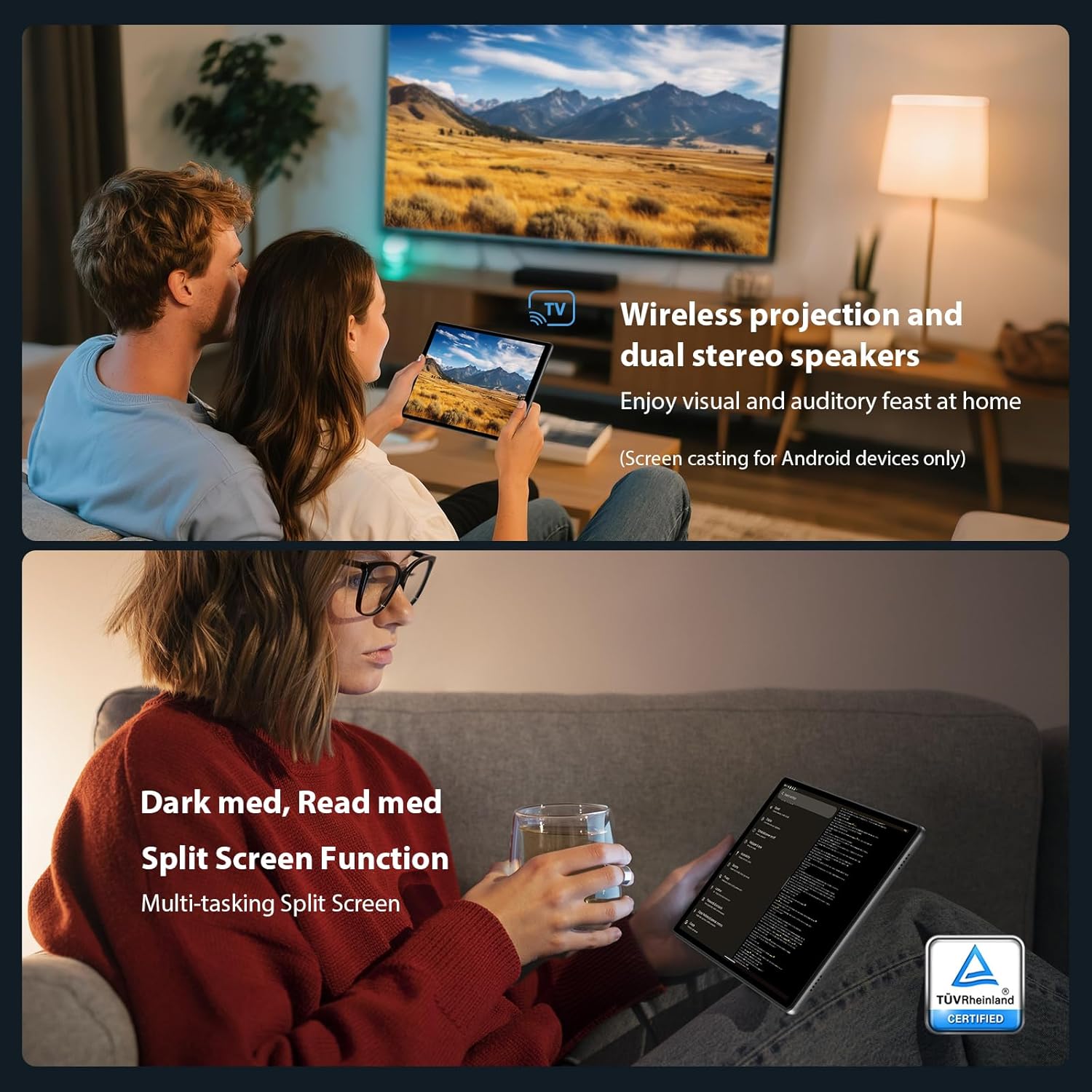
Image: A couple enjoying media content from their tablet, which is wirelessly mirrored onto a large television screen, demonstrating the wireless projection feature.
- Ensure your tablet and the external display are connected to the same Wi-Fi network.
- Go to Settings > Connected devices > Cast.
- Select your desired display from the list of available devices.
5. Features Overview

Image: An infographic detailing the main features of the BEYNIVAN L60-EEA tablet, including its operating system, display technology, security features, physical design, connectivity, battery capacity, camera specifications, navigation, and memory configuration.
- Display: 10-inch FHD (1920 x 1200) Incell Full View screen with TÜV certification for eye protection.
- Processor: MediaTek Octa-core processor.
- Memory & Storage: 36GB RAM (12GB physical + 24GB virtual) and 128GB internal storage, expandable up to 1TB via MicroSD card.
- Cameras: 13MP Rear Camera and 8MP Front Camera.
- Audio: Four amplitude stereo speakers with AI noise cancellation technology.
- Battery: 8000mAh battery with intelligent AI power management for extended usage.
- Connectivity: Dual-band 2.4GHz/5GHz Wi-Fi, 4G LTE (dual SIM support), Bluetooth 5.0, GPS.
- Operating System: Android 14.
6. Maintenance
- Cleaning: Use a soft, lint-free cloth to clean the screen and body of the tablet. Avoid using harsh chemicals or abrasive materials.
- Battery Care: To prolong battery life, avoid fully discharging the tablet frequently. Charge the device using the provided charger.
- Software Updates: Regularly check for and install system updates to ensure optimal performance, security, and access to new features.
- Storage Management: Periodically clear unnecessary files and applications to maintain sufficient storage space and device speed.
7. Troubleshooting
| Issue | Possible Solution |
|---|---|
| Tablet does not power on | Ensure the battery is charged. Connect the charger and wait a few minutes before attempting to power on again. If unresponsive, perform a forced restart by holding the Power button for 10-15 seconds. |
| Wi-Fi connection issues | Check if Wi-Fi is enabled in settings. Restart your router and the tablet. Forget the network and reconnect. Ensure you are within range of the Wi-Fi signal. |
| Slow performance | Close unused applications. Clear cache for frequently used apps. Restart the tablet. Check for available storage space and free up if necessary. |
| Battery drains quickly | Reduce screen brightness. Disable unused features like GPS, Bluetooth, or Wi-Fi when not needed. Close background apps. Check battery usage in settings to identify power-consuming apps. |
| Accessories (keyboard/mouse) not connecting | Ensure Bluetooth is enabled on the tablet and the accessories are in pairing mode. Check battery levels of the accessories. Re-pair the devices. |
8. Specifications
| Feature | Specification |
|---|---|
| Brand | BEYNIVAN |
| Model Name | L60-EEA |
| Operating System | Android 14 |
| Screen Size | 10 Inches |
| Screen Resolution | 1920 x 1200 (FHD Incell) |
| Processor Manufacturer | MediaTek |
| RAM | 36 GB (Installed) |
| Storage Capacity | 128 GB (Expandable) |
| Wireless Connectivity | Wi-Fi (802.11ac, Dual-band 2.4GHz/5GHz), 4G LTE, Bluetooth 5.0 |
| Battery Capacity | 8000 mAh |
| Cameras | 13MP Rear, 8MP Front |
| Dimensions | 24 x 15 x 0.85 cm |
| Weight | 1.33 kg |
| Special Features | Personalized Tablet, AI Smart Functions, Includes Keyboard and Mouse |
9. Warranty and Support
BEYNIVAN offers 24-hour after-sales service to address any issues you may encounter with your tablet. If you have problems such as missing accessories or a defective tablet, please do not hesitate to contact us through Amazon's email system. We are committed to resolving your concerns promptly.
For further assistance, please refer to the contact information provided with your purchase or visit the official BEYNIVAN support channels.