
1. Introduction to Your BlindShell Classic 3
The BlindShell Classic 3 is a mobile phone specifically designed for blind and visually impaired individuals. It features a simple, intuitive interface with tactile buttons, a loud speaker, and voice control for ease of use. This manual will guide you through the phone's features and functions.
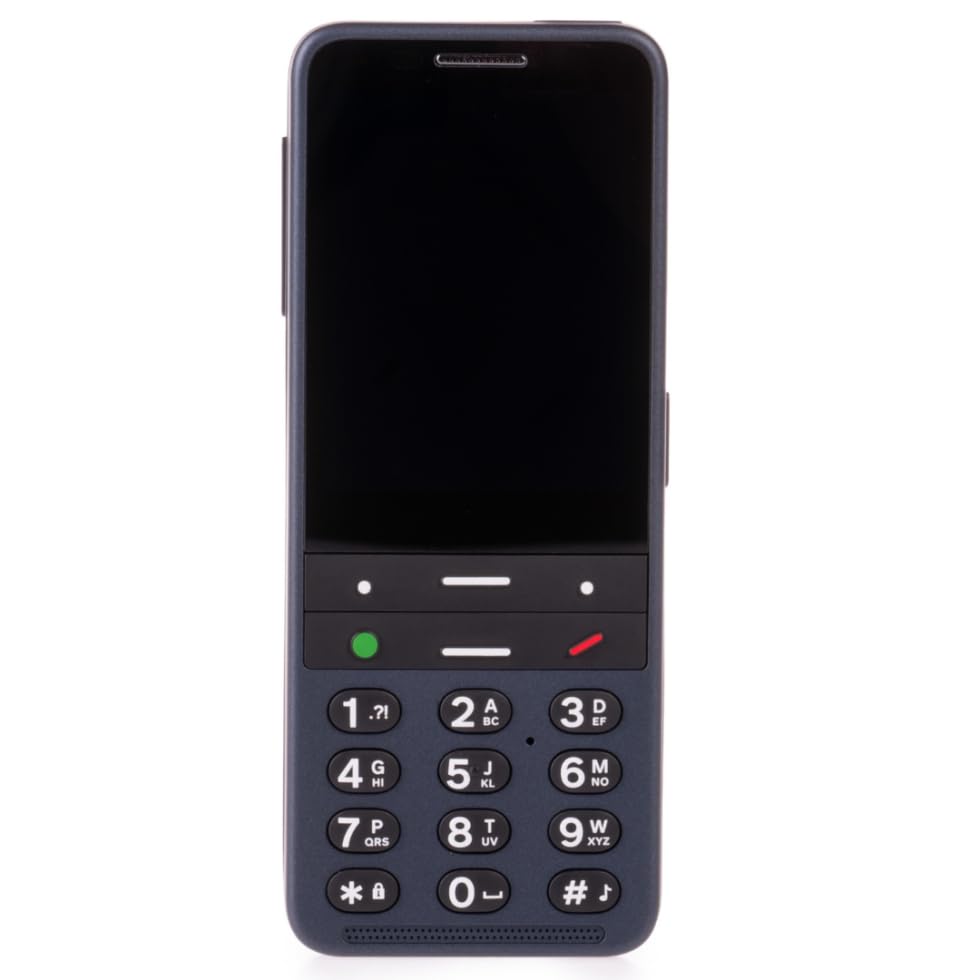
Image: Front view of the BlindShell Classic 3 phone, highlighting its large display and tactile keypad.
Key features include voice operation for calls and messages, an advanced AI assistant named Luna, and an SOS button for emergencies. The phone is unlocked and compatible with all major 4G carriers.
Video: A detailed overview of the BlindShell Classic 3 phone's features and user interface.
2. What's in the Box
Upon opening your BlindShell Classic 3 package, you should find the following items:
- BlindShell Classic 3 Phone
- Power Adapter
- USB Cable
- Charging Cradle
- Earphones

Image: All items included in the BlindShell Classic 3 product packaging.
3. Setup Guide
3.1. Inserting the SIM Card and Battery
- Carefully remove the back cover of the phone.
- Insert your 4G compatible SIM card(s) into the designated slot(s). The BlindShell Classic 3 supports dual SIM cards.
- Insert the included Lithium Ion battery into its compartment, ensuring the contacts align.
- Replace the back cover securely.
3.2. Initial Charging
Before first use, fully charge your BlindShell Classic 3 phone.
- Connect the USB cable to the power adapter.
- Plug the power adapter into a wall outlet.
- Connect the USB cable to the phone's charging port or place the phone in the charging cradle.
- The phone will indicate when charging is complete.
3.3. Powering On/Off
- To power on: Press and hold the red button until the phone vibrates and the BlindShell logo appears.
- To power off: Long-press the red button. A menu will appear. Navigate to "Turn off the phone" and confirm with the green button.
4. Operating Your BlindShell Classic 3
The BlindShell Classic 3 is designed for intuitive operation through tactile buttons and voice commands.
4.1. Keypad Navigation
The phone features a physical keypad with distinct buttons for easy navigation.
- Green Button: Confirm selection, answer calls.
- Red Button: Go back, cancel, end calls, long-press to return to home screen or power off.
- Up/Down Arrows: Navigate through menus and lists.
- Number Keys (0-9): Dial numbers, enter text.
- Star (*) Key: Special functions, often for symbols or settings.
- Hash (#) Key: Special functions, often for symbols or settings.

Image: Back view of the BlindShell Classic 3 phone, featuring the camera lens and the brand logo.
4.2. Voice Operation
The BlindShell Classic 3 supports extensive voice control for various tasks:
- Voice Dialing: Say a contact's name to initiate a call.
- Voice Messaging: Dictate text messages to send.
- Voice Commands: Navigate menus and open applications by speaking commands.

Image: A user enjoying the BlindShell Classic 3 phone with headphones, demonstrating its accessibility features.
4.3. AI Assistant (Luna)
Your phone includes Luna, an advanced AI assistant. Luna can help with:
- Sending messages
- Browsing the web
- Setting alarms
- Providing weather forecasts
- And more, to simplify daily tasks.
4.4. SOS Button
In case of an emergency, the dedicated SOS button sends an immediate alert to your pre-assigned contact(s). Ensure your emergency contacts are set up correctly in the phone's settings.
4.5. Remote Assistance (Tandem App)
The Tandem app allows trusted loved ones or support personnel to remotely assist you with phone settings or more complex applications, ensuring you stay connected and supported.
Video: Demonstration of the Tandem app for remote assistance on the BlindShell Classic 3.
4.6. Applications
Explore the BlindShell App Catalog for a selection of accessible applications. You can also download and use third-party apps on your BlindShell Classic 3.
Video: A quick guide to accessing and using applications on the BlindShell Classic 3.
5. Maintenance
To ensure the longevity and optimal performance of your BlindShell Classic 3 phone, follow these maintenance guidelines:
- Cleaning: Use a soft, dry cloth to clean the phone's surface. Avoid liquid cleaners or abrasive materials.
- Battery Care: Charge the battery regularly. Avoid extreme temperatures, as they can affect battery life.
- Software Updates: Periodically check for system updates in the phone's settings to ensure you have the latest features and security enhancements.
- Protection: While durable, avoid dropping the phone or exposing it to water.
6. Troubleshooting
This section addresses common issues you might encounter with your BlindShell Classic 3.
6.1. General Navigation and Voice Control Tips
The BlindShell Classic 3 is designed for voice-first interaction. While tactile buttons are present, voice commands are often the most efficient way to operate the device.
- Menu Navigation: Use the Up and Down arrow keys to scroll through menu options. Press the Green button to select an item.
- Voice Command Activation: The phone's voice assistant can be activated to perform various tasks. Speak clearly and at a moderate pace.
- Text Reading: The phone reads out screens and notifications. If the pronunciation of numbers or specific phrases is unclear, ensure your language settings are correct.
6.2. Common Scenarios and Solutions
| Problem | Solution |
|---|---|
| Phone does not turn on. | Ensure the battery is correctly inserted and fully charged. Connect the phone to the charger for at least 30 minutes before attempting to power on again. |
| Voice commands are not recognized. | Speak clearly and directly into the microphone. Ensure you are in a quiet environment. Check the microphone for any obstructions. |
| Cannot make or receive calls/messages. | Verify that the SIM card is properly inserted and activated. Check your network signal strength. Ensure airplane mode is not enabled. |
| Screen reader reads notifications in one long sentence. | This is a characteristic of some screen reader settings. Explore the 'Screen reader' options in the phone's settings to adjust announcement preferences if available. |
| Difficulty sending a photo via text with voice commands. | Some advanced functions like sending multimedia may require navigating through menus using tactile buttons. Consult the 'Applications' section for specific app instructions. |
7. Specifications
Below are the technical specifications for the BlindShell Classic 3 phone:
- Model Name: Classic 3
- Operating System: Android
- Screen Size: 2.83 Inches
- Resolution: 480 x 640
- CPU Speed: 1.8 GHz
- RAM Memory: 3 GB
- Memory Storage Capacity: 128 GB
- Battery Capacity: 3000 Milliamp Hours (Lithium Ion, included)
- Connectivity: Bluetooth, Wireless (Wi-Fi), 4G Unlocked
- Special Features: Dual SIM, GPS
- Human Interface Input: Buttons, Touchscreen
- Audio Jack: 3.5 mm
- Item Weight: 1.2 pounds
- Package Dimensions: 6.9 x 3.5 x 2.75 inches

Image: Visual summary of the BlindShell Classic 3's key features and specifications.
8. Warranty Information
The BlindShell Classic 3 phone comes with a standard manufacturer's warranty. For detailed information regarding warranty coverage, terms, and conditions, please refer to the warranty card included in your product packaging or visit the official BlindShell website. This warranty typically covers manufacturing defects under normal use.
9. Support
For further assistance with setup, new features, or troubleshooting, BlindShell offers dedicated customer support.
- Online Resources: Visit the official BlindShell website for FAQs, additional guides, and software downloads.
- Customer Service: Contact our support team based in the United States via phone or email for personalized assistance. Refer to the contact information provided in your product documentation.

Image: BlindShell's commitment to outstanding customer service in the USA.


