
Product Overview
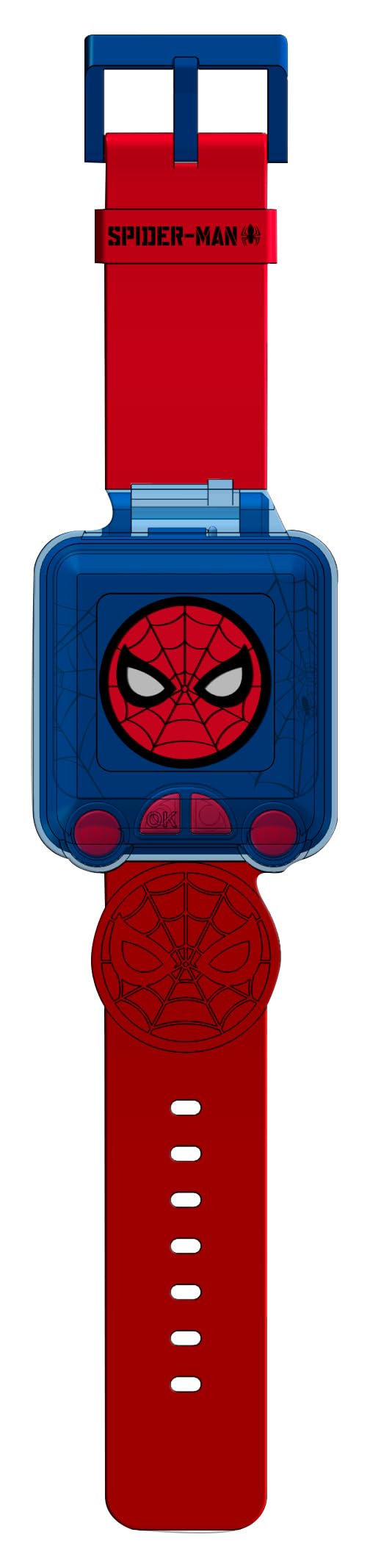
This manual provides instructions for the Kids Licensing SPD4753 Spiderman Digital Watch. This watch is designed for children and features a digital clock, alarm, stopwatch, and interactive games, all presented within a Spiderman-themed design. It is intended for informational purposes to guide users through the watch's functions and care.
Initial Setup
Setting Time and Date
To set the time and date on your SPD4753 watch, locate the control buttons on the side of the watch face. Typically, a 'Mode' or 'Set' button is used to cycle through settings, and 'Adjust' or 'OK' buttons are used to change values. Press the 'Mode' button repeatedly until the time or date setting flashes. Use the 'Adjust' buttons to change the values, then press 'Mode' again to confirm and move to the next setting. Refer to the specific button labels on your watch for precise operation.
Customizing Watch Faces
The watch offers 10 different faces for customization. Access the watch face selection menu by pressing the appropriate button, usually indicated by an icon or label related to 'Display' or 'Face'. Cycle through the available options using the adjustment buttons and confirm your selection with the 'OK' or 'Mode' button.
Operating Your Watch
Digital Clock Functions
The primary display shows the current time in a digital format. The watch automatically updates the time once set.
Alarm Function
To set an alarm, navigate to the alarm setting mode using the mode button. Adjust the hour and minute using the adjustment buttons. Confirm your alarm setting to activate it. An alarm icon will typically appear on the screen when active.
Stopwatch Function
Activate the stopwatch mode from the main menu. Use the designated buttons to start, stop, and reset the stopwatch timer. One button usually starts/stops, and another resets.
Interactive Games
The watch includes 5 interactive games. To access them, navigate to the games menu using the mode button. Select your desired game from the list using the navigation buttons and press 'OK' to start. The included games are:
- Maths games
- Three in a row (Tic-Tac-Toe)
- Memory game
- Car games
- Time teachers
Sound Options
The watch provides 5 sound options. These can typically be adjusted in the settings menu to personalize alerts and game sounds. Look for a 'Sound' or 'Volume' option within the settings.
Care and Maintenance
Cleaning
Clean the watch with a soft, dry cloth. Avoid using harsh chemicals, solvents, or abrasive materials, as these can damage the watch's finish, screen, and strap.
Water Resistance
Important: This watch is Not Water Resistant. Avoid exposing the watch to water, including rain, splashes, showering, bathing, or swimming, to prevent damage to internal components. Water exposure will void the warranty.
Battery Information
This is a digital watch. For battery replacement or service, it is recommended to contact a qualified technician or the manufacturer's support. Attempting to replace the battery yourself may damage the watch and void the warranty.
Troubleshooting
Watch Not Turning On
Ensure the watch has sufficient power. If the screen remains blank, the battery may need to be replaced or recharged. Consult the manufacturer's guidelines for battery service.
Incorrect Time Display
If the time displayed is incorrect, follow the 'Setting Time and Date' instructions in the 'Initial Setup' section to reset the time.
Buttons Unresponsive
If buttons are not responding, try restarting the watch if a reset option is available (often by holding down a specific button combination). Ensure no debris is obstructing the buttons. If the issue persists, contact customer support.
Product Specifications
| Feature | Detail |
|---|---|
| Model Number | SPD4753 |
| Brand Name | Kids Licensing |
| Character | Spiderman |
| Display Type | Digital |
| Watch Movement Type | Automatic |
| Additional Features | Interactive Games, Digital Watch, Alarm, Stopwatch |
| Strap Type | Plastic Tape |
| Clasp Type | Buckle |
| Water Resistance Level | Not Water Resistant |
| Band Material Type | Plastic |
| Case Material Type | Paper (Protective Case) |
| Crystal Material | Plastic |
| Band Color | Multicolor (Red/Blue) |
| Dial Color | Black |
| Shape | Square |
| Age Range Description | Kid |
Warranty and Support
Warranty Information
This product includes warranty information. Please refer to the documentation provided in the product packaging for details regarding warranty coverage, terms, and conditions. Keep your proof of purchase for warranty claims.
Customer Support
For further assistance, technical support, or inquiries regarding your Kids Licensing SPD4753 Spiderman Digital Watch, please contact Kids Licensing customer service. Contact details can typically be found on the product packaging, the included warranty card, or the manufacturer's official website.


