1. Product Overview
The ZIYOU LANG T96 is a versatile wireless keyboard and mouse combo designed for various computing environments. It offers multiple connectivity options, customizable backlighting, and ergonomic features for enhanced user experience.

Image 1.1: The ZIYOU LANG T96 Wireless Keyboard and Mouse Combo. This image displays the full keyboard and mouse set, highlighting its design and layout.

Image 1.2: Key features of the T96 combo. This image illustrates the dual mode connection, LED lighting, display screen, multimedia knob, PBT keycaps, battery capacity, rainbow backlight, DPI settings, and quiet keys.
2. Package Contents
Verify that all items are present in the package:
- 1x ZIYOU LANG T96 Membrane Keyboard
- 1x ZIYOU LANG T96 Wireless Mouse
- 1x USB-C Charging Cable
- 1x USB Receiver (for 2.4G wireless connection)
- 1x User Manual
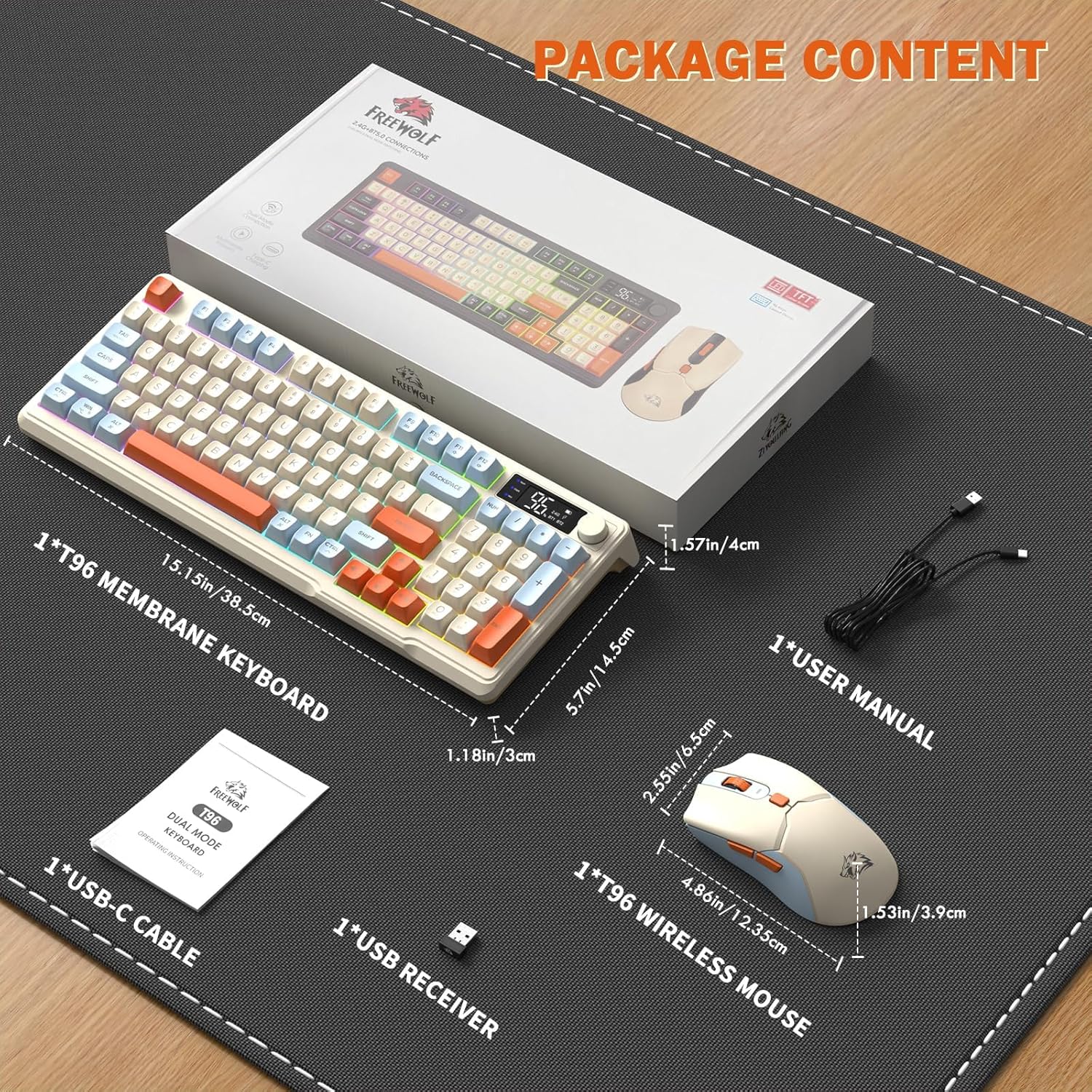
Image 2.1: Contents of the ZIYOU LANG T96 package. This image shows the keyboard, mouse, USB-C cable, USB receiver, and user manual laid out next to the product box.
3. Setup and Connectivity
3.1 Charging the Devices
Before initial use, fully charge both the keyboard and mouse using the provided USB-C cable. The keyboard has a 2000 mAh battery, and the mouse has a 500 mAh battery.
- Connect the USB-C cable to the charging port on the keyboard/mouse and the other end to a USB power source.
- The keyboard's OLED display will show the charging status.
- The mouse typically has an indicator light that changes when charging is complete.
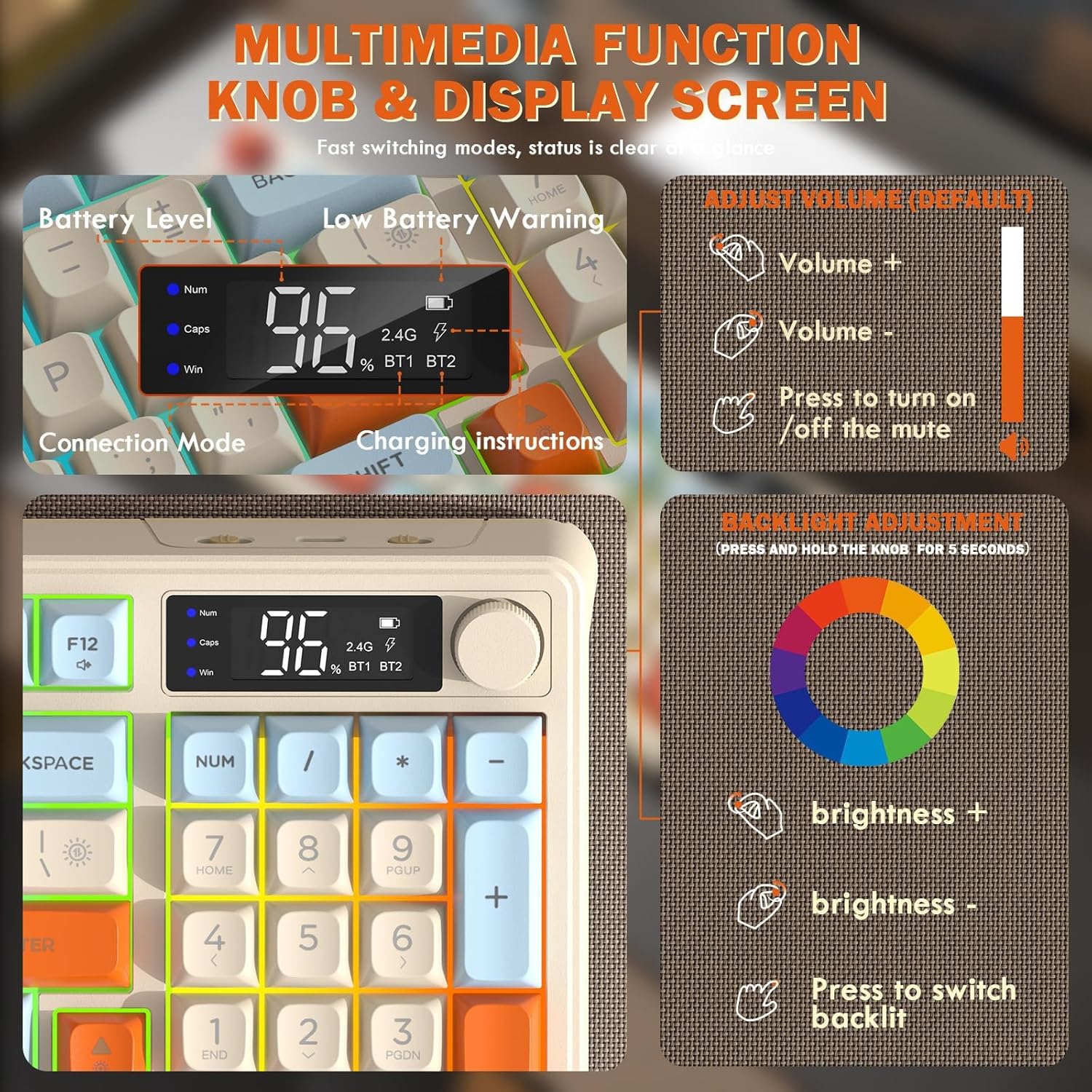
Image 3.1: Illustration of the keyboard's 2000mAh and mouse's 500mAh battery capacities, emphasizing long battery life.
3.2 Connectivity Modes
The T96 combo supports three connection modes: 2.4G Wireless, Bluetooth 1 (BT1), and Bluetooth 2 (BT2). You can connect up to three devices simultaneously and switch between them.

Image 3.2: Close-up of the keyboard's connection ports and power switch. This image shows the power switch, charging port, and indicators for 2.4G, BT1, and BT2 connections.
3.2.1 2.4G Wireless Connection
- Locate the USB receiver, typically stored in the mouse.
- Plug the USB receiver into an available USB port on your computer.
- Turn on the keyboard and mouse.
- On the keyboard, switch to 2.4G mode using the designated switch or key combination (refer to the OLED display for confirmation).
- The devices should connect automatically.
3.2.2 Bluetooth Connection (BT1 / BT2)
- Turn on the keyboard and mouse.
- On the keyboard, switch to BT1 or BT2 mode using the designated switch or key combination. The OLED display will indicate the selected Bluetooth channel.
- For first-time pairing, press and hold the Bluetooth pairing key (often Fn + BT1/BT2) until the indicator light or OLED display shows pairing mode.
- On your device (PC, laptop, tablet, smartphone), enable Bluetooth and search for "T96 Keyboard" or similar.
- Select the keyboard to pair. Repeat for the mouse if it has separate Bluetooth pairing.
- Once paired, the connection status will be shown on the keyboard's OLED display.
The mouse also features a mode switch at the bottom to toggle between 2.4G, OFF, and Bluetooth modes.
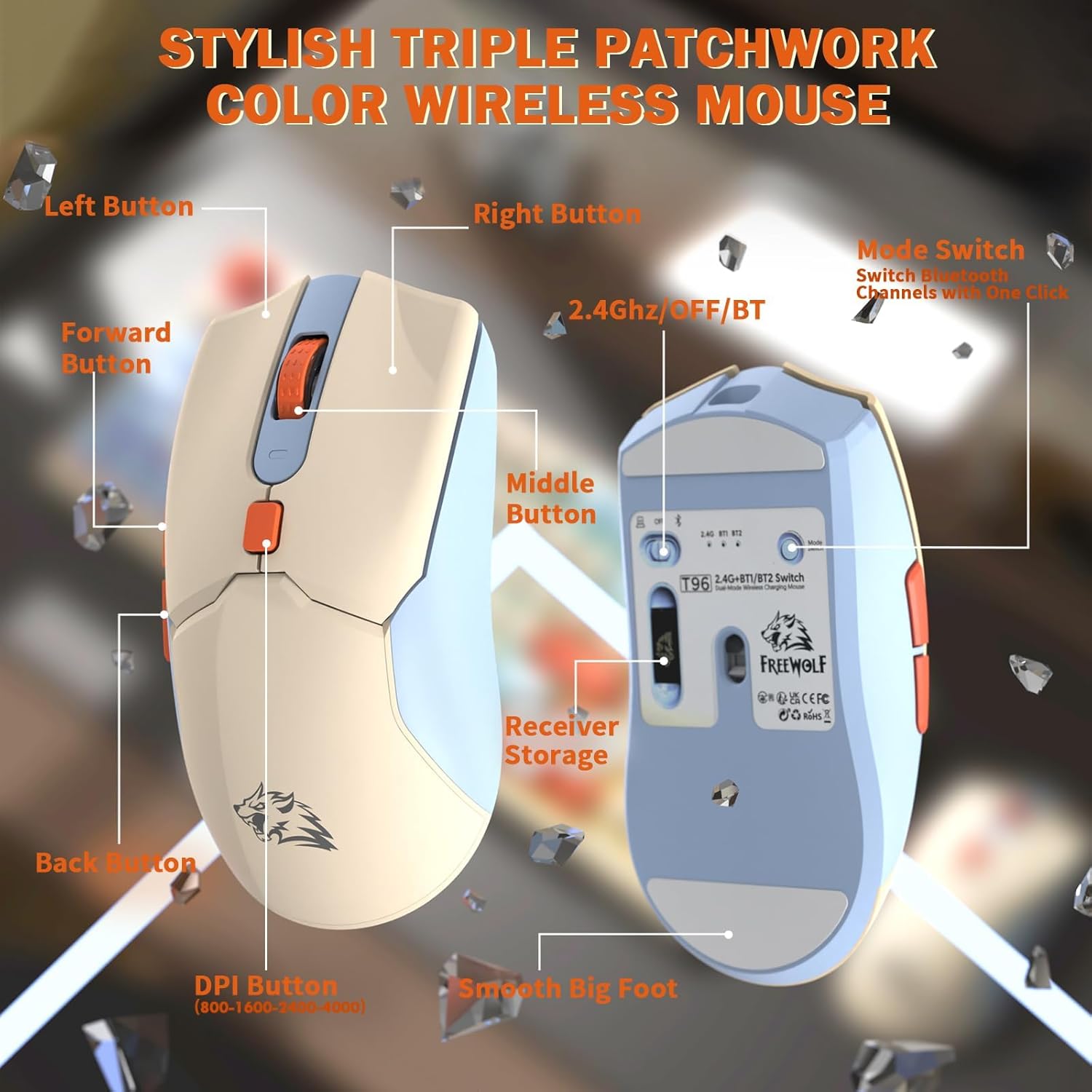
Image 3.3: Detailed view of the T96 wireless mouse, showing its buttons, receiver storage, and the 2.4G/OFF/BT mode switch on the underside.
4. Operating Instructions
4.1 Keyboard Functions
4.1.1 Smart OLED Display and Multimedia Knob
The keyboard features an integrated OLED display and a multimedia knob for quick control.
- OLED Display: Shows real-time battery level, current connection mode (2.4G, BT1, BT2), and charging status.
- Multimedia Knob:
- Rotate to adjust system volume.
- Press to mute/unmute audio.
- Press and hold for 5 seconds to enter backlight adjustment mode (color, brightness).
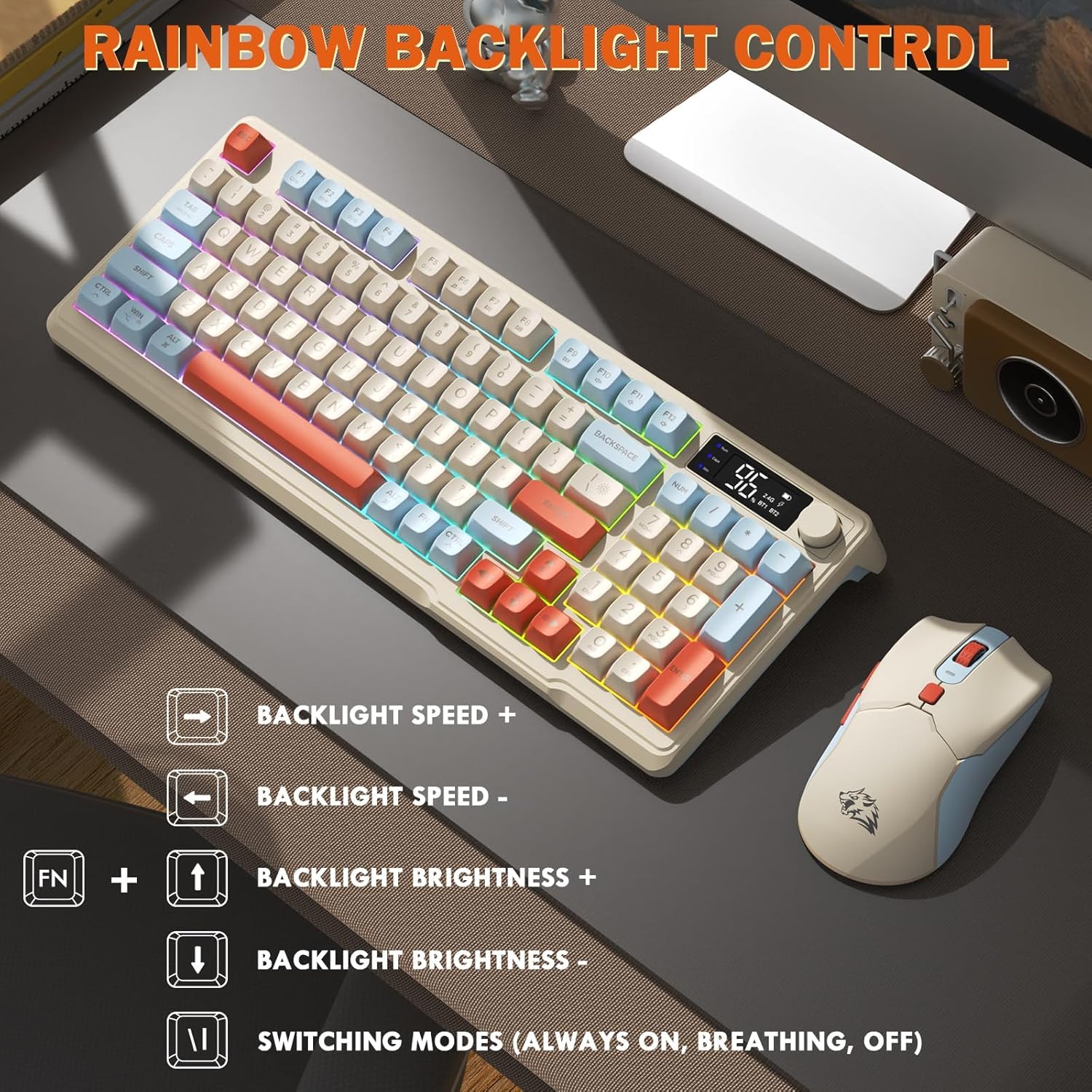
Image 4.1: Detailed view of the keyboard's smart OLED display and multimedia knob. This image explains how to use the knob for volume control and backlight adjustments, and shows the information displayed on the screen.
4.1.2 Backlight Control
The keyboard features RGB backlighting with adjustable settings.
- FN + ↑: Increase backlight brightness.
- FN + ↓: Decrease backlight brightness.
- FN + ←: Decrease backlight speed.
- FN + →: Increase backlight speed.
- FN + \|: Cycle through backlight modes (Always On, Breathing, Off).
- Knob (Press and hold for 5 seconds): Access advanced backlight color and brightness adjustments.

Image 4.2: Visual guide for controlling the keyboard's rainbow backlight. This image shows the key combinations for adjusting backlight speed, brightness, and switching modes.
4.1.3 Function Keys (FN Combinations)
The keyboard's F1-F12 keys have secondary functions accessible via the FN key.
- FN + F1-F12: Access various multimedia and system functions. Specific functions may vary by operating system.

Image 4.3: Illustration of FN + F1-F12 key combinations for various functions.
4.1.4 PBT Keycaps and Layout
The keyboard features durable PBT tri-color keycaps and a compact 94-key layout with 26-key anti-ghosting.
- PBT Keycaps: Designed for wear resistance, anti-shine properties, and long-lasting color retention. Spherical keycap design provides ergonomic comfort.
- 94-Key Layout: A compact design that includes a numeric keypad while minimizing desk space.
- 26-Key Anti-Ghosting: Ensures accurate registration of multiple simultaneous key presses, beneficial for typing and light gaming.

Image 4.4: The ergonomic design of the keyboard and mouse, highlighting the PBT triple color spherical keycaps and adjustable foot stand.
4.2 Mouse Functions
4.2.1 DPI Adjustment
The mouse offers 4 adjustable DPI levels (800-4000 DPI) to suit different preferences and tasks.
- Press the DPI button (located on the top or bottom of the mouse) to cycle through the available DPI settings.
- The mouse's polling rate is 115Hz for Bluetooth and 125Hz for 2.4G, offering smooth performance.
4.2.2 Mouse Buttons
The mouse includes standard buttons for navigation and control:
- Left Button
- Right Button
- Middle Button (Scroll Wheel)
- Forward Button
- Back Button
- DPI Button
5. Maintenance and Care
- Cleaning: Use a soft, dry cloth to clean the surfaces of the keyboard and mouse. For stubborn dirt, a slightly damp cloth with mild soap can be used, ensuring no liquid enters the device.
- Storage: Store the devices in a cool, dry place away from direct sunlight and extreme temperatures.
- Battery Care: Avoid fully discharging the batteries frequently. Charge regularly to maintain battery health.
- USB Receiver: When not in use, store the USB receiver in its designated slot within the mouse to prevent loss.
6. Troubleshooting
| Issue | Possible Cause | Solution |
|---|---|---|
| Device not connecting | Low battery, incorrect mode selected, pairing issue, receiver not plugged in (2.4G). |
|
| Keys/Mouse unresponsive or delayed | Low battery, interference, distance from receiver/device. |
|
| Backlight not working | Backlight turned off, low battery. |
|
| OLED display not showing information | Keyboard is off, low battery. |
|
7. Specifications
| Feature | Detail |
|---|---|
| Model Number | T96 |
| Connectivity | 2.4G Wireless, Bluetooth (BT1, BT2) |
| Keyboard Layout | 94-Key Compact |
| Anti-Ghosting | 26-Key Rollover |
| Keycaps | PBT Tri-Color Spherical |
| Backlight | Rainbow LED Backlight (RGB) |
| Keyboard Battery | 2000 mAh |
| Mouse Battery | 500 mAh |
| Mouse DPI | 800-4000 DPI (4 adjustable levels) |
| Compatible Devices | Laptop, Personal Computer, Smartphone, Tablet |
| Operating Systems | Windows, Mac, Linux, iOS, Android |
| Item Weight | 2.12 pounds (approx. 0.96 kg) |
| Package Dimensions | 16.22 x 8.74 x 1.85 inches (approx. 41.2 x 22.2 x 4.7 cm) |
8. Warranty and Support
ZIYOU LANG products are designed for reliability and performance. For warranty information and technical support, please refer to the contact details provided with your purchase or visit the official ZIYOU LANG website.
Please retain your proof of purchase for warranty claims.


