
IQUNIX Magi65
IQUNIX Magi65 Low Profile Mechanical Keyboard User Manual
Model: Magi65 | Brand: IQUNIX
Introduction
The IQUNIX Magi65 is an ultra-slim, low-profile mechanical keyboard designed for a premium typing experience. Featuring a CNC-machined aluminum body, hot-swappable switches, RGB backlighting, and versatile tri-mode connectivity (Bluetooth, 2.4GHz, USB-C), it offers comfort and precision for both Mac and Windows users. This manual provides essential information for setup, operation, maintenance, and troubleshooting to ensure optimal performance of your Magi65 keyboard.
What's in the Box
- Magi65 Keyboard
- USB Cable
- Keycap & Switch Puller
- Two Themed Aluminum Keycaps
- Extra Metal Keycaps for Customization

Image: The IQUNIX Magi65 Low Profile Mechanical Keyboard in Shadow Black.
Video: Unboxing the Magi65 Mechanical Keyboard, showing the contents of the box including the keyboard, cables, and accessories.
Key Features
- Sleek, Solid, and Ultra-Slim Design: CNC-machined aluminum body with a thickness of just 0.43 inches for ergonomic comfort and reduced wrist strain.
- Creamy Typing Feel: Features pre-lubed Gold Red linear switches with 30gf–50gf actuation for soft acoustics and effortless keystrokes, ideal for extended use.
- Tri-Mode Connectivity: Offers seamless switching between up to 3 devices via Bluetooth, 2.4GHz wireless, or USB-C wired connection. The 2.4GHz mode provides ultra-low latency and a 1000Hz polling rate.
- Long-lasting Battery Life: Equipped with a 3000mAh battery, providing up to 300 hours of use with RGB lighting off.
- Engineered Comfort: Innovative Le-tray mount, FR4 plate, and 6-layer foam stack deliver a cushioned, quiet typing experience, reducing fatigue and noise.
- Precision Personalization: VIA software compatibility allows for key remapping, macro setting, and fine-tuning of per-key RGB lighting without software installation. Includes extra keycaps for easy PC setup.
- Compact Layout: The 65% low-profile layout retains essential keys like arrows and Delete, optimizing desk space and enhancing mobility.

Image: Exploded view of the Magi65 keyboard components, highlighting the full aluminum case construction.
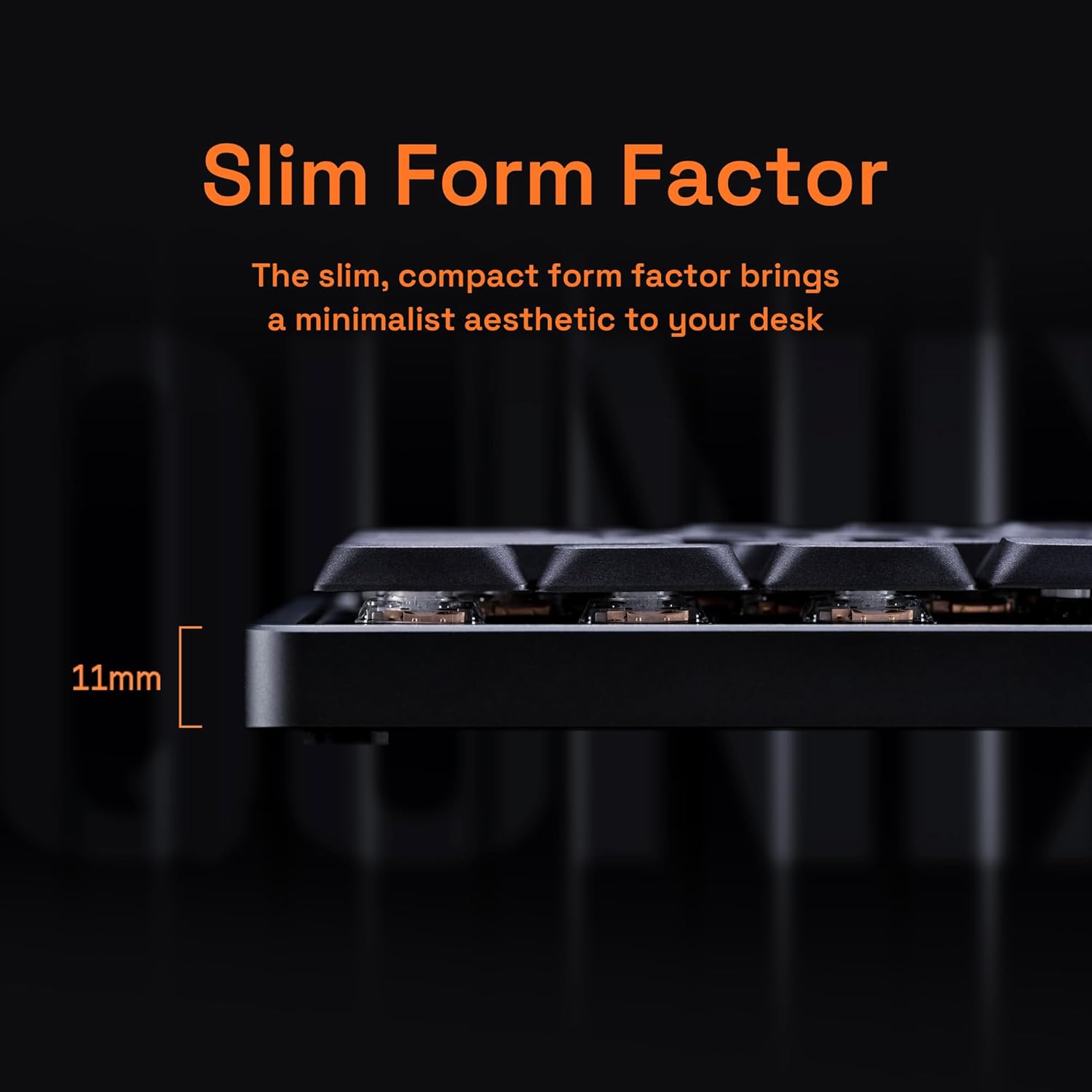
Image: Side profile of the Magi65 keyboard, illustrating its ultra-slim 11mm design.
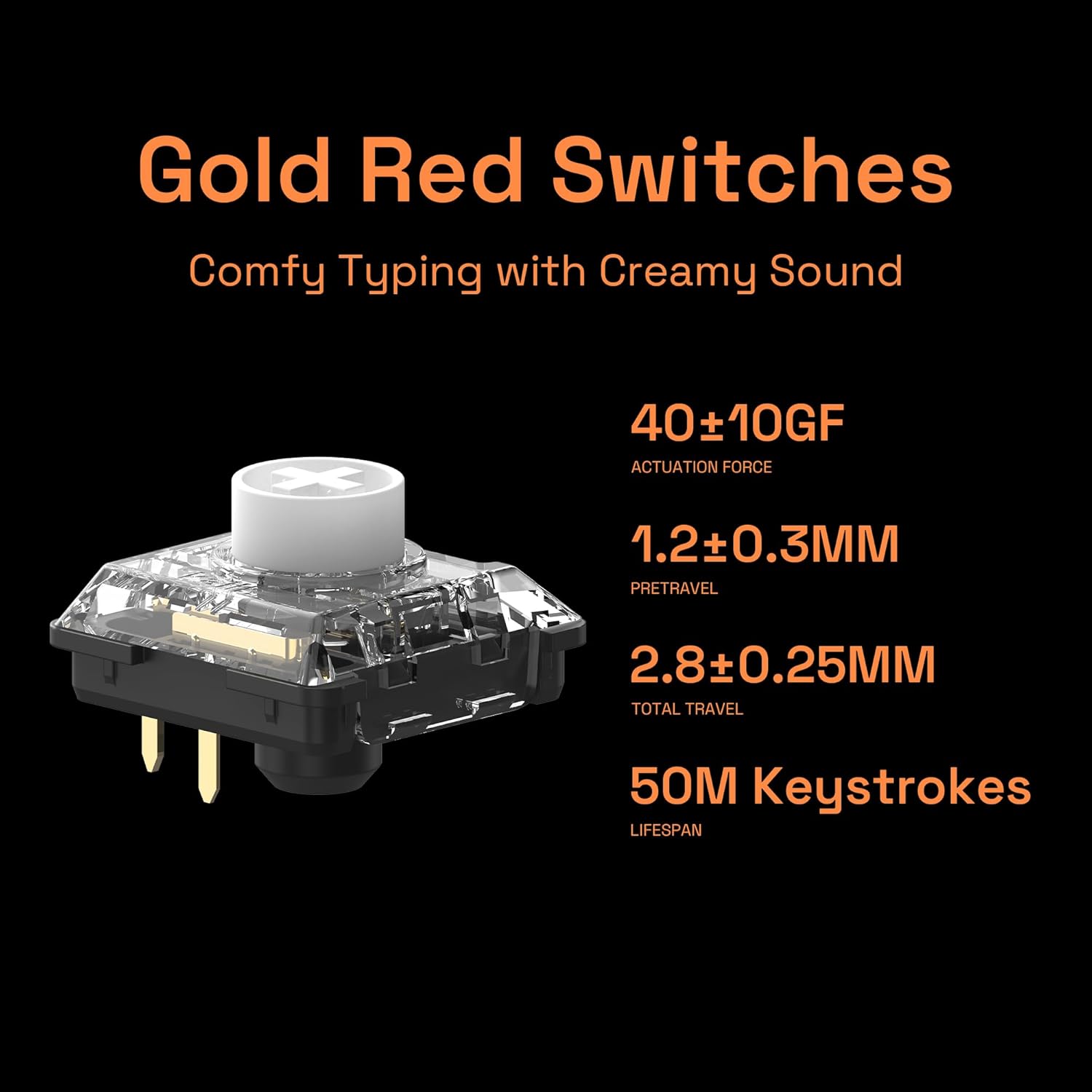
Image: Close-up of a Gold Red switch, detailing its actuation force, pretravel, total travel, and lifespan.

Image: Diagram showing the layered internal structure of the Magi65, including the Le-tray mount, FR4 plate, and foam stack.

Image: Close-up of the PBT keycaps, highlighting their stain-resistant coating.

Image: The Magi65 keyboard connected via tri-mode, showing icons for Bluetooth, 2.4GHz, USB Type-C, Windows, and macOS/iOS compatibility.
Video: Demonstrates the creamy typing feel of the IQUNIX Magi65 keyboard, highlighting the soft sound and satisfying keystrokes.
Video: A short preview showcasing the creamy, cushioned typing experience of the IQUNIX Magi65 Keyboard.
Setup
Connecting Your Keyboard
The Magi65 keyboard supports three connection modes: USB-C wired, 2.4GHz wireless, and Bluetooth. Ensure the keyboard is charged before initial wireless use.
- USB-C Wired Connection:
Connect the provided USB-C cable to the keyboard's USB-C port and the other end to your computer's USB port. The keyboard will be automatically recognized and ready for use.
- 2.4GHz Wireless Connection:
Locate the 2.4GHz USB receiver (dongle) included in the package. Plug the receiver into an available USB port on your computer. Turn on the keyboard and switch it to 2.4GHz mode (refer to the keyboard's physical switch or function key combination for mode selection). The keyboard should connect automatically. For optimal performance, ensure the receiver is close to the keyboard.
- Bluetooth Connection:
Turn on the keyboard and switch it to Bluetooth mode. On your computer or device, enable Bluetooth and search for new devices. Select "IQUNIX Magi65" (or similar name) from the list of available devices to pair. The keyboard can store up to 3 Bluetooth connections, allowing for quick switching between devices.
Operating Instructions
Basic Functions
- Power On/Off: Use the physical switch on the keyboard to turn it on or off.
- Mode Switching: Use the dedicated switch or function key combinations (e.g., Fn + 1/2/3 for Bluetooth, Fn + 4 for 2.4GHz, Fn + 5 for wired) to switch between connectivity modes.
- Battery Status: Indicators on the keyboard will show the current battery level. Charge the keyboard when the battery is low.
Customization with VIA Software
The Magi65 keyboard is compatible with VIA software, allowing for extensive customization without requiring a dedicated software installation. You can access VIA through a web browser.
- Key Remapping: Change the function of any key to suit your workflow.
- Macro Creation: Program complex sequences of keystrokes into a single key.
- RGB Lighting Control: Adjust backlight colors, effects, and brightness on a per-key basis.
- Layers: Utilize multiple layers for different key layouts, accessible via function keys.
For detailed instructions on using VIA, please refer to the official VIA software documentation or community guides.
Hot-Swappable Switches
The Magi65 features hot-swappable switches, allowing you to change switches without soldering. This enables customization of typing feel and sound.
- Removing Keycaps: Use the provided keycap puller to gently remove the desired keycap.
- Removing Switches: Use the switch puller to carefully grip the switch from the top and bottom clips, then pull it straight up.
- Installing New Switches: Align the pins of the new switch with the holes on the PCB. Press the switch firmly until it clicks into place. Ensure the pins are not bent.
- Installing Keycaps: Place the keycap over the switch stem and press down gently until it is secure.
Video: A short preview demonstrating the hot-swappable feature of the IQUNIX Magi65 keyboard, showing how to remove and replace switches.
Maintenance
Regular maintenance helps prolong the life and performance of your keyboard.
- Cleaning Keycaps: Use a soft, damp cloth to wipe down keycaps. For deeper cleaning, remove keycaps and wash them with mild soap and water, ensuring they are completely dry before reattaching.
- Cleaning the Case: Wipe the aluminum case with a soft, dry cloth. Avoid abrasive cleaners or solvents.
- Dust Removal: Use compressed air to remove dust and debris from between keycaps and switches.
- Storage: When not in use for extended periods, store the keyboard in a dry, cool place away from direct sunlight.
Troubleshooting
| Problem | Possible Cause | Solution |
|---|---|---|
| Keyboard not responding (wired) | Loose cable connection, faulty USB port, driver issue. | Ensure USB-C cable is securely connected. Try a different USB port or cable. Restart your computer. |
| Keyboard not connecting (wireless) | Low battery, incorrect mode, interference, un-paired. | Charge the keyboard. Ensure the keyboard is in the correct wireless mode (2.4GHz or Bluetooth). Re-pair the Bluetooth connection or re-insert the 2.4GHz dongle. Move closer to the receiver/device. |
| Keys not registering or double-typing | Dust/debris under keycap/switch, faulty switch. | Remove keycap and use compressed air to clean. If issue persists, replace the switch using the hot-swap feature. |
| RGB lighting not working | Lighting turned off, low battery, software glitch. | Check keyboard lighting controls (Fn key combinations). Charge the keyboard. Reset keyboard settings via VIA software if necessary. |
| Keyboard feels "noisy" or "rattly" | Stabilizer issues, switch lubrication. | This keyboard is designed for a "creamy" sound. If excessive rattling, check stabilizers (spacebar, shift, enter) for proper seating. Lubrication of switches and stabilizers can further refine acoustics. |
Specifications
| Feature | Detail |
|---|---|
| Brand | IQUNIX |
| Model Number | Magi65 |
| Connectivity Technology | 2.4GHz, Bluetooth, USB-C |
| Keyboard Description | Mechanical |
| Special Features | Ergonomic, Backlit, Programmable Keys, Customizable Display Keys, Hot-Swappable |
| Color | Shadow Black |
| Number of Keys | 68 |
| Keyboard Backlighting | RGB |
| Style | Low Profile Keyboard |
| Product Dimensions | 14.06 x 4.25 x 1 inches |
| Item Weight | 3.6 pounds |
| Battery | 3000mAh (up to 300 hours with RGB off) |
| Compatible Devices | Laptop, PC, Gaming Console, Tablet, Smartphone (Mac/Windows) |
Warranty and Support
For warranty information and technical support, please refer to the official IQUNIX website or contact their customer service directly. Keep your purchase receipt as proof of purchase for any warranty claims.
You can visit the IQUNIX Store on Amazon for more information: IQUNIX Amazon Store