
1. Introduction
This manual provides essential information for the safe and efficient operation of your Breloom ST11-A5 Rugged Tablet. Please read this manual thoroughly before using the device and retain it for future reference.
The Breloom ST11-A5 is a robust Android 11 tablet designed for demanding environments. It features IP65 waterproofing, MIL-STD-810G durability, an Octa-Core processor, and extensive connectivity options, making it suitable for industrial and outdoor applications.

Figure 1: Front view of the Breloom ST11-A5 Rugged Tablet, showcasing its display and ruggedized casing.
2. Package Contents
Verify that all items listed below are included in your product package:
- 1 x Rugged Tablet
- 1 x DC Charge (5V 3A)
- 1 x Carry strap
- 1 x Wrist strap
3. Physical Overview
Familiarize yourself with the physical components and ports of your tablet.
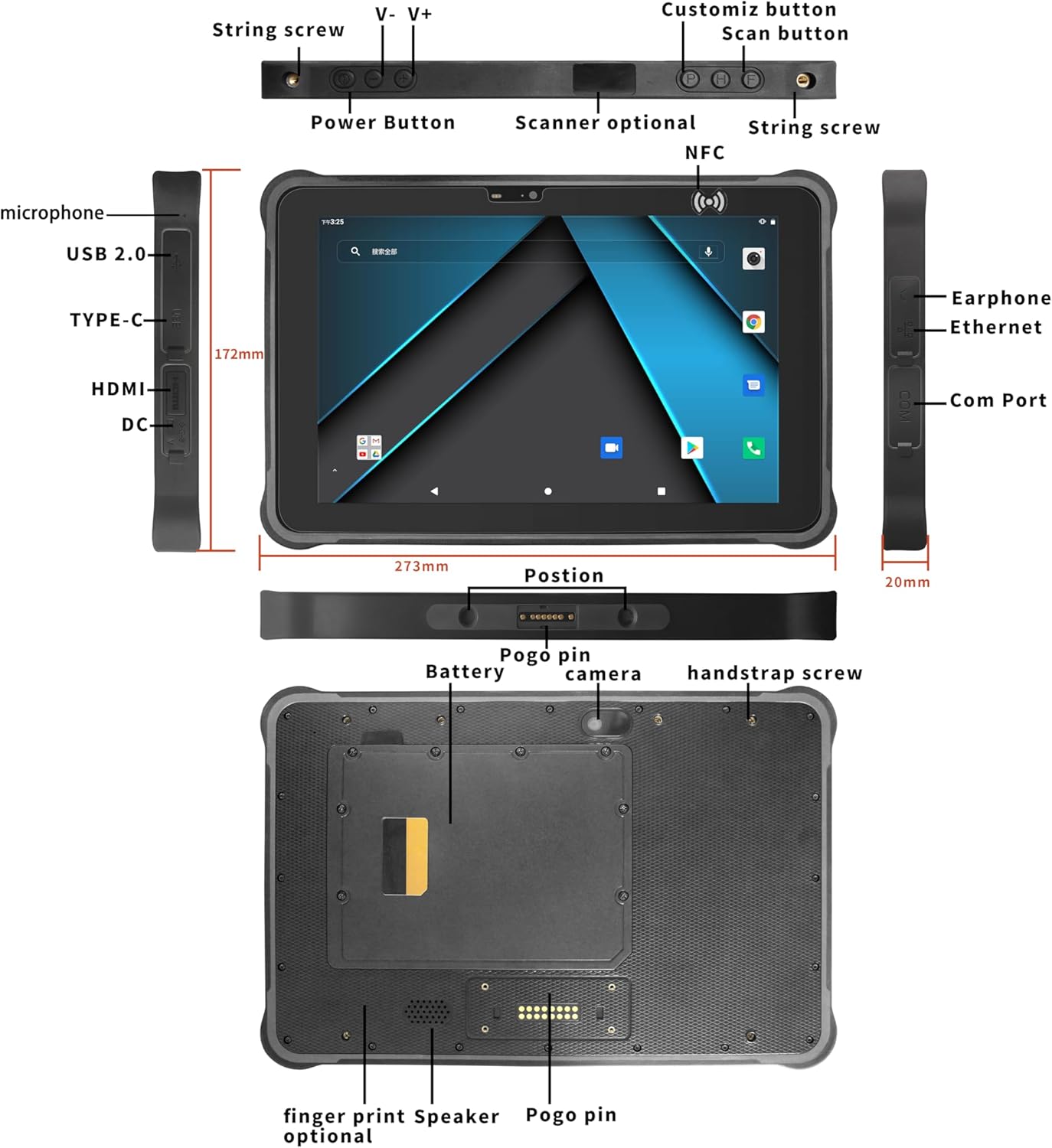
Figure 2: Detailed diagram showing the location of buttons, ports, and other features on the Breloom ST11-A5 Rugged Tablet.
- Power Button: Used to power on/off the device or wake/sleep the screen.
- Volume Buttons (V-, V+): Adjust the audio volume.
- USB 2.0 Port: For data transfer and connecting peripherals.
- Type-C Port: For charging and data transfer.
- HDMI Port: For connecting to external displays.
- DC Port: Dedicated port for charging the device.
- Microphone: For audio input.
- Earphone Jack: For connecting headphones.
- Ethernet Port: For wired network connectivity.
- COM Port: For serial communication with industrial devices.
- NFC: Near Field Communication area for contactless interactions.
- Pogo Pin: For docking and connecting specialized accessories.
- Camera: Front (5MP) and Rear (13MP) cameras for imaging and video calls.
4. Setup
4.1 Initial Charging
- Connect the provided DC charger (5V 3A) to the tablet's DC port.
- Plug the charger into a power outlet.
- Allow the tablet to charge fully before first use. A full charge typically takes approximately 5 hours.
4.2 Powering On/Off
- To Power On: Press and hold the Power Button until the Breloom logo appears on the screen.
- To Power Off: Press and hold the Power Button until a power-off menu appears. Select "Power Off" and confirm.
- To Sleep/Wake: Briefly press the Power Button to put the tablet to sleep or wake it up.
4.3 SIM Card and TF Card Installation
The tablet supports 4G LTE connectivity and expandable storage via a TF (MicroSD) card.
- Locate the SIM/TF card slot cover, typically on the side or rear of the device.
- Carefully open the cover.
- Insert the SIM card into the designated slot with the gold contacts facing down.
- Insert the TF card into its slot, ensuring it is properly seated.
- Close the cover securely to maintain the device's IP65 rating.
5. Operating Instructions
5.1 Touchscreen Navigation
The tablet features a 10.1-inch FHD IPS display with multi-touch capabilities.
- Tap: Select an item or open an application.
- Tap and Hold: Access contextual menus or move icons.
- Swipe: Navigate through screens or scroll content.
- Pinch-to-Zoom: Enlarge or reduce the view of images and web pages.
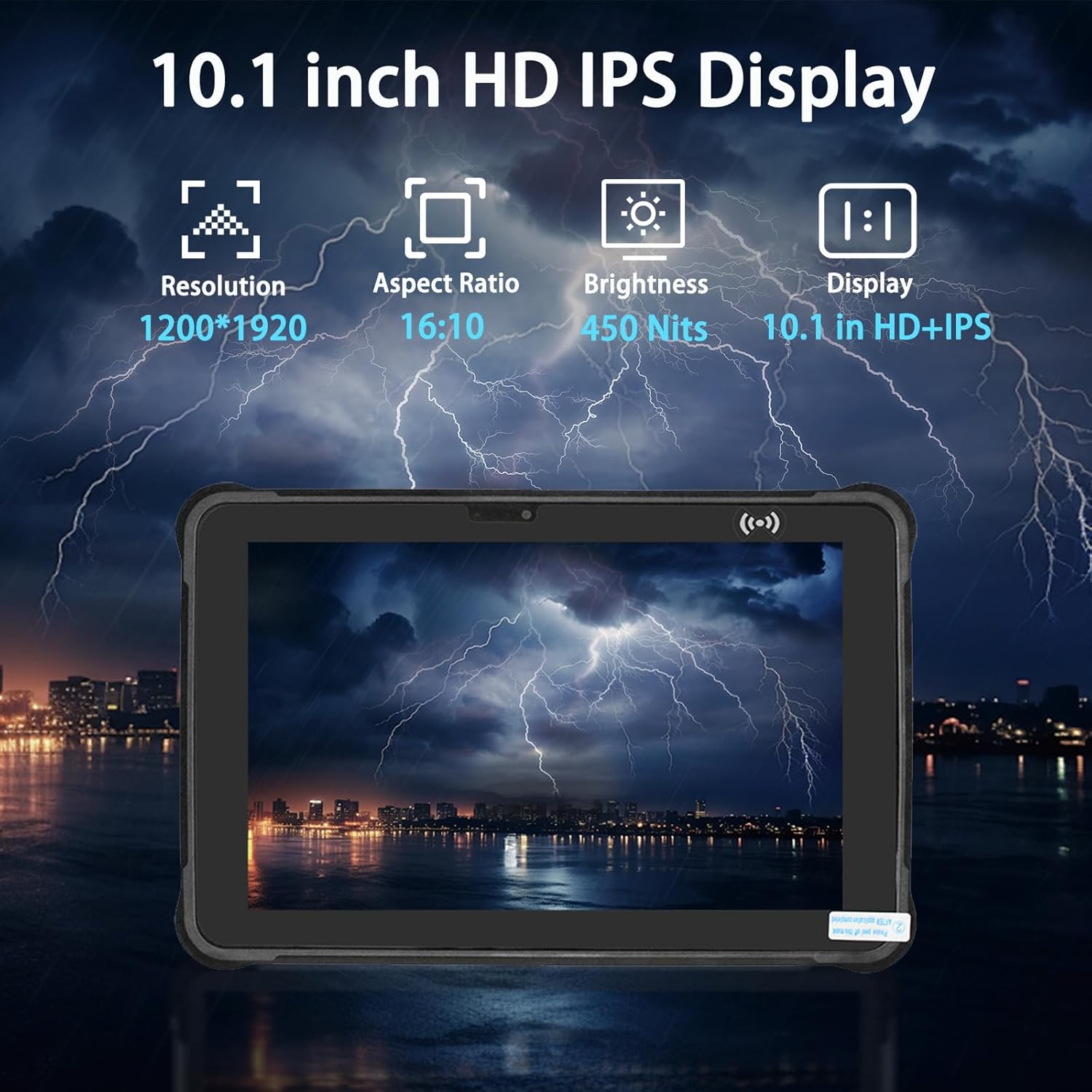
Figure 3: The tablet's 10.1-inch FHD IPS display, designed for clear visibility.
5.2 Connectivity
The ST11-A5 offers various connectivity options:
- Wi-Fi: Supports dual-band 802.11ac for fast wireless internet access. Navigate to Settings > Network & internet > Wi-Fi to connect to available networks.
- 4G LTE: Provides mobile data connectivity across 28 global bands. Ensure a SIM card is installed and activated.
- Bluetooth 4.2: For connecting wireless peripherals such as headphones or keyboards. Access via Settings > Connected devices > Bluetooth.
- GPS/GLONASS/BDS: Integrated triple-system navigation for accurate positioning.
- NFC: For short-range wireless communication, often used for payments or data exchange.

Figure 4: Overview of the tablet's dual-camera system and various connectivity features.
5.3 Camera Operation
The tablet is equipped with a 13MP rear camera and a 5MP front camera.
- Open the Camera application from the home screen or app drawer.
- Tap the shutter button to take a photo.
- Switch between front and rear cameras using the camera toggle icon.
- Select video mode to record videos.
6. Maintenance and Care
6.1 Cleaning the Device
- Use a soft, lint-free cloth to wipe the screen and body.
- For stubborn dirt, slightly dampen the cloth with water or a mild screen cleaner.
- Avoid using harsh chemicals, abrasive cleaners, or solvents.
- Ensure all port covers are securely closed before cleaning with liquids to maintain IP65 rating.
6.2 Battery Management
The tablet features a 12,000mAh main battery and a 2,400mAh secondary battery.
- Charge the tablet regularly using the provided charger.
- Avoid fully discharging the battery frequently to prolong its lifespan.
- Do not expose the tablet to extreme temperatures (below -20°C or above 55°C) for extended periods, as this can affect battery performance.

Figure 5: Illustration highlighting the tablet's dual battery system for extended operation.
6.3 Environmental Protection
The ST11-A5 is designed with IP65 waterproof and dustproof certification and MIL-STD-810G military-grade resilience.
- Ensure all port covers are firmly sealed when operating in wet or dusty conditions.
- While drop-resistant up to 1.2 meters, avoid unnecessary drops or impacts.
- Operate within the specified temperature range of -20°C to 55°C.
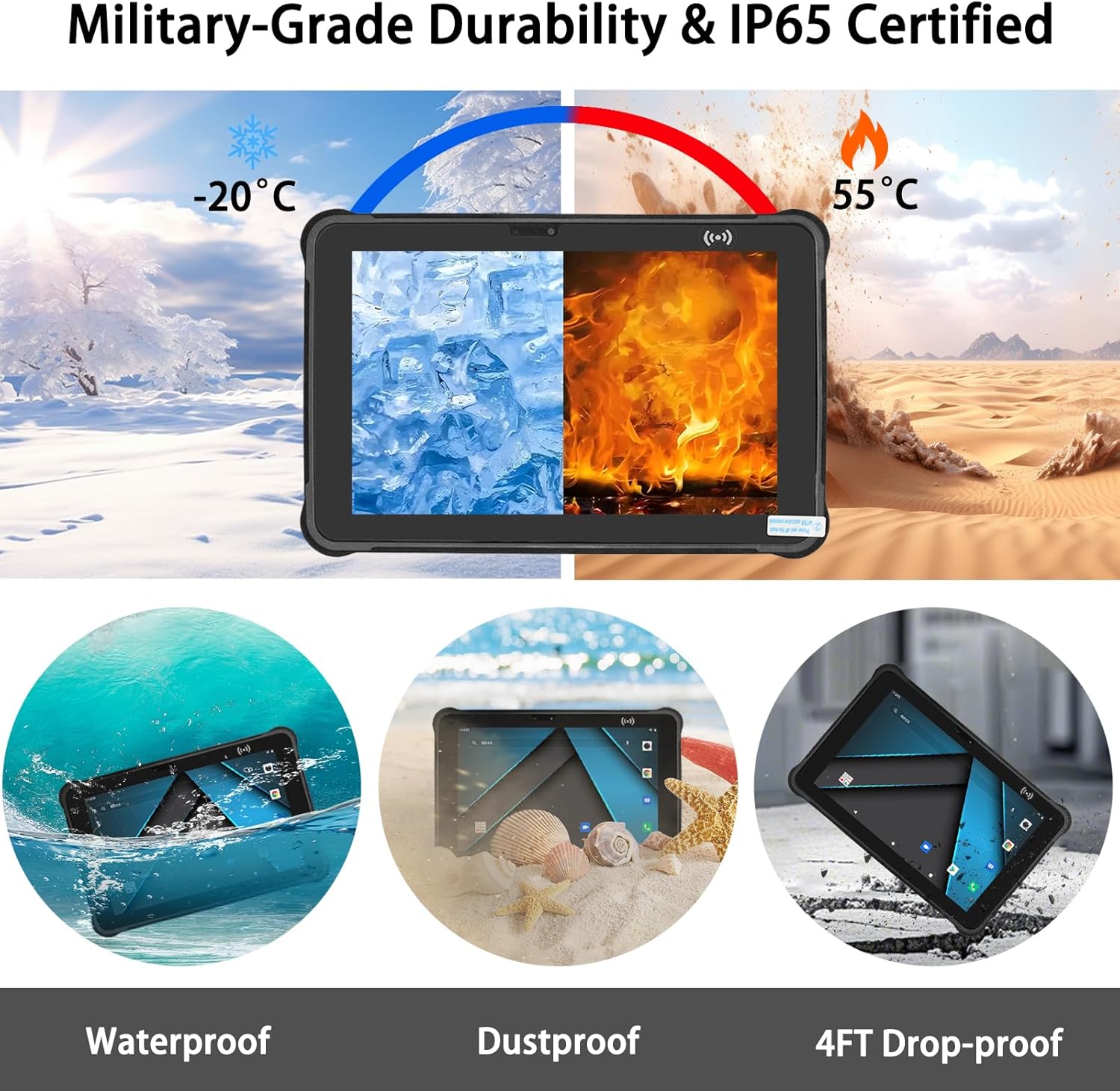
Figure 6: Visual representation of the tablet's military-grade durability and IP65 protection against water, dust, and drops.
7. Troubleshooting
This section addresses common issues you might encounter with your Breloom ST11-A5 Rugged Tablet.
| Problem | Possible Cause | Solution |
|---|---|---|
| Device does not power on. | Low battery; device frozen. | Charge the tablet for at least 30 minutes. If still unresponsive, perform a forced restart by holding the Power Button for 10-15 seconds. |
| Touchscreen is unresponsive. | Software glitch; screen protector interference. | Restart the device. Ensure the screen is clean and free of debris. Check if a screen protector is improperly installed. |
| Cannot connect to Wi-Fi. | Incorrect password; Wi-Fi router issue; Wi-Fi disabled. | Verify Wi-Fi is enabled in Settings. Re-enter the Wi-Fi password. Restart your Wi-Fi router. |
| Poor 4G LTE signal. | Weak network coverage; SIM card issue. | Move to an area with better network coverage. Ensure the SIM card is correctly installed and activated. |
| Battery drains quickly. | Background apps; high screen brightness; old battery. | Close unused apps. Reduce screen brightness. Check battery usage in Settings to identify power-hungry apps. |
8. Specifications
Detailed technical specifications for the Breloom ST11-A5 Rugged Tablet.
| Feature | Detail |
|---|---|
| Model Name | Breloom ST11-A5 |
| Operating System | Android 11 |
| Processor | MediaTek MT8788 Octa-Core (2.0GHz) |
| RAM | 4GB (Configurable up to 8GB) |
| Storage | 64GB (Expandable via TF card, Configurable up to 256GB) |
| Screen Size | 10.1 Inches |
| Max Screen Resolution | 1200*1920 FHD IPS |
| Brightness | 450 Nits (Standard) |
| Main Battery | 12,000mAh |
| Secondary Battery | 2,400mAh |
| Charging Time | Approx. 5 hours (full charge) |
| Rear Camera | 13MP |
| Front Camera | 5MP |
| Wi-Fi | 802.11ac (Dual-band) |
| Bluetooth | 4.2 |
| Cellular | 4G LTE (28 global bands) |
| Navigation | BDS/GPS/GLONASS |
| NFC | Yes |
| Durability | IP65 Waterproof & Dustproof, MIL-STD-810G (1.2m drop resistance) |
| Operating Temperature | -20°C to 55°C |
| Item Weight | 2.5 pounds (approx. 1.13 kg) |
| Product Dimensions (LxWxH) | 10.74 x 6.77 x 0.78 inches (approx. 27.28 x 17.2 x 1.98 cm) |

Figure 7: The tablet's internal components highlighting the MTK MT8788 processor and Android 11 operating system.
9. Warranty and Support
Breloom provides comprehensive support for the ST11-A5 Rugged Tablet.
- Warranty: The ST11-A5 Waterproof Tablet comes with a 12-month comprehensive warranty from the date of purchase.
- Technical Support: Lifetime technical support is available.
- Customer Service: A 24/7 customer service team is available to assist with firmware updates, hardware customization, and troubleshooting.
- For support inquiries, please refer to the contact information provided with your purchase or visit the official Breloom website.