
Introduction
Thank you for choosing the BOUWOIMA 7-Inch Double Din Car Stereo. This multimedia system is designed to enhance your driving experience with advanced connectivity and entertainment features. This manual provides detailed instructions for installation, operation, and maintenance to ensure optimal performance and user satisfaction.
Key features include:
- Wireless Apple CarPlay & Android Auto: Seamless integration with your smartphone for navigation, music, calls, and messages via voice control.
- 7-Inch Full Touch HD Capacitive Screen: High-definition display (1024x600) supporting 1920x1080P video playback for sensitive and accurate operation.
- Mirror Link Function: Cast your iOS or Android phone screen directly to the car stereo display for synchronized content.
- HD Rearview Backup Camera: Automatic display of rearview image when reversing, featuring AHD night vision and a 170° ultra-wide viewing angle.
- Hands-free Bluetooth: Wireless music streaming and clear calls with a built-in microphone and external mic jack.
- Additional Features: USB/Aux input, FM radio, audio/video output, 7-color LED lighting, and Steering Wheel Control compatibility.
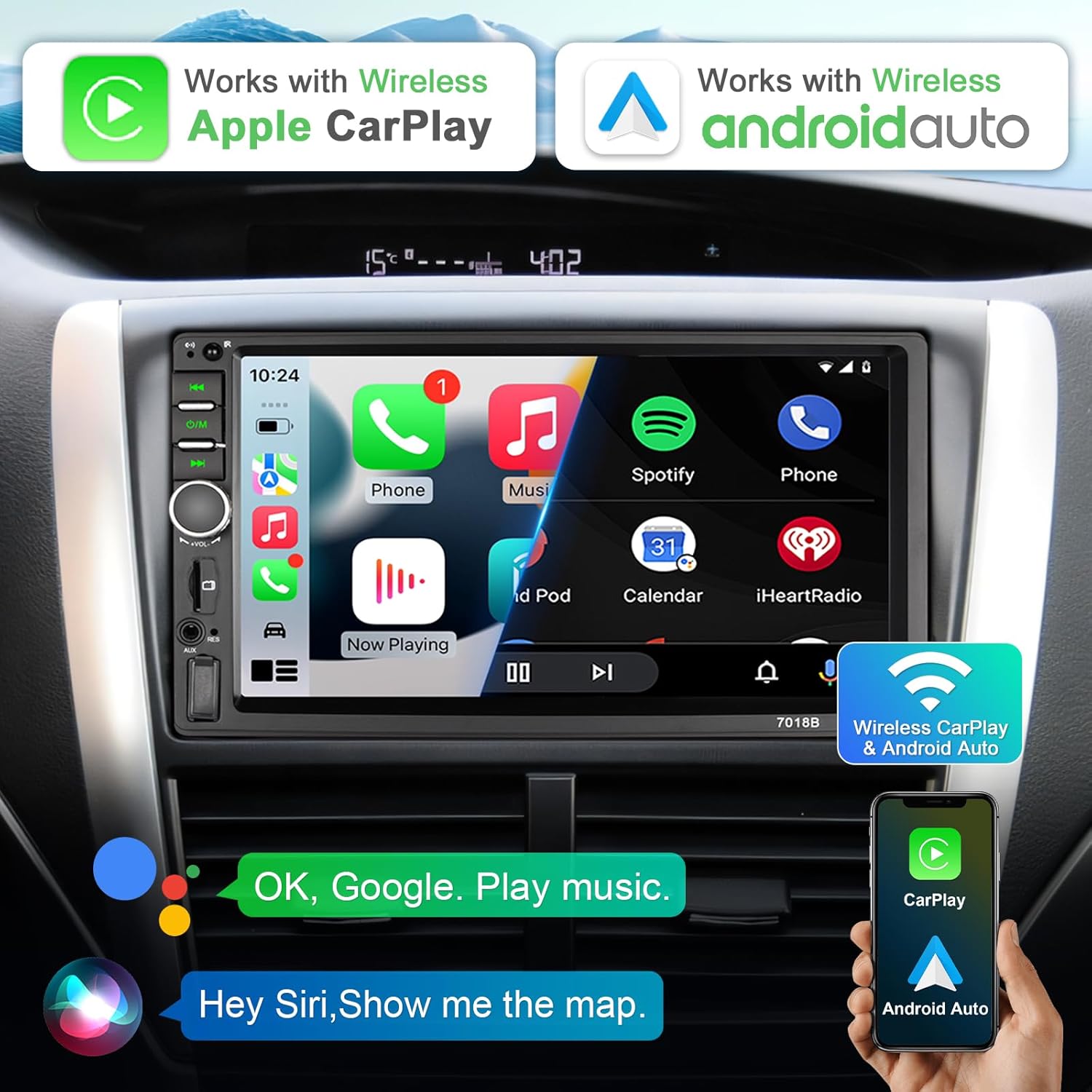
Image: The BOUWOIMA 7-Inch Double Din Car Stereo showcasing its wireless Apple CarPlay and Android Auto capabilities on the vibrant touchscreen.
What's in the Box
Upon unpacking your BOUWOIMA Car Stereo, please ensure all the following components are present:
- Double Din Car Stereo Unit
- Wire Harness
- Instruction Manual
Video: A detailed guide on the wiring method for the car stereo, including the wiring harness components.
Setup and Installation
Proper installation is crucial for the optimal performance of your car stereo. We recommend professional installation if you are unfamiliar with car audio wiring. If you choose to install it yourself, please follow these guidelines:
Wiring Connections
Refer to the wiring diagram provided in the manual and on the unit itself. It is highly recommended to purchase an aftermarket car stereo install wire harness adapter that fits your specific car model for easier and safer installation. Match the wires from the product's harness to your car's wiring harness adapter according to their functions (e.g., ACC, GND, ANT, BATTERY, ILL, speaker wires).
Video: Step-by-step instructions on how to connect the car stereo wiring harness to a car's original wiring, demonstrating wire matching and stripping.
Mounting the Unit
Once wiring is complete, carefully slide the double din unit into your car's dashboard opening. Secure it using the provided mounting brackets and screws. Ensure a snug fit to prevent vibrations.
Initial Power Test
After installation, start your car to test if the stereo powers on normally. The unit may briefly turn on and off during the first power cycle. This is normal. Test the screen dimming function by turning your car headlights on and off to ensure the screen brightness adjusts correctly.
Operating Instructions
Wireless Apple CarPlay & Android Auto
To use Wireless CarPlay or Android Auto, ensure Bluetooth is enabled on your smartphone and the car stereo. Pair your phone with the stereo via Bluetooth. Once paired, the system will prompt you to activate CarPlay or Android Auto. This allows for voice control of navigation, music, calls, and messages.
Video: A demonstration of connecting a smartphone to the car stereo for Wireless CarPlay and Android Auto functionality.
Image: The car stereo's 7-inch touchscreen displaying the Apple CarPlay interface, providing access to phone, music, maps, and messages.
Mirror Link
The Mirror Link function allows you to display your smartphone's screen on the car stereo. Connect your phone via USB cable, then select the 'Mirror' mode on the stereo. This is ideal for viewing videos, photos, or using apps not directly supported by CarPlay/Android Auto.

Image: A visual guide demonstrating the three steps to activate the Mirror Link feature, connecting a smartphone to the car stereo via USB.
Bluetooth Connectivity
For hands-free calling and music streaming, pair your phone with the stereo via Bluetooth. Access your phone's Bluetooth settings, search for the stereo's device name, and confirm pairing. The built-in microphone and external mic jack ensure clear audio during calls.

Image: The car stereo screen showing a phone call in progress, highlighting the hands-free Bluetooth functionality.
FM Radio
Select the 'Radio' icon on the main menu to access FM radio. You can manually tune to stations or use the scan function to find available frequencies. Save your favorite stations for quick access.

Image: The car stereo's interface showing the FM radio function, with various frequency options and controls.
Equalizer (EQ) Settings
Customize your audio experience using the built-in equalizer. Access the EQ settings from the main menu to adjust sound frequencies, balance, and fader settings to match your preferences.

Image: The car stereo's equalizer screen, showing adjustable frequency bands for sound customization.
Rearview Backup Camera
The included HD rearview backup camera automatically displays the rear view on the stereo screen when your vehicle is shifted into reverse. This feature, combined with AHD night vision and a 170° ultra-wide viewing angle, significantly enhances parking safety and ease.

Image: The car stereo screen showing the rearview camera display with parking assist lines, alongside an image of the included backup camera.
Video: A demonstration of the automatic rearview camera activation and display on the car stereo when the vehicle is put into reverse.
Specifications
| Feature | Specification |
| Brand | BOUWOIMA |
| Model | MP-901 |
| Screen Size | 7 Inch |
| Screen Resolution | 1024 x 600 |
| Video Playback | Supports 1920 x 1080P |
| Connectivity Technology | Bluetooth |
| Special Features | Wireless Android Auto, Wireless Apple CarPlay, Mirror Link, Backup Camera, SWC, FM, USB, AUX |
| Compatible Devices | Smartphone |
| Audio Output Mode | Stereo |
| Working Voltage | DC 12V |
| Max Power Output | 4x50W |
| Universal Double Din Size | 173×97mm (6.81×3.85inch) |
Maintenance
To ensure the longevity and optimal performance of your BOUWOIMA Car Stereo, follow these maintenance tips:
- Screen Cleaning: Use a soft, lint-free cloth to gently wipe the touchscreen. Avoid abrasive cleaners or harsh chemicals that could damage the display.
- Software Updates: Periodically check the manufacturer's website or contact support for any available software updates to improve functionality and fix bugs.
- Connection Checks: Ensure all wiring connections are secure and free from corrosion. Loose connections can lead to intermittent issues.
- Temperature Control: Avoid exposing the unit to extreme temperatures for extended periods, as this can affect electronic components.
Troubleshooting
If you encounter any issues with your BOUWOIMA Car Stereo, please refer to the following common troubleshooting steps:
- No Power: Check all power connections (ACC, Battery, GND). Ensure the car's fuse for the stereo is not blown.
- No Sound: Verify speaker connections. Check the volume level and mute settings on the stereo and your connected device. Ensure the correct audio source is selected.
- Bluetooth Connection Issues: Ensure Bluetooth is enabled on both the stereo and your phone. Delete previous pairings and try reconnecting. Move closer to the stereo if interference is suspected.
- CarPlay/Android Auto Not Connecting: Ensure your phone's operating system is up to date. Try connecting with a different USB cable if using a wired connection. Restart both the phone and the stereo.
- Backup Camera Not Displaying: Check the camera's video input connection to the stereo. Ensure the reverse trigger wire is correctly connected to your car's reverse light circuit.
If these steps do not resolve the issue, please contact customer support for further assistance.
Warranty and Support
Your BOUWOIMA Car Stereo comes with a standard manufacturer's warranty. Please refer to the warranty card included in your packaging for specific terms and conditions. For technical support, service inquiries, or warranty claims, please contact BOUWOIMA customer service through the retailer where you purchased the product or visit the official BOUWOIMA website.
Keep your purchase receipt and product serial number handy when contacting support.