
MAHVEC 8Core 6G+128G
MAHVEC Android 15 Car Stereo User Manual
Model: 8Core 6G+128G for Honda Accord 6th Gen (1998-2003)
1. Introduction
This manual provides detailed instructions for the installation, operation, and maintenance of your MAHVEC Android 15 Car Stereo. Please read this manual thoroughly before installation and use to ensure proper functionality and to prevent damage.

Image: MAHVEC Android 15 Car Stereo integrated into a Honda Accord 6th Gen dashboard.
2. Product Overview
The MAHVEC 8Core 6G+128G Android 15 Car Stereo is designed to upgrade the in-car entertainment and navigation experience for Honda Accord 6th Generation vehicles (1998-2003). It features a high-resolution IPS touchscreen, advanced connectivity options, and a powerful processor for smooth performance.
- Operating System: Android 15
- Processor: 8-Core Chip
- Memory & Storage: 6GB RAM + 128GB ROM
- Display: 9-inch IPS Touch Screen, 1280x720P resolution
- Connectivity: Wireless CarPlay, Wireless Android Auto, Bluetooth 5.0, 5Ghz WiFi, USB
- Audio: Built-in DSP with 46-band EQ, FM/RDS Radio
- Navigation: Offline GPS navigation with pre-downloaded maps, online map support via WiFi
- Camera Support: AHD IP69K waterproof backup camera with night vision and 170° wide-angle view
- Additional Features: Mirror Link, Steering Wheel Control (SWC) support, Split Screen functionality, Customizable UI

Image: Key features of the MAHVEC car stereo, including processor, operating system, memory, display, and connectivity.
3. Compatibility
This car stereo is specifically designed for the following vehicle models:
- Honda Accord 6th Generation: 1998, 1999, 2000, 2001, 2002, 2003
Before purchasing and installation, please verify your car's model, year, and the shape of its center console to ensure proper fitment. Some models may require careful transfer of original climate control components.

Image: Visual guide for Honda Accord 6th Gen compatibility, indicating which dashboard configurations are suitable.
4. Package Contents
The following items are included in your MAHVEC car stereo package:
- MAHVEC Car Stereo Unit
- Installation Frame and Accessories
- Power Cable
- RCA Cable
- Rear Camera Input Cable
- USB Cable
- GPS Antenna
- Installation Tool
- User Manual (this document)
- AHD Backup Camera
- Microphone (MIC)

Image: All components included in the MAHVEC car stereo package.
5. Setup and Installation
Installation of this car stereo requires technical knowledge and experience with car electronics. Professional installation is recommended. Incorrect installation can lead to damage to the unit or your vehicle.
5.1 General Installation Steps
- Disconnect Battery: Before starting, disconnect the negative terminal of your car's battery to prevent electrical shorts.
- Remove Old Unit: Carefully remove the existing car stereo and dashboard trim.
- Transfer Components: Transfer the original air conditioning vents and HVAC controls from your old radio faceplate to the new MAHVEC installation frame. This step requires precision to avoid damaging old plastic parts.
- Connect Wiring: Connect the provided power cable, RCA cables, USB cables, GPS antenna, and rear camera input cable to the MAHVEC unit. Refer to the wiring diagram below.
- Install Backup Camera: Route the backup camera cable from the rear of the vehicle to the stereo unit. Mount the camera securely.
- Mount New Unit: Secure the MAHVEC car stereo with its frame into the dashboard opening.
- Reconnect Battery: Reconnect the car battery and test the unit's functionality.
5.2 Wiring Instructions
Ensure all connections are secure and correctly matched according to the provided wiring harness. The main connections include:
- Power Cable: Connects to the vehicle's power supply.
- RCA Cable: For audio output to external amplifiers or video output to headrest monitors.
- Rear Camera Input Cable: Connects to the AHD backup camera.
- USB Cable: For data transfer, charging, and wired CarPlay/Android Auto.
- GPS Antenna: For navigation signal reception.
- Radio Antenna: For FM/RDS radio reception.
- Canbus Plugs: 8Pin and 20Pin Canbus plugs connect to the host unit for vehicle data integration (e.g., steering wheel controls).
- KEY1/KEY2: For steering wheel control connections if not using Canbus.

Image: Wiring diagram illustrating the various cable connections to the car stereo unit.
6. Operating Instructions
6.1 Wireless CarPlay & Android Auto
The unit supports both wireless (Bluetooth) and wired (USB) CarPlay and Android Auto for seamless smartphone integration.
Wireless Apple CarPlay Connection:
- Pair your iPhone's Bluetooth with the car stereo.
- Open the "zlink" application on the car stereo.
- Wait for the connection to establish.
Wireless Android Auto Connection:
- Download and install the Android Auto app on your Android phone.
- Connect your phone's Bluetooth with the car stereo.
- Turn on the "zlink" app on the car stereo.
- Wait for the connection to establish.

Image: User interface examples for wireless CarPlay and Android Auto, showing navigation, music, calls, and voice commands.
6.2 Bluetooth 5.0
Connect your smartphone via Bluetooth 5.0 for hands-free calling, music streaming, and file transfers. The enhanced directional Bluetooth ensures precise positioning.
- Pairing: Go to the Bluetooth settings on the stereo and your phone, search for available devices, and select the stereo's name to pair.
- Hands-free Calling: Make and receive calls directly from the stereo screen.
- Audio Streaming: Play music from your phone through the car's speakers.
6.3 GPS Navigation
The unit includes offline GPS navigation with pre-downloaded maps. Connect to WiFi for online maps and real-time traffic updates.
- Offline Maps: Access navigation without an internet connection.
- Online Maps: Connect to a WiFi hotspot for updated maps and traffic information.
- GPS Antenna: Ensure the GPS antenna is properly installed and positioned for optimal signal reception.
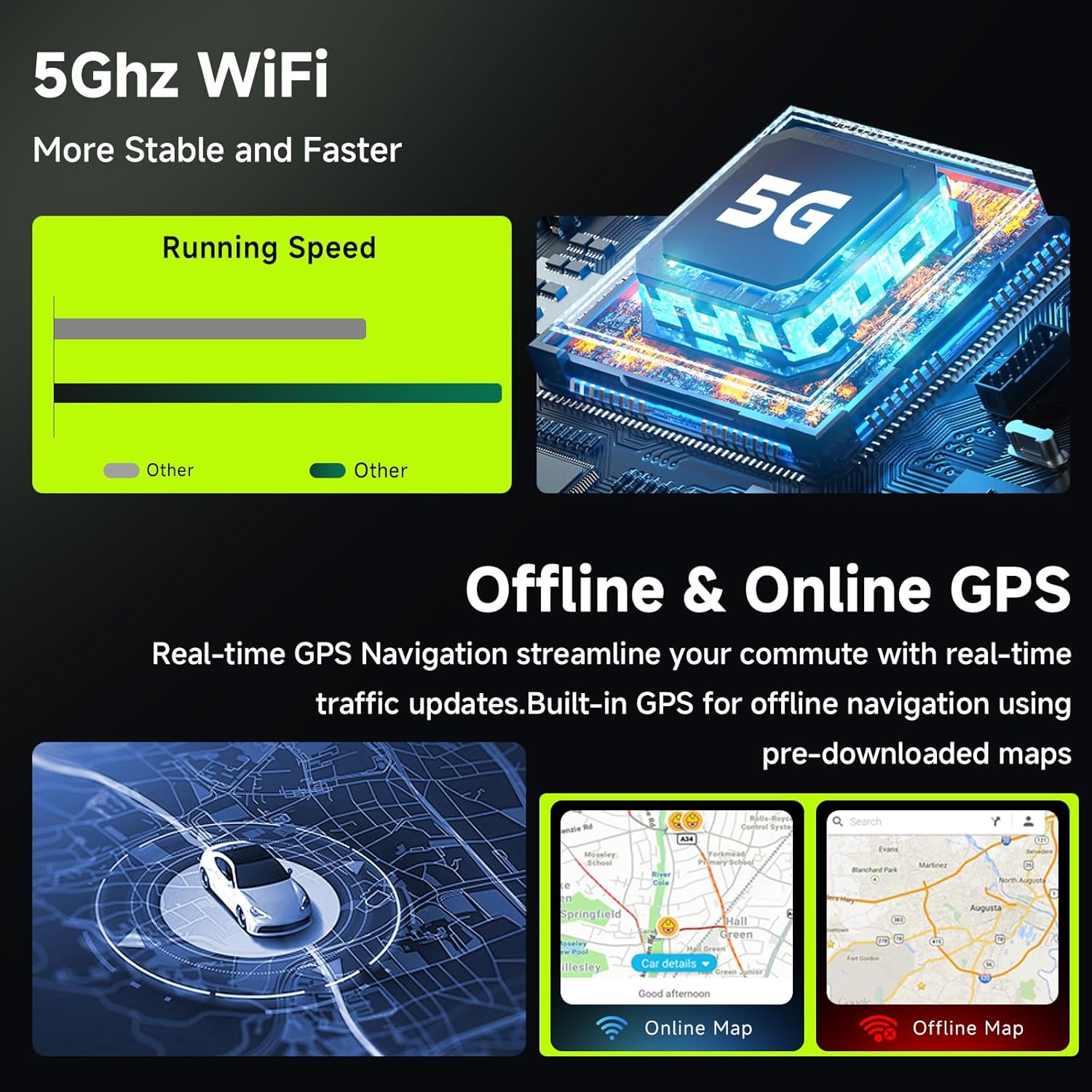
Image: Illustration of 5Ghz WiFi capability and the interface for offline and online GPS navigation.
6.4 DSP & Audio Settings (46-Band EQ)
Utilize the built-in Digital Sound Processor (DSP) with a 46-band equalizer to customize your audio experience. Adjust sound fields, effects, and surround sound settings for optimal sound quality.
- Access the EQ settings from the main menu to fine-tune bass, treble, and midrange frequencies.
- Experiment with different presets or create your own custom audio profiles.
6.5 FM/RDS Radio
The integrated FM/RDS radio allows you to listen to local radio stations. RDS (Radio Data System) provides additional information like station name, song title, and traffic updates where available.
- Scanning: Use the auto-scan function to find and save available stations.
- Manual Tuning: Manually tune to specific frequencies.
- RDS Display: View station information on the screen.
6.6 Display Features (1280x720P, Split Screen, UI)
The 9-inch IPS touch screen offers a clear and responsive interface.
- High Resolution: Enjoy crisp visuals with 1280x720P resolution.
- Split Screen: Run two applications simultaneously, such as navigation and music playback.
- Customizable UI: Choose from 59 user themes and customize the home page layout.
- Interactive Interface: Long-press icons to switch apps or access additional options.
6.7 Steering Wheel Control (SWC)
If your vehicle supports it, connect the steering wheel controls to operate the stereo hands-free. This allows you to adjust volume, change tracks, and manage calls without taking your hands off the wheel.
- Configuration: Access the SWC settings in the stereo's menu to map your steering wheel buttons to specific functions.
6.8 AHD Backup Camera
The included IP69K waterproof AHD backup camera provides a clear view of the area behind your vehicle when reversing. It features night vision and a 170° wide-angle lens.
- Automatic Activation: The camera display automatically appears on the screen when the vehicle is shifted into reverse.
- Reversing Guidelines: Dynamic guidelines assist with parking maneuvers.

Image: Features of the AHD backup camera and its display on the car stereo screen.
6.9 Mirror Link
Mirror Link functionality allows you to display your smartphone's screen directly onto the car stereo. This feature supports both iOS and Android devices via USB connection.
- Connection: Connect your smartphone to the stereo via a USB cable.
- Activation: Select the Mirror Link option on the stereo to begin mirroring your phone's display.
7. Maintenance
To ensure the longevity and optimal performance of your MAHVEC car stereo, follow these maintenance guidelines:
- Screen Cleaning: Use a soft, lint-free cloth to gently wipe the touchscreen. Avoid abrasive cleaners or solvents that could damage the screen.
- Software Updates: Periodically check for and install software updates to ensure the system runs efficiently and has the latest features and security patches.
- Avoid Extreme Temperatures: Do not expose the unit to extreme heat or cold for extended periods, as this can affect electronic components.
- Cable Connections: Periodically check all cable connections to ensure they are secure and free from corrosion.
8. Troubleshooting
If you encounter issues with your car stereo, refer to the following common problems and solutions:
| Problem | Possible Cause | Solution |
|---|---|---|
| Unit does not power on. | Loose power connection, blown fuse, vehicle battery issue. | Check power cable connections. Inspect vehicle fuses. Ensure car battery is charged. |
| No sound. | Volume too low, mute activated, incorrect audio output settings, loose speaker wires. | Increase volume. Check mute status. Verify audio settings. Inspect speaker wire connections. |
| CarPlay/Android Auto not connecting. | Bluetooth not paired, "zlink" app not open, phone compatibility issue, faulty USB cable. | Ensure Bluetooth is paired. Open "zlink" app. Check phone compatibility. Try a different USB cable for wired connection. |
| GPS signal weak or inaccurate. | GPS antenna improperly installed or obstructed. | Ensure GPS antenna is mounted in a clear location with an unobstructed view of the sky. Check antenna connection. |
| Backup camera not displaying. | Loose camera cable, incorrect wiring, camera malfunction. | Check the rear camera input cable connection. Verify camera power supply. Ensure vehicle is in reverse. |
| Steering Wheel Controls not working. | Incorrect wiring, SWC settings not configured. | Verify SWC wiring (Canbus or KEY1/KEY2). Configure SWC settings in the stereo menu. |
If the problem persists after attempting these solutions, please contact customer support.
9. Specifications
| Feature | Detail |
|---|---|
| Brand | MAHVEC |
| Model | 8Core 6G+128G |
| Operating System | Android 15 |
| Screen Size | 9 Inches |
| Display Type | IPS Touch Screen |
| Resolution | 1280x720P |
| Memory (RAM) | 6 GB |
| Storage (ROM) | 128 GB |
| Bluetooth Version | 5.0 |
| Wi-Fi Connectivity | 5Ghz WiFi |
| GPS | Built-in, supports offline and online maps |
| Audio Output Mode | Stereo |
| Special Features | Android Auto, CarPlay, DSP (46-band EQ), Mirror Link, Steering Wheel Control, AHD Backup Camera |
| Included Components | MAHVEC car stereo, wiring harnesses, GPS antenna, USB cables, AHD backup camera, installation tools, user manual |
| Item Weight | 1.62 Kilograms |
10. Warranty Information
The MAHVEC car stereo comes with a 3-year warranty from the date of purchase. This warranty covers manufacturing defects and malfunctions under normal use. Please retain your proof of purchase for warranty claims.
The return policy includes a free 30-day refund/replacement period.
11. Customer Support
For technical assistance, troubleshooting, or warranty inquiries, please contact MAHVEC customer support.
- Online Support: Visit the MAHVEC Store on Amazon for product information and support options.
- Direct Contact: Use the "Ask a question" feature on the product page or contact the seller directly via Amazon for 24/7 emergency support.

Image: MAHVEC customer support information, highlighting 24/7 support and quality guarantee.
Ask a question about this manual
Ask about setup, troubleshooting, compatibility, parts, safety, or missing instructions. Manuals+ will review the question and use this page’s manual context to help answer it.