
1. Introduction
The HRpart 4K Wireless Display Adapter Dongle (Model E26) allows you to wirelessly mirror or cast audio, video, office documents, and other content from your smartphone, tablet, laptop, or computer to a larger display such as an HDTV, monitor, or projector. This device supports 4K resolution for high-quality visual experiences and is compatible with various operating systems including iOS, Android, Mac, and Windows, utilizing Miracast, AirPlay, and DLNA protocols.

Image: HRpart 4K Wireless Display Adapter Dongle connected to a TV, mirroring content from a smartphone.
2. Package Contents
Verify that all items are present in your package:
- Wireless WiFi Display Receiver (Dongle)
- USB with WiFi 2-in-1 Cable
3. Setup Instructions
3.1 Hardware Connection
- Connect the Dongle: Plug the HDMI connector of the Wireless Display Receiver into an available HDMI port on your TV, monitor, or projector.
- Connect Power: Connect the USB end of the 2-in-1 cable to a 5V/2A USB power adapter (not included) or an available USB port on your display device. Ensure the power supply meets the 5V/2A requirement for stable operation.

Image: Close-up of the HRpart dongle connected to the HDMI port and powered via a USB cable plugged into a power strip.
Video: Demonstrates connecting the HRpart 4K Wireless Display Adapter to a TV's HDMI port and powering it with a 5V/2A charge adapter.
3.2 Initial Screen Display
Once powered on, your TV screen will display the operation details, including the SSID (Wi-Fi network name) and a PIN code for connection. This screen provides instructions for connecting various devices.
3.3 Device Connection
Follow the instructions below based on your device's operating system:
For iOS / iPad (AirPlay)
- Drag down from the top-right corner (or up from the bottom for older models) of your iPhone/iPad screen to access the Control Center.
- Tap on 'Screen Mirroring'.
- Select the HRpart-xxxxxx device from the list.
- Enter the PIN code displayed on your TV screen (default is "1234") if prompted.
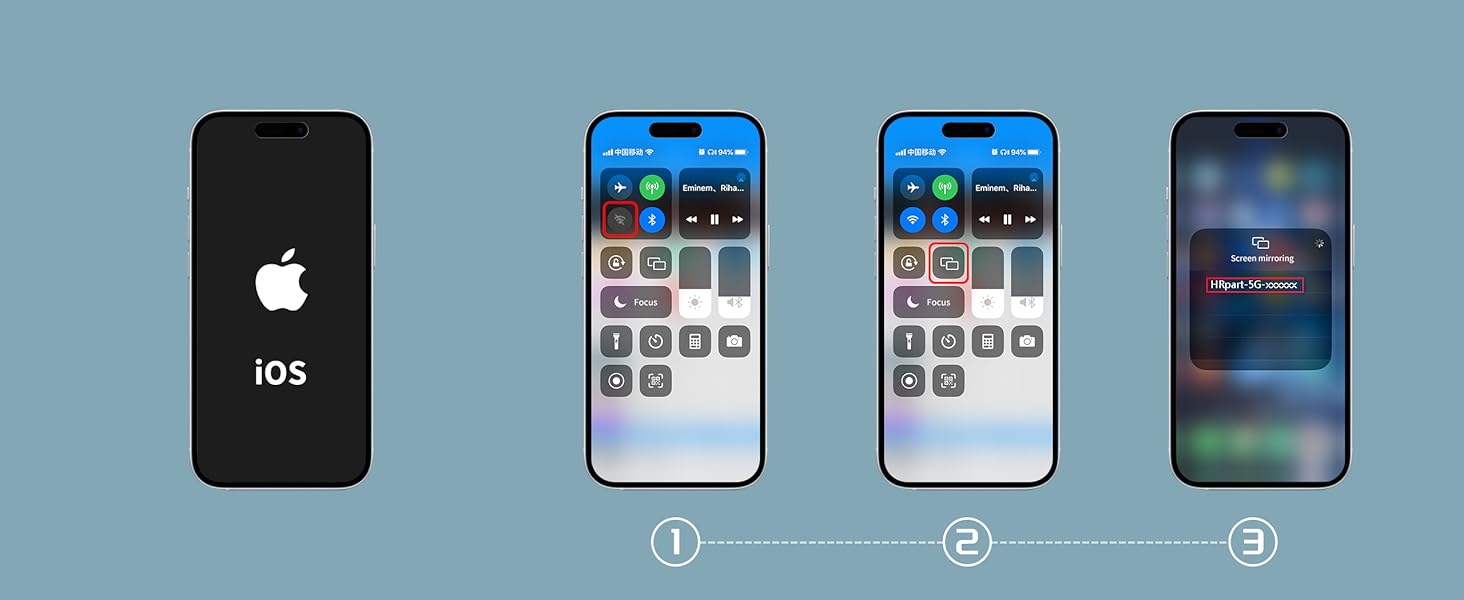
Image: Step-by-step visual guide for iOS Screen Mirroring connection.
For Android (Miracast/Smart View)
- Drag down from the top of your screen to access Quick Settings.
- Look for options like 'Smart View' (Samsung), 'Wireless Display' (Motorola), 'Screen Mirroring', 'Cast', or 'Wireless Projection'.
- Select the HRpart-xxxxxx device from the list.
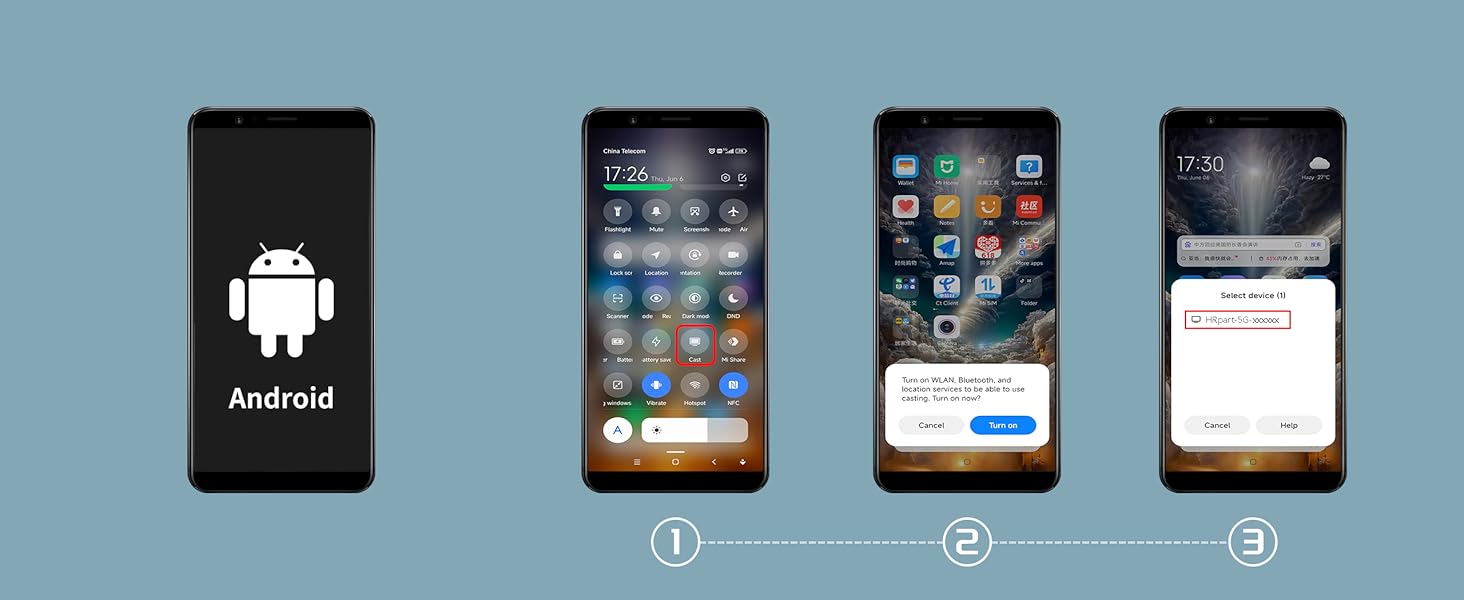
Image: Step-by-step visual guide for Android Miracast connection.
For Windows (Miracast)
- Press the Windows key + P on your keyboard.
- Select 'Connect to a wireless display'.
- Choose the HRpart-xxxxxx device from the available displays.
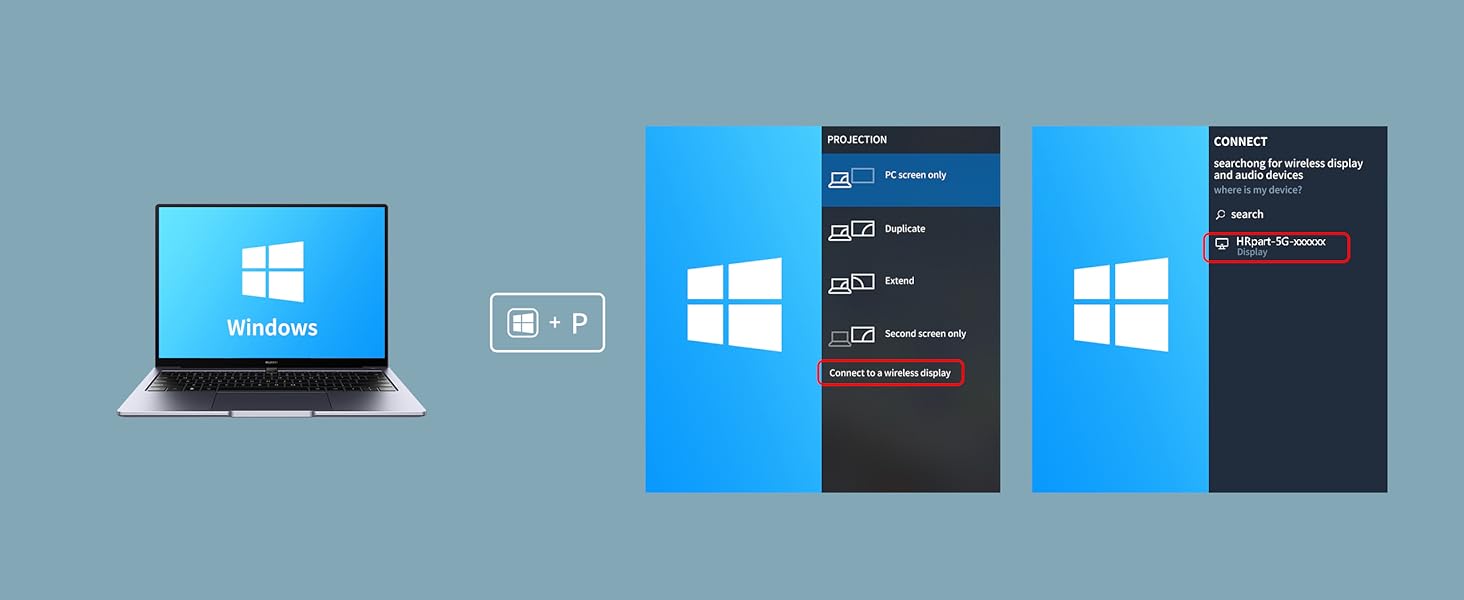
Image: Step-by-step visual guide for Windows Miracast connection.
For Mac OS (AirPlay)
- Click the Control Center icon in the menu bar.
- Click 'Screen Mirroring'.
- Select the HRpart-xxxxxx device from the list.
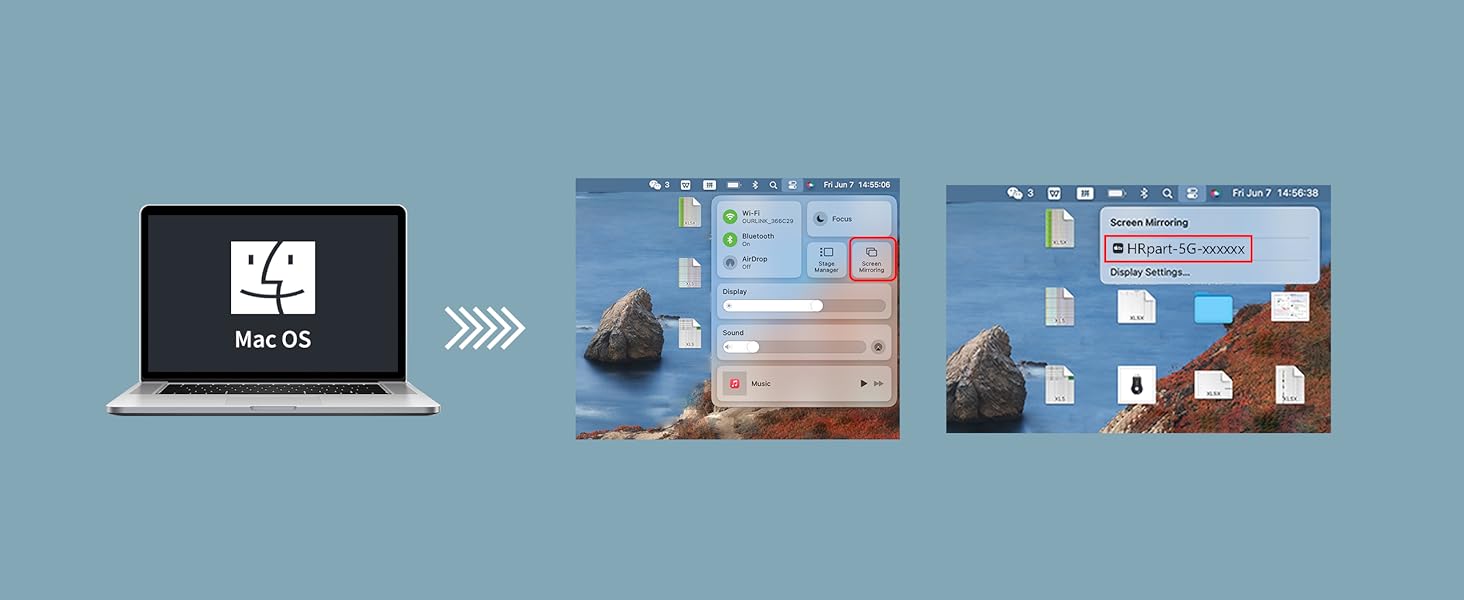
Image: Step-by-step visual guide for Mac OS AirPlay connection.
Video: Demonstrates the wireless mirroring adapter connecting a smartphone to an HDTV/Monitor, showing the ease of setup and use.
Video: Illustrates the 4K wireless TV dongle's capability to display content from a small screen onto a large TV screen.
4. Operating Modes
4.1 Direct Mirror Mode
This mode is ideal for iOS and Mac OS users, providing seamless screen mirroring where your device's display is duplicated on the larger screen.
4.2 DLNA Mode
For a more reliable and prolonged streaming experience, especially when using your router network, utilize the DLNA mode. This allows your device to cast content while performing other tasks.

Image: Visual representation of Mirror Mode, where a smartphone's screen is duplicated on a TV, and Extend Mode, allowing independent use of the phone while casting.
5. Compatibility Notes
The HRpart Wireless Display Adapter supports a wide range of devices and applications. However, please note the following:
- HDCP Copyright Protection: Only Samsung phones currently support video apps with HDCP copyright protection, such as Netflix, Amazon Prime Video, Hulu, Comcast TV, and BT Sport. Other phones are incompatible with these specific applications for mirroring.
- 4K Output: This product supports native 4K transmission. To achieve 4K output, both your display device (TV, monitor, projector) and the signal source (e.g., videos or movies) must support 4K resolution. The adapter cannot upscale non-4K signals to 4K.

Image: A chart detailing application compatibility, highlighting that only Samsung phones support HDCP-protected apps like Netflix and Hulu.
Video: Explains that screen mirroring with this device does not consume your home WiFi bandwidth, as it creates a direct connection.
6. Usage Scenarios
The HRpart 4K Wireless Display Adapter is versatile and can be used in various settings:
- Home Entertainment: Enjoy movies, photos, and games from your device on a large TV screen.
- Business Presentations: Conduct professional presentations by mirroring your laptop or tablet to a projector or large monitor.
- Educational Settings: Teachers can share content from their devices with students on a classroom display.
- Meetings & Conferences: Facilitate collaborative discussions by sharing screens with ease.
- Outdoor Events: Project content onto a large screen for outdoor movie nights or gatherings.

Image: The wireless display adapter used in a household setting for entertainment.

Image: The wireless display adapter used for classroom teaching and educational presentations.
7. Troubleshooting
- No Display/Connection Issues: Reconnect the power cable to the dongle before each use. Ensure the 5V/2A power requirement is met.
- 4K Resolution Not Achieved: Verify that both your display device and the content source (e.g., video file, streaming service) support 4K resolution. The adapter transmits 4K natively but does not upscale lower resolutions.
- Unstable Connection: The device supports 2.4G and 5G dual-band Wi-Fi. Ensure your device is connected to the appropriate band for optimal performance. Minimize interference from other wireless devices.
- App Compatibility: Be aware of HDCP limitations for certain streaming apps on non-Samsung Android devices.
8. Specifications
| Feature | Detail |
|---|---|
| Brand | HRpart |
| Model Name | E26 |
| Connectivity Technology | Wi-Fi (2.4G & 5G Dual Band) |
| Connector Type | HDMI |
| Special Features | Airplay, DLNA, Miracast |
| Resolution | 4K (3840x2160) |
| Supported Internet Services | YouTube |
| Controller Type | Button Control |
| Form Factor | TV Stick |
| Color | Black |
| Compatible Devices | Input: TV, HDTV, Projector, Monitor; Output: iPhone, iPad, MacBook, Android Phone, Smartphone, Laptop, Computer, Tablet |
| Video Codec | H.264, H.265/HEVC |
| Item Dimensions L x W x H | 7.56"L x 2.2"W x 0.47"H |
9. Warranty & Support
This HRpart product comes with a 1-year manufacturer's warranty. For technical support, troubleshooting assistance, or warranty claims, please refer to the contact information provided with your purchase or visit the official HRpart website.