
1. Introduction
The MHCOZY Tuya Smart Life 1-Channel WiFi Relay Module is designed to add smart control capabilities to various home appliances and systems. This module allows for remote control via the Smart Life/Tuya mobile application, as well as voice control through popular smart assistants like Amazon Alexa and Google Home. It supports both low-voltage (DC 5V, 12V, 24V) and high-voltage (AC 100-240V) applications, providing a versatile solution for automation projects. This manual provides detailed instructions for installation, setup, operation, and troubleshooting.
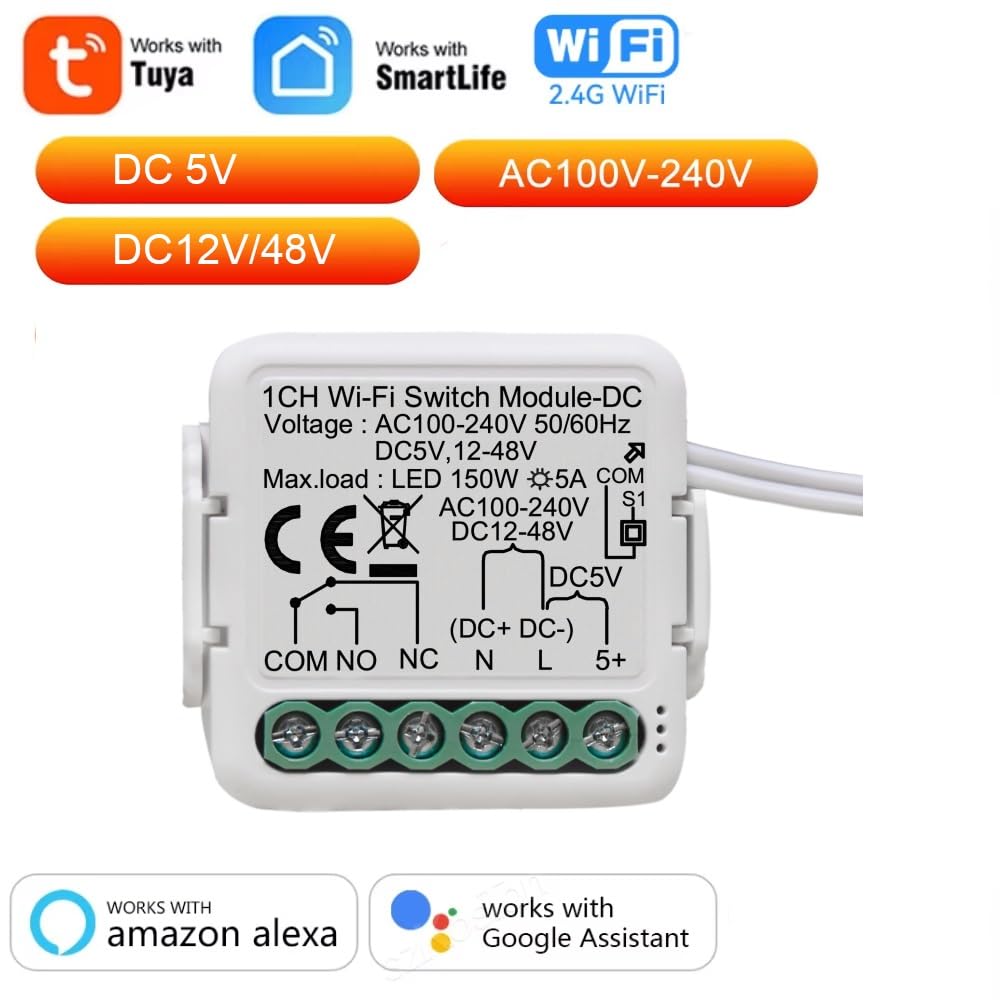
Figure 1: MHCOZY 1-Channel WiFi Relay Module overview, highlighting compatibility and power options.
2. Product Features
- Remote Control: Manage connected devices via the Smart Life/Tuya App from anywhere.
- Voice Control: Compatible with Amazon Alexa, Google Home, and Siri (via smart scenes in Tuya App).
- Wide Voltage Support: Operates with AC 100-240V or DC 5-48V power input.
- Passive Output: Features a clean, passive output contact, meaning no voltage is supplied at the output terminals.
- Easy Installation: Includes a small DIN rail case for convenient mounting.
- Scheduling & Automation: Supports timing schedules, countdowns, and smart scene creation.
- Device Sharing: Share control with family members through the app.
- Group Control: Control multiple switches simultaneously with a single tap.
3. Safety Information
Please read and understand all safety instructions before installation and operation. Improper installation or use can lead to electrical shock, fire, or other hazards.
- Ensure power is disconnected before performing any wiring.
- Installation should be performed by a qualified electrician if you are unsure about electrical wiring.
- This device supports 2.4G Wi-Fi networks only.
- Do not exceed the maximum current rating of 5A.
- The relay provides a passive output; it does not supply voltage to the connected load. An additional power source may be required for the load.
4. Package Contents
- 1 x MHCOZY 1-Channel WiFi Relay Module
- 1 x DIN Rail Case
- 1 x English User Manual
5. Specifications
| Manufacturer | mIc technology co.,ltd |
| Model Reference | TY1CH5-220V |
| Dimensions (L x W x H) | 3.82 x 3.82 x 1.8 cm |
| Weight | 32 grams |
| Power Input | AC 100-240V or DC 5-48V |
| Power Consumption | 25 Milliwatts |
| Current Rating | 5 A (Max. Load LED 150W) |
| Contact Type | Passive clean contact output (NO/NC/COM) |
| Mounting Type | DIN rail mounting |
| Wireless Connectivity | Wi-Fi 2.4G only |
| Operating Mode | Automatic |

Figure 2: Physical dimensions and key components of the relay module.
6. Setup
6.1 Wiring Instructions
The module provides a clean contact output (NO, NC, COM) and requires an external power source for the connected load. Ensure all wiring is done with power disconnected.
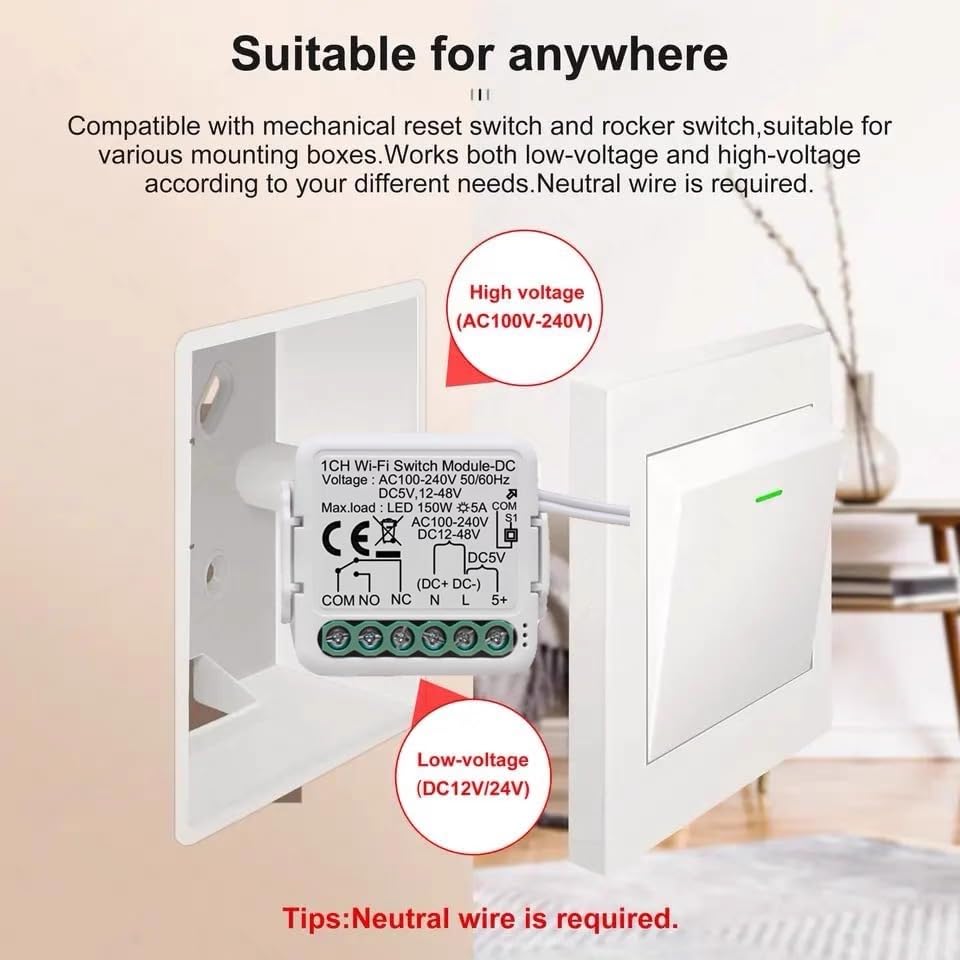
Figure 3: Example installation showing high and low voltage applications. A neutral wire is required.

Figure 4: Detailed wiring diagrams for 1-Channel module with different power inputs (AC 100-240V, DC 12-48V, DC 5V).
6.2 App Pairing (Smart Life/Tuya App)
- Prepare Wi-Fi: The module supports 2.4G Wi-Fi only. If your router operates on both 2.4G and 5G bands with the same SSID, temporarily disable the 5G band or ensure your phone is connected to the 2.4G network.
- Power On: Connect the module to its power supply. The indicator light should flash rapidly, indicating it is in quick pairing mode.
- Open App: Launch the Smart Life or Tuya App on your smartphone.
- Add Device: Tap the '+' icon in the top right corner of the app to add a new device. The app should automatically discover the relay module.
- Connect: Select the discovered device. The app will prompt you to confirm your 2.4G Wi-Fi network and enter its password.
- Complete Pairing: Follow the on-screen instructions to complete the pairing process. Ensure the module is placed near your router during pairing.
- Alternative Pairing (Compatible Mode): If quick pairing fails, long-press the pairing button on the module until the indicator light flashes slowly. Then, select 'Compatible Mode' or 'AP Mode' in the app's pairing options and follow the instructions.
7. Operating Instructions
7.1 Control Modes
The module supports two main operating modes configurable within the Smart Life/Tuya App:
- Self-locking Mode: In this mode, the relay acts like a standard switch. When you turn it ON, it stays ON until you manually turn it OFF. When you turn it OFF, it stays OFF until you manually turn it ON.
- Inching Mode (Momentary): This mode provides momentary control. You can configure it for two behaviors:
- On for 1 second, then Off automatically: Useful for triggering devices that require a brief pulse, such as garage door openers or gate access systems.
- Off for 1 second, then On automatically: Provides a momentary break in the circuit.
7.2 Scheduling and Timing
The Smart Life/Tuya App allows you to create various schedules and timers for automated control:
- Timing Schedules: Set specific times for the relay to turn ON or OFF on selected days of the week.
- Countdown Timer: Set a timer for the relay to turn ON or OFF after a specified duration.
- Sunrise/Sunset: Automate actions based on local sunrise and sunset times.
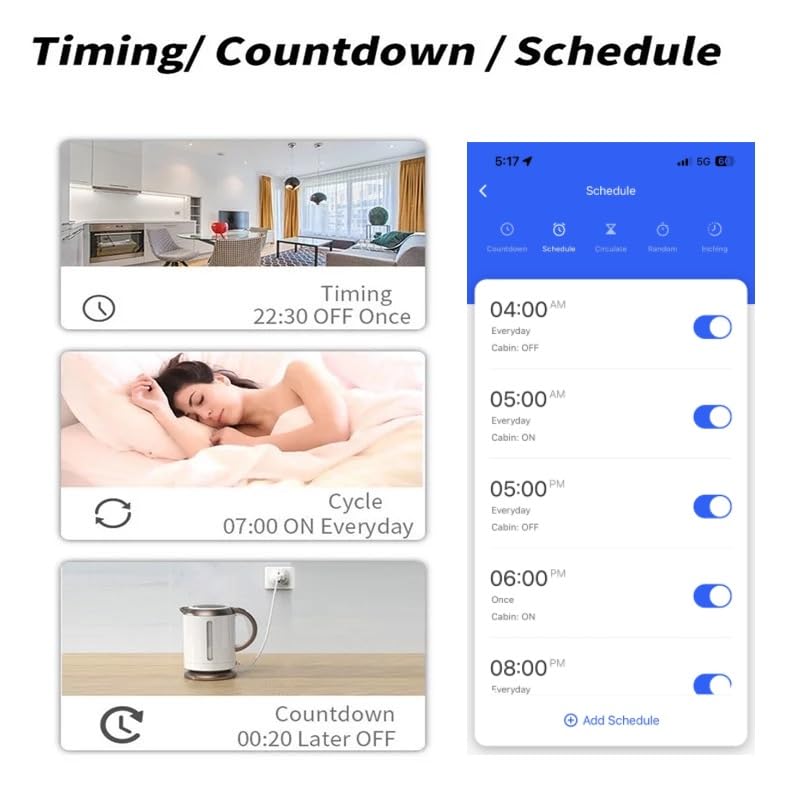
Figure 5: App interface for setting timing, countdown, and schedules.
7.3 Voice Control
Once paired with the Smart Life/Tuya App, you can link your account to Amazon Alexa or Google Home for voice control. Follow the instructions within the Alexa or Google Home app to enable the 'Smart Life' or 'Tuya Smart' skill.
- Amazon Alexa: "Alexa, turn on [Device Name]" or "Alexa, turn off [Device Name]".
- Google Home: "Hey Google, turn on [Device Name]" or "Hey Google, turn off [Device Name]".
- Siri: Create smart scenes in the Tuya App and add them as Siri Shortcuts for voice activation.
7.4 Relay Status Setting
You can configure the relay's state after a power outage. This setting ensures the device returns to a desired state when power is restored.
- OFF: The relay will be OFF when power is restored.
- ON: The relay will be ON when power is restored.
- Remember Last Status: The relay will return to its state prior to the power outage.

Figure 6: App interface for configuring relay status after power restoration.
7.5 Group Control
For managing multiple smart devices, the app allows you to create groups. This enables you to control several switches or devices simultaneously with a single command.

Figure 7: App interface demonstrating group control for multiple devices.
8. Maintenance
The MHCOZY WiFi Relay Module is designed for reliable operation with minimal maintenance. To ensure longevity and proper function:
- Keep the module in a dry environment, away from moisture and extreme temperatures.
- Periodically check wiring connections to ensure they are secure.
- Clean the exterior of the module with a soft, dry cloth if necessary. Do not use liquid cleaners.
- Ensure the module is not exposed to direct sunlight or excessive heat.
9. Troubleshooting
- Device not pairing:
- Ensure your Wi-Fi network is 2.4G. The module does not support 5G Wi-Fi.
- Verify your phone is connected to the same 2.4G Wi-Fi network during pairing.
- Place the module closer to your Wi-Fi router.
- Try the 'Compatible Mode' (AP Mode) pairing method if quick pairing fails.
- Check if the Wi-Fi password entered is correct.
- Device offline in app:
- Check your Wi-Fi router's status and internet connection.
- Ensure the module is powered on.
- Restart the module by disconnecting and reconnecting its power supply.
- If the issue persists, try re-pairing the device.
- Voice control not working:
- Ensure the Smart Life/Tuya skill is enabled in your Alexa or Google Home app.
- Verify the device name in the Smart Life/Tuya app matches the name used for voice commands.
- Check if your smart assistant device (Alexa, Google Home) is online and functioning correctly.
- Connected device not responding:
- Check the wiring connections to the load (e.g., light, motor) and ensure they are secure.
- Confirm that the connected load has its own power supply if required, as the relay provides a passive contact.
- Ensure the load's power consumption does not exceed the relay's 5A current rating.
10. Warranty and Support
For warranty information and technical support, please refer to the product packaging or contact your retailer. You may also visit the MHCOZY official website for further assistance and updated documentation.