
1. Introduction
Thank you for choosing the Yinker LDP1 15.6-inch Portable Touchscreen Monitor. This manual provides essential information for setting up, operating, and maintaining your new monitor. Please read it thoroughly before use to ensure optimal performance and longevity of your device.
2. Package Contents
Verify that all items listed below are included in your package. If any items are missing or damaged, please contact customer support.
- Yinker LDP1 15.6-inch Portable Touchscreen Monitor
- Magnetic Leather Protective Cover
- USB-C to USB-C Cable (Full-featured)
- Mini HDMI to HDMI Cable
- USB-A to USB-C Cable (for power)
- Power Adapter

Image: The Yinker LDP1 portable monitor, its magnetic leather cover, USB-C to USB-C cable, Mini HDMI to HDMI cable, USB-A to USB-C power cable, and power adapter.
3. Product Features
- 10-Point Capacitive Touchscreen: Enjoy responsive and accurate touch interaction with compatible devices.
- 15.6-inch FHD IPS Display: Features a 1920x1080 resolution at 60Hz with a 1200:1 contrast ratio for clear and vibrant visuals.
- Magnetic Leather Cover: Serves as both a protective cover and an adjustable stand, offering two viewing angles.
- Versatile Connectivity: Equipped with two full-function USB-C ports, one Mini HDMI port, and a 3.5mm audio port.
- Integrated Speakers: Built-in dual speakers provide audio output.
- Plug and Play: Simple setup with no driver installation required for most compatible devices.
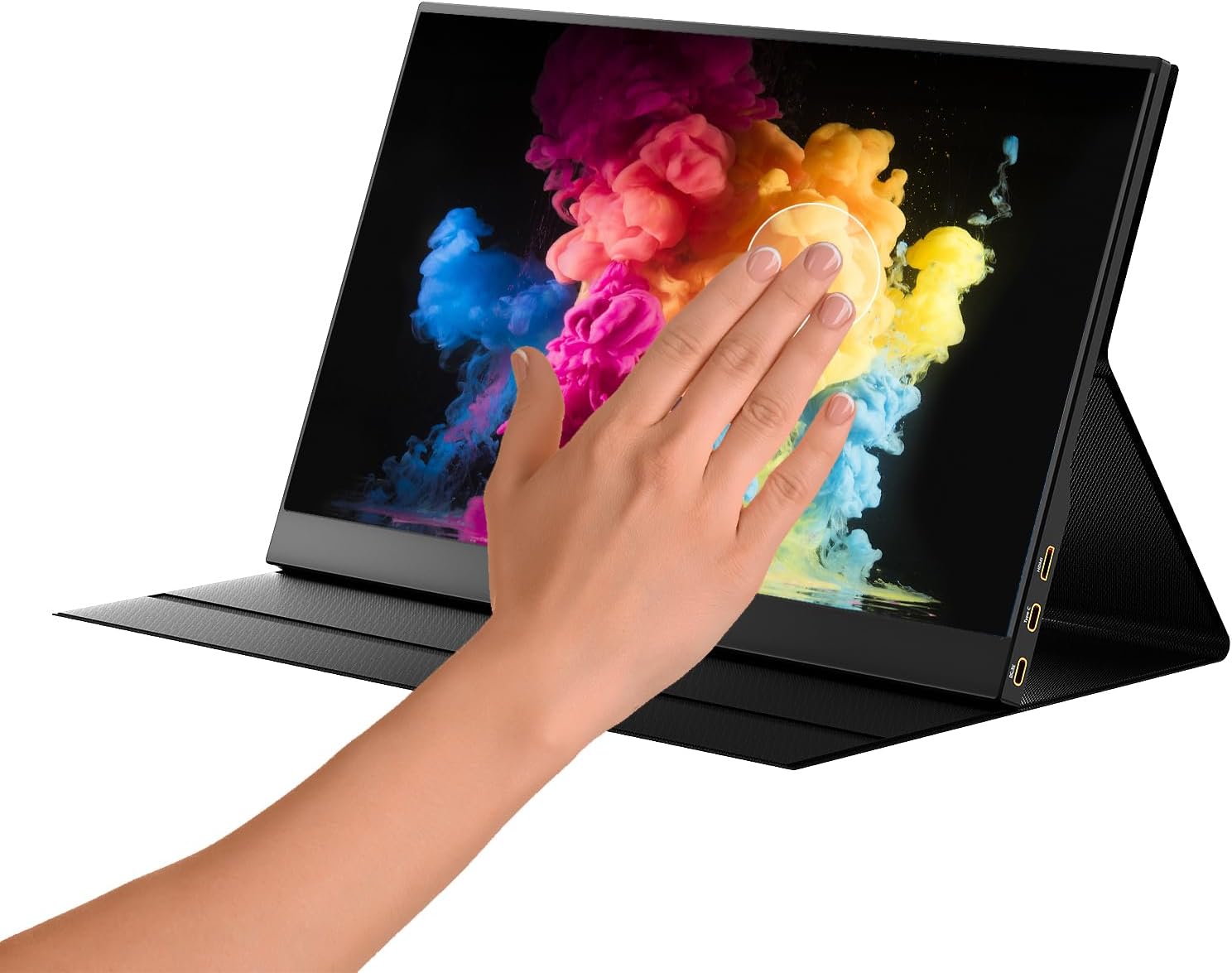
Image: A hand demonstrating the touch functionality on the Yinker LDP1 portable monitor, displaying colorful abstract art.

Image: The Yinker LDP1 portable monitor showcasing a high-resolution image of colorful smoke, highlighting its 1080p@60Hz display capabilities.
4. Setup
Follow these steps to set up your Yinker LDP1 portable monitor:
- Unpack: Carefully remove the monitor and all accessories from the packaging.
- Position: Place the monitor on a stable, flat surface. The magnetic leather cover can be folded to act as a stand, providing two viewing angles.
- Connect: Refer to the 'Connections' section for detailed instructions on connecting your device to the monitor.
- Power On: Once connected, the monitor should power on automatically if sufficient power is supplied via USB-C. If not, connect the power adapter using the USB-A to USB-C cable to one of the monitor's USB-C ports.

Image: A person demonstrating the portability of the Yinker LDP1 monitor by placing it, protected by its magnetic cover, into a handbag.
5. Connections
The Yinker LDP1 monitor offers multiple connection options for various devices.
5.1. USB-C Connection (Full-featured)
For devices with a full-featured USB-C port (Thunderbolt 3.0, 4.0, or USB 3.1 Type-C DP ALT-MODE), a single USB-C to USB-C cable can transmit video, audio, power, and touch signals.
- Connect one end of the USB-C to USB-C cable to your device's full-featured USB-C port.
- Connect the other end to one of the monitor's USB-C ports.
- The monitor should automatically detect the signal and power on. If your device cannot provide sufficient power, connect the external power adapter to the other USB-C port on the monitor.
5.2. HDMI and USB-C Connection
For devices with an HDMI output and a standard USB-C or USB-A port, you will need two cables:
- Connect the Mini HDMI to HDMI cable from your device's HDMI port to the monitor's Mini HDMI port for video and audio.
- Connect the USB-A to USB-C cable from your device's USB-A port (or a power adapter) to one of the monitor's USB-C ports for power and touch functionality.
5.3. Audio Output
The monitor includes a 3.5mm audio port for connecting external headphones or speakers.

Image: A diagram illustrating connection methods for the Yinker LDP1 monitor, including USB-C to USB-C for laptops and phones, and HDMI with USB-C for power for laptops without full-featured USB-C.

Image: A chart detailing connection scenarios, indicating when touchscreen functionality is supported (e.g., one cable USB-C connection) and when it is not (e.g., using adapters).
6. Operating Instructions
6.1. On-Screen Display (OSD) Menu
The monitor features an OSD menu for adjusting various settings such as brightness, contrast, color temperature, and input source. Typically, buttons on the side or back of the monitor allow navigation and selection within the OSD menu.
- Press the menu button to activate the OSD.
- Use the navigation buttons to scroll through options.
- Press the select button to confirm your choice.
- To exit the OSD, navigate to the 'Exit' option or wait for the menu to time out.
Note on HDR:
For optimal color and contrast, especially if the display appears washed out, enable HDR (High Dynamic Range) in the monitor's OSD settings if your connected device supports it. This can significantly improve visual quality.
6.2. Touchscreen Functionality
The monitor supports 10-point capacitive touch for an interactive experience.
- Touch functionality is enabled via a full-featured USB-C connection or a combination of HDMI (for video) and USB-C (for touch data and power).
- Ensure your device's operating system supports external touchscreens.
- Some device models may not support touch for system protection reasons.

Image: A hand demonstrating touch input on the Yinker LDP1 portable monitor, which is displaying a desktop interface with various icons and windows.
7. Compatibility
The Yinker LDP1 portable monitor is compatible with a wide range of devices and operating systems:
- Operating Systems: Windows, macOS, Android.
- Devices: Laptops, PCs, Smartphones, Tablets, Gaming Consoles (Nintendo Switch, PlayStation 5, Xbox).
Touchscreen Compatibility Notes:
- Click Touch: Macbooks, iMac, Mac mini.
- Multi-Touch: Huawei, Tablets, Windows PCs, Steam Deck.
- No Support Touch: iPhone, iPad, Nintendo Switch, PS5, Xbox.

Image: The Yinker LDP1 portable monitor displaying a game, with icons for Xbox, Nintendo Switch, and PS5, indicating broad compatibility with gaming consoles.

Image: A compatibility chart categorizing devices into 'Click Touch', 'Multi-Touch', and 'No Support Touch' for the Yinker LDP1 portable monitor.
8. Maintenance
Proper care and maintenance will extend the life of your monitor.
- Cleaning the Screen: Use a soft, lint-free cloth slightly dampened with water or a screen-cleaning solution. Avoid harsh chemicals or abrasive materials.
- Cleaning the Body: Wipe the monitor's casing with a soft, dry cloth.
- Storage: When not in use, store the monitor in its magnetic leather cover to protect the screen from scratches and impacts. Store in a cool, dry place away from direct sunlight.
- Avoid Liquids: Do not expose the monitor to excessive moisture or liquids.
- Temperature: Operate and store the monitor within recommended temperature ranges to prevent damage.
9. Troubleshooting
If you encounter issues with your Yinker LDP1 monitor, refer to the following common problems and solutions:
- No Signal / Black Screen:
- Ensure all cables are securely connected to both the monitor and your source device.
- Verify that your source device is powered on and outputting a video signal.
- If using USB-C, ensure your device's USB-C port supports video output (DP Alt Mode).
- Try connecting the monitor to an external power source using the provided power adapter.
- No Touch Functionality:
- Ensure you are using a full-featured USB-C cable or both HDMI and a USB-C cable for touch data.
- Check if your operating system or device model supports external touchscreens (refer to Compatibility section).
- For Windows PCs with extended displays, ensure the portable monitor is set as the main display in Windows settings for accurate touch response. If it's not the main display, touch input may register on your primary monitor.
- Washed Out Colors / Poor Image Quality:
- Access the monitor's OSD menu and adjust brightness, contrast, and color settings.
- If your source device and content support it, enable HDR (High Dynamic Range) in the monitor's OSD settings for richer and more vivid colors.
- No Audio / Low Audio from Built-in Speakers:
- Check the volume settings on both the monitor (via OSD) and your source device.
- Ensure the correct audio output device is selected on your source device.
- The built-in speakers are designed for casual use; for higher quality audio, connect external headphones or speakers to the 3.5mm audio port.
- Monitor Flickering:
- Ensure the power supply is stable. Try a different power outlet or adapter.
- Check the cable connections for any looseness or damage. Try a different cable if available.
- Reduce the refresh rate or resolution on your source device if it's set too high for the cable or monitor.
10. Specifications
| Feature | Specification |
|---|---|
| Model Number | LDP1 |
| Screen Size | 15.6 Inches |
| Display Type | IPS Panel |
| Resolution | 1920 x 1080 Pixels (FHD 1080p) |
| Refresh Rate | 60Hz |
| Aspect Ratio | 16:9 |
| Contrast Ratio | 1200:1 |
| Response Time | 1 Millisecond |
| Touchscreen | 10-Point Capacitive Touch |
| Connectivity | 2x USB-C (Full-featured), 1x Mini HDMI, 1x 3.5mm Audio Jack |
| Built-in Speakers | Yes |
| Product Dimensions | 14.09 x 8.94 x 3.94 inches |
| Item Weight | 4.09 pounds |

Image: The EU Energy Label for the Yinker LDP1 monitor, indicating an energy efficiency class of A and 13 kWh/1000h consumption. For more details, visit the official EU EPREL database: https://eprel.ec.europa.eu/qr/2431470
11. Warranty and Support
Yinker products are designed for reliability and performance. For warranty information, technical support, or customer service inquiries, please refer to the contact details provided with your product packaging or visit the official Yinker website.
Please retain your proof of purchase for warranty claims.


