Introduction
This manual provides essential information for the setup, operation, and maintenance of your DID A R 2025 Blu-ray Player Model RM. Please read it thoroughly before use to ensure optimal performance and longevity of your device. This player supports Blu-ray discs (Region A1) and all DVD regions (PAL), offering versatile media compatibility for your home entertainment needs.
What's in the Box
- DID A R 2025 Blu-ray Player Model RM
- Remote Control
- HDMI Cable
- AV Cable

Figure 1: Contents of the DID A R 2025 Blu-ray Player package. The image displays the player unit, remote control, HDMI cable, and AV cable.
Product Overview
The DID A R 2025 Blu-ray Player Model RM is engineered for a superior viewing and listening experience. It outputs video in crisp 1080p resolution and supports Dolby Audio/DTS for rich, immersive sound. The player's retro design, featuring a wood-grain aesthetic, allows it to blend seamlessly with various home decor styles. It also includes a USB port for playing media from external storage devices.
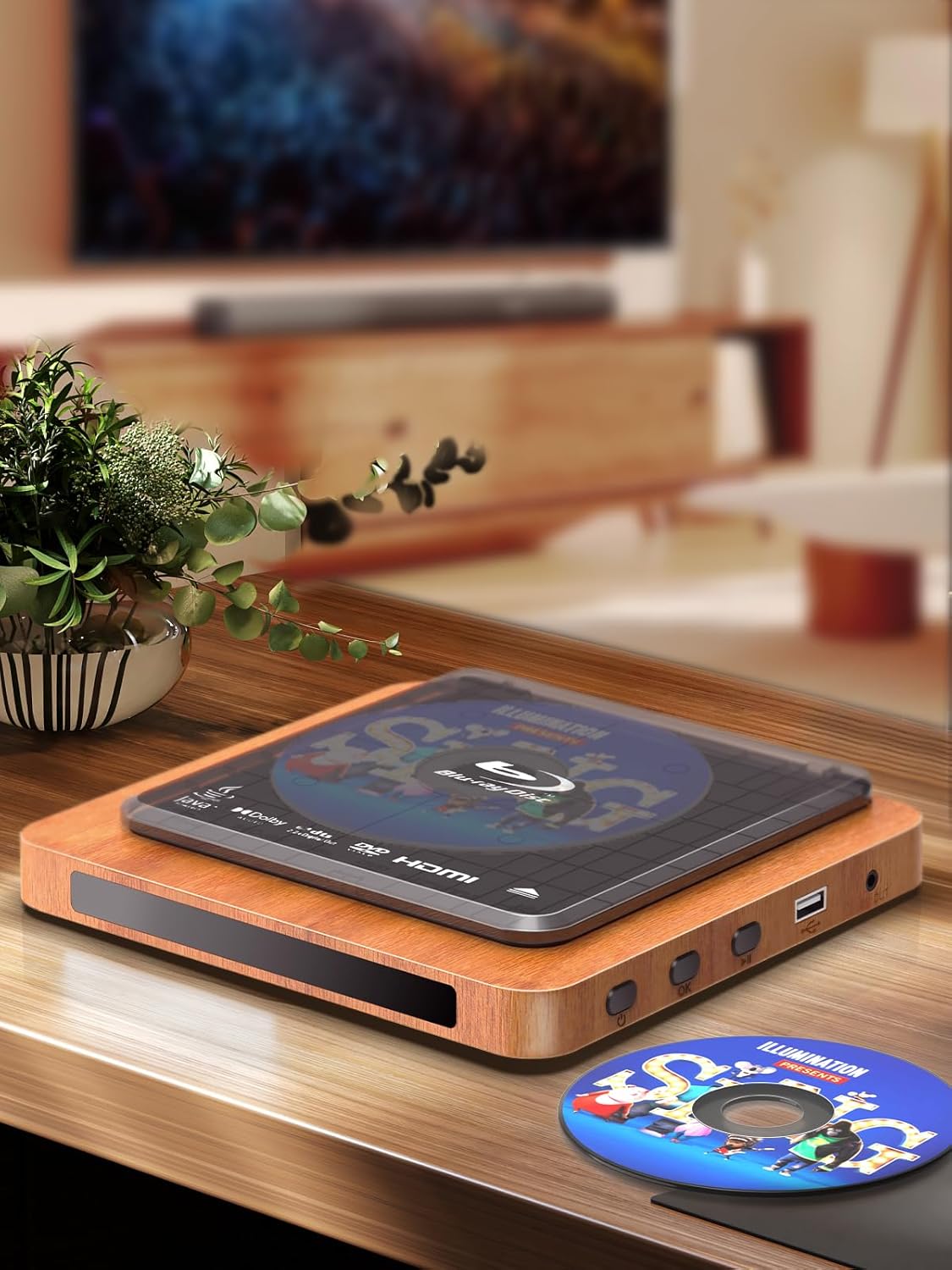
Figure 2: The Blu-ray player showcasing its top-loading disc mechanism and retro design on a wooden surface.

Figure 3: Visual comparison of 1080p versus 720p resolution, highlighting the player's superior picture quality. Supported media types such as Blu-ray, DVD, CD, MP3, and WMA are also listed.
Video 1: An overview of the 2025 New Model Blu-ray Player, demonstrating its features and design.
Setup
Connecting to a Television
- Connect one end of the provided HDMI cable to the HDMI OUT port on the back of the Blu-ray player.
- Connect the other end of the HDMI cable to an available HDMI input on your television.
- For older televisions, use the provided AV cable. Connect the colored plugs (yellow for video, red for right audio, white for left audio) to the corresponding input jacks on your television.
- Connect the power adapter to the DC IN 12V port on the back of the player and then plug it into a power outlet.
- Turn on your television and select the correct HDMI or AV input source using your TV's remote control.

Figure 4: Detailed view of the rear panel connections, including HDMI OUT, LAN (100), DC IN 12V, and Digital Out (Coaxial) ports.
Network Connection
For internet-enabled features, connect an Ethernet cable to the LAN (100) port on the back of the player. Alternatively, the player may support wireless LAN connectivity; refer to the on-screen network settings for configuration.
Video 2: A short demonstration highlighting the compact size and easy setup process of the Blu-ray player.
Video 3: This video illustrates the effortless setup and overall quality of the Blu-ray player.
Operating Instructions
Loading a Disc
- Gently lift the disc cover on the top of the player.
- Place the Blu-ray or DVD disc onto the spindle with the label side facing up.
- Close the disc cover. The player will automatically begin reading the disc.

Figure 5: Demonstrating the top-loading disc mechanism. The disc cover is open, and a disc is being inserted.
Using the Remote Control
The included remote control allows full functionality of the Blu-ray player. Insert two AAA batteries (not included) into the remote. Use the directional buttons to navigate menus, the OK button to confirm selections, and the Play/Pause, Stop, Fast Forward, and Rewind buttons for media control. Dedicated buttons for Home, Netflix, and other functions are also available.
Figure 6: The remote control, detailing its layout with playback, navigation, and dedicated function buttons.
USB Playback
Insert a USB flash drive into the USB port on the front of the player. The player will detect the device and allow you to browse and play compatible media files (e.g., MP3, WMA, Xvid). Ensure your USB device is formatted to a compatible file system (e.g., FAT32).
Maintenance
- Keep the player clean by wiping it with a soft, dry cloth. Avoid using liquid cleaners or abrasive materials.
- Ensure proper ventilation around the player to prevent overheating. Do not block any ventilation openings.
- Handle discs by their edges to prevent scratches and smudges. Store discs in their cases when not in use.
Troubleshooting
| Problem | Solution |
|---|---|
| No picture or sound | Check HDMI/AV cable connections. Ensure the correct input source is selected on your TV. Verify power connection to the player and outlet. |
| Disc not playing | Ensure the disc is clean and free of scratches. Verify the disc is placed correctly in the tray. Try a different disc to rule out disc-specific issues. |
| Remote control not working | Check and replace batteries in the remote. Ensure there are no obstructions between the remote and the player's sensor. |
| Player freezes or becomes unresponsive | Unplug the player from the power outlet, wait 30 seconds, then plug it back in and restart the device. |
| Cannot connect to network | Check LAN cable connection if using wired. Verify network settings in the player's menu. Restart your router and modem. |
| Poor picture quality | Ensure you are using an HDMI cable for optimal 1080p resolution. Check your TV's display settings for picture mode and resolution. |
Specifications
- Brand: DID A R
- Model Name: RM
- Media Type: Blu-Ray Disc, DVD Video
- Special Feature: Surround Sound
- Resolution: 1920 x 1080 pixels (1080p)
- Connector Type: HDMI, AV
- Connectivity Technology: HDMI, LAN (100)
- Audio Output Mode: Surround
- Item Weight: 0.98 Kilograms (2.16 pounds)
- Package Dimensions: 12.56 x 8.86 x 2.91 inches
- Included Components: Blu Ray Player, Remote Control, HDMI Cable, AV Cable
Warranty and Support
The DID A R Blu-ray Player Model RM includes a 3-year warranty, providing assurance for your purchase. For technical support, troubleshooting assistance, or to initiate a warranty claim, please refer to the contact information detailed in your product packaging or visit the official DID A R support website. Additional extended protection plans are available for purchase to further safeguard your investment:
- 2-Year Protection Plan: $9.99
- 3-Year Protection Plan: $13.49
- Complete Protect: $16.99/month (covers all eligible past and future purchases)


