
feifeaouy HY300Ultra
Mini Projector 4K with WiFi Bluetooth 5.4 - Smart Portable Projector (HY300Ultra) User Manual
Brand: feifeaouy
Model: HY300Ultra
1. Product Overview
The feifeaouy HY300Ultra Mini Projector is a compact and versatile device designed for home cinema and entertainment. It features 4K support, built-in WiFi 6 and Bluetooth 5.4, Android 11 with preloaded Netflix, and automatic keystone correction. Its portable design and 180-degree adjustable stand make it suitable for various projection setups, from bedrooms to outdoor camping.
This projector delivers vibrant 170 ANSI lumens brightness and a native 720P resolution, supporting projection sizes from 25 to 110 inches. It is equipped with dual-band WiFi for smooth streaming and Bluetooth 5.4 for enhanced audio connectivity.

Image 1.1: The feifeaouy HY300Ultra Mini Projector shown with its accompanying remote control. The projector is white with a sleek, cylindrical design and a prominent lens.
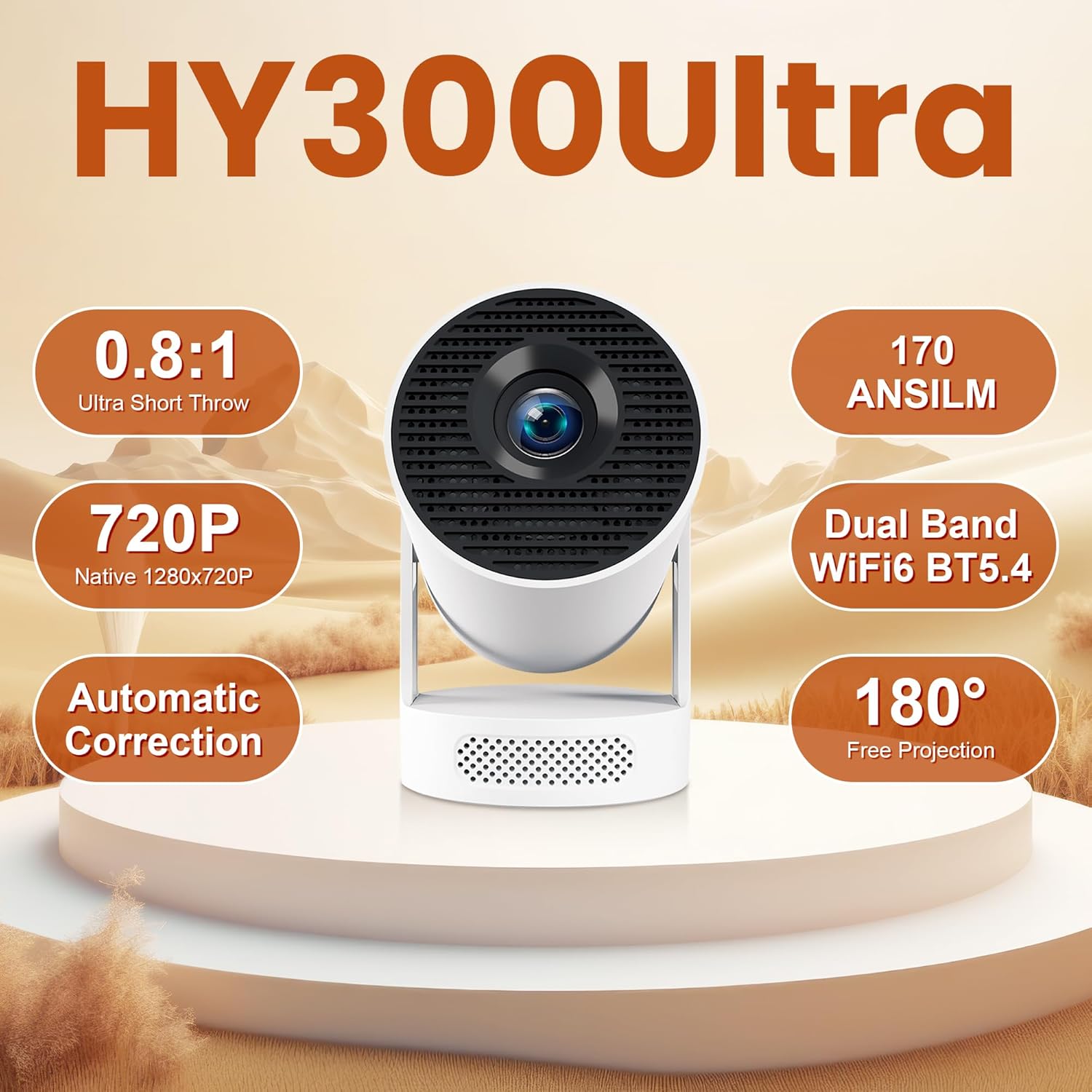
Image 1.2: An overview of the HY300Ultra's key features, including its ultra-short throw ratio, brightness, native resolution, connectivity options, automatic correction, and flexible projection angle.
2. Setup Guide
2.1 Unpacking and Initial Placement
Carefully remove the projector and all accessories from the packaging. Place the projector on a stable, flat surface. Thanks to its 180-degree adjustable stand, you can easily position the projector to project onto a wall, ceiling, or screen. Adjust the angle to achieve your desired projection height and location.
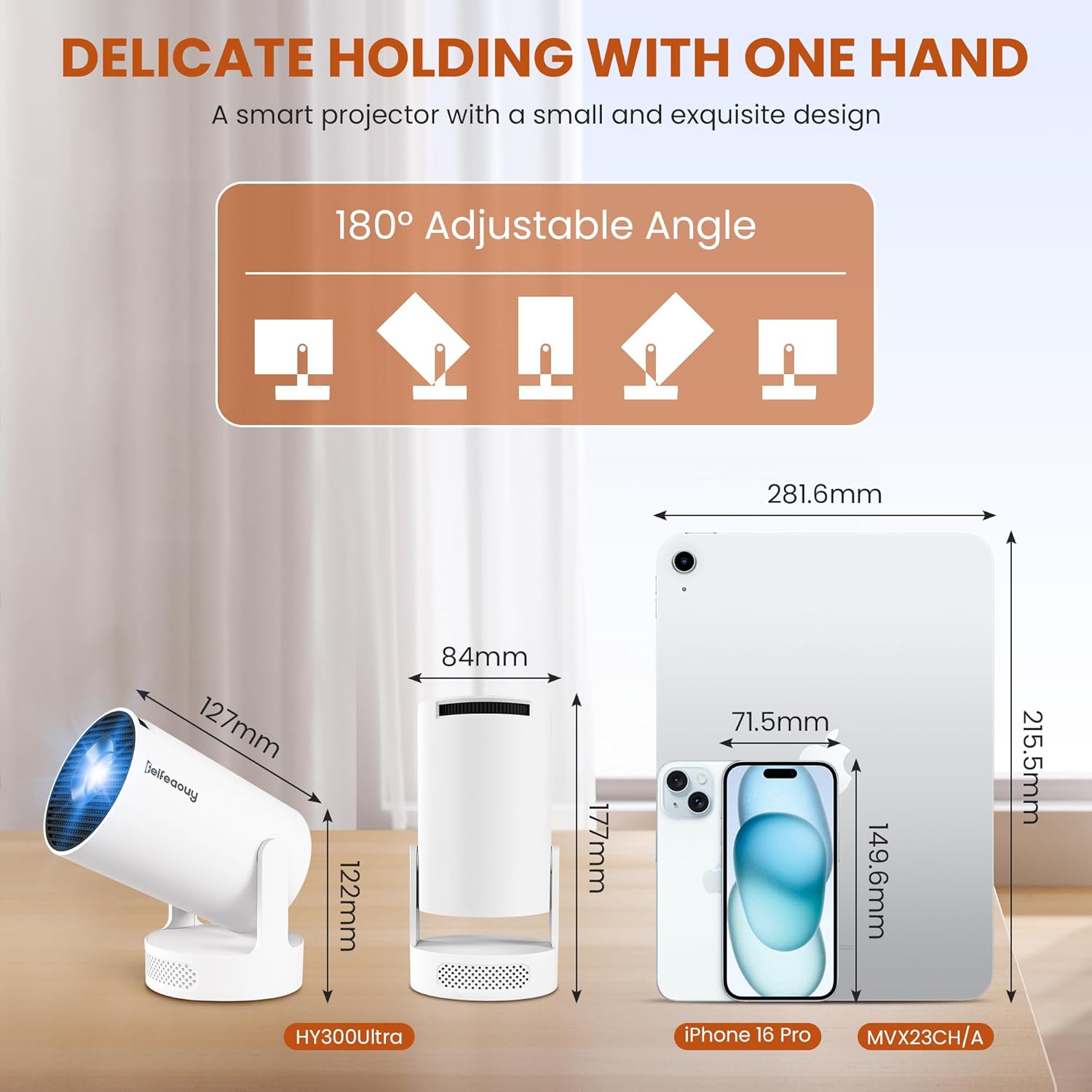
Image 2.1: Illustration demonstrating the compact size of the projector compared to an iPhone and iPad, along with its 180-degree adjustable projection angle.
2.2 Power Connection
Connect the provided power adapter to the projector's power input port and then plug it into a standard electrical outlet. The projector will power on or enter standby mode.
2.3 Focus and Keystone Correction
The projector features automatic keystone correction, which will automatically adjust the image to be square even if the projector is placed at an angle. For fine-tuning the image clarity, use the manual focus ring located on the projector. Rotate the ring until the projected image appears sharp and clear.
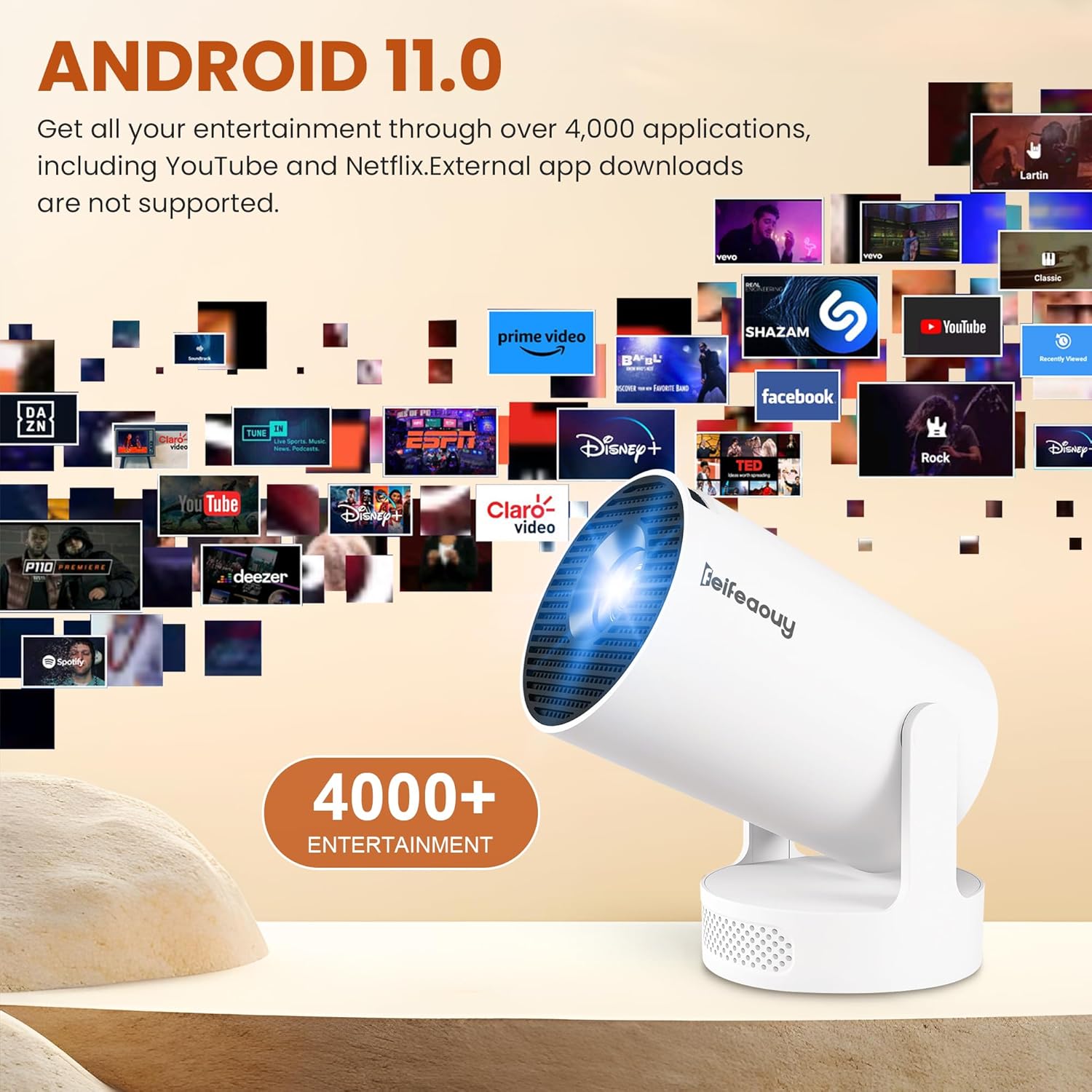
Image 2.2: A visual representation of the automatic keystone correction feature, showing how the projector corrects a skewed image into a perfect rectangle.
3. Operating Instructions
3.1 Android 11 and Preloaded Apps
The projector runs on Android 11, providing a smart TV experience. Navigate the interface using the remote control. Netflix is preinstalled, allowing direct streaming of content without external devices. Access other applications through the Android interface. Note that external app downloads may not be supported.

Image 3.1: A screenshot of the projector's Android 11 interface, displaying a wide array of streaming and entertainment applications.
3.2 WiFi Connectivity (Dual-Band WiFi 6)
To connect to your home network, go to the settings menu, select "Network & Internet," and choose your desired 2.4G or 5G WiFi network. Enter the password if prompted. The dual-band WiFi 6 ensures stable and fast connections for streaming and online activities.
3.3 Bluetooth 5.4 Audio
Enhance your audio experience by connecting external Bluetooth speakers or headphones. Go to settings, select "Connected devices," and pair your Bluetooth device. The projector's built-in speakers provide clear audio, but Bluetooth allows for more immersive sound.
3.4 Screen Mirroring
Mirror content from your iPhone or Android smartphone/tablet to the projector via WiFi. Ensure both devices are connected to the same WiFi network. Access the screen mirroring function from the projector's main interface and follow the on-screen instructions for your specific device.
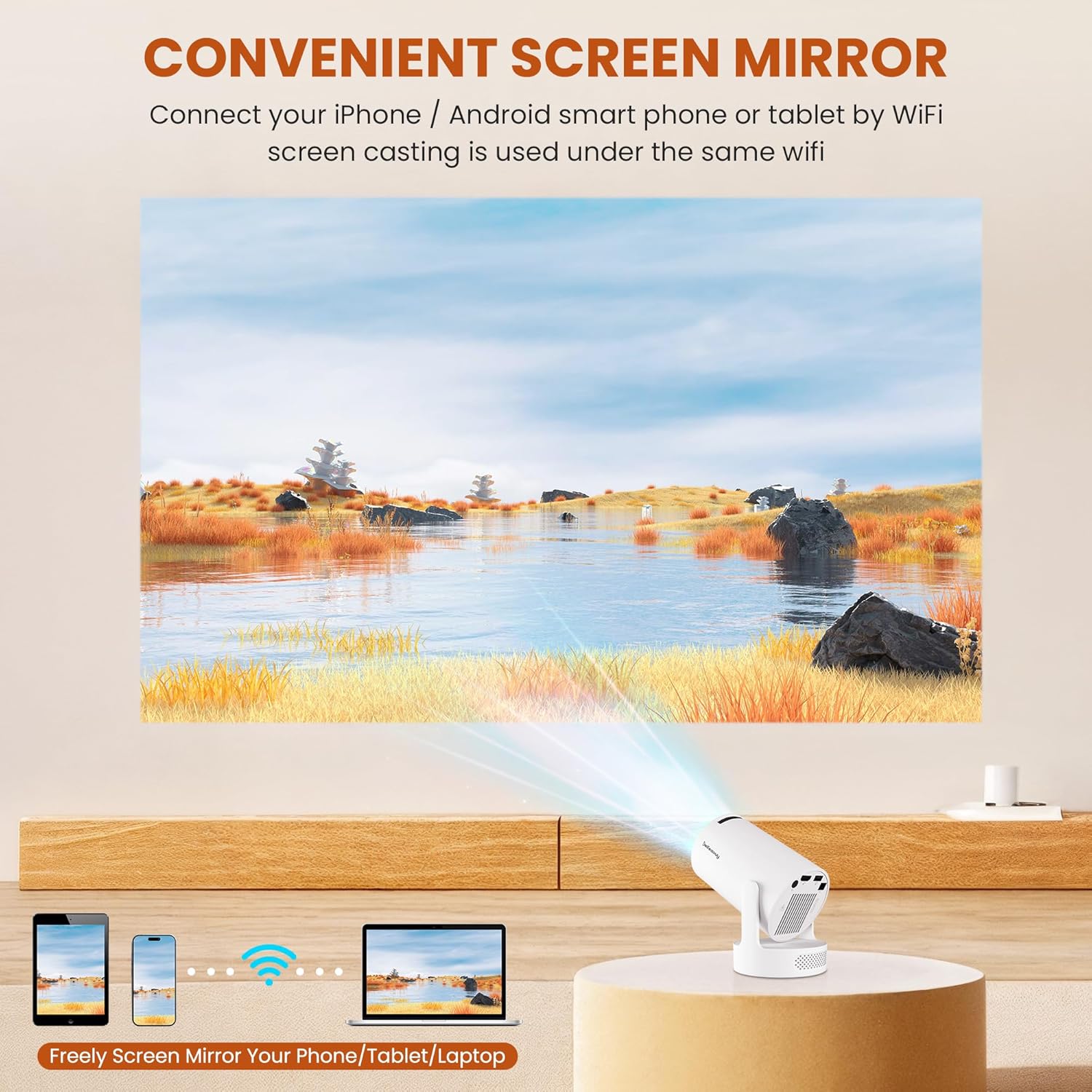
Image 3.2: A visual guide demonstrating how to wirelessly mirror content from a smartphone, tablet, or laptop to the projector.
3.5 Voice Control and Air Mouse Remote
The included remote control features voice control capabilities, allowing you to issue commands and search for content using your voice. It also functions as an air mouse, providing intuitive navigation by moving the remote in the air. A personal Google account may be required to utilize the voice assistant features fully.

Image 3.3: An illustration highlighting the features of the Google Voice Remote Control, including fast pairing, strong compatibility, intelligent interaction, accurate identification, stable connection, and remote control functionality.
4. Maintenance
To ensure optimal performance and longevity of your projector, follow these maintenance guidelines:
- Cleaning: Use a soft, dry cloth to clean the exterior of the projector. For the lens, use a specialized lens cleaning cloth and solution to avoid scratches. Do not use abrasive cleaners.
- Ventilation: Ensure the projector's ventilation ports are not blocked to prevent overheating. The projector is designed with composite heat dissipation and axial airflow to maintain quiet operation (below 25dB) while effectively dissipating heat.
- Storage: When not in use for extended periods, store the projector in a cool, dry place, away from direct sunlight and extreme temperatures.

Image 4.1: A visual representation emphasizing the projector's low noise operation, indicating sound levels are typically below 25dB due to efficient heat dissipation.
5. Troubleshooting
If you encounter issues with your projector, refer to the following common problems and solutions:
- No Image/Power:
- Ensure the power adapter is securely connected to both the projector and a working power outlet.
- Check if the power indicator light on the projector is on.
- Blurred Image:
- Adjust the manual focus ring on the projector until the image is clear.
- Ensure the projection surface is flat and the projector is stable.
- Image is Skewed/Trapezoidal:
- The projector has automatic keystone correction. If the image is still skewed, try repositioning the projector or manually adjusting the keystone settings if available in the menu.
- No Sound:
- Check the volume level on the projector and the connected source device.
- If using Bluetooth speakers, ensure they are properly paired and connected.
- WiFi Connection Issues:
- Ensure the projector is within range of your WiFi router.
- Verify the WiFi password is correct.
- Restart both the projector and your WiFi router.
- Remote Control Not Responding:
- Check and replace the batteries in the remote control.
- Ensure there are no obstructions between the remote and the projector.
6. Technical Specifications
| Feature | Specification |
|---|---|
| Brand | feifeaouy |
| Model | HY300Ultra |
| Display Resolution | Native 1280 x 720P (Supports 4K input) |
| Brightness | 170 ANSI Lumens |
| Projection Size | 25–110 inches |
| Throw Ratio | 0.8:1 (Short Throw) |
| Operating System | Android 11 |
| Connectivity Technology | Bluetooth 5.4, Dual-Band WiFi 6 (2.4G/5G) |
| Special Features | Air Mouse Control, Portable, Auto Keystone Correction, 180° Adjustable Stand, Built-in Speakers, Voice Control |
| Recommended Use | Indoor (Bedroom, Home Cinema, Dorm Rooms) |
| Weight | Approx. 13.4 oz (under 1 lb) |
Image 6.1: Detailed dimensions of the HY300Ultra projector, illustrating its compact and portable design.
7. Warranty and Support
For warranty information and technical support, please refer to the documentation included with your purchase or visit the official feifeaouy website. Keep your proof of purchase for warranty claims.
This product is verified by Transparency, ensuring each item has a unique code for authenticity verification.
Ask a question about this manual
Ask about setup, troubleshooting, compatibility, parts, safety, or missing instructions. Manuals+ will review the question and use this page’s manual context to help answer it.