1. Product Overview
The AULA F3001 is a versatile mechanical gaming keyboard designed for multi-device compatibility and high-performance gaming. It features triple-mode connectivity (Bluetooth 5.0, 2.4GHz wireless, and USB wired), hot-swappable switches, vibrant RGB backlighting, and a durable gasket-mount design. This manual provides detailed instructions for setting up, operating, and maintaining your keyboard.
1.1 Package Contents
Please verify that all items are present in your package:
- Mechanical Keyboard (AULA F3001)
- User Manual
- USB-C Cable
- 2.4GHz Wireless Receiver (dongle)
- Keycap/Switch Puller
1.2 Key Features
- Multi-Device Versatility: Supports Bluetooth 5.0, 2.4GHz wireless, and USB wired connections. Pairs with up to 5 devices simultaneously, allowing seamless switching between PC, Mac, tablet, and phone.
- Hot-Swappable Customization: Features a hot-swappable PCB compatible with 3-pin/5-pin switches, enabling easy switch replacement without soldering. Includes pre-lubed linear switches for smooth keystrokes.
- Pro-Gaming Performance: Offers 16.8 million RGB colors with 16 dynamic lighting effects, N-key rollover, anti-ghosting, and macro programming capabilities for enhanced gaming.
- Premium Gasket Mount Design: Incorporates a 5-layer gasket structure with silicone pads and PCB foam to absorb shock, reduce noise, and provide a balanced, cushioned typing feel.
- Long-Lasting & Durable Build: Equipped with a 2000mAh battery for extended wireless use, double-shot PBT keycaps for fade-resistant legends, and a compact layout that retains essential keys.
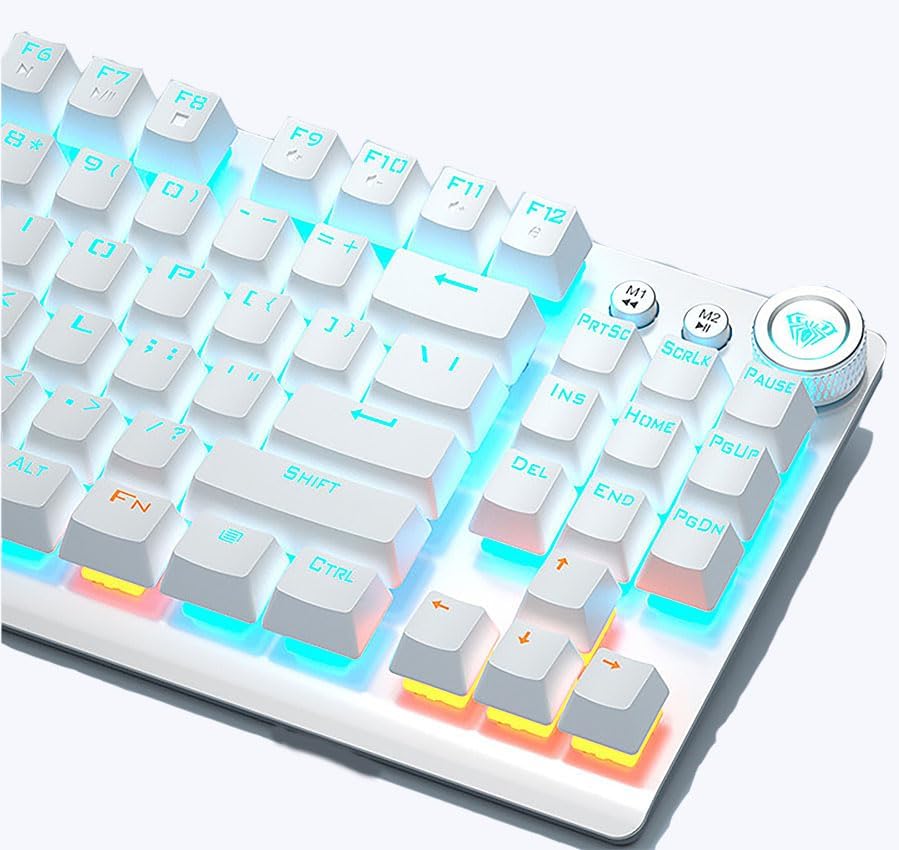
Figure 1: AULA F3001 Wireless Mechanical Gaming Keyboard, showcasing its compact design and vibrant RGB backlighting.
2. Setup
Before using your AULA F3001 keyboard, please follow these setup instructions.
2.1 Charging the Keyboard
For optimal performance, fully charge the keyboard before first use. Connect the provided USB-C cable to the keyboard's USB-C port and the other end to a USB power source (e.g., computer USB port, wall adapter).
- The charging indicator light will illuminate during charging.
- The light will turn off or change color when fully charged.
- The 2000mAh battery provides extended wireless usage.

Figure 2: Detail of the keyboard's mechanical switches and the USB-C port for charging and wired connection.
2.2 Connectivity Modes
The AULA F3001 supports three connection modes: USB Wired, 2.4GHz Wireless, and Bluetooth.

Figure 3: Visual representation of the keyboard's triple-mode connectivity options.
2.2.1 USB Wired Connection
- Connect the USB-C end of the cable to the keyboard's port.
- Connect the USB-A end to an available USB port on your computer.
- The keyboard will be automatically recognized and ready for use.
2.2.2 2.4GHz Wireless Connection
- Locate the 2.4GHz wireless receiver (dongle) usually stored in a compartment on the keyboard.
- Plug the 2.4GHz receiver into an available USB port on your device.
- Switch the keyboard's mode switch (typically on the back or side) to the 2.4G wireless mode.
- The keyboard should connect automatically. If not, press FN + 4 to activate 2.4G pairing mode.
2.2.3 Bluetooth Connection
The keyboard can store up to three Bluetooth profiles (BT1, BT2, BT3).
- Switch the keyboard's mode switch to Bluetooth mode.
- Press and hold FN + 1 (for BT1), FN + 2 (for BT2), or FN + 3 (for BT3) for 3-5 seconds until the indicator light flashes rapidly, indicating pairing mode.
- On your device (PC, Mac, tablet, phone), go to Bluetooth settings and search for "AULA F3001" or similar.
- Select the keyboard to pair. The indicator light on the keyboard will stop flashing once connected.
- To switch between paired Bluetooth devices, simply press FN + 1, FN + 2, or FN + 3.
3. Operating Instructions
This section details the various functions and controls of your AULA F3001 keyboard.
3.1 Basic Key Functions
- Standard Typing: All standard alphanumeric and symbol keys function as expected.
- Function Keys (F1-F12): These keys often have secondary multimedia or system functions accessible by pressing FN in combination with the desired F-key. Refer to the keycap legends for specific functions (e.g., volume control, media playback).
- N-Key Rollover & Anti-Ghosting: The keyboard supports N-key rollover and anti-ghosting, ensuring that all simultaneous key presses are registered accurately, crucial for fast-paced gaming.
3.2 RGB Backlighting Control
The AULA F3001 features 16.8 million RGB colors and 16 dynamic lighting effects. Use the following key combinations to control the backlighting:
- FN + \ |: Cycle through different lighting effects.
- FN + ↑ / ↓: Adjust backlight brightness.
- FN + ← / →: Adjust lighting effect speed.
- FN + DEL: Change backlight color (for static modes).
- FN + INS: Switch between different lighting modes.
- FN + HOME: Activate music rhythm mode (lights dance to sound).
For advanced customization and synchronization, dedicated software may be available (refer to manufacturer's website for download).
3.3 Macro Programming
The keyboard supports macro programming for competitive play. Specific instructions for macro recording and assignment are typically handled via the keyboard's software. Please consult the software's user interface for detailed steps.
4. Customization
The AULA F3001 is designed for easy customization of its mechanical switches.
4.1 Hot-Swappable Switches
The keyboard's hot-swappable PCB allows you to change switches without soldering. This supports both 3-pin and 5-pin mechanical switches, giving you the flexibility to experiment with different typing feels and sounds.
- Using the provided switch puller, gently grip the switch from the top and bottom.
- Pull straight up to remove the switch from the PCB.
- Align the pins of the new switch with the holes on the PCB.
- Gently push the new switch down until it clicks into place. Ensure the pins are not bent.

Figure 4: Examples of different mechanical switch types and their characteristics, illustrating the customization potential.
4.2 Keycap Replacement
The double-shot PBT keycaps are durable and fade-resistant. You can replace them with custom keycaps using the provided keycap puller.
- Use the keycap puller to gently lift the keycap straight up.
- Align the new keycap with the switch stem and press down firmly until it is seated.
5. Maintenance
Proper maintenance will extend the lifespan of your AULA F3001 keyboard.
5.1 Cleaning the Keyboard
- Disconnect the keyboard from all power sources and devices before cleaning.
- Use a can of compressed air to remove dust and debris from between the keycaps.
- Wipe the keycaps and keyboard surface with a soft, slightly damp, lint-free cloth. Avoid excessive moisture.
- Do not use harsh chemicals, abrasive cleaners, or solvents.
5.2 Battery Care
- Avoid fully discharging the battery frequently.
- Store the keyboard in a cool, dry place when not in use for extended periods.
- If storing for a long time, charge the battery to about 50% to prevent deep discharge.
6. Troubleshooting
If you encounter issues with your AULA F3001 keyboard, refer to the following common solutions.
| Problem | Possible Cause | Solution |
|---|---|---|
| Keyboard not responding (Wired) | Loose cable connection; faulty USB port; driver issue. | Ensure USB-C cable is securely connected. Try a different USB port. Restart your computer. |
| Keyboard not responding (2.4GHz Wireless) | Receiver not plugged in; keyboard not in 2.4G mode; low battery. | Ensure 2.4GHz receiver is plugged in. Switch keyboard to 2.4G mode. Recharge keyboard. Re-pair by pressing FN+4. |
| Keyboard not responding (Bluetooth) | Not paired; incorrect BT channel selected; low battery; device Bluetooth off. | Ensure keyboard is in Bluetooth mode and correct BT channel (FN+1/2/3) is selected. Re-enter pairing mode (FN+1/2/3 hold). Recharge keyboard. Ensure device Bluetooth is on. |
| RGB lighting not working | Lighting turned off; brightness too low; software conflict. | Press FN + \ | to cycle effects. Increase brightness (FN + ↑). Check if any software is overriding settings. |
| Keys not registering or double-typing | Dust/debris under keycap/switch; faulty switch. | Remove keycap and clean around the switch. If issue persists, replace the switch (hot-swappable feature). |
7. Specifications
Detailed technical specifications for the AULA F3001 Wireless Mechanical Gaming Keyboard:
| Feature | Detail |
|---|---|
| Model Number | F3001 |
| Connectivity | Bluetooth 5.0, 2.4GHz Wireless, USB-C Wired |
| Keyboard Type | Mechanical Gaming Keyboard |
| Switch Type | Pre-lubed Linear Switches (Hot-swappable 3-pin/5-pin) |
| Keycaps | Double-shot PBT |
| Backlighting | RGB (16.8 million colors, 16 effects) |
| Battery Capacity | 2000mAh |
| Layout | Compact (87 keys, includes arrow keys and numpad) |
| Anti-Ghosting | N-Key Rollover |
| Product Dimensions | 14 x 14 x 1.5 inches |
| Item Weight | 3.3 pounds |
| Compatible Devices | PC, Mac, Tablet, Phone, Gaming Console (PS, Xbox) |
8. Warranty and Support
This product comes with a standard manufacturer's warranty. For specific warranty terms and conditions, please refer to the warranty card included in your product packaging or visit the official AULA website.
For technical support, troubleshooting assistance beyond this manual, or warranty claims, please contact the retailer or manufacturer's customer service through their official channels.
Manufacturer: AULA


