
1. Introduction
This manual provides detailed instructions for the installation, operation, and maintenance of your CADDXFPV GM3 3-Axis Gimbal. The GM3 gimbal is designed to enhance your First-Person View (FPV) experience by providing mechanical stabilization and head tracking capabilities, compatible with select Walksnail VTX models and Avatar HD goggles.
2. Product Overview
The CADDXFPV GM3 is a compact and lightweight 3-axis gimbal system engineered for FPV applications. It integrates advanced mechanical stabilization to ensure smooth footage and supports head tracking when paired with compatible FPV goggles, offering an immersive control experience.

Figure 1: Front view of the CADDXFPV GM3 3-Axis Gimbal.

Figure 2: Rear view of the CADDXFPV GM3 3-Axis Gimbal, showing connection ports.
Key Features:
- Head Tracking Function: Works seamlessly with Avatar HD goggles to provide an immersive FPV experience where the gimbal follows head movements.
- Advanced Mechanical Stabilization: Effectively reduces camera shake, ensuring clear and smooth images even in dynamic flight or driving conditions.
- Convenient Control and Management: Gimbal modes and sensitivity can be adjusted via the Avatar goggle menu or an upgrade kit for precise control.
- Wide Compatibility: Suitable for FPV drones, FPV fixed wings, and RC cars, offering versatile application across various FPV platforms.
- Ease of Use: Features a built-in internal coaxial cable for easy connection between the VTX and camera, eliminating the need for soldering.

Figure 3: The GM3 Gimbal is small and lightweight, weighing only 46 grams.
3. What's in the Box
Upon opening your CADDXFPV GM3 3-Axis Gimbal package, you should find the following components:
- GM3 3-Axis Gimbal Unit
4. Specifications
| Specification | Value |
|---|---|
| Product Dimensions | 4.3 x 3.5 x 2.3 inches (1.84"D x 1.62"W x 2.1"H folded) |
| Item Weight | 1.62 ounces (46 Grams) |
| Item Model Number | C0CA-GM300-US |
| Brand | CADDXFPV |
| Color | Black |
| Compatible Devices | Camera |
| Manufacturer | CADDXFPV |
5. Setup Instructions
Follow these steps to set up your CADDXFPV GM3 3-Axis Gimbal for optimal performance.
5.1 Compatibility
The GM3 Gimbal is compatible with specific Walksnail VTX models and the 19mm FPV Camera. Ensure your equipment matches the compatible list below:

Figure 4: Compatible and incompatible Walksnail VTX models for the GM3 Gimbal.
5.2 Connection Guide
- Attach Camera to Gimbal: Securely mount your compatible 19mm FPV camera to the GM3 gimbal unit.
- Connect Gimbal to VTX: Utilize the built-in internal coaxial cable to connect the gimbal to your compatible Walksnail VTX. This connector design simplifies the process, avoiding the need for soldering.
- Power Connection: Connect the VTX to your power source (e.g., drone flight controller, RC car battery).
- Mounting: Mount the assembled gimbal and VTX unit onto your FPV drone, fixed wing aircraft, or RC car. A 3D-printed base can be used to keep components together and facilitate mounting.
Video 1: Step-by-step guide on how to connect the GM3 Gimbal with other Walksnail FPV system components.
5.3 Head Tracking Activation
For head tracking functionality, ensure your Walksnail Avatar HD Goggles are connected and configured:
- Power On: Ensure both the FPV system (gimbal, camera, VTX) and your Avatar HD Goggles are powered on.
- Access Goggle Menu: Navigate to the settings menu within your Avatar HD Goggles.
- Activate Head Tracking: Locate the head tracking option and enable it. You may also adjust sensitivity and other parameters as needed.
Video 2: Demonstration of the GM3 Gimbal used in conjunction with Walksnail Avatar HD Goggles L for head tracking.
6. Operating Instructions
The CADDXFPV GM3 Gimbal offers dynamic control and stable imaging for an enhanced FPV experience.
6.1 Head Tracking Operation
When head tracking is enabled, the gimbal will mirror your head movements, providing a natural and intuitive control over the camera's perspective. This allows for a highly immersive experience, making you feel as if you are physically in the cockpit or driver's seat.
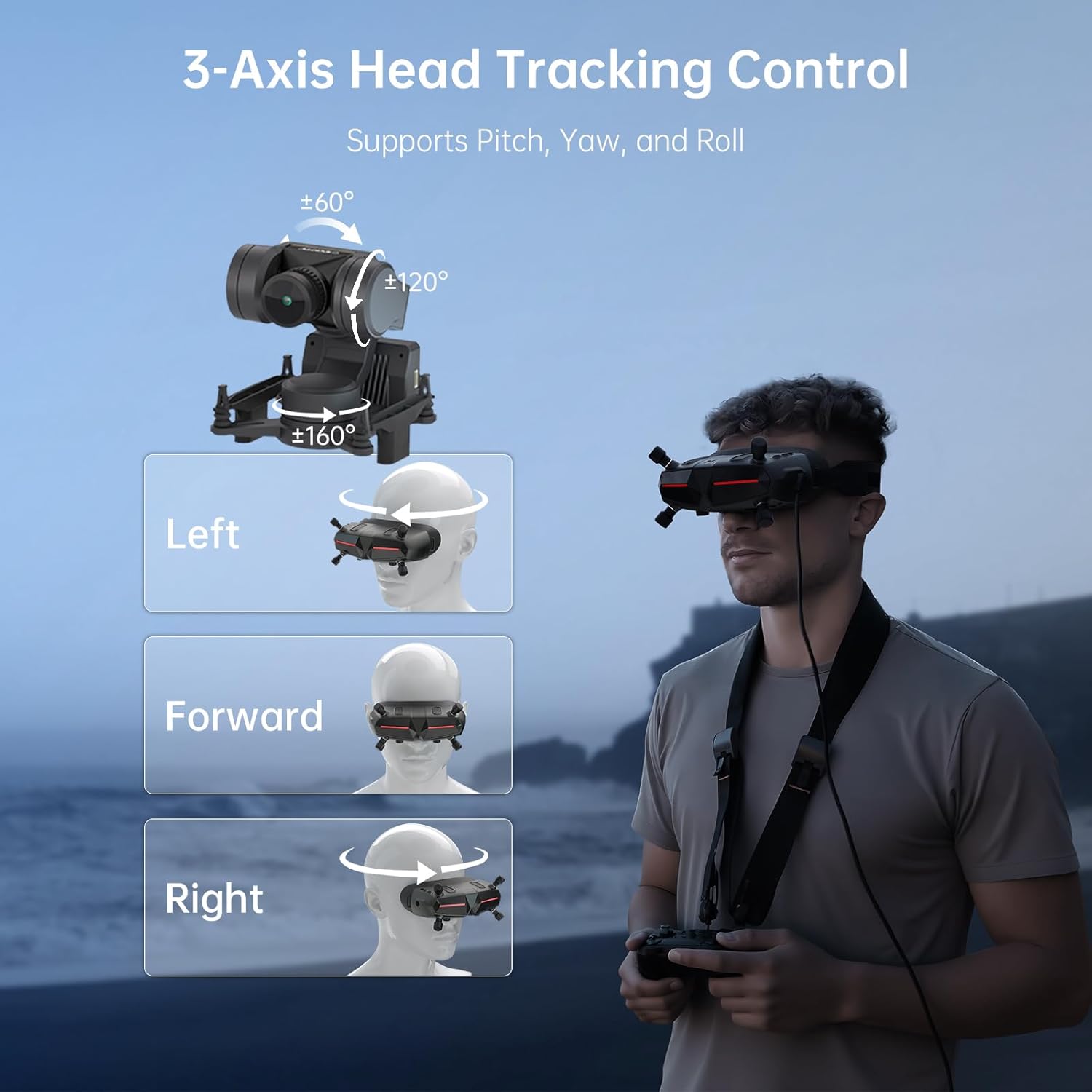
Figure 5: The GM3 Gimbal supports 3-axis head tracking for pitch (±120°), yaw (±160°), and roll (±60°).

Figure 6: Head movements are translated into real-time camera view adjustments, working perfectly with Walksnail Avatar HD Goggles.
Video 3: Detailed demonstration of the 3-Axis Head Tracking Control in action.
6.2 Mechanical Stabilization
The advanced mechanical stabilization technology of the GM3 gimbal ensures that your footage remains smooth and stable, even during rapid movements or in turbulent conditions. This is crucial for maintaining clear visual feedback and recording high-quality video.

Figure 7: Comparison of stabilized versus unstabilized footage, highlighting the effectiveness of the GM3's mechanical stabilization.
6.3 Versatile Applications
The GM3 Gimbal is designed for a variety of FPV platforms, providing stable and immersive views for different activities:
- FPV Drones: Capture stable aerial footage with dynamic camera control.
- RC Cars: Experience ground-level FPV with smooth video, even on rugged terrain.
- Fixed Wings: Achieve clear, long-range shots from the perspective of your aircraft.

Figure 8: The GM3 Gimbal can be used across various platforms including RC cars, RC boats, and fixed-wing aircraft.
Video 4: Experience first-person view immersion with the Walksnail FPV System and GM3 Gimbal across different vehicles.
7. Maintenance
To ensure the longevity and optimal performance of your CADDXFPV GM3 3-Axis Gimbal, consider the following maintenance guidelines:
- Cleaning: Gently wipe the gimbal and camera lens with a soft, dry, lint-free cloth. Avoid using harsh chemicals or abrasive materials.
- Storage: Store the gimbal in a cool, dry place away from direct sunlight and extreme temperatures.
- Inspection: Periodically check all connections and mounting points for any signs of wear or looseness. Ensure cables are not pinched or damaged.
- Firmware Updates: Check the official CADDXFPV website for any available firmware updates for the gimbal or compatible VTX/goggles. Follow the provided instructions carefully for any update procedures.
8. Troubleshooting
If you encounter issues with your CADDXFPV GM3 3-Axis Gimbal, refer to the following common troubleshooting tips:
- Gimbal Not Responding:
- Verify all power and data connections are secure.
- Ensure the VTX and goggles are powered on and functioning correctly.
- Check the head tracking settings in your Avatar HD Goggles menu to confirm it is enabled and sensitivity is appropriate.
- Perform a calibration if available in the goggle menu.
- Unstable Footage:
- Ensure the gimbal is securely mounted to your platform and there is no excessive vibration.
- Check for any obstructions that might impede the gimbal's movement.
- Verify that the gimbal's mechanical components are free from debris or damage.
- No Video Feed:
- Confirm the camera is properly connected to the gimbal and the gimbal to the VTX.
- Ensure the VTX is correctly paired with your FPV goggles.
- Check the power supply to the VTX and camera.
For persistent issues, consult the official CADDXFPV support resources or contact customer service.
9. Warranty and Support
For information regarding product warranty, technical support, and service, please refer to the official CADDXFPV website or contact their customer service department. Keep your proof of purchase for warranty claims.


