
1. Introduction
This manual provides detailed instructions for the setup, operation, and maintenance of your BAROCCOMiSTEL MiSTEL AIRONE BT Ultralight/Ultraslim 65% Mechanical Keyboard. Designed for portability and performance, this keyboard features Cherry MX ULP switches, RGB backlighting, and versatile connectivity options.
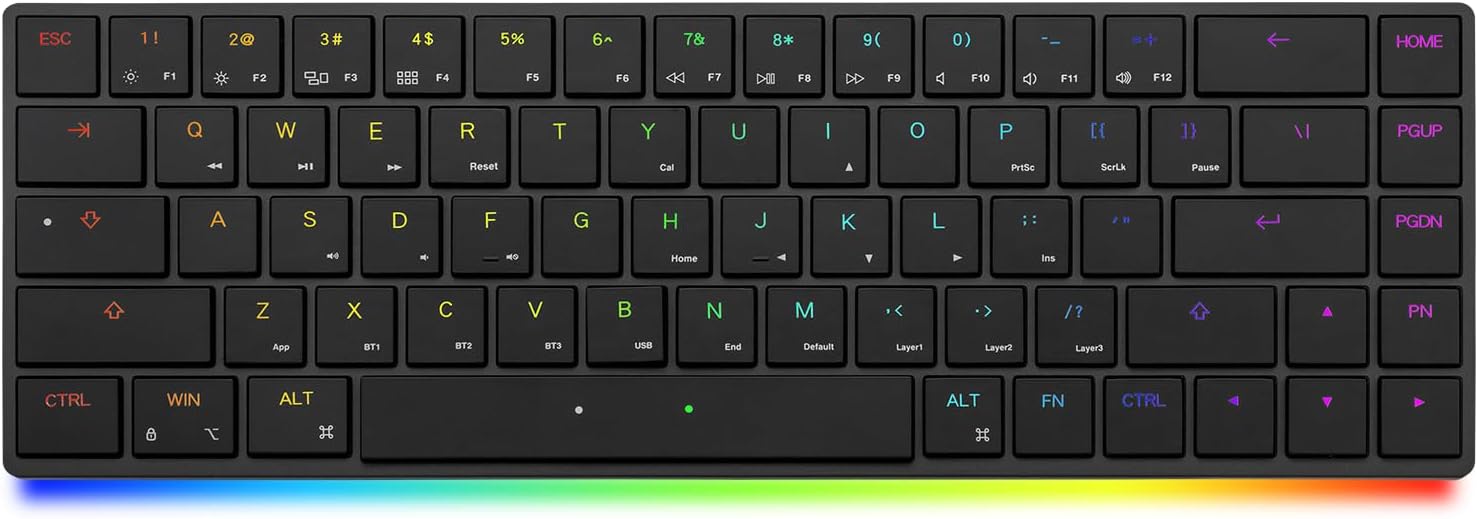
Image 1.1: The BAROCCOMiSTEL MiSTEL AIRONE BT Mechanical Keyboard, showcasing its compact 65% layout and RGB backlighting.
2. Key Features
- Cherry MX ULP Switches: High-precision mechanical switches engineered for ultra-low profile applications, providing a tactile typing experience.
- Super Slim Keycaps: Laser-carved ABS keycaps designed for stability and a comfortable typing feel.
- Ultralight and Ultraslim Design: Approximately 1/3 thinner and 60% lighter than standard models, making it highly portable.
- Macro Function Mode: Fully programmable keyboard allowing assignment of macros and remapping of most keys for customized workflows.
- Windows/MacOS Compatibility: Easily switch between operating systems using the DIP switch located on the keyboard's bottom.
- EVA Sound-Absorbing Foam: Integrated foam to improve acoustics and reduce vibration and rattle during typing.
- RGB Backlighting: Customizable RGB lighting for enhanced visibility and aesthetic appeal.
- Dual-Sided USB-C Ports: Convenient USB-C ports on both sides of the keyboard for flexible wired connection.
- Multi-Device Switching: Seamlessly switch between up to three Bluetooth-connected devices.

Image 2.1: Overview of the keyboard's key features, including Cherry MX ULP switches, wireless/wired modes, CNC aluminum upper case, EVA sound-absorbing foam, 3-layer macro storage, Mac/Windows compatibility, shine-through keycaps, and RGB backlighting.
3. Setup
3.1 Unboxing and Initial Inspection
Upon opening the package, ensure all components are present:
- MiSTEL AIRONE BT Mechanical Keyboard
- Detachable USB-C Cable
- Storage Bag
- User Manual (this document)
3.2 Charging the Keyboard
Connect the provided USB-C cable to either of the USB-C ports on the keyboard and the other end to a powered USB port (e.g., computer, wall adapter). The keyboard will begin charging. An indicator light may show charging status.
3.3 Connectivity Options
3.3.1 Wired Connection
For a direct and stable connection, simply connect the keyboard to your device using the supplied USB-C cable. The keyboard will automatically switch to wired mode.
3.3.2 Bluetooth Wireless Connection
The MiSTEL AIRONE BT supports connection to up to three Bluetooth devices. Follow these steps to pair:
- Ensure the keyboard is charged and powered on.
- Press and hold the Fn key and one of the Bluetooth keys (BT1, BT2, or BT3) for 3-5 seconds until the indicator light flashes, indicating pairing mode.
- On your device (computer, tablet, smartphone), navigate to Bluetooth settings and select "MiSTEL AIRONE BT" from the list of available devices.
- Once connected, the indicator light will stop flashing.
- To switch between paired devices, simply press Fn + BT1/BT2/BT3.

Image 3.1: The keyboard's lightweight design, weighing approximately 310g, highlighting its portability.

Image 3.2: The keyboard being placed into a bag, demonstrating its ultimate portability for on-the-go use.
3.4 Operating System Switching
The keyboard features a DIP switch on the bottom to toggle between Windows and MacOS layouts. Locate the switch and set it to your desired operating system for optimal key functionality.

Image 3.3: The MiSTEL AIRONE BT keyboard held in hand, illustrating its thin and lightweight design.
4. Operating Instructions
4.1 Basic Typing
The keyboard operates as a standard 65% layout keyboard. Familiarize yourself with the key positions. For keys with dual functions (e.g., F-keys, navigation keys), press the Fn key in combination with the desired key.
4.2 RGB Backlighting Control
The keyboard features customizable RGB backlighting. Use the following key combinations to adjust the lighting:
- Fn + F1: Cycle through lighting modes.
- Fn + F2: Adjust brightness.
- Fn + F3: Adjust lighting speed/direction.
- Fn + F4: Change lighting color.
4.3 Macro Function Programming
The entire keyboard is programmable, allowing you to assign macros and remap keys. Refer to the official BAROCCOMiSTEL software or detailed online resources for comprehensive macro programming instructions. This feature enables customization for gaming, typing, or programming needs.
4.4 Special Keys and Layers
The 65% layout utilizes function layers to access keys not physically present. Use the Fn key in combination with other keys to access these functions, such as Home, End, Page Up, Page Down, and various multimedia controls. The keyboard supports up to 3 programmable layers.
Image 4.1: A user typing on the MiSTEL AIRONE BT keyboard, demonstrating its use with a tablet for efficient and precise input.
Video 4.1: An official product video from BaroccoMistel showcasing the general features and usage of the Mistel AIRONE BT Mechanical Keyboard.
Video 4.2: An official product video from BaroccoMistel demonstrating the tactile switch variant of the Mistel AIRONE BT Mechanical Keyboard, highlighting its typing feel and sound.
5. Maintenance
5.1 Cleaning
To clean your keyboard:
- Disconnect the keyboard from all power sources and devices.
- Use a soft, lint-free cloth slightly dampened with water or a mild cleaning solution to wipe the keycaps and casing.
- For dust and debris between keys, use compressed air.
- Avoid harsh chemicals or abrasive materials.
5.2 Storage
When not in use or for travel, store the keyboard in the provided storage bag to protect it from dust, scratches, and impacts.
6. Troubleshooting
6.1 Keyboard Not Responding
- Wired Mode: Ensure the USB-C cable is securely connected to both the keyboard and your device. Try a different USB port or cable.
- Bluetooth Mode: Check if the keyboard is charged. Re-pair the keyboard with your device (refer to Section 3.3.2). Ensure Bluetooth is enabled on your device.
6.2 Backlighting Issues
- Ensure the keyboard is powered on and charged.
- Adjust brightness using Fn + F2.
- Cycle through lighting modes using Fn + F1.
6.3 Incorrect Key Output (Windows/MacOS)
- Verify the DIP switch on the bottom of the keyboard is set to the correct operating system (Windows or MacOS).
6.4 Keyboard Reset
If you experience persistent issues, a factory reset may resolve them. Consult the official BAROCCOMiSTEL website or support documentation for specific reset procedures for your model.
7. Specifications
| Feature | Detail |
|---|---|
| Model Number | MD68 |
| Brand | BAROCCOMiSTEL |
| Switch Type | Cherry MX ULP Mechanical |
| Layout | 65% |
| Connectivity | Bluetooth, USB-C |
| Compatible Devices | Laptop, PC, Smartphone |
| Operating System Support | Windows, MacOS, iOS |
| Backlighting | RGB |
| Material | Plastic (with CNC Aluminum Upper Case) |
| Item Weight | 10.8 ounces (approx. 306g) |
| Package Dimensions | 13.98 x 5.39 x 1.69 inches |
| Batteries | 1 Nonstandard Battery (included) |
8. Warranty and Support
Specific warranty details are not provided in the product data. For information regarding warranty coverage, technical support, or service, please refer to the official BAROCCOMiSTEL website or contact their customer service directly. Keep your purchase receipt as proof of purchase.