
1. Introduction
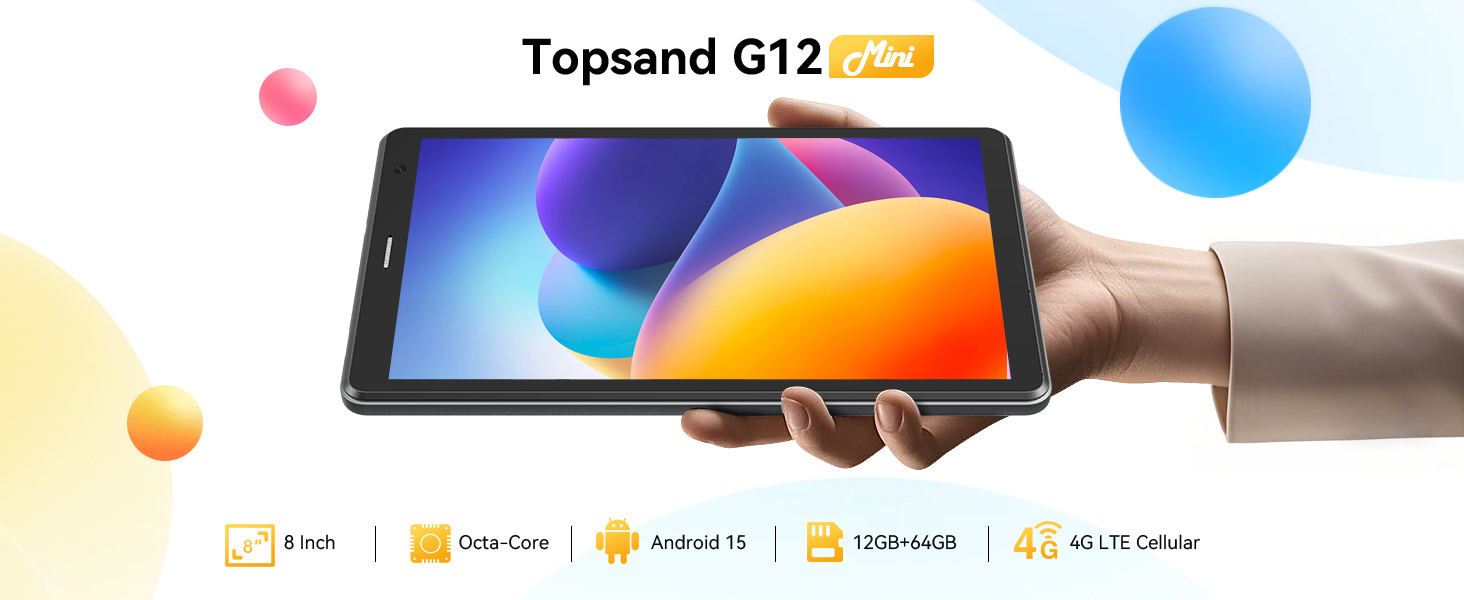
This manual provides essential information for setting up, operating, and maintaining your Topsand G12MINI 8-inch Android 15 Tablet. Please read it thoroughly to ensure optimal performance and longevity of your device.
2. What's in the Box
- 1x Topsand Android 15 Tablet (8-inch)
- 1x Tablet Case
- 1x Power Adapter
- 1x Charging Cable
- 1x Quick Guide Manual
3. Product Overview
The Topsand G12MINI is an 8-inch Android 15 tablet designed for versatile use, from entertainment to productivity and educational purposes. It features 4G LTE cellular connectivity, an Octa-Core processor, and expandable storage.
Physical Components

- Power Button: Located on the side, used to power on/off or wake/sleep the device.
- Volume Buttons: Adjust media and notification volume.
- USB Type-C Port: For charging and data transfer.
- Headphone Jack (3.5mm): For private audio listening.
- SIM/MicroSD Card Slot: For cellular connectivity and storage expansion.
- Front Camera: For video calls and selfies.
- Rear Camera: For capturing photos and videos.
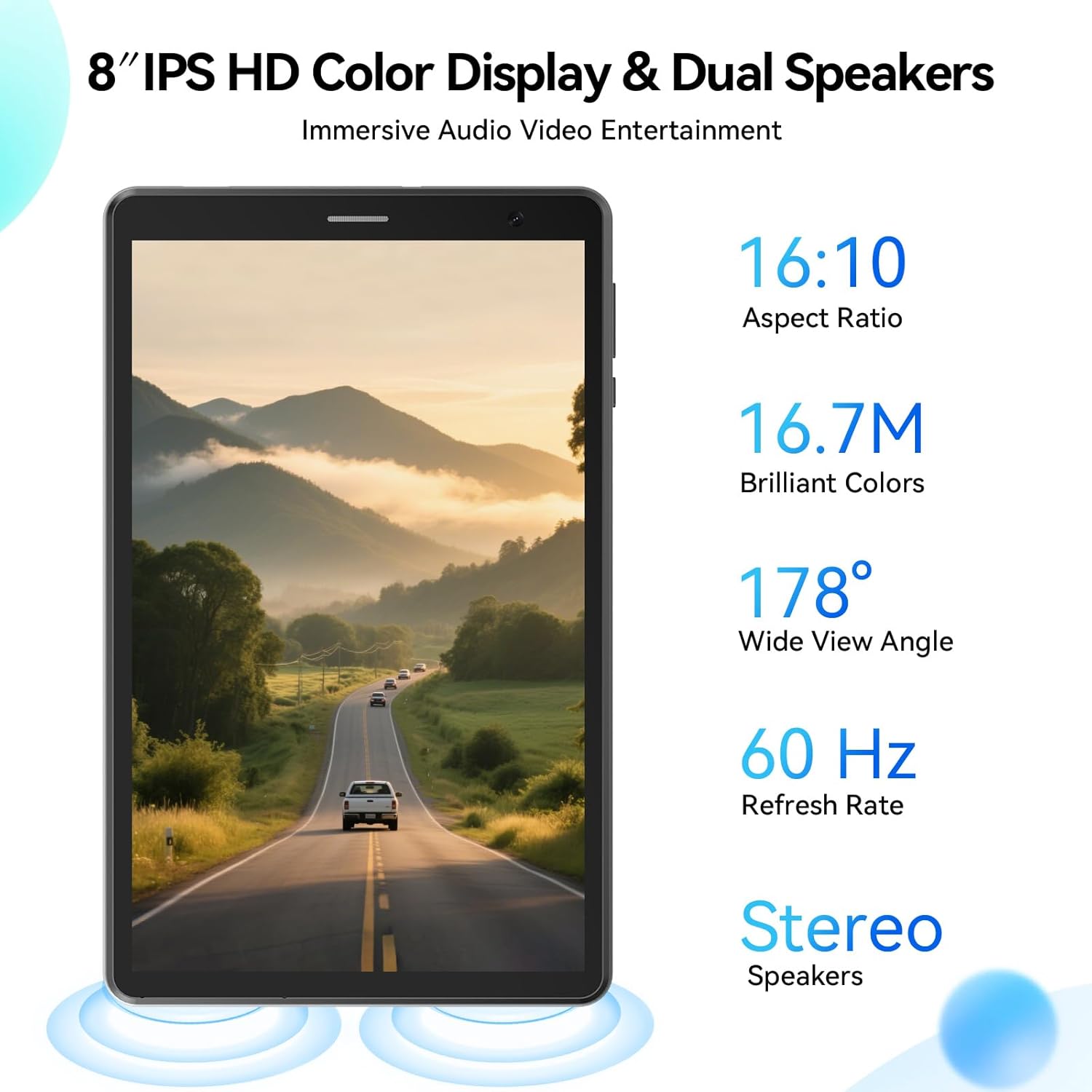
- Speakers: Dual stereo speakers for immersive audio.
4. Setup
4.1 Inserting SIM and MicroSD Cards
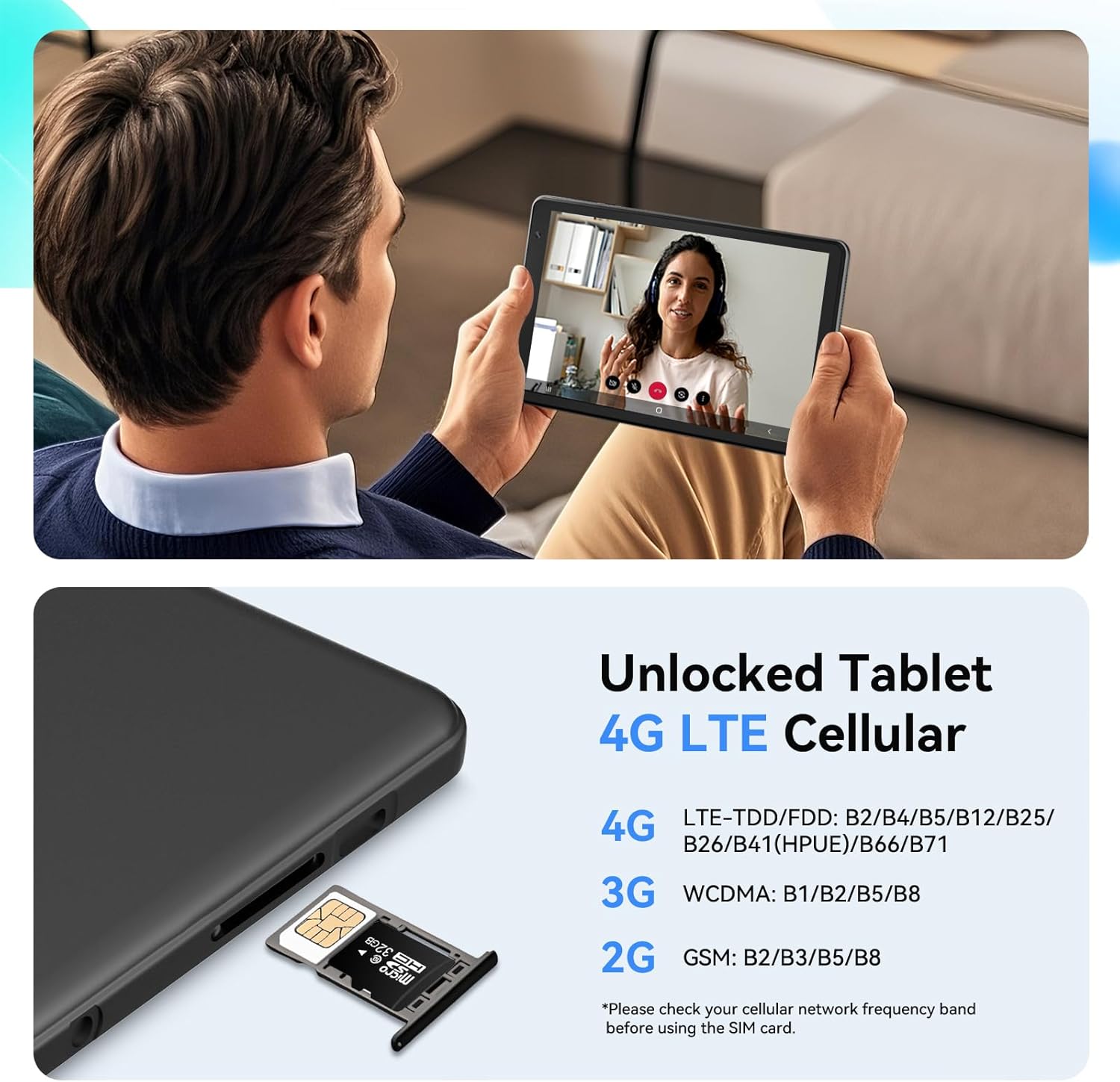
The tablet supports 4G LTE connectivity and expandable storage up to 2TB via a MicroSD card (not included). To insert a SIM card or MicroSD card:
- Locate the SIM/MicroSD card slot on the side of the tablet.
- Use the provided SIM eject tool to gently push into the small hole next to the slot until the tray pops out.
- Carefully place your Nano-SIM card(s) and/or MicroSD card into the designated slots on the tray. Ensure they are correctly oriented.
- Gently push the tray back into the tablet until it clicks into place.
4.2 Initial Power On and Basic Setup
- Press and hold the Power Button until the Topsand logo appears on the screen.
- Follow the on-screen prompts to select your language, connect to a Wi-Fi network, and set up your Google account.
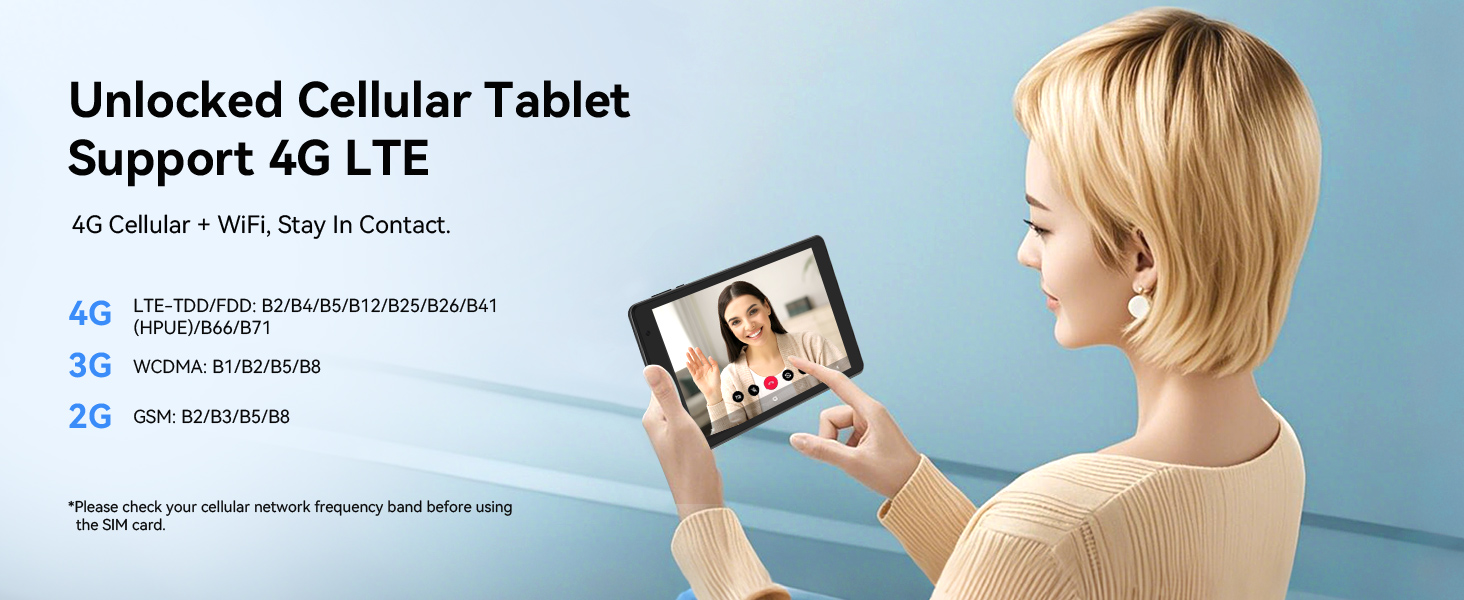
- If you inserted a SIM card, mobile network settings can be configured in the 'Settings' menu under 'Network & internet'.

5. Operating Instructions
5.1 Navigation and User Interface
The Topsand G12MINI runs on the Android 15 operating system, offering a pure, ad-free experience. Navigate using standard touchscreen gestures:
- Tap: Select an item or open an app.
- Swipe: Scroll through pages or lists.
- Pinch-to-Zoom: Zoom in or out on images and web pages.
- Long Press: Access contextual menus or move app icons.
5.2 Connectivity
- Wi-Fi: Connect to 2.4G/5G dual-band Wi-Fi networks via Settings > Network & internet > Internet.
- 4G LTE Cellular: With a Nano-SIM card, enjoy 4G LTE HD calls and mobile data. Configure settings in Settings > Network & internet > Mobile network.
- GPS Navigation: The tablet supports quad-mode navigation (GPS/Galileo/Beidou/GLONASS) for accurate location services.
- Bluetooth 5.3: Connect wireless accessories like headphones or speakers via Settings > Connected devices.
5.3 Display and Audio
Enjoy vibrant visuals on the 8-inch 1280x800 HD IPS touchscreen and immersive audio from dual stereo box speakers.
- Display Modes: Switch between Normal Mode, Eye Protection Mode (filters blue light), and Read Mode (similar to e-paper) for comfortable viewing.
- Headphone Jack: Use the 3.5mm jack for private listening.
5.4 Performance and Storage
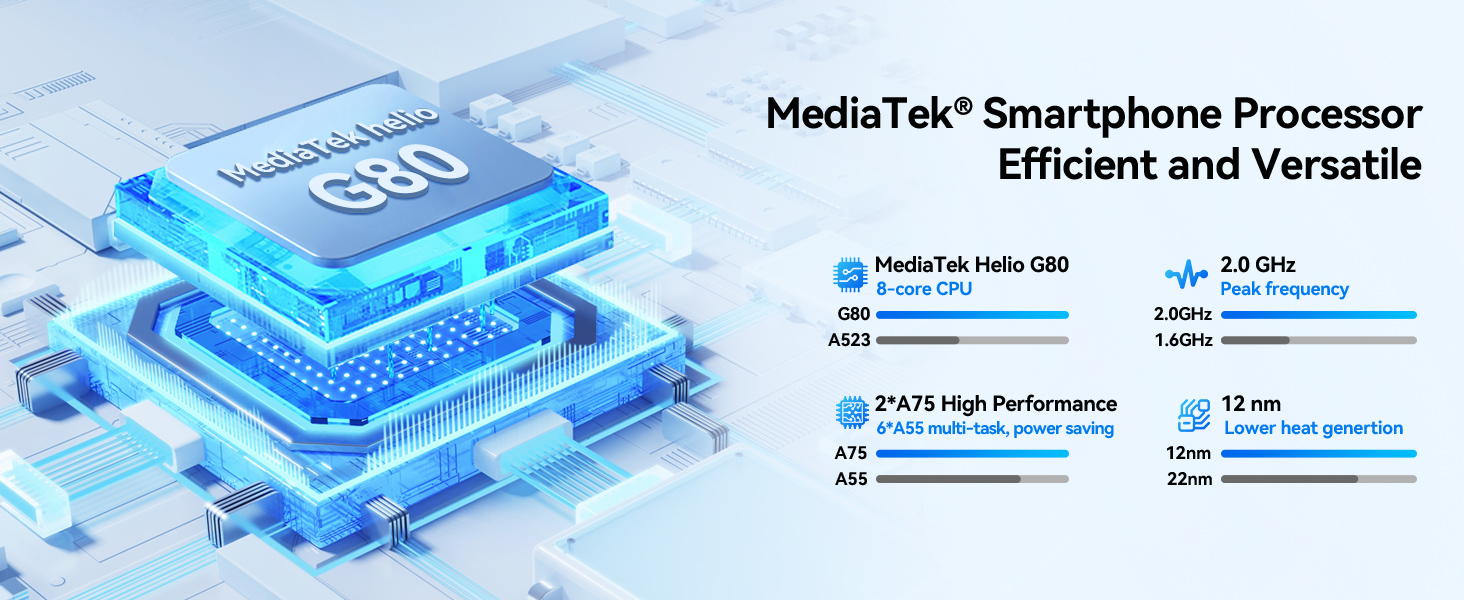
Powered by a MediaTek Helio G80 Octa-Core processor, the tablet offers smooth performance. It comes with 12GB RAM (3GB base + 9GB expandable) and 64GB ROM, expandable up to 2TB with a MicroSD card.

5.5 Camera
The tablet is equipped with an 8MP rear camera for capturing photos and videos, and a 5MP front camera for video calls and selfies.

5.6 Special Features
- Kid-Friendly & Parental Controls: Preloaded with YouTube Kids and Google Kids Space. Parents can manage screen time and app permissions using Bedtime/Focus Mode and Google Family Link.
- Wireless Screen Casting: Easily cast your tablet's screen to compatible devices.

6. Battery Management
The tablet is equipped with a 5100mAh battery, providing extended usage times. To maximize battery life:
- Reduce screen brightness.
- Disable Wi-Fi, Bluetooth, and GPS when not in use.
- Close unused applications running in the background.
- Enable battery saver mode in Settings > Battery.
7. Troubleshooting
If you encounter any issues with your tablet, try the following common solutions:
- Device not turning on: Ensure the battery is charged. Connect the tablet to the power adapter and try again.
- Screen frozen: Press and hold the Power Button for about 10-15 seconds to force a restart.
- Wi-Fi/Cellular connectivity issues: Check if Wi-Fi or mobile data is enabled in Settings. Restart your router or check your SIM card insertion.
- Apps crashing: Clear the app's cache (Settings > Apps > [App Name] > Storage & cache > Clear cache) or reinstall the app.
- Slow performance: Close unused apps, clear cache, or consider a factory reset (Settings > System > Reset options > Erase all data).
8. Specifications
| Feature | Specification |
|---|---|
| Model Name | G12MINI |
| Screen Size | 8 Inches |
| Screen Resolution | 1280 x 800 pixels (HD IPS) |
| Operating System | Android 15 |
| Processor | MediaTek Helio G80 Octa-Core (2.0GHz max) |
| RAM | 12GB (3GB base + 9GB expandable) |
| Internal Storage (ROM) | 64GB |
| Expandable Storage | Up to 2TB (MicroSD card not included) |
| Rear Camera | 8 MP |
| Front Camera | 5 MP |
| Battery Capacity | 5100mAh |
| Wireless Type | 802.11a/b/g/n/ac (2.4G/5G Wi-Fi) |
| Bluetooth | BT5.3 |
| Cellular Connectivity | 4G LTE (Unlocked SIM slot) |
| GPS | GPS/Galileo/Beidou/GLONASS |
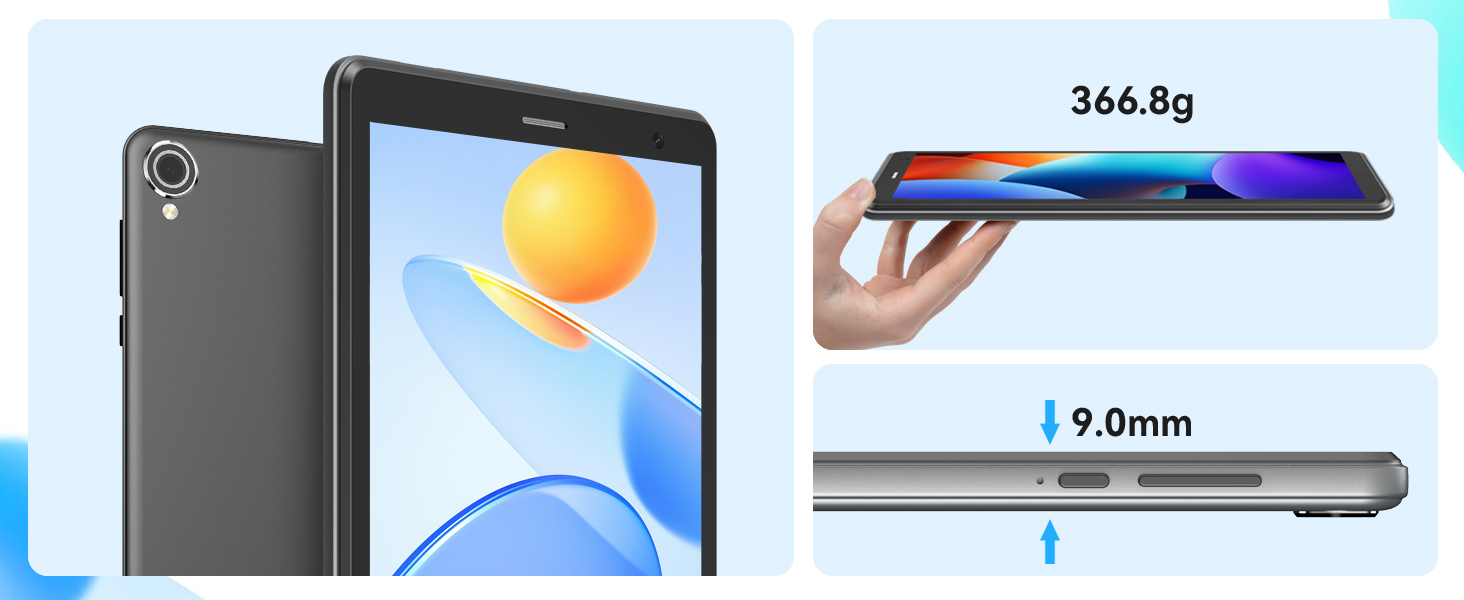
| Item Weight | 1.15 pounds |
| Product Dimensions | 9 x 1.4 x 7.5 inches |
9. Warranty and Support
Topsand tablet products come with a 1-year warranty and dedicated support. For assistance, please refer to the following:
- Contact Seller: Reach out to the seller via the address on your warranty card or by leaving a message through your order platform.
- Return Window: If the return window has closed, contact the seller directly for assistance.


