
1. Introduction
Thank you for choosing the TIGERFU P107 Android 14 Tablet. This manual provides essential information for setting up, operating, maintaining, and troubleshooting your device. The TIGERFU P107 is a versatile 10.4-inch tablet featuring an Android 14 operating system, an Octa-Core processor, 36GB RAM (12GB physical + 24GB virtual), 256GB internal storage (expandable up to 1TB), and an 8000mAh battery. It supports 4G LTE and 5G WiFi connectivity, and includes 13MP rear and 8MP front cameras.

Image 1.1: Overview of the TIGERFU P107 tablet's key features, including Android 14, 10.4-inch FHD display, 36GB RAM, 256GB ROM, Octa-Core processor, 1TB expandable storage, 8000mAh battery, 8MP front camera, 13MP rear camera, 2.4G/5G WiFi, and 4G LTE connectivity.
2. Setup
2.1 Unboxing and Initial Inspection
Carefully remove all items from the packaging. Verify that all components are present and undamaged. The package typically includes the TIGERFU P107 tablet, a Type-C charging cable, and a power adapter.
2.2 Charging the Tablet
Before first use, fully charge the tablet. Connect the Type-C charging cable to the tablet's Type-C port and the other end to the power adapter. Plug the adapter into a wall outlet. The tablet features an 8000mAh battery, providing extended usage time.

Image 2.1: The TIGERFU P107 tablet connected via its Type-C port for charging, highlighting the 8000mAh battery capacity and 5V/2A charging specification.
2.3 Powering On/Off
- To Power On: Press and hold the Power ON/OFF button located on the side of the tablet until the screen lights up.
- To Power Off: Press and hold the Power ON/OFF button, then select 'Power off' from the options that appear on the screen.
- To Restart: Press and hold the Power ON/OFF button, then select 'Restart' from the options.
2.4 SIM Card and Micro SD Card Installation
The tablet supports both a SIM card for mobile data and a Micro SD card for expandable storage up to 1TB. Locate the SIM/SD card tray on the side of the tablet. Use the provided ejector tool to open the tray. Insert the SIM card and/or Micro SD card into the designated slots, ensuring correct orientation, then gently push the tray back into the tablet.
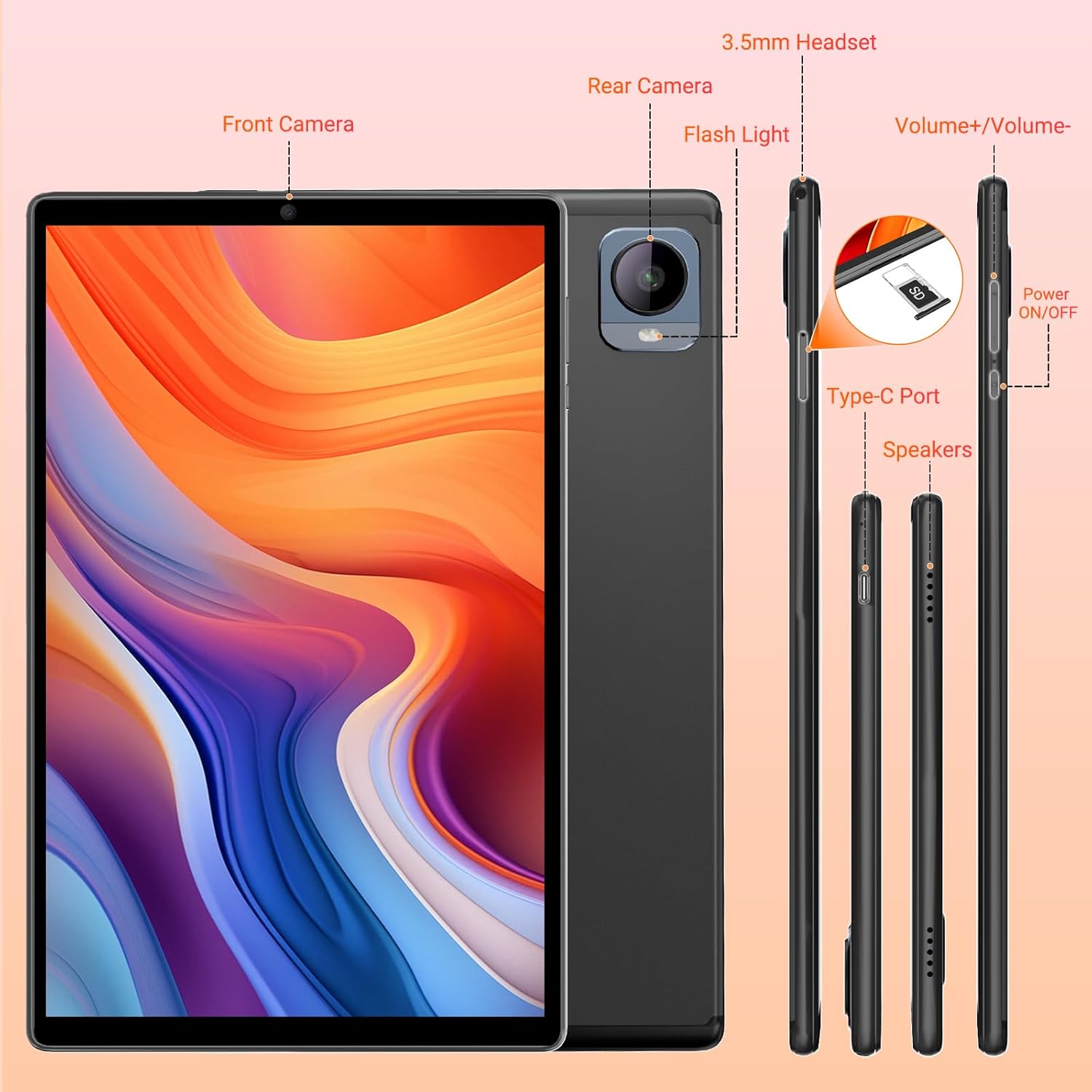
Image 2.2: Diagram showing the location of the front camera, rear camera, flash light, 3.5mm headset jack, volume buttons, Power ON/OFF button, Type-C port, speakers, and the SIM/SD card slot on the TIGERFU P107 tablet.
2.5 Initial Setup Wizard
Upon first power-on, the tablet will guide you through an initial setup process. Follow the on-screen instructions to select your language, connect to a Wi-Fi network, set up your Google account, and configure other basic settings.
3. Operating Instructions
3.1 Basic Navigation
- Tap: Touch the screen once to select an item or open an application.
- Tap and Hold: Press and hold an item to access additional options or move it.
- Swipe: Drag your finger across the screen to scroll through pages or lists.
- Pinch: Use two fingers to zoom in or out on images and web pages.
3.2 Connecting to Wi-Fi
To connect to a Wi-Fi network:
- Go to Settings > Network & internet > Wi-Fi.
- Turn on Wi-Fi. The tablet will scan for available networks.
- Select your desired network and enter the password if prompted. The tablet supports both 2.4G and 5G Wi-Fi bands.
3.3 Connecting to Mobile Network (4G LTE)
If you have installed a SIM card with an active data plan, the tablet will automatically connect to the 4G LTE network. You can manage mobile data settings under Settings > Network & internet > Mobile network.
3.4 Bluetooth Connectivity
To pair with Bluetooth devices (e.g., headphones, keyboard, mouse):
- Go to Settings > Connected devices > Bluetooth.
- Turn on Bluetooth.
- Ensure your Bluetooth device is in pairing mode.
- Select the device from the list of available devices to pair.
3.5 Camera Usage
The TIGERFU P107 features a 13MP rear camera and an 8MP front camera. Open the Camera application to capture photos and videos. Tap the screen to focus, and press the shutter button to take a picture.

Image 3.1: Close-up view of the TIGERFU P107 tablet's 8MP front camera and 13MP rear camera, illustrating their placement and capability for capturing moments.
3.6 Storage Management
The tablet comes with 256GB of internal storage. You can expand this by inserting a Micro SD card up to 1TB. To manage your storage, go to Settings > Storage. Here you can view storage usage and free up space.
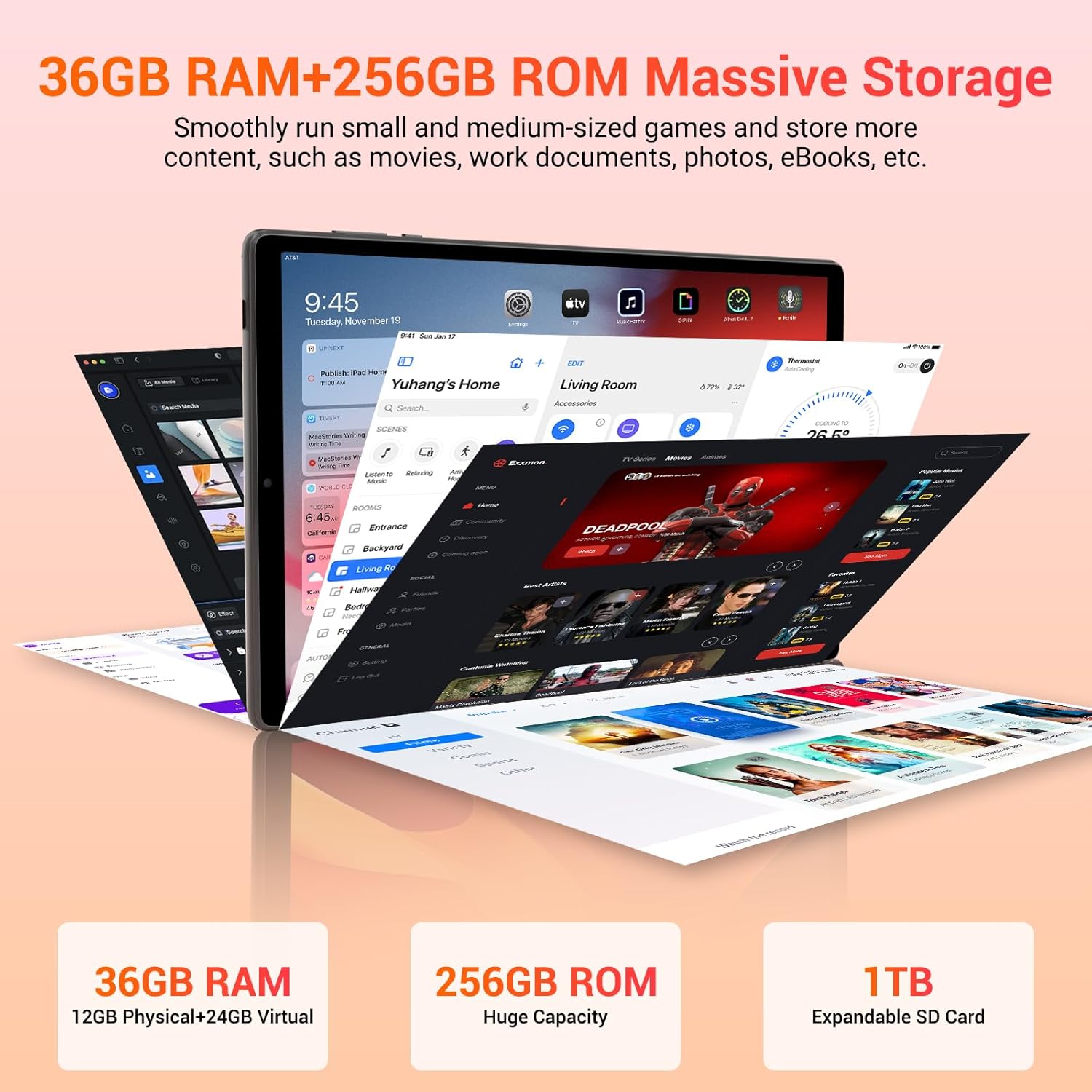
Image 3.2: Visual representation of the TIGERFU P107 tablet's storage capabilities, including 36GB RAM (12GB physical + 24GB virtual), 256GB ROM, and 1TB expandable SD card support.
3.7 Display Settings
The 10.4-inch FHD IPS display offers a resolution of 1920 x 1200 pixels. Adjust display settings such as brightness, wallpaper, and sleep timeout under Settings > Display.

Image 3.3: Illustration of the TIGERFU P107 tablet's 10.4-inch, 2000x1200 resolution, multi-touch, 16:10 golden ratio, and IPS In-cell screen, emphasizing its ultra-wide viewing angle.
3.8 Audio
The tablet is equipped with stereo speakers and a 3.5mm headphone jack for private listening. Adjust volume using the volume buttons on the side of the tablet or through Settings > Sound & vibration.
3.9 Using Accessories
The TIGERFU P107 is compatible with various accessories such as keyboards, mice, and styluses. These can be connected via Bluetooth or, if applicable, through the Type-C port. Refer to the accessory's manual for specific connection instructions.

Image 3.4: The TIGERFU P107 tablet being used in different scenarios, including gaming, browsing, and creative work with a stylus, demonstrating its versatility.
4. Maintenance
4.1 Cleaning the Tablet
Use a soft, lint-free cloth to clean the screen and body of the tablet. For stubborn smudges, slightly dampen the cloth with water or a screen cleaner designed for electronics. Avoid using harsh chemicals or abrasive materials.
4.2 Battery Care
- Avoid exposing the tablet to extreme temperatures.
- Do not let the battery completely drain frequently.
- For long-term storage, charge the battery to about 50% and store the tablet in a cool, dry place.
4.3 Software Updates
Regularly check for and install software updates to ensure optimal performance and security. Go to Settings > System > System update to check for available updates.
4.4 Storage Optimization
To maintain performance, regularly clear unnecessary files, uninstall unused applications, and move large media files to an external Micro SD card or cloud storage.
5. Troubleshooting
- Tablet not turning on: Ensure the battery is charged. Press and hold the power button for at least 10-15 seconds.
- Wi-Fi connection issues: Restart the tablet and your Wi-Fi router. Forget the network in settings and reconnect.
- Slow performance: Close unused apps, clear cache, and free up storage space. Restart the tablet.
- Apps crashing: Clear the app's cache and data in Settings > Apps. If the issue persists, uninstall and reinstall the app.
- Touchscreen unresponsive: Restart the tablet. If the issue continues, a factory reset might be necessary (see below).
- Factory Reset: If severe issues persist, you may perform a factory reset. Go to Settings > System > Reset options > Erase all data (factory reset). Warning: This will erase all data on your tablet. Back up important data before proceeding.
6. Specifications
| Feature | Specification |
|---|---|
| Brand | TIGERFU |
| Model | P107 |
| Operating System | Android 14 |
| Processor | Octa-Core ARM, 1.79 GHz |
| Display | 10.4 inches, 1920 x 1200 pixels, IPS |
| RAM | 36GB (12GB physical + 24GB virtual) |
| Internal Storage | 256GB ROM |
| Expandable Storage | Up to 1TB via Micro SD card |
| Rear Camera | 13 MP |
| Front Camera | 8 MP |
| Battery Capacity | 8000 mAh |
| Battery Life | Up to 14 hours |
| Connectivity | 4G LTE, 5G WiFi (802.11a/b/g/n/ac), Bluetooth 5.0, GPS |
| Ports | Type-C, 3.5mm Audio Jack, SIM card slot, Micro SD slot |
| Dimensions (L x W x H) | 24.5 x 15.4 x 0.9 cm |
| Weight | 427 grams |
| Special Features | Stereo speakers, mobile connectivity, expandable memory, removable keyboard compatibility |
7. Warranty and Support
7.1 Warranty Information
For detailed warranty information, please refer to the warranty card included with your purchase or visit the official TIGERFU website. Keep your proof of purchase for warranty claims.
7.2 Customer Support
If you encounter any issues not covered in this manual or require further assistance, please contact TIGERFU customer support through their official website or the contact information provided with your product packaging.


