
Product Overview
The MILOUZ Remote Scrolling Ring is a versatile Bluetooth device designed to enhance your digital interaction across various platforms. It allows for hands-free control of scrolling, page-turning, and camera functions on compatible smartphones and tablets.
Key Features
- Bluetooth Scrolling Ring for TikTok: Effortlessly swipe up/down, adjust volume +/-, pause/play, or like videos and live streams completely hands-free. (Note: Not applicable to music apps)
- Remote Page Turner for Reading Apps: Enjoy a smooth reading experience with remote page-turning for iOS and Android e-book apps. Simply press the remote ring to flip to the previous or next page without touching your screen. (Note: Not compatible with Kindle devices)
- Snap, Record & Focus-Remotely: Capture the perfect shot, hands-free. Use the Bluetooth ring to remotely snap photos, video recordings, and turn on auto-focus for clearer photos. Ideal for selfies, vlogging, and creative photography.
- Weeks of Power, Minutes to Charge: The MILOUZ ring comes with a sleek portable charging case. Fully charges in just 1.5 hours and powers daily use for weeks.
- Featherlight Comfort & Adjustable Ring Size: Crafted from premium, lightweight materials and designed for all-day wear. The adjustable size ring fits all finger sizes comfortably, preventing slipping or breakage.
- Auto Continuous Likes: The scroll ring can enable automatic likes in live broadcast rooms, allowing you to send thousands of likes without manual interaction.
Package Contents
- Bluetooth Ring
- Charging Case
- Type-C Charging Cable
- Manual
Setup and Initial Pairing
Charging the Device
The MILOUZ Remote Scrolling Ring comes with a portable charging case. To charge the ring, simply place it inside the case. The case itself is charged via the included Type-C charging cable. A full charge takes approximately 1.5 hours and provides weeks of daily use.

Image: The MILOUZ Remote Scrolling Ring in its charging case, illustrating the compact design and charging method.
Powering On
Remove the ring from the charging case to automatically power it on. Red and blue indicator lights will flash alternately, signifying that the device is ready for Bluetooth pairing.
Bluetooth Pairing (General)
Ensure Bluetooth is enabled on your smartphone or tablet. Search for 'R1' in the list of available Bluetooth devices and select it to connect.
iOS Specific Setup
For iOS devices, additional settings are required for full functionality:
- Ensure your iOS version is 14.8 or higher.
- Enable AssistiveTouch: Navigate to Settings > Accessibility > Touch > AssistiveTouch and toggle it ON.
- Adjust Tracking Sensitivity: Within the AssistiveTouch settings, locate and adjust the 'Tracking Sensitivity' to approximately 20%.
- Verify 'Perform Touch Gestures' is enabled in AssistiveTouch settings.
Video: Instructions for setting up the MILOUZ Remote Scrolling Ring with iOS devices, demonstrating the necessary Accessibility settings.
Android Specific Setup
For Android devices, ensure Bluetooth is enabled and pair with 'R1'. No additional system settings are typically required.
Video: Instructions for setting up the MILOUZ Remote Scrolling Ring with Android devices, showing the Bluetooth pairing process.
Operating Instructions
Basic Controls

Image: A detailed diagram illustrating the functions of each button on the MILOUZ Remote Scrolling Ring.
- Central Joystick (Up/Down): Scroll up/down in applications, such as TikTok feeds or e-book pages.
- Central Joystick (Left/Right): Navigate left/right in certain applications. Long press to adjust volume (Left for Volume -, Right for Volume +).
- OK Button (Single Click): Play/Pause video, or cancel continuous like.
- OK Button (Double Click): Perform a single 'like' action.
- OK Button (Long Press for 5s): Activate continuous 'like' function.
- Camera Button (Single Click): Take a photo.
- Camera Button (Long Press): Start or stop video recording.
TikTok and Short Video Control
With the MILOUZ Remote Scrolling Ring, you can control your TikTok and other short video applications hands-free. Use the joystick to scroll through videos, the OK button to play/pause or like, and the left/right long press for volume adjustments.

Image: A hand holding the remote ring, demonstrating its use for controlling TikTok on a smartphone.
E-Book Page Turning
The ring functions as a remote page turner for e-book applications on iOS and Android devices. Use the joystick to navigate pages. Please note that this device is not compatible with dedicated Kindle e-readers.
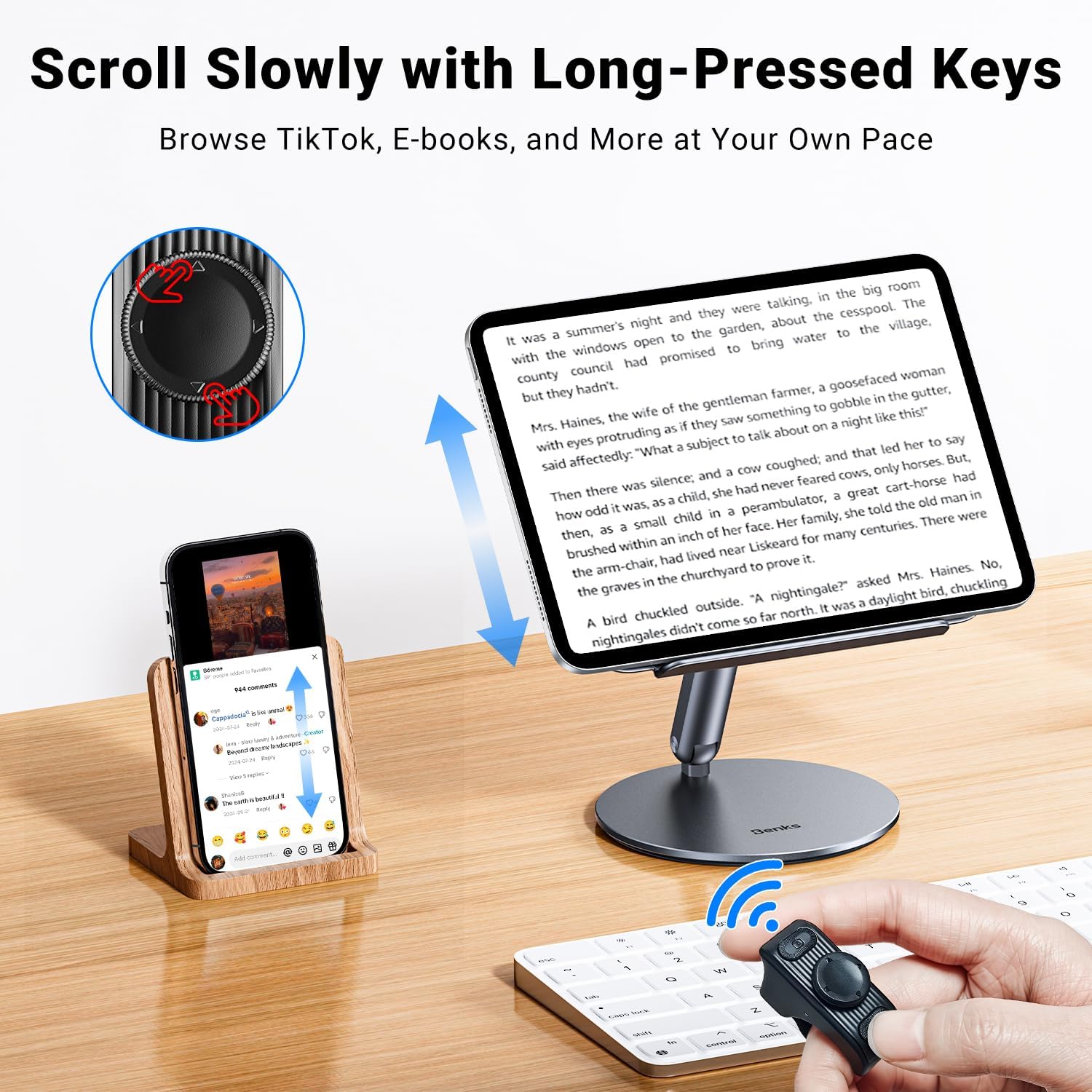
Image: The remote ring being used to turn pages in an e-book application displayed on a tablet.
Camera Remote Control
Utilize the ring to remotely control your phone's camera. This is ideal for taking selfies, group photos, or recording videos without needing to touch your device. The ring can also assist with autofocus for clearer images.

Image: A hand holding the remote ring, demonstrating its use as a camera shutter for a smartphone.
Battery Life and Charging
The MILOUZ Remote Scrolling Ring offers extended battery life. A single use can last up to 14 hours, and with the charging case, the total usage time extends to 86 hours. The charging case fully recharges the ring in approximately 1.5 hours.

Image: An infographic detailing the battery life of the remote ring for single use and with the charging case, along with charging time.
Compatibility
The MILOUZ Remote Scrolling Ring is compatible with a wide range of devices:
- iOS Devices: Compatible with iOS version 14.8 and above (iPhone, iPad).
- Android Devices: Compatible with Android version 8.0 and above (Android phones, tablets).
Important Note: This device is NOT compatible with MacBook, computers, or dedicated Kindle e-readers (e.g., Kindle, Kindle Paperwhite, Kindle Oasis, Kindle Scribe).

Image: An illustration showing the MILOUZ Remote Scrolling Ring's compatibility with various iOS and Android smartphones and tablets.
Troubleshooting
Common Issues and Solutions
- Q: Why does the remote ring not work on my iPhone or iPad?
A1: Ensure your iOS version is 14.8 or higher.
A2: Verify that AssistiveTouch is enabled. If it's not, turn it on. If it's already enabled, try turning it off and then on again. - Q: After enabling AssistiveTouch, my iOS device still can't scroll videos. What can I do?
A1: Restart both the remote ring and your iPhone/iPad.
A2: Turn off AssistiveTouch and then turn it back on.
A3: Ensure "Perform Touch Gestures" is enabled.
A4: Adjust the "Tracking Sensitivity" in the AssistiveTouch page of Settings to about 20%.
Product Specifications
| Feature | Detail |
|---|---|
| Model Number | R1 |
| Brand | MILOUZ |
| Item Weight | 3.36 ounces |
| Package Dimensions | 4.02 x 3.66 x 0.67 inches |
| Batteries | 1 A battery required (included) |
| Special Feature | Rechargeable |
| Color | Black |
| Max Number of Supported Devices | 1 |
| Compatible Devices | iPhone/Android/iPad/Tablet (Not available for Macbook/Computer/Kindle devices) |
| Manufacturer | MILOUZ |
| Date First Available | April 1, 2025 |
Warranty and Customer Support
For warranty information, technical support, or any inquiries regarding your MILOUZ Remote Scrolling Ring R1, please refer to the contact details provided with your purchase documentation or visit the official MILOUZ website for further assistance.


