
1. Introduction
This manual provides detailed instructions for the safe and efficient operation of the Iyalezirk XY6509S Adjustable DC Regulated Power Supply with WIFI Module. The XY6509S is a versatile step-down module designed to provide constant voltage and constant current output, featuring a high-brightness LCD screen and comprehensive protection functions. It is suitable for various electronic projects and applications requiring precise power control.
2. Product Features
- Full-view 1.8-inch high-brightness LCD screen supporting self-color matching and four-way rotation.
- Comprehensive protection functions for enhanced safety and reliability.
- One-piece injection molded, flame-retardant shell with a double-layer buckle design for secure circuit board fixation.
- Display color customization, supporting 8 color settings to personalize the interface.
- 360° rotatable screen for convenient viewing from any angle.
- Integrated WIFI communication module for remote control and monitoring via mobile app or PC host computer.
3. Setup
Before operating the device, ensure all connections are secure and correct.
3.1 Package Contents
- 1 x XY6509S Module
- 1 x WFPOW WIFI Communication Module
- 1 x Connection Cable for WIFI Module
3.2 Physical Connections
- Input Power Connection: Connect your DC input power source to the VIN+ and VIN- terminals. Ensure the input voltage is within the specified range (12-72V).
- Output Load Connection: Connect your load to the OUT+ and OUT- terminals.
- WIFI Module Installation: Carefully connect the provided WIFI communication module to the designated port on the XY6509S module using the supplied cable.

4. Operating Instructions
This section details the functions of the buttons, encoder, and screen display.
4.1 Control Panel Overview

- V-SET Key: Tap to set the output voltage. Press and hold to quickly retrieve a data group.
- SW Key: Tap to enter shortcut settings. Long press to rotate the screen display in four directions.
- I-SET Key: Tap to set the output current. Press and hold to enter or exit the data group page.
- Encoder Knob: Short press to shift selection. Press and hold to lock the key. Rotate to adjust parameters or navigate menus.
- ON/OFF Switch: Press to enable or disable power output. Press and hold to power off the device.
4.2 Main Display Interface
The 1.8-inch LCD screen provides real-time information about the power supply's operation.

The main interface typically displays:
- M0: Current data group in use.
- Voltage (V): Real-time output voltage.
- Current (A): Real-time output current.
- Power (W): Real-time output power.
- Ah/Wh: Accumulated charge and energy.
- IN/OUT: Input voltage and set output parameters.
- Status Icons: WIFI connection, sound, battery, lock, protection status, etc.
4.3 Screen Rotation
The display can be rotated 360 degrees for optimal viewing.
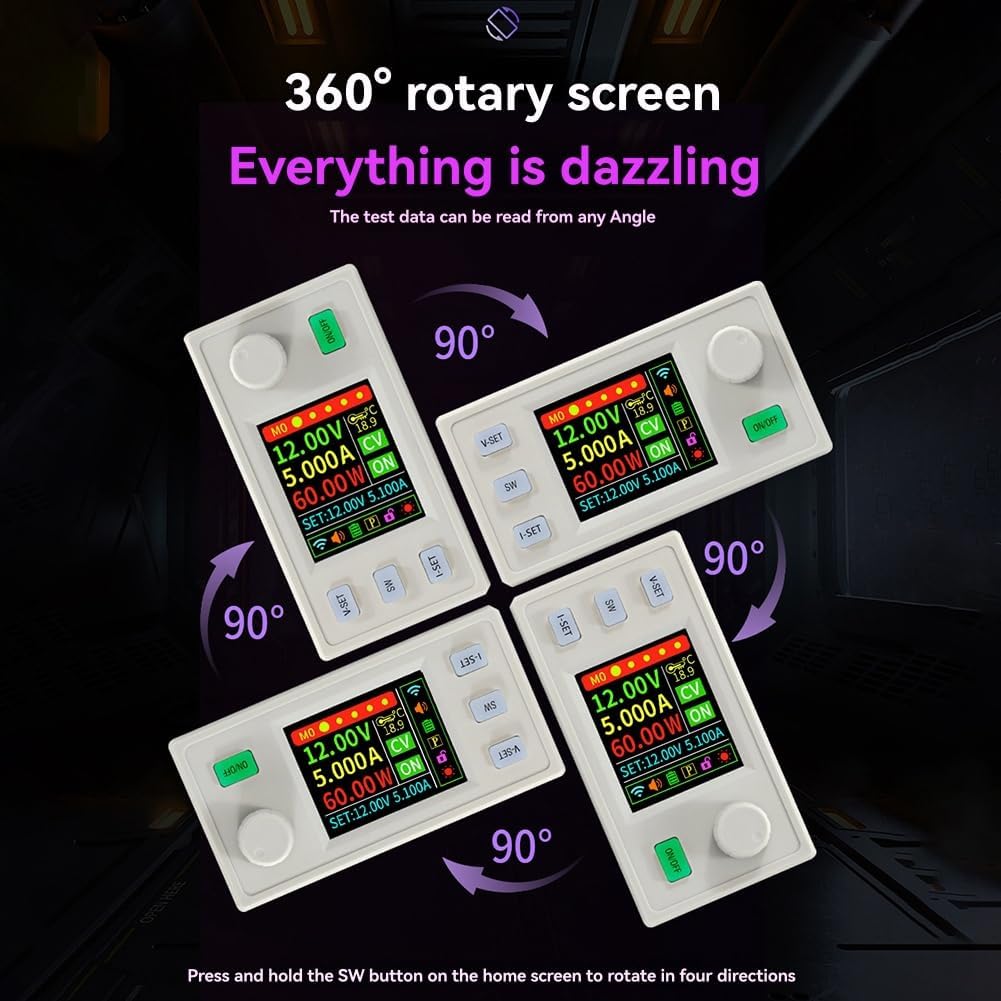
To rotate the screen, press and hold the SW button on the home screen. The display will cycle through four orientations (0°, 90°, 180°, 270°).
4.4 Data Group Management and System Settings

- Locking Function: Long press the encoder key for more than 2 seconds to lock the device and prevent misoperation. To unlock, press and hold the encoder key for more than 2 seconds.
- Quickly Retrieve Data Group: Long press the V-SET button to bring up the pop-up window for data group retrieval. Rotate the encoder to select the desired group. Hold down I-SET or press SW/Encoder to retrieve the selected data group.
- Quickly Set System Parameters: On the main interface, press the SW button to select the status bar parameter. Rotate the encoder to switch the parameter to be set. Press SW or the encoder button to bring up the parameter setting interface. Adjust parameters by rotating the encoder. If no operation occurs for more than 6 seconds, the system will automatically exit and save settings.
4.5 WIFI Module Functionality

The integrated WIFI module extends the functionality of the power supply, allowing for remote control and monitoring:
- Mobile App Control: Control and monitor the power supply via a dedicated mobile application.
- PC Host Computer: Connect to a PC for advanced control and data logging.
- LAN Real-time Communication: Monitor and control the device over a local area network.
- External Network Control and View: Access the device remotely over the internet.
- Supports Multi-computer Communication: Allows multiple devices to interact with the power supply.
- Voice Control Support: Compatible with certain voice control systems (e.g., Tmall Genie, Baidu voice, little love students voice control switch).
5. Protection Functions
The XY6509S is equipped with multiple protection features to ensure safe operation and prevent damage to the device and connected loads.

- Input Anti-Reverse Protection: Prevents damage if input polarity is reversed.
- Output Protection Against Backflow: Prevents current from flowing back into the module from the load.
- LVP (Input Undervoltage Protection): Shuts off output if input voltage drops below a set threshold.
- OVP (Input Overvoltage Protection): Shuts off output if input voltage exceeds a set threshold.
- OCP (Output Overcurrent Protection): Shuts off output if output current exceeds a set threshold.
- OPP (Output Overpower Protection): Shuts off output if output power exceeds a set threshold.
- OTP (Overtemperature Protection): Shuts off output if the device temperature exceeds a safe limit.
- OHP (Time-out Protection): Shuts off output after a set operating time.
- OAH (Overcapacity Protection): Shuts off output after a set accumulated charge (Ah).
- OWH (Superenergy Protection): Shuts off output after a set accumulated energy (Wh).
6. Maintenance
Proper maintenance ensures the longevity and reliable operation of your XY6509S power supply.
- Cleaning: Regularly clean the device with a soft, dry cloth. Avoid using abrasive cleaners or solvents. Ensure no dust accumulates in ventilation openings.
- Storage: Store the device in a cool, dry place away from direct sunlight, excessive heat, and moisture when not in use.
- Inspection: Periodically check all connections for tightness and signs of wear or damage.
7. Troubleshooting
If you encounter issues with your XY6509S, refer to the following common problems and solutions.
- No Power/Display:
- Check input power connections and ensure the power source is active and within the specified voltage range.
- Verify the ON/OFF switch is pressed to enable output.
- No Output Voltage/Current:
- Ensure the output is enabled via the ON/OFF switch.
- Check if any protection functions (OVP, OCP, OPP, etc.) have been triggered. The display will indicate active protections.
- Verify that the voltage and current settings are not set to zero.
- WIFI Connection Issues:
- Ensure the WIFI module is correctly installed and connected.
- Check network settings on your mobile app or PC.
- Verify the WIFI signal strength.
- Incorrect Readings:
- Ensure proper calibration if available (refer to advanced settings).
- Check for loose connections at input or output terminals.
If the problem persists, contact customer support for further assistance.
8. Specifications
| Parameter | Value |
|---|---|
| Brand | Iyalezirk |
| Model | XY6509S |
| Input Voltage Range | 12-72V |
| Output Voltage Range | 0-65V |
| Output Current Range | 0-9A |
| Output Power | 585W (Max) |
| Display | 1.8-inch High-Brightness LCD |
| Dimensions | 10 x 5 x 3 cm |
| Weight | 151 Grams |
| Color | White |
| Part Number | 500827646 |
9. Warranty and Support
This product comes with a standard manufacturer's warranty. For specific warranty details, please refer to the product packaging or contact your retailer. For technical support or inquiries, please reach out to the manufacturer or authorized service center.