
MAHVEC A7872A3533NA
MAHVEC 8Core 6GB+128GB Android 15 Car Stereo for Toyota Matrix 2009-2014 User Manual
Model: A7872A3533NA
1. Introduction
This manual provides detailed instructions for the installation, operation, and maintenance of your MAHVEC 8Core 6GB+128GB Android 15 Car Stereo, designed specifically for Toyota Matrix models from 2009 to 2014. Please read this manual thoroughly before use to ensure proper functionality and safety.
2. Safety Information
- Always ensure the vehicle is parked and the engine is off before attempting installation or maintenance.
- Consult a professional for installation if you are unsure about any steps. Incorrect installation can damage the unit or vehicle.
- Do not operate the device in a way that distracts you from driving. Always prioritize road safety.
- Keep the unit away from water and excessive heat.
3. What's in the Box
Verify that all components are present before beginning installation:
- Android car stereo & frame
- AHD backup camera
- External microphone
- GPS antenna
- RCA cable
- Rear Camera Input Cable
- Power Cable
- USB cable
- Installation Tool
- User Manual (this document)

Image: All included components for the MAHVEC car stereo system.
4. Installation Guide
4.1 General Wiring Instructions
Connect the power cable, RCA cable, GPS antenna, USB cable, rear camera input cable, and radio antenna to their respective ports on the back of the car stereo unit. Ensure all connections are secure. For specific vehicle wiring, consult your car's service manual.

Image: The car stereo unit integrated into a Toyota Matrix dashboard, showing the fit and finish.
4.2 Backup Camera Wiring
For the AHD backup camera, follow these steps:
- Connect the red cable (1 and 3) to the positive terminal of the car's reverse light power supply.
- Connect the black cable (2) to the negative terminal of the car's reverse light power supply.
- Connect the black cable (4) to the reverse trigger wire on the power harness.
- After connection, access the settings on the car stereo: navigate to Factory Settings, then 1234-Backcar Source Settings, and select AHD.

Image: The IP69 AHD backup camera with night vision and a 170° wide-angle view, showing parking guidelines on the display.
5. Operating Instructions
5.1 User Interface and Desktop Themes
The Android 15 system offers a customizable interface with multiple desktop themes and a wide selection of wallpapers. Navigate through the main menu to personalize your experience. The 9-inch 1280x720P IPS touchscreen provides a clear and interactive display.
Video: A functional demonstration of the car stereo's user interface, including desktop themes, app navigation, voice control, and dual-screen functionality.
5.2 Wireless CarPlay & Android Auto
Connect your smartphone wirelessly via Bluetooth for CarPlay or Android Auto functionality. This allows access to navigation, music, calls, and voice control directly from the car stereo's touchscreen.
- For Wireless Apple CarPlay:
- Pair your phone's Bluetooth with the car stereo.
- Open the "Zlink" app on the car stereo.
- Wait for the connection to establish.
- For Wireless Android Auto:
- Download and install the Android Auto app on your phone.
- Connect your phone's Bluetooth with the car stereo's Bluetooth.
- Turn on the "Zlink" app on the car stereo.
- Wait for the connection to establish.
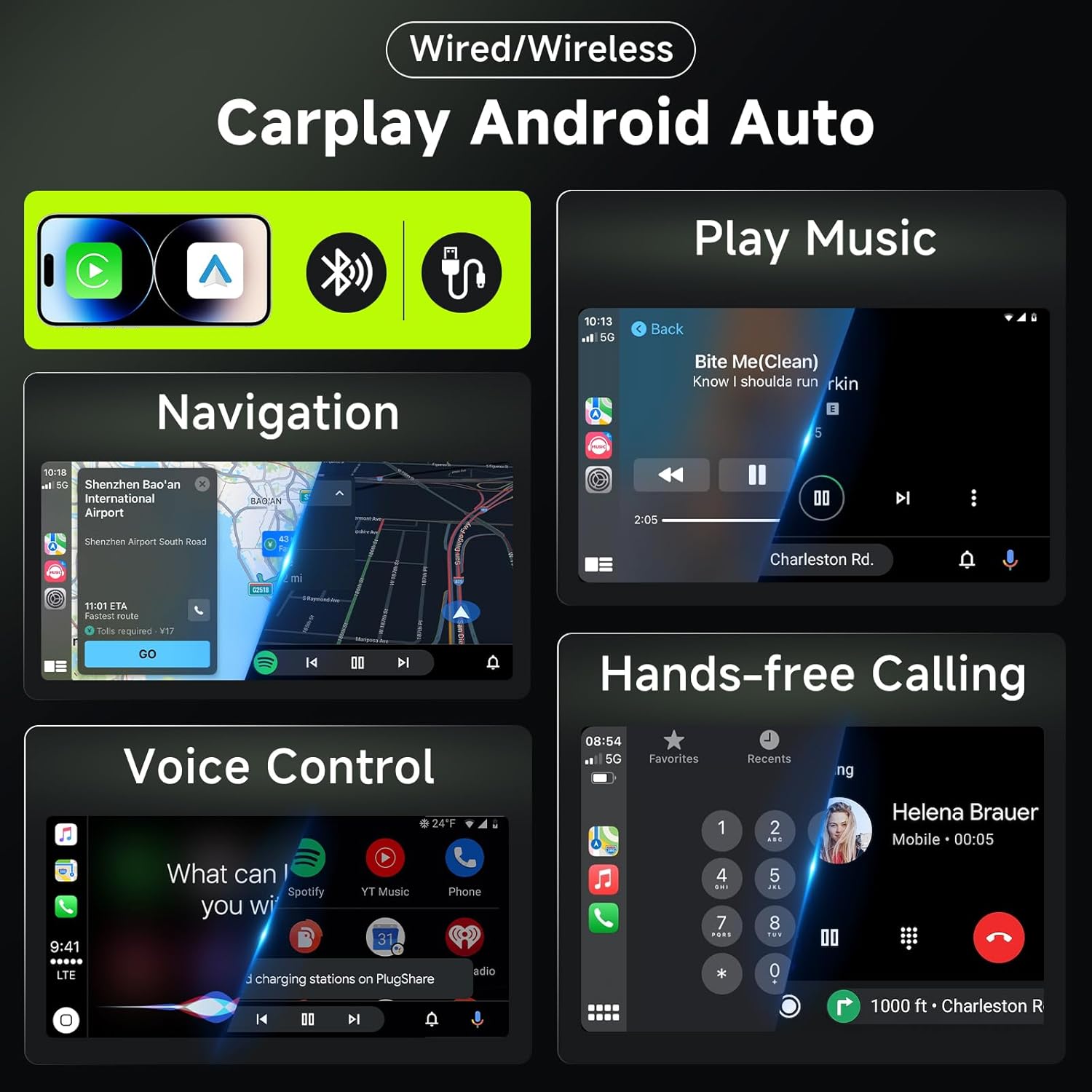
Image: Display of Wireless CarPlay and Android Auto features, including navigation, music playback, and hands-free calling.
5.3 Bluetooth 5.0
The unit features Bluetooth 5.0 for stable and fast connections. Use it for hands-free calling, music streaming, and file transfers. Enhanced directional Bluetooth ensures precise positioning for calls.
5.4 GPS Navigation
The car stereo includes offline GPS navigation capabilities. You can download maps for use without an internet connection. Online maps and updates are also available via 5Ghz WiFi.

Image: Display showing both online and offline GPS navigation options, along with 5Ghz WiFi connectivity.
5.5 FM/RDS Radio
Access FM radio stations with RDS (Radio Data System) for information like song titles and traffic updates. The unit supports a wide range of frequencies for clear reception.

Image: The FM radio interface displaying frequency tuning and preset options.
5.6 DSP 46EQ Audio Settings
Utilize the Digital Sound Processor (DSP) with a 46-band equalizer to customize your audio experience. Adjust bass, treble, and midrange settings to achieve your preferred sound profile.

Image: The graphical interface for the 46-band DSP equalizer, showing various sound adjustments.
5.7 Media Playback
The unit supports local video playback and online music/video streaming. Connect to WiFi to access streaming services and enjoy a wide range of entertainment options. RCA cable supports car headrest video output, allowing backseat passengers to enjoy videos.
Video: A comprehensive demonstration of various car stereo functions, including media playback, app store access, and camera view.
5.8 Steering Wheel Controls (SWC)
The system supports steering wheel controls, allowing you to manage audio, calls, and track selection without taking your hands off the wheel. Refer to your vehicle's manual for specific SWC setup if needed.

Image: Interface showing the mapping of steering wheel buttons to car stereo functions.
6. Specifications
| Feature | Detail |
|---|---|
| Brand | MAHVEC |
| Model Name | MAHVEC 8Core 6GB+128GB |
| Vehicle Service Type | Car |
| Screen Size | 9 Inches |
| Operating System | Android 15 |
| Processor | 8-Core Chip |
| RAM | 6GB |
| ROM | 128GB |
| Display Resolution | 1280x720P IPS Touchscreen |
| Connectivity | Bluetooth 5.0, USB, Wi-Fi (5Ghz) |
| Special Features | Wireless CarPlay/Android Auto, DSP Hi-Res Audio (46EQ), GPS, FM/RDS, SWC, IP69 AHD Backup Camera |
| Included Components | Android car stereo & frame, AHD backup camera, external mic |
| Manufacturer Part Number | A7872A3533NA |
7. Maintenance
- Clean the screen regularly with a soft, lint-free cloth. Avoid abrasive cleaners.
- Keep the unit free from dust and debris.
- Ensure proper ventilation around the unit to prevent overheating.
- Periodically check all wiring connections for security.
8. Troubleshooting
If you encounter issues, try these common troubleshooting steps:
- No Power: Check all power connections and the vehicle's fuse box.
- No Sound: Verify speaker connections, volume levels, and audio source selection. Check DSP settings.
- CarPlay/Android Auto Not Connecting: Ensure Bluetooth is enabled on your phone and the car stereo. Restart the "Zlink" app. Try a wired connection if wireless fails.
- GPS Signal Lost: Ensure the GPS antenna is properly installed and has a clear view of the sky.
- Backup Camera Not Displaying: Check camera wiring, especially the reverse trigger. Verify AHD setting in factory settings.
- Touchscreen Unresponsive: Restart the unit. If the issue persists, a factory reset might be necessary (consult support).
9. Warranty and Support
This product comes with a 3-year warranty from the manufacturer, MAHVEC. For technical support, warranty claims, or any other inquiries, please contact MAHVEC customer service through the platform where you purchased the product or refer to the contact information provided in the packaging.
MAHVEC is committed to providing high-quality products and customer support. For further assistance, please visit the MAHVEC Store.
Ask a question about this manual
Ask about setup, troubleshooting, compatibility, parts, safety, or missing instructions. Manuals+ will review the question and use this page’s manual context to help answer it.