
1. Introduction
This manual provides detailed instructions for the AITRIP ESP32-C3 0.42-inch OLED Development Board. This compact board integrates the ESP32-C3FN4/FH4 core, offering Wi-Fi and Bluetooth Low Energy (BLE) connectivity, along with a built-in 0.42-inch OLED screen. It is designed for various Internet of Things (IoT) applications, wearable devices, and smart home projects, providing a versatile platform for development.
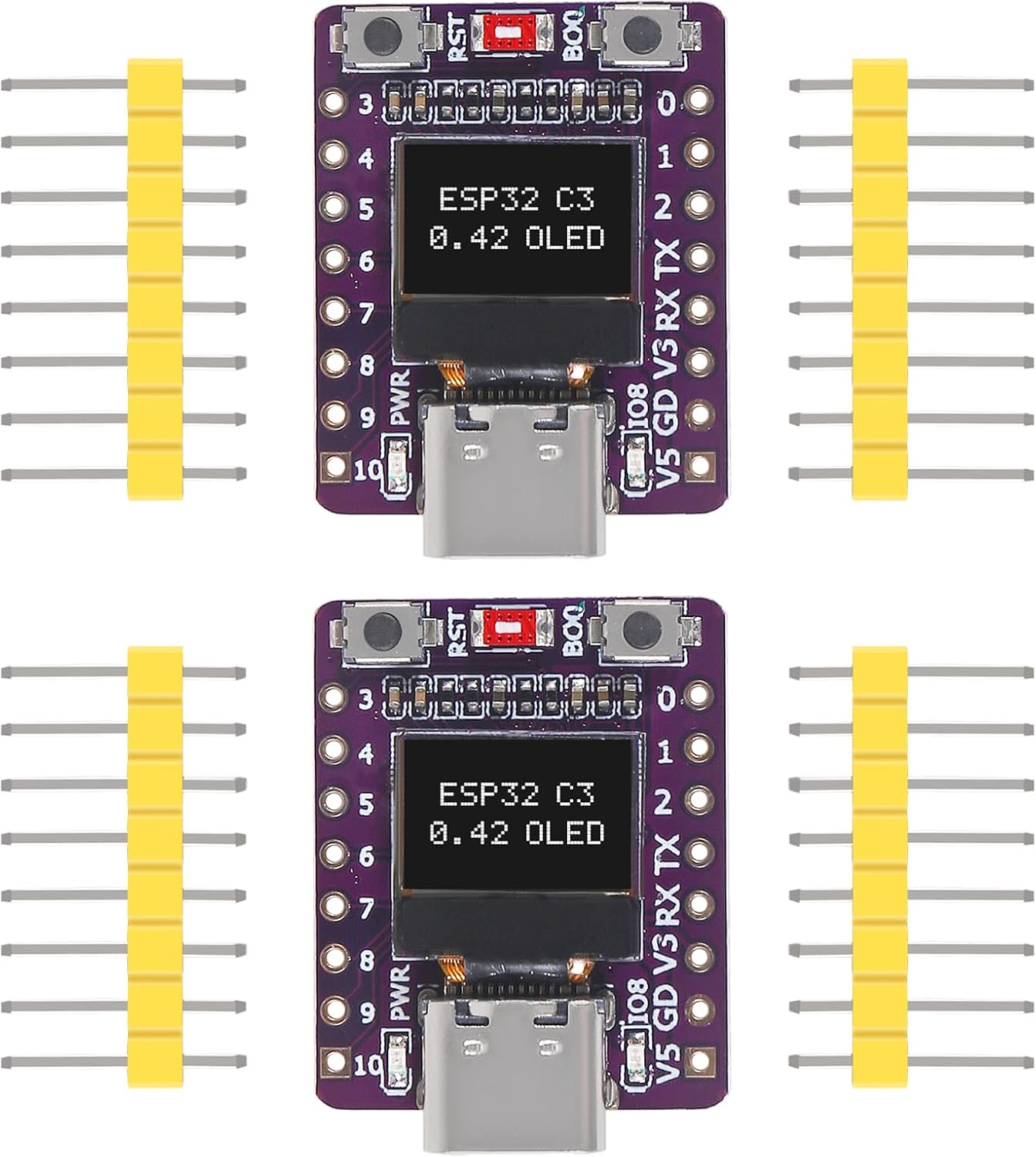
Figure 1: Two AITRIP ESP32-C3 0.42-inch OLED Development Boards with included pin headers.
2. Product Features
- Core Processor: Based on ESP32-C3FN4/FH4, featuring a built-in 4MB flash memory.
- Wireless Connectivity: Integrated Wi-Fi and Bluetooth (BLE) capabilities with an onboard ceramic antenna.
- Display: Equipped with a 0.42-inch OLED screen for visual output.
- Programming: Supports USB download for convenient firmware updates and programming.
- Peripheral Interfaces: Includes 1x I2C, 1x SPI, 2x UART, 11x GPIO (supporting PWM), and 4x ADC pins for extensive connectivity.
- Compact Design: Features a supermini form factor, ideal for space-constrained projects.
3. Specifications
| Feature | Detail |
|---|---|
| Processor | Espressif ESP32-C3 (Core M Family) |
| Operating System | FreeRTOS |
| Memory Storage Capacity | 4 MB |
| Connectivity Technology | Bluetooth, USB, Wi-Fi |
| Item Weight | 0.317 ounces |
| Package Dimensions | 2.91 x 1.26 x 0.87 inches |
| Board Dimensions (Approx.) | 25mm x 20mm (0.98 x 0.78 inches) |
4. Package Contents
Each package typically includes:
- ESP32-C3 0.42-inch OLED Development Board(s)
- Pin Headers (for soldering)
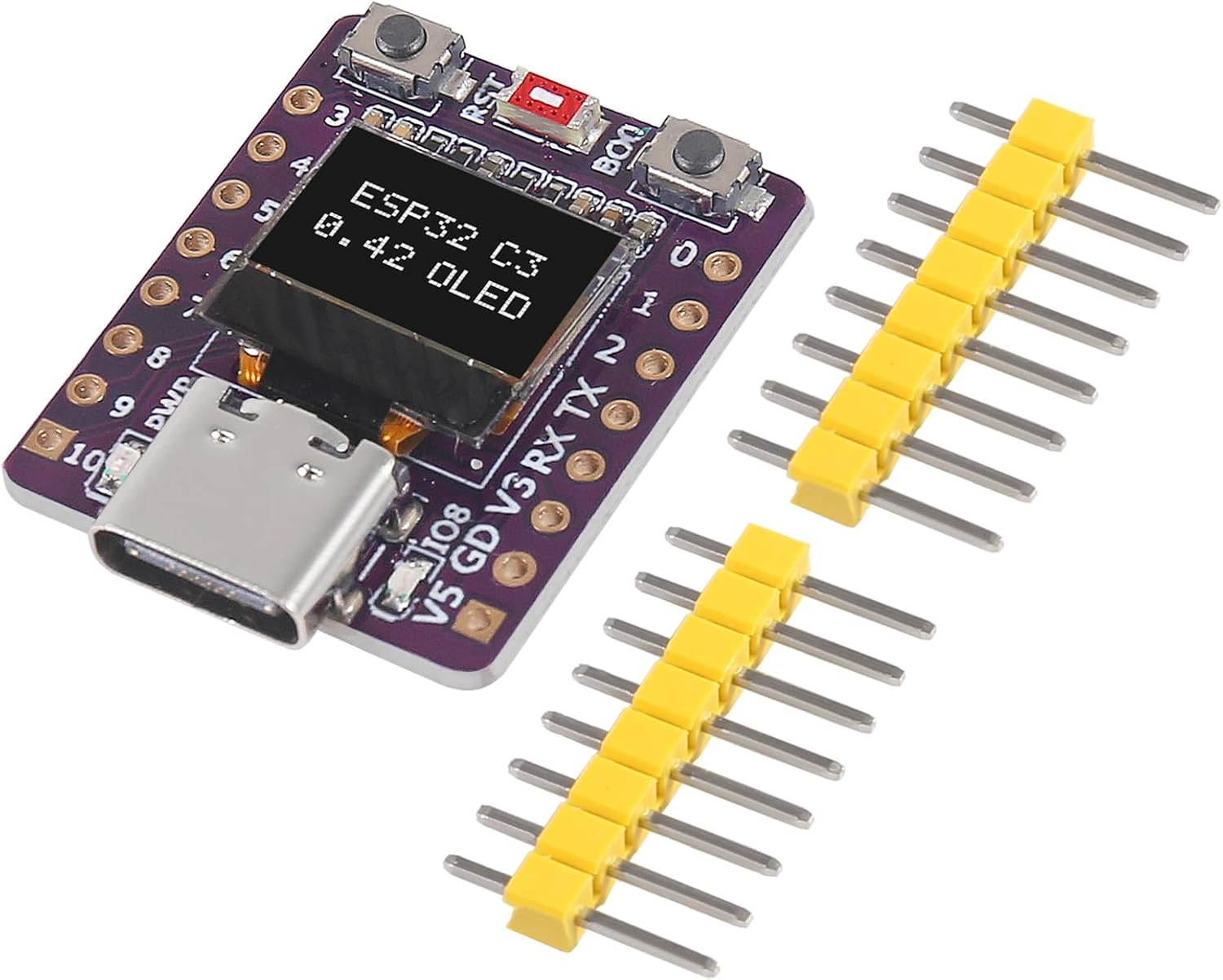
Figure 2: Contents of the AITRIP ESP32-C3 Development Board package.
5. Setup and Hardware Overview
Before using the development board, it is recommended to solder the included pin headers to allow for easy integration with breadboards or custom circuits. The board features a USB-C port for power and data communication, along with reset and boot buttons.
5.1 Board Dimensions

Figure 3: Approximate dimensions of the ESP32-C3 Development Board.
5.2 Component Details

Figure 4: Detailed views of key components including the USB-C port, ESP32-C3 chip, and control buttons.
5.3 Pinout Diagram
Understanding the pinout is essential for connecting peripherals and programming the board. Refer to the diagram below for GPIO assignments and power pins.
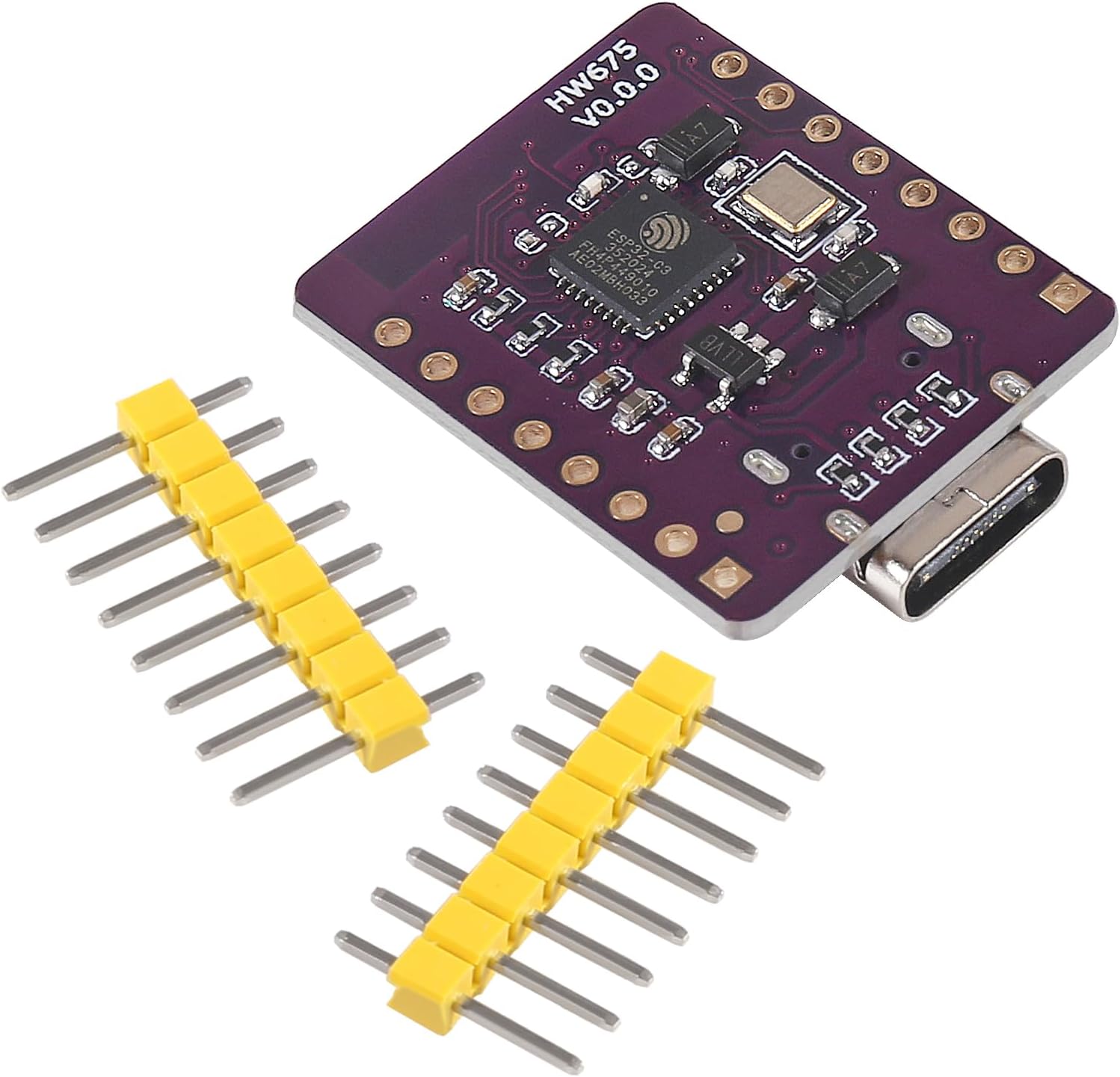
Figure 5: Pinout diagram of the ESP32-C3 Development Board. Note that for the 0.42-inch OLED, I2C SDA and SCL pins are typically GPIO5 and GPIO6, respectively, though some configurations may vary.
6. Operating Instructions
The AITRIP ESP32-C3 Development Board can be programmed using various integrated development environments (IDEs), such as the Arduino IDE or Espressif's ESP-IDF. The onboard 0.42-inch OLED display is typically controlled via I2C communication.
6.1 Initial Programming Setup
- Install Arduino IDE: Download and install the latest version of the Arduino IDE from the official Arduino website.
- Add ESP32 Board Support: In the Arduino IDE, go to
File > Preferencesand add the ESP32 board manager URL to the 'Additional Board Manager URLs' field. - Install ESP32 Boards: Go to
Tools > Board > Boards Manager, search for 'ESP32', and install the 'esp32 by Espressif Systems' package. - Select Board: Under
Tools > Board > ESP32 Arduino, select a compatible ESP32-C3 board, such as 'MakerGo ESP32C3 Supermini' or a generic ESP32-C3 Dev Module. - Connect Board: Connect the ESP32-C3 board to your computer using a USB-C cable.
- Select Port: Go to
Tools > Portand select the serial port corresponding to your connected board.
6.2 OLED Display Usage
The 0.42-inch OLED display typically uses the I2C protocol. Common libraries like U8g2 or Adafruit SSD1306 can be used to control it. Based on user feedback, the I2C SDA and SCL pins for the OLED may be GPIO5 and GPIO6, respectively. The usable display area might also require specific offsets (e.g., xOffset=28, yOffset=24 for a 72x40 display within a 128x64 buffer) depending on the specific OLED driver and library configuration.
Refer to the library documentation and example sketches for detailed programming instructions for the OLED.
6.3 Example Applications
The ESP32-C3's Wi-Fi and Bluetooth capabilities, combined with its rich GPIO, enable a wide range of applications, from simple sensor data logging to complex IoT nodes. The board also supports GUI interface programs like LVGL for more advanced display applications.
Video 1: Demonstration of an ESP32-C3 Development Board's features, including Wi-Fi and Bluetooth connectivity, and its application in various projects. This video is provided by Aceirmc US.
Video 2: A brief overview of an ESP32 module, showcasing its compact size and potential for integration into electronic projects. This video is provided by Aitrip.
7. Maintenance
To ensure the longevity and proper functioning of your AITRIP ESP32-C3 Development Board, follow these maintenance guidelines:
- Handle with Care: Avoid dropping the board or subjecting it to physical shock.
- Prevent Static Discharge: Always handle the board on an anti-static mat or by touching a grounded object to discharge static electricity.
- Keep Dry: Protect the board from moisture and liquids, as these can cause short circuits and damage.
- Operating Environment: Use the board within its specified operating temperature and humidity ranges.
- Cleanliness: Keep the board free from dust and debris. Use a soft, dry brush or compressed air for cleaning if necessary.
8. Troubleshooting
If you encounter issues with your ESP32-C3 Development Board, consider the following common troubleshooting steps:
- Power Issues: Ensure the board is receiving adequate power via the USB-C port. Check the cable and power source.
- USB Connection: Verify that the USB-C cable is securely connected and that your computer recognizes the serial port. Try a different USB port or cable.
- Driver Installation: Confirm that the necessary USB-to-serial drivers (e.g., CP210x or CH340, depending on the board's chip) are installed on your computer.
- Programming Errors: If code upload fails, check your Arduino IDE board and port selections. Ensure the correct ESP32-C3 board type is selected.
- OLED Display Not Working: Double-check the I2C pin assignments (SDA, SCL) in your code against the board's pinout. Verify the I2C address of the OLED module. Ensure the display library is correctly configured for the 0.42-inch OLED.
- Boot Mode: If programming issues persist, try holding down the BOOT button while pressing and releasing the RST button, then release BOOT to enter download mode.
- Community Support: For specific programming or hardware issues, consult online forums and communities dedicated to ESP32 development.
9. Warranty and Support
For warranty information and technical support, please refer to the official AITRIP product page or contact AITRIP customer service directly. Keep your purchase receipt for warranty claims.