
Introduction
This manual provides detailed instructions for the installation, operation, and maintenance of your MAHVEC Android 13 Car Stereo, model 2G+64G. This system is specifically designed for Volvo XC90 vehicles manufactured between 2004 and 2014. Please read this manual thoroughly before installation and use to ensure proper functionality and to maximize your user experience.
The MAHVEC Android 13 Car Stereo features a 9-inch HD IPS touch screen, Android 13 operating system, 2GB RAM, 64GB ROM, wireless CarPlay, Android Auto, Bluetooth 5.0, built-in DSP, GPS, FM/RDS radio, WiFi, and AHD backup camera support.
Product Overview and Key Features

Image: Overview of key features including WiFi, Bluetooth 5.0, GPS, IPS Touch Screen, Split Screen, and multiple User Interfaces.
- Compatibility: Designed for Volvo XC90 models from 2004 to 2014.
- Operating System: Android 13.
- Memory: 2GB RAM and 64GB ROM for smooth operation.
- Display: 9-inch 1080P HD IPS Touch Screen with 2.5D anti-scratch surface.
- Connectivity: Wireless and Wired CarPlay, Android Auto, Mirror Link, Bluetooth 5.0 (A2DP, Hands-Free, Phone book), and WiFi.
- Audio: Built-in DSP EQ for customizable sound profiles (Pop, rock, jazz, classical, flat, user, voice).
- Navigation: Integrated GPS chip supporting GPS/QZSS/SBAS for online and offline navigation.
- Camera Support: Compatible with AHD Backup Cameras, featuring 170° wide angle, IP69 Waterproof, and Night Vision capabilities.
- Controls: Supports existing Steering Wheel Controls (SWC).
- Radio: FM/RDS Radio with 18 fixed stations and weather forecasts.
- User Interface: Offers 26 customizable User Interface themes and a Split Screen function for multitasking.
Package Contents
Please verify that all items listed below are included in your package:

Image: Visual representation of all components included in the package.
- Android Car Stereo & Frame
- AHD Backup Camera
- External Microphone
- GPS Antenna
- USB Cable
- Rear Camera Input Cable
- RCA Cable
- User Manual
- Accessories (e.g., mounting brackets, screws)
- Canbus Decoder
- Installation Tool
Setup and Installation
1. Compatibility Check
Before installation, confirm your Volvo XC90 (2004-2014) center console matches the 'Fit' configuration shown below. If your car does not have an AUX port, please contact customer service to obtain the correct wiring harness (Y3578).
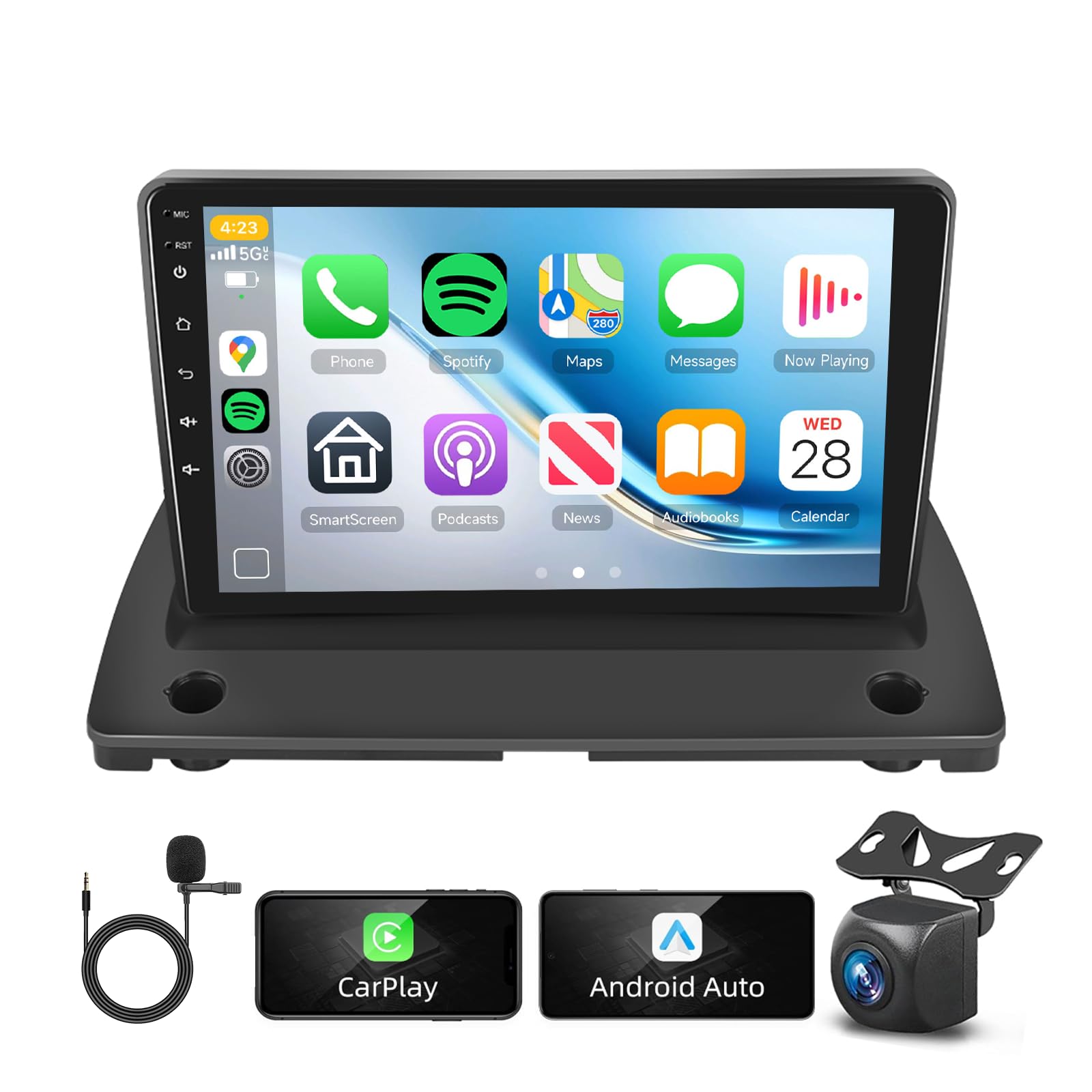
Image: Illustrates the correct dashboard configuration with an AUX port for compatibility.
2. Wiring Schematic
Refer to the following diagrams for proper connection of the car stereo and its components.

Image: General wiring schematic showing connections for power, USB, RCA, camera input, and GPS antenna.
3. Backup Camera Wiring
Follow these steps to connect the AHD backup camera:
- Connect the Red Cable ① and ③ to the positive (+) of the car's reverse light power supply.
- Connect the Black Cable ② to the negative (-) of the car's reverse light power supply.
- Connect the Black Cable ④ to the reverse trigger wire on the power harness of the car stereo.
After connection, access the settings: Factory Setup (password 000000) > Backcar Source Settings > AHD to configure the camera input.

Image: Detailed diagram for connecting the AHD backup camera.
Operating Instructions
1. Wireless CarPlay & Android Auto
The system supports both wireless and wired connections for Apple CarPlay and Android Auto, allowing access to phone functions like navigation, music, and calls via voice control.

Image: Connection steps for wireless and wired CarPlay and Android Auto.
Wireless Connection Steps:
- Connect your mobile phone via Bluetooth to the car stereo.
- On the car stereo, click on "Car Link" and wait for the connection to establish.
Wired Connection Steps:
- Connect your mobile phone to the car radio player using a USB cable.
- On the car stereo, click on "Car Link" and wait for the connection to establish.
2. Bluetooth 5.0
Bluetooth 5.0 supports A2DP for audio streaming, hands-free calling, and phone book synchronization. Pair your phone via the Bluetooth settings menu on the stereo.
3. GPS Navigation
The built-in GPS chip supports various navigation systems (GPS/QZSS/SBAS). You can use pre-installed offline maps or download online navigation apps via WiFi, such as Navitel or iGO.
4. FM/RDS Radio
Tune into FM radio stations. The RDS function provides additional information like station name, program type, and traffic announcements. You can save up to 18 fixed stations.

Image: Display showing Bluetooth interface, FM/RDS radio, and DSP equalizer settings.
5. DSP Audio Settings
The built-in Digital Sound Processor (DSP) allows for extensive audio customization. Adjust equalizer settings, balance, and fader to suit your preferences. Pre-set options include Pop, Rock, Jazz, Classical, Flat, User, and Voice.
6. Steering Wheel Controls (SWC)
Connect the Steering Wheel Control wire to integrate your vehicle's existing steering wheel buttons. The system includes a learning function to map various controls (e.g., volume, track skip, call answer/end) to the stereo functions.

Image: Interface for programming steering wheel controls.
7. Split Screen Function
Utilize the split-screen feature to run two applications simultaneously, such as navigation and music playback, enhancing multitasking capabilities.

Image: Demonstration of the split screen feature with navigation and media player.
8. User Interface Customization
Choose from 26 different user interface themes to personalize the look and feel of your car stereo display.

Image: Examples of various user interface themes.
9. Mirror Link
The Mirror Link function allows you to display your smartphone's screen directly onto the car stereo, enabling access to apps and content from your phone.

Image: Illustration of the Mirror Link feature.
Maintenance
- Screen Cleaning: Use a soft, dry, lint-free cloth to clean the touch screen. Avoid using abrasive cleaners, solvents, or alcohol-based solutions, as these can damage the screen coating.
- Software Updates: Periodically check for and install software updates via WiFi to ensure optimal performance, security, and access to new features.
- General Care: Keep the unit free from dust and extreme temperatures. Ensure all connections remain secure.
Troubleshooting
| Problem | Possible Cause | Solution |
|---|---|---|
| No power to the unit. | Incorrect wiring, blown fuse, loose connection. | Check power cable connections, inspect vehicle fuse box, ensure all harnesses are securely plugged in. |
| No sound output. | Speaker wires disconnected, volume too low, DSP settings misconfigured. | Verify speaker connections, increase volume, check DSP equalizer and balance/fader settings. |
| GPS signal lost or inaccurate. | GPS antenna not connected, obstructed view of sky, outdated map data. | Ensure GPS antenna is securely connected and placed with a clear view of the sky. Update map data if necessary. |
| CarPlay/Android Auto not connecting. | Incorrect USB cable, Bluetooth pairing issue, app permissions, phone software. | Use a high-quality USB cable. Re-pair Bluetooth. Check phone settings for CarPlay/Android Auto permissions. Ensure phone OS is up to date. |
| Steering Wheel Controls not working. | SWC wire not connected, incorrect programming. | Verify SWC wire connection. Re-enter the SWC learning interface and reprogram the buttons. |
| Backup camera not displaying. | Camera wiring incorrect, camera settings in stereo. | Check backup camera power and video signal connections. Ensure 'Backcar Source Settings' is set to AHD in factory settings. |
Specifications
| Feature | Detail |
|---|---|
| Item Weight | 3.56 pounds |
| Package Dimensions | 10.47 x 8.43 x 5 inches |
| Display Size | 9 Inches |
| Operating System | Android 13 |
| Connectivity Technology | Bluetooth 5.0, WiFi |
| Special Features | Android Auto, Built-In Bluetooth, CarPlay, DSP, GPS Navigation, FM/RDS Radio, AHD Backup Camera Support, Split Screen, 26 UIs |
| Screen Type | IPS Touch Screen |
| Vehicle Service Type | Car (Volvo XC90 2004-2014) |
| Mounting Type | Dashboard Mount |
| Audio Output Mode | Stereo |
| Map Type | Worldwide (supports online/offline) |
Warranty Information
This MAHVEC car stereo comes with a 2-year warranty from the date of purchase, covering manufacturing defects. Please retain your proof of purchase for warranty claims.
Extended protection plans may be available for purchase separately:
- 2-Year Protection Plan
- 3-Year Protection Plan
For details on warranty claims or extended protection, please refer to your purchase documentation or contact MAHVEC customer support.
Support
For technical assistance, troubleshooting not covered in this manual, or general inquiries, please contact MAHVEC customer service. You can typically find contact information on the MAHVEC store page on Amazon or through the provided user manual included in your package.
MAHVEC is committed to providing 24-hour customer service replies and offers a 30-day free return and exchange policy.