
Driauto B0F36SHF92
Driauto 7-Inch Android Single DIN Car Stereo User Manual
Model: B0F36SHF92
1. Product Overview
The Driauto 7-inch Android Single DIN Car Stereo is a versatile multimedia receiver designed for in-car entertainment and navigation. It features a flip-out touchscreen display, an Android 15 operating system, and extensive connectivity options.

Image: The Driauto 7-inch Android Single DIN Car Stereo with its flip-out touchscreen extended, showing a smartphone interface. A backup camera, microphone, and a smartphone displaying a Wi-Fi signal are also shown.
Key Features:
- Operating System: Android 15 with 2GB RAM and 64GB ROM for fast performance.
- Display: 7-inch IPS flip-out touchscreen with 1024x600 resolution and split-screen functionality.
- Connectivity: Wireless CarPlay, Wireless Android Auto, MirrorLink (iOS one-way, Android two-way), Bluetooth for hands-free calling and music streaming, Wi-Fi and Hotspot for internet access.
- Navigation: Built-in GPS with support for online and offline navigation apps (e.g., Google Maps).
- Audio: FM/RDS radio, Digital Sound Processor (DSP) with EQ for customized sound effects.
- Inputs/Outputs: USB inputs, SD card port, AUX audio input, Dash CAM input, RCA/Subwoofer output.
- Additional Features: Steering wheel control compatibility, 7-color button lights, manual screen retraction, included AHD backup camera with night vision and waterproof design, external microphone.
2. Setup and Installation
This section provides guidance for installing your Driauto car stereo. Professional installation is recommended.
2.1 Package Contents
Before installation, verify that all components are present:
- Driauto Single DIN Car Stereo Unit
- Backup Camera
- External Microphone
- Power Cable
- RCA Cable
- 6-Pin USB Cable
- GPS Antenna
- Radio Antenna
- Mounting Bracket
- User Manual

Image: A visual representation of the Driauto car stereo unit and its included accessories, such as the backup camera, microphone, various cables (power, RCA, USB), GPS antenna, radio antenna, mounting bracket, and user manual.
2.2 Wiring Diagram
Refer to the following diagram for proper wiring connections. Ensure all connections are secure before powering on the unit.

Image: A detailed wiring diagram showing connections for the GPS antenna, radio antenna, rear camera input, 6-pin USB cable, RCA cable, and power cable to the back of the car stereo unit.
2.3 Mounting the Unit
Install the single DIN unit into your vehicle's dashboard using the provided mounting bracket. Ensure the unit is securely fastened to prevent movement during driving. The screen can be manually retracted or extended as needed.

Image: Illustrations demonstrating the manual retraction and extension mechanism of the car stereo's flip-out screen.
3. Operating Instructions
This section details the various functions and operations of your Driauto car stereo.
3.1 Power On/Off and Basic Interface
Press the power button to turn the unit on or off. The 7-inch touchscreen provides access to all functions. The Android 15 interface allows for intuitive navigation through apps and settings.
3.2 Wireless CarPlay and Android Auto
Connect your smartphone wirelessly or via USB to access CarPlay or Android Auto. This allows for voice-assisted control of navigation, music, calls, and messages directly from the car stereo screen.
- Wireless Connection: Ensure your phone's Wi-Fi and Bluetooth are enabled. Follow the on-screen prompts to pair your device.
- USB Connection: Connect your smartphone to the USB port using a compatible cable.
- MirrorLink: Supports one-way projection for iOS devices and two-way connection for Android devices, allowing your phone screen to be mirrored on the stereo.

Image: A graphic illustrating the wireless and wired connectivity options for CarPlay, Android Auto, and MirrorLink, showing smartphone screens integrated with the car stereo display.
3.3 GPS Navigation
The unit includes built-in GPS. You can use pre-installed navigation apps like Google Maps or download other preferred navigation applications from the Play Store via Wi-Fi.

Image: The car stereo display showing a navigation map and various app icons, highlighting GPS and Wi-Fi connectivity. A graphic of an Android robot and memory specifications (4GB RAM, 64GB ROM) are also present.
3.4 Bluetooth Functions
Pair your smartphone via Bluetooth for hands-free calling and wireless audio streaming.
- Hands-Free Calling: Make and receive calls directly through the stereo. The built-in microphone and included external microphone ensure clear audio.
- Audio Streaming: Play music from your phone through the car's speakers.
- Phone Book Sync: Sync your phone's contacts for easy access.
3.5 FM/RDS Radio
Tune into FM radio stations. The RDS (Radio Data System) feature displays station information where available.
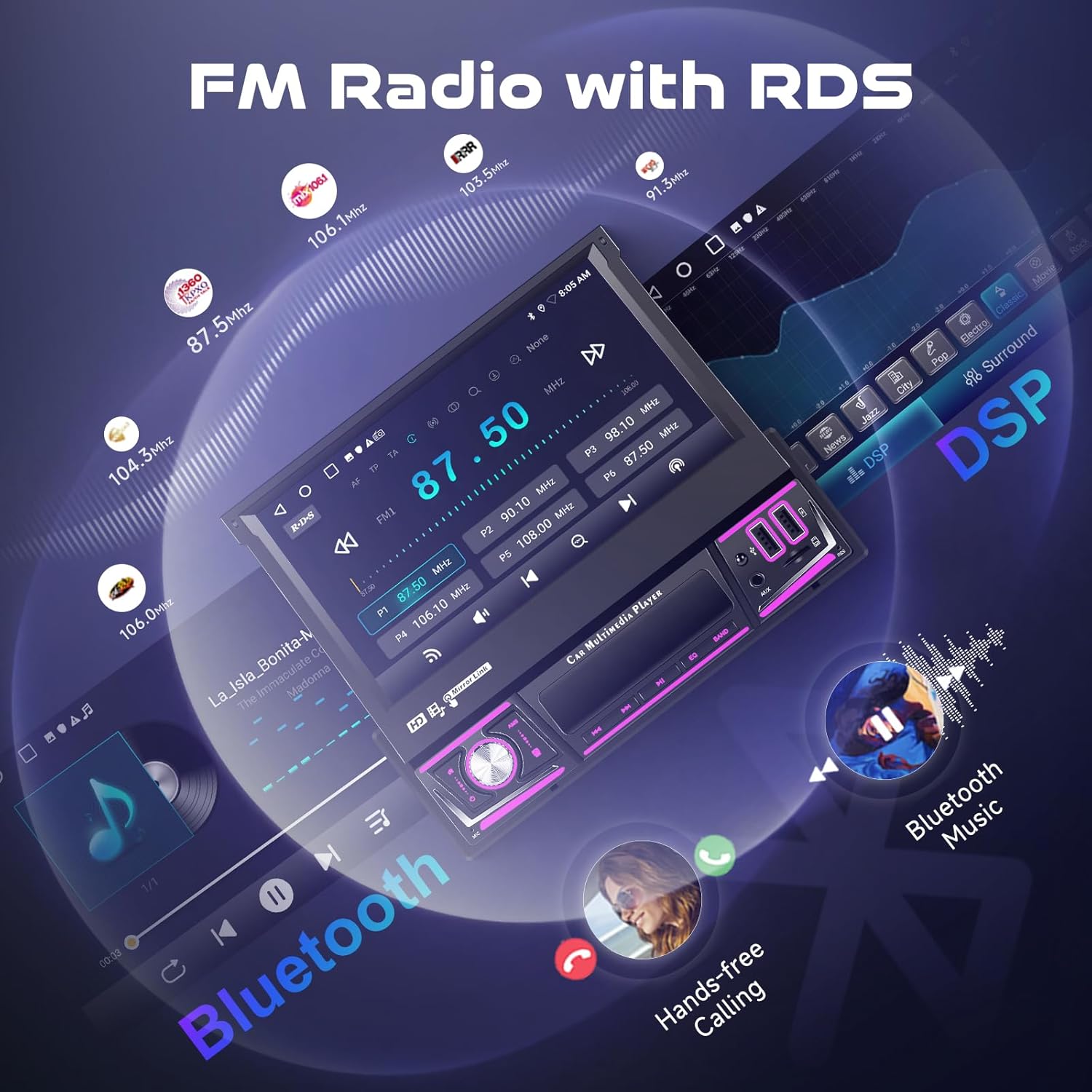
Image: The car stereo display showing the FM radio interface with various frequencies and RDS information. Icons for Bluetooth music and hands-free calling are also visible.
3.6 Media Playback (USB/TF Card)
The unit supports media playback from USB drives and TF (microSD) cards. Insert your storage device into the designated port to play HD videos or lossless audio files.
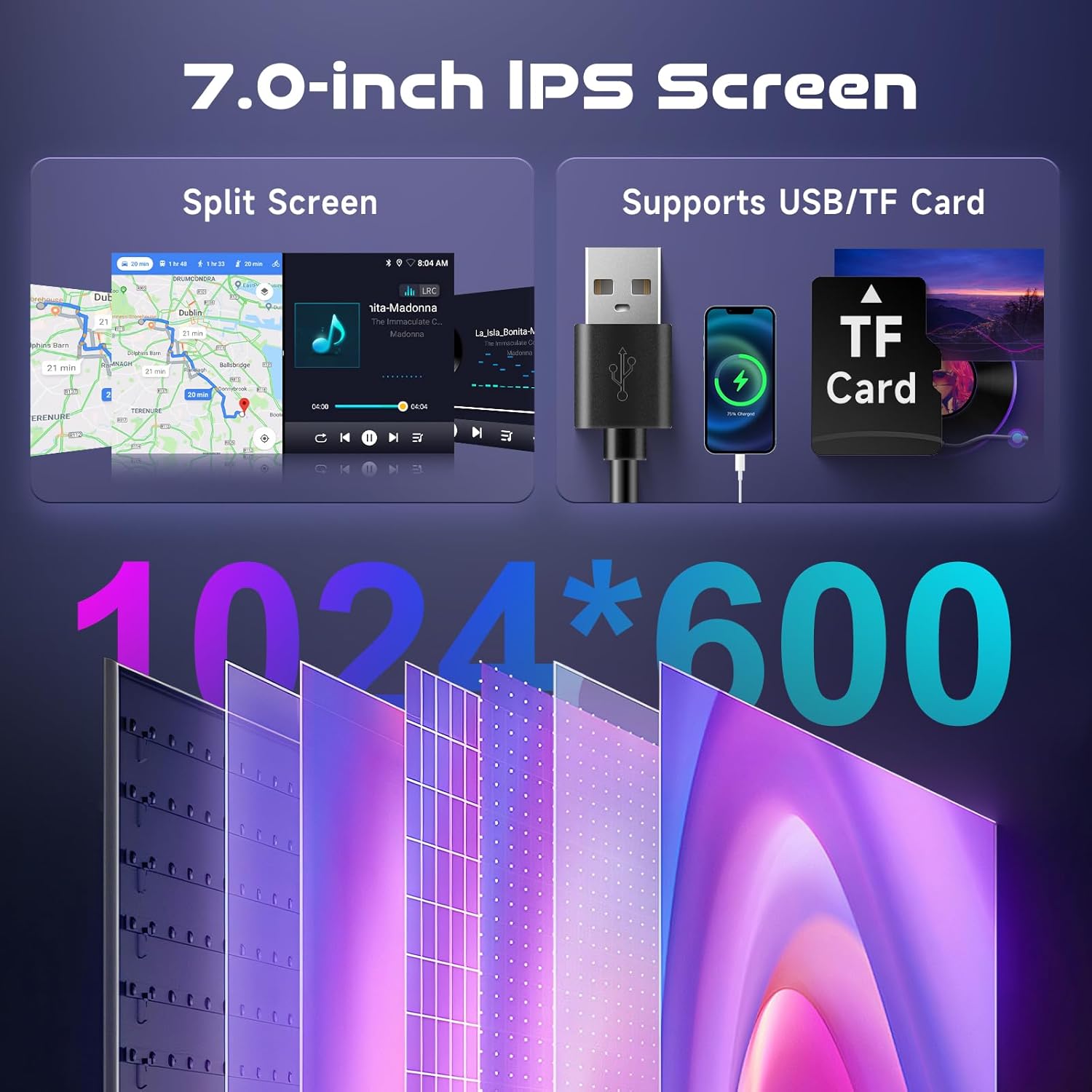
Image: The car stereo display showing split-screen functionality with navigation and music. Illustrations of USB and TF card support are also shown, along with the screen resolution of 1024x600.
3.7 Steering Wheel Controls
The car stereo is compatible with your vehicle's original steering wheel controls. Configure these controls in the unit's settings to manage volume, track changes, and answer/end calls without taking your hands off the wheel.
3.8 Rear View Camera
When the vehicle is shifted into reverse, the car stereo screen will automatically display the image from the included AHD backup camera. The camera features night vision and is waterproof for reliable performance.
3.9 Digital Sound Processor (DSP) and Equalizer (EQ)
Utilize the built-in DSP and EQ app to customize your audio experience. Adjust sound effects and frequencies to match your preferences.
3.10 7-Color Button Lights
Customize the color of the physical buttons on the unit to match your vehicle's interior lighting or your personal preference.
4. Maintenance
Proper maintenance ensures the longevity and optimal performance of your car stereo.
4.1 Cleaning the Screen and Unit
- Use a soft, lint-free cloth to gently wipe the touchscreen and unit exterior.
- For stubborn smudges, slightly dampen the cloth with water or a screen-safe cleaning solution. Avoid harsh chemicals or abrasive materials.
- Ensure the unit is powered off before cleaning.
4.2 Software Updates
Periodically check for software updates through the unit's settings menu (if available). Updates can improve performance, add new features, and enhance security.
5. Troubleshooting
This section addresses common issues you might encounter with your car stereo.
5.1 No Power
- Check all power connections to ensure they are securely attached to the vehicle's power source and the stereo unit.
- Verify the vehicle's fuse for the stereo is not blown.
- Ensure the car's ignition is on.
5.2 No Sound
- Check speaker wire connections.
- Ensure the volume is not muted or set to minimum.
- Verify the audio source is correctly selected (e.g., Bluetooth, USB, Radio).
5.3 GPS Not Working or Inaccurate
- Ensure the GPS antenna is properly connected and placed in a location with a clear view of the sky.
- Check GPS settings within the unit to ensure it is enabled.
- Update navigation maps if necessary.
5.4 Bluetooth Connection Issues
- Ensure Bluetooth is enabled on both the car stereo and your smartphone.
- Delete previous pairings on both devices and attempt to re-pair.
- Move your smartphone closer to the stereo unit.
5.5 Rear Camera Not Displaying
- Check the rear camera input cable connection to the stereo.
- Verify the camera's power supply is correctly wired.
- Ensure the vehicle is in reverse gear.
6. Specifications
Detailed technical specifications for the Driauto 7-inch Android Single DIN Car Stereo.
| Feature | Specification |
|---|---|
| Model | B0F36SHF92 |
| Operating System | Android 15 |
| RAM | 2GB |
| ROM | 64GB |
| Screen Size | 7 inches (18 cm) |
| Screen Resolution | 1024x600 |
| Connectivity Technology | Bluetooth, USB, Wi-Fi |
| Special Features | Android Auto, Apple CarPlay, Built-In Bluetooth, Built-In Wi-Fi, GPS Navigation |
| Compatible Devices | Smartphone, Tablet |
| Connector Type | 3.5mm Jack, RCA, USB |
| Audio Output Mode | Stereo, Surround |
| Surround Sound Channel Configuration | 5.1 |
| Video Encoding | RM, Matroska |
| Output Power | 180 Watts |
| Number of Channels | 4 |
| Item Weight | 4.2 pounds |
| Package Dimensions | 14.65 x 10.28 x 3.62 inches |
7. Warranty and Support
Driauto is committed to product quality and customer satisfaction.
7.1 Warranty Information
- Replacement: The product includes a 2-year replacement policy.
- Protection Plans: Extended protection plans are available for purchase separately (e.g., 2-Year and 3-Year plans).
7.2 Customer Support
Driauto provides lifetime support for its products. For technical assistance, troubleshooting, or warranty claims, please refer to the contact information provided in your product packaging or visit the official Driauto website.