
Philips 48OLED820/12
Philips Ambilight 48OLED820 4K OLED Smart TV User Manual
Model: 48OLED820/12
Introduction
This manual provides comprehensive instructions for setting up, operating, and maintaining your Philips Ambilight 48OLED820 4K OLED Smart TV. Designed for an immersive entertainment experience, this TV features a P5 AI Perfect Picture processor, Ambilight technology, and smart functionalities powered by Titan OS, with support for Dolby Vision and Atmos Sound, and voice control via Alexa and Google Assistant.

Image: Front view of the Philips Ambilight 48OLED820 4K OLED Smart TV, showcasing its sleek design and vibrant display.
Setup
1. Unboxing and Package Contents
Carefully remove all components from the packaging. Ensure all items listed below are present.

Image: The packaging box for the Philips Ambilight TV, indicating safe and secure delivery.
- TV Unit
- Power Cable
- Remote Control with rechargeable lithium battery
- Tabletop Stand
- User Manual and Warranty Card
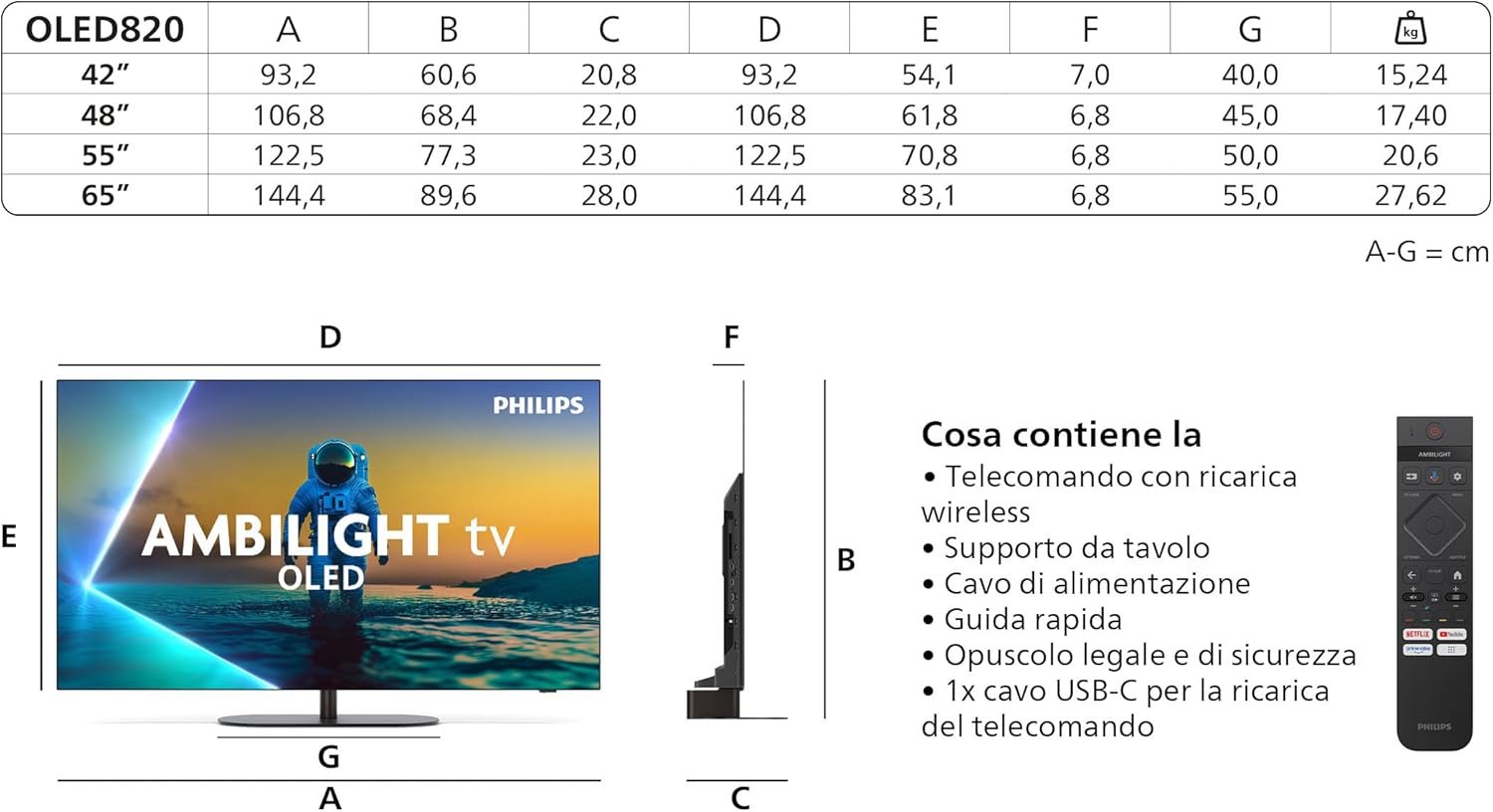
Image: Diagram showing the dimensions of the OLED820 TV series (including 48-inch model) and a visual list of included accessories such as the remote control, stand, and cables.
2. Stand Installation
Attach the tabletop stand securely to the TV unit following the instructions provided in the quick start guide. Ensure all screws are tightened to prevent instability.
3. Connecting Peripherals
Connect your external devices such as set-top boxes, gaming consoles, and sound systems to the appropriate ports on the TV. The Philips 48OLED820/12 features multiple HDMI inputs (including HDMI 2.1 for 4K 120Hz), USB ports, and a network port.

Image: Close-up view of the Philips TV's connectivity panel, highlighting the Triple Tuner (DVB-T, DVB-C, DVB-S2), USB ports, and HDMI inputs.

Image: Diagram illustrating the location of side and bottom ports for 48", 55", and 65" Philips TV models, including USB, HDMI, Satellite, TV Antenna, Digital Audio Out, and Network ports.
For optimal performance with gaming consoles, utilize the HDMI 2.1 ports which support 4K resolution at 120Hz, VRR (Variable Refresh Rate), and FreeSync.
4. Initial Power-On and Network Connection
Plug the power cable into the TV and a wall outlet. Press the power button on the remote control. Follow the on-screen prompts to complete the initial setup, including language selection, network connection (Wi-Fi or Ethernet), and channel scanning.
Operating Instructions
1. Basic TV Functions
Use the provided remote control to navigate the TV's functions. The remote features dedicated buttons for power, volume, channel selection, and quick access to popular streaming services.

Image: The sleek, rechargeable wireless remote control for the Philips TV, featuring dedicated buttons for streaming services like Netflix and YouTube.
2. Ambilight Technology
Ambilight is a unique Philips technology that projects colors from the screen onto the wall behind the TV, creating an immersive viewing experience. You can customize Ambilight settings in the TV menu to match your preferences, including different modes like Follow Video, Follow Audio, or Lounge Light.

Image: A Philips Ambilight TV displaying content with its integrated LED illumination reacting to the scene, extending the visual experience beyond the screen.

Image: The Ambilight TV with AI, showing how scenes are automatically optimized for picture, gaming, sound, and Ambilight settings.
3. P5 AI Perfect Picture Processor
The P5 AI Perfect Picture processor utilizes artificial intelligence to optimize every frame, delivering stunning images with realistic detail, vibrant colors, and smooth motion. It enhances contrast and sharpness, bringing cinematic quality to your home.

Image: Visual representation of the Philips P5 AI Intelligent Picture Engine, symbolizing its advanced processing capabilities for authentic image reproduction.
4. Smart TV Features (Titan OS / Google TV)
Your Philips Smart TV runs on Titan OS, providing easy access to streaming services, personalized recommendations, and an intuitive interface. You can download and enjoy a wide range of applications from the app store.

Image: The Google TV interface, showing various streaming apps like YouTube, Prime Video, Netflix, Disney+, and Max, indicating seamless integration of movies and series.
5. Audio and Visual Technologies
Experience cinematic visuals with 4K Ultra HD resolution and support for all major HDR formats, including Dolby Vision. Immerse yourself in rich, clear audio with Dolby Atmos and DTS:X sound technologies, which create a multi-dimensional sound experience.

Image: Visual representation of OLED technology, 4K Ultra HD, HDR+, and Dolby Vision-Atmos, highlighting the TV's superior picture and sound capabilities.
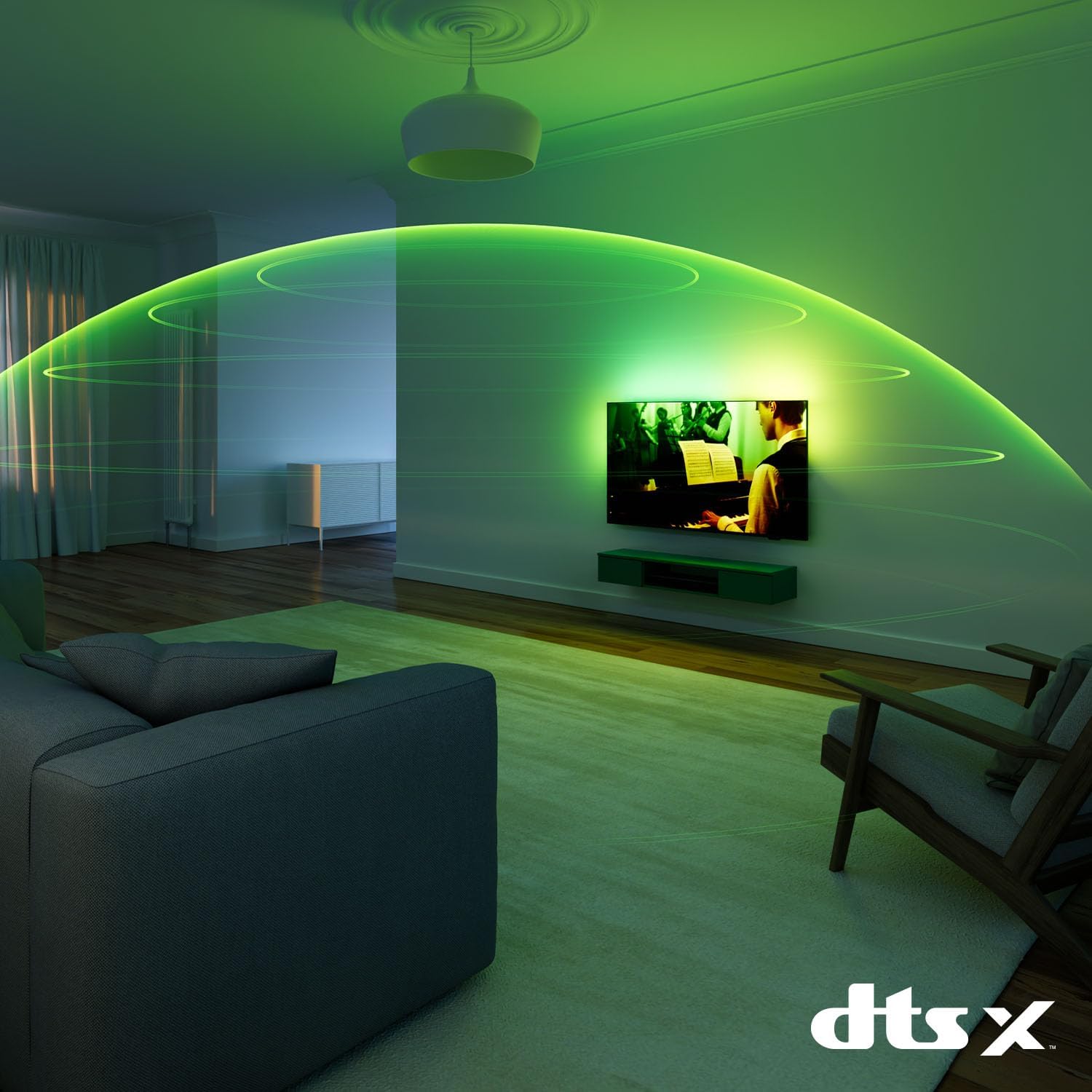
Image: A visual demonstrating DTS:X audio technology, showing sound waves expanding around a room from the TV, creating an immersive audio experience.
6. Gaming Features
For gamers, this TV offers a Total Gaming Solution with features like up to 144Hz refresh rate, VRR (Variable Refresh Rate), AMD FreeSync Premium, and NVIDIA G-SYNC compatibility, ensuring super responsive performance and impeccable graphics.

Image: A gaming setup featuring the Philips TV, highlighting its "Total Gaming Solution" with support for up to 144Hz refresh rate, VRR, AMD FreeSync Premium, and NVIDIA G-SYNC.
7. Voice Control
The TV supports voice control through Alexa and Google Assistant. Simply use the voice remote or a compatible smart speaker to control your TV, search for content, and manage smart home devices.
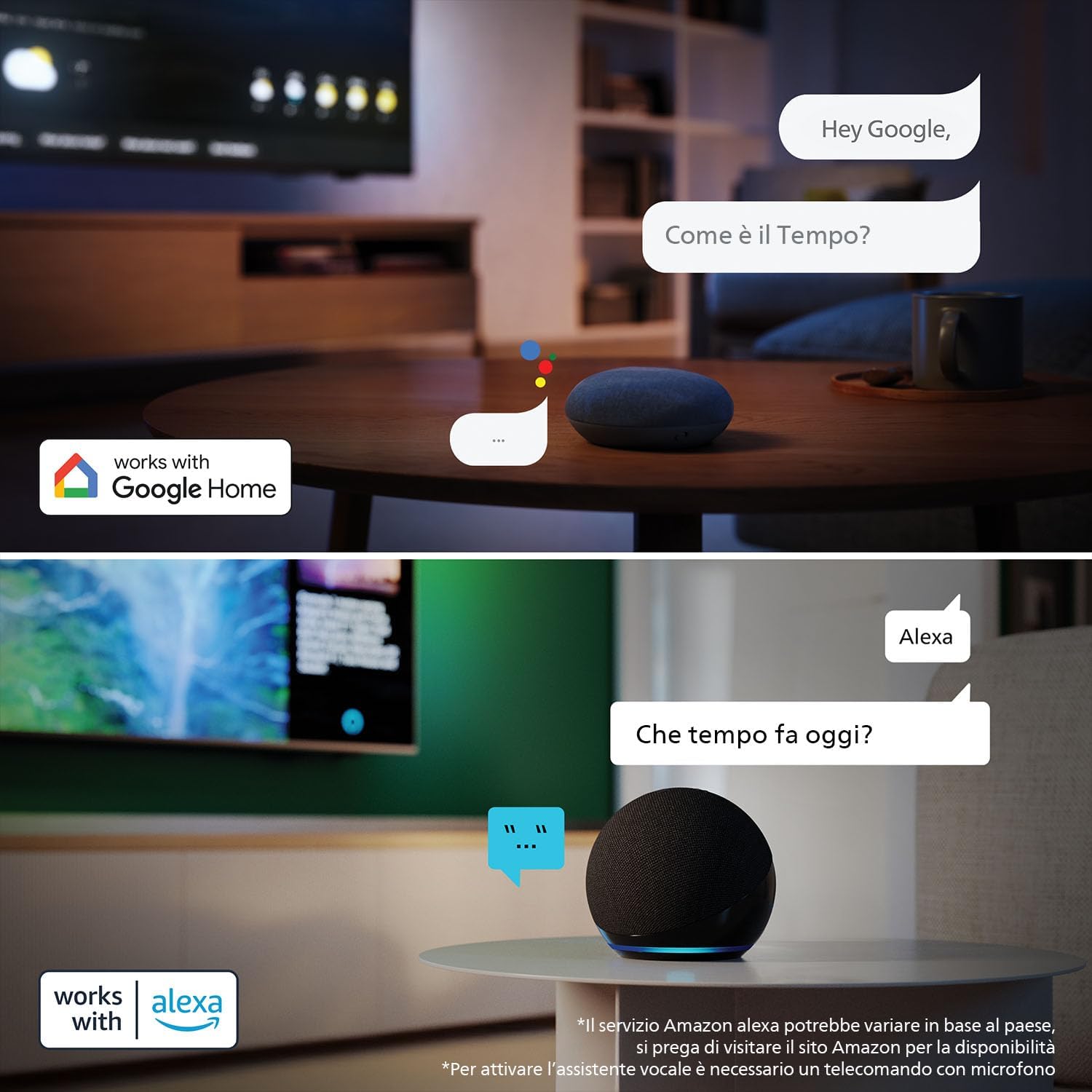
Image: Demonstrates voice control functionality with Google Home and Alexa, showing users interacting with their smart speakers to ask questions and control the TV.
Maintenance
Cleaning the TV
To clean the screen, gently wipe it with a soft, lint-free cloth. For stubborn marks, slightly dampen the cloth with water or a screen-cleaning solution. Avoid using harsh chemicals or abrasive materials. Clean the TV frame and stand with a soft, dry cloth.
Software Updates
Ensure your TV's software is up to date for optimal performance and new features. You can check for updates via the TV's settings menu under 'Software Update' or 'About'.
Troubleshooting
| Problem | Possible Solution |
|---|---|
| No power | Check if the power cable is securely connected to the TV and the wall outlet. Ensure the outlet has power. |
| No picture, but sound is present | Verify the correct input source is selected. Check external device connections. |
| Remote control not working | Ensure the remote control is charged. Point the remote directly at the TV's IR sensor. |
| Poor picture quality | Check antenna/cable connections. Adjust picture settings (brightness, contrast, sharpness). Ensure the source content is high quality. |
| No internet connection | Check your router and modem. Reconnect to the Wi-Fi network or ensure the Ethernet cable is properly connected. |
For more detailed troubleshooting, refer to the full digital manual available on the Philips support website or perform a factory reset (note: this will erase all personal settings).
Specifications
| Feature | Detail |
|---|---|
| Model Number | 48OLED820/12 |
| Screen Size | 48 Inches / 122 cm (visible diagonal) |
| Display Technology | OLED |
| Resolution | 4K Ultra HD |
| Refresh Rate | 120 Hz (up to 144Hz for gaming) |
| Processor | P5 AI Perfect Picture |
| Operating System | Titan OS (Google TV) |
| Connectivity | Bluetooth, Wi-Fi, USB, Ethernet, HDMI (including HDMI 2.1) |
| Special Features | Ambilight, Dolby Vision, Dolby Atmos, AMD FreeSync Premium, NVIDIA G-SYNC, Voice Control (Alexa, Google Assistant) |
| Energy Efficiency Class | A_TO_G |
| Annual Energy Consumption | 66 kWh (based on 4 hours/day) |
| Product Dimensions (W x D x H) | 122.6 x 28 x 77.8 cm |
| Weight | 17.3 kg |

Image: Guide illustrating recommended viewing distances for different Philips TV screen sizes, including the 48-inch model.
Warranty and Support
Your Philips TV comes with a manufacturer's warranty. For specific details regarding the warranty period and coverage, please refer to the warranty card included in the packaging or visit the official Philips support website.
If you encounter any issues not covered in the troubleshooting section or require further assistance, please contact Philips customer support. You can find contact information on the Philips website or your warranty documentation.
For returns or defective products purchased through Amazon, please consult Amazon's return policy page for detailed instructions and conditions.
- Philips Support: www.philips.com/support
- Amazon Return Policy: Amazon.it Returns
Related documents48OLED820/12


Ask a question about this manual
Ask about setup, troubleshooting, compatibility, parts, safety, or missing instructions. Manuals+ will review the question and use this page’s manual context to help answer it.