
Introduction
The MAGIC-REFINER G6 is a versatile wireless gaming mouse designed for optimal performance across various applications, including gaming, office work, and general computer use. It features tri-mode connectivity (2.4GHz wireless, Bluetooth, and wired USB-C), a high-precision PixArt PAW3311 sensor with up to 24000 DPI, and a lightweight ergonomic design. This manual provides detailed instructions for setting up, operating, and maintaining your G6 mouse.

Image: The MAGIC-REFINER G6 Wireless Gaming Mouse in black, shown with its USB wireless dongle.
Setup
Package Contents
- MAGIC-REFINER G6 Wireless Gaming Mouse
- USB-C Charging Cable
- 2.4GHz USB Wireless Dongle (stored in the mouse base)
- Set of 6 DIY Anti-slip Grip Tapes
- User Manual
Charging the Mouse
Before first use, it is recommended to fully charge the mouse. Connect the supplied USB-C cable to the mouse's front port and the other end to a USB power source (e.g., computer USB port, USB wall adapter). The mouse can be used while charging in wired mode.
Connecting the Mouse
The G6 mouse supports three connection modes: 2.4GHz wireless, Bluetooth, and wired USB-C. The connection mode can be switched using the button on the back of the mouse.
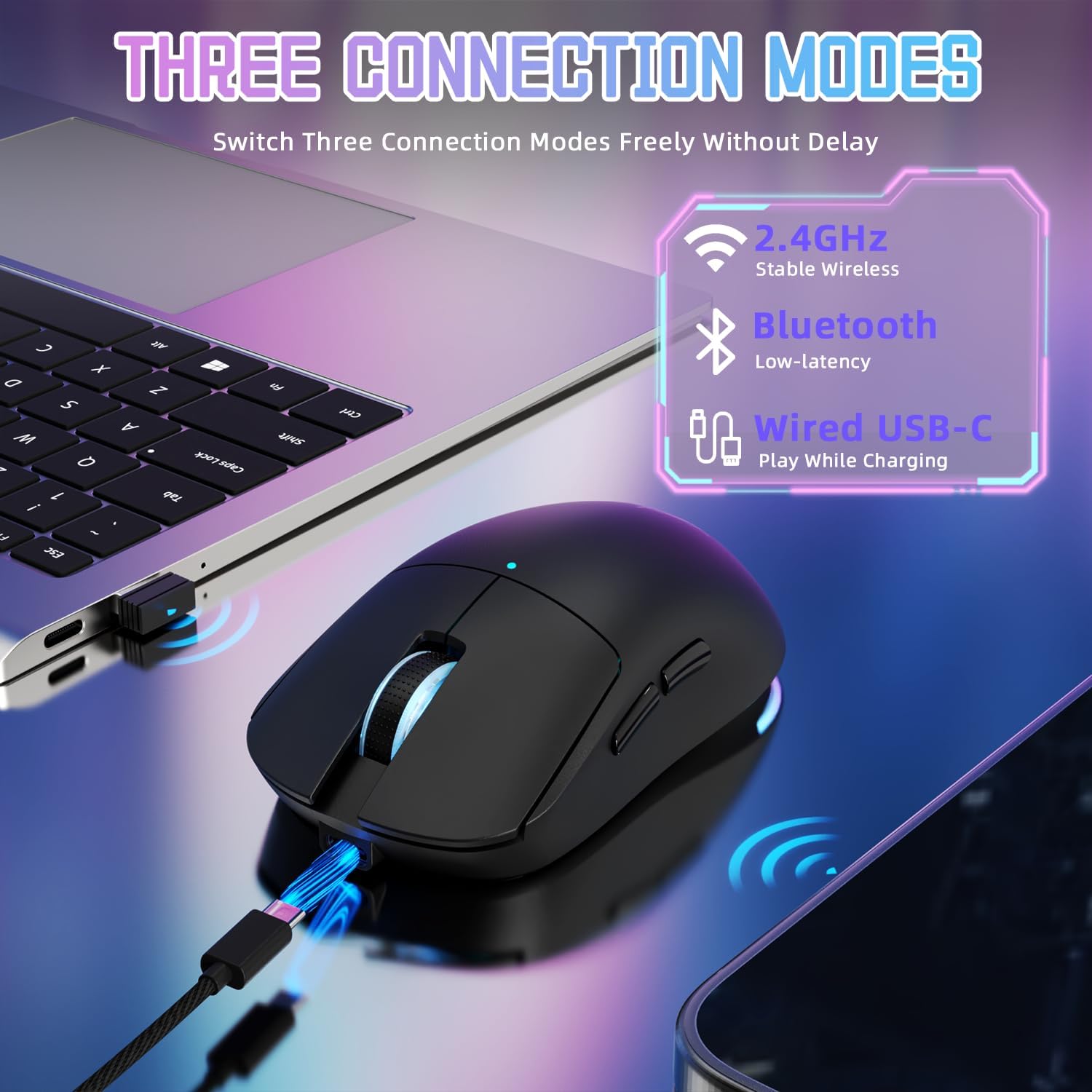
Image: Illustration of the three connectivity options for the G6 mouse: 2.4GHz wireless, Bluetooth, and wired USB-C.
- 2.4GHz Wireless Mode:
- Locate the USB wireless dongle stored in the compartment on the underside of the mouse.
- Plug the dongle into an available USB port on your computer.
- Switch the mode selector on the mouse to the '2.4G' position. The mouse should connect automatically.
- Bluetooth Mode:
- Switch the mode selector on the mouse to the 'BT' position.
- On your computer or device, open Bluetooth settings and search for new devices.
- Select 'MAGIC-REFINER G6' from the list of available devices to pair.
- Wired USB-C Mode:
- Connect the supplied USB-C cable to the mouse and to your computer's USB port.
- The mouse will automatically switch to wired mode and begin charging.
Driver Software Installation
For advanced customization of DPI settings, polling rate, button assignments, and RGB lighting effects, download and install the official MAGIC-REFINER G6 driver software from the manufacturer's website. The software allows for personalized configuration to enhance your user experience.

Image: The customizable driver software interface for the G6 mouse, showing options for light settings, button settings, performance settings, and macro management.
Operating Instructions
Button Functions
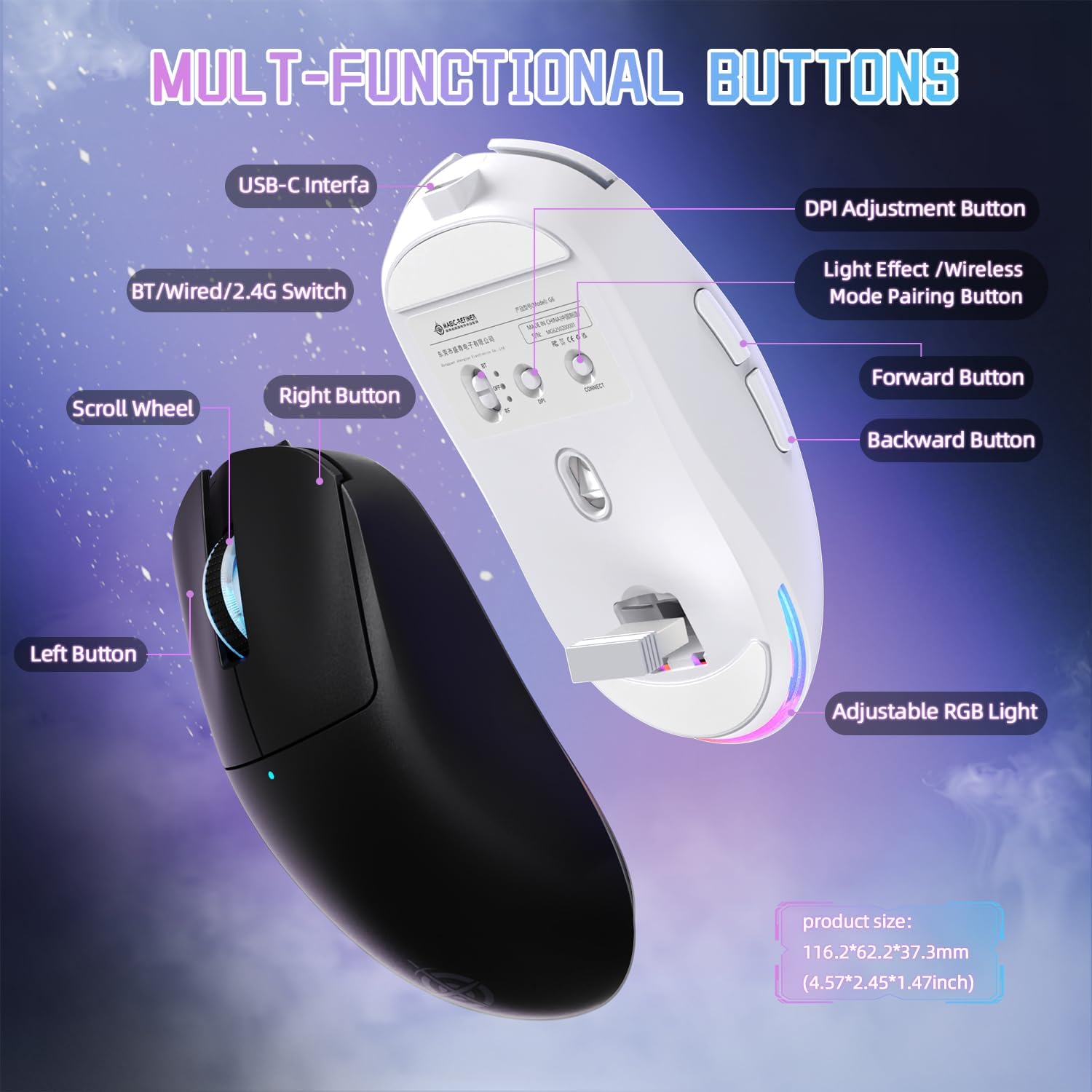
Image: Detailed diagram illustrating the multi-functional buttons of the G6 mouse, including Left, Right, Scroll Wheel, Forward, Backward, DPI Adjustment, Light Effect/Wireless Mode Pairing, and the USB-C interface.
- Left Button: Standard click function.
- Right Button: Standard right-click function.
- Scroll Wheel: Scroll up/down, and middle-click function.
- Forward Button: Navigates forward in web browsers or file explorers.
- Backward Button: Navigates backward in web browsers or file explorers.
- DPI Adjustment Button: Cycles through preset DPI levels.
- Light Effect / Wireless Mode Pairing Button (Bottom): Controls RGB lighting effects and initiates wireless pairing.
- Power Toggle Switch (Bottom): Switches between 2.4G, OFF, and Bluetooth modes.
DPI Adjustment
The G6 mouse offers 6 levels of adjustable DPI, up to 24000 DPI. You can cycle through the preset DPI levels (800-1600-2400-3200-6400-24000) by pressing the DPI adjustment button located on the top of the mouse. For fine-tuning and custom DPI settings, use the driver software.
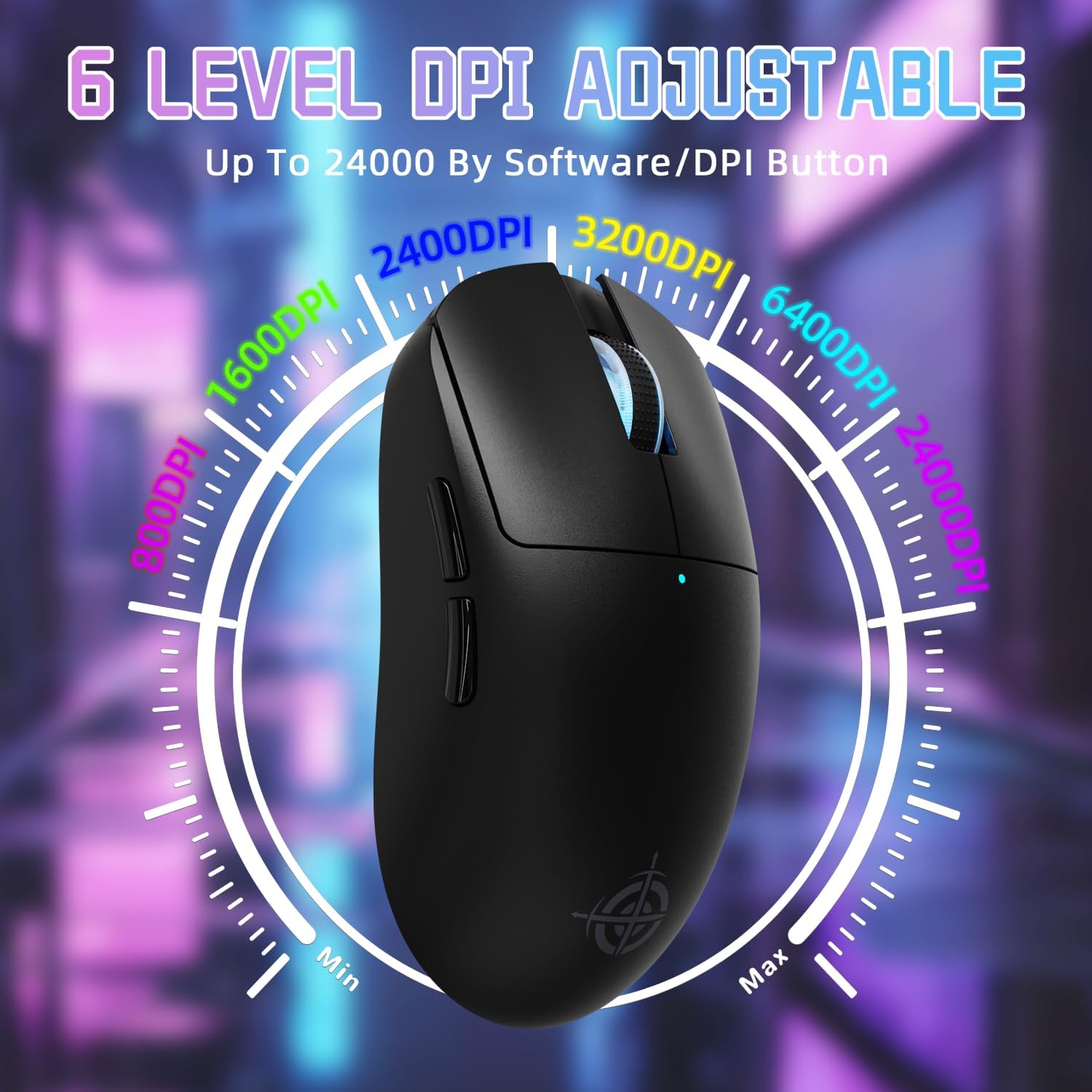
Image: Visual representation of the 6 adjustable DPI levels (800, 1600, 2400, 3200, 6400, 24000) available on the G6 mouse.
Polling Rate Adjustment
The polling rate can be configured via the driver software, offering options up to 1000Hz (1ms response time) for optimal gaming performance. Default polling rates for different modes are:
- 2.4GHz Wireless Mode: 125/250/500/1000Hz
- USB-C Wired Mode: 125/250/500/1000Hz
- Bluetooth Mode: 125Hz
RGB Lighting Control
The rear RGB ambient light on the mouse can be adjusted using the dedicated button on the bottom of the mouse. This button allows you to cycle through various lighting effects and colors. Further customization is available through the driver software.
Applying Grip Tape
The included anti-slip grip tapes can be applied to the mouse surface to enhance grip, absorb hand sweat, and provide a personalized aesthetic. Ensure the mouse surface is clean and dry before applying the tapes for optimal adhesion.
Maintenance
Battery Management
The G6 mouse is equipped with a 750mAh high-capacity battery, providing over 150 hours of battery life on a single charge. To maximize battery lifespan:
- Charge the mouse when the battery indicator light shows low power.
- Avoid completely draining the battery frequently.
- If not using the mouse for an extended period, switch it to the 'OFF' position using the toggle switch on the bottom.

Image: Internal components of the G6 mouse highlighting the durable HUANO micro switches (rated for 20 million clicks) and the 750mAh rechargeable battery.
Cleaning
To clean your mouse, use a soft, dry, lint-free cloth. For stubborn dirt, slightly dampen the cloth with water or a mild cleaning solution. Avoid using harsh chemicals, abrasive cleaners, or spraying liquids directly onto the mouse.
Troubleshooting
- Mouse not responding:
- Ensure the mouse is charged.
- Check the power toggle switch on the bottom of the mouse is in the correct position (2.4G or BT).
- For 2.4GHz mode, ensure the USB dongle is securely plugged into a working USB port. Try a different USB port.
- For Bluetooth mode, ensure Bluetooth is enabled on your device and the mouse is paired correctly. Try re-pairing.
- For wired mode, ensure the USB-C cable is securely connected to both the mouse and the computer.
- Restart your computer.
- Cursor movement is erratic or imprecise:
- Clean the optical sensor on the bottom of the mouse.
- Ensure you are using the mouse on a suitable surface (e.g., a mouse pad).
- Adjust the DPI settings using the DPI button or driver software.
- RGB lighting not working:
- Press the light effect button on the bottom of the mouse to cycle through modes.
- Check settings in the driver software.
- Cannot install driver software:
- Ensure your operating system is compatible with the software.
- Download the latest version of the driver from the official MAGIC-REFINER website.
- Temporarily disable antivirus or firewall software during installation if issues persist.
Specifications
| Feature | Detail |
|---|---|
| Model | G6 |
| Connectivity | 2.4G Wireless, Bluetooth, USB-C Wired |
| Sensor | PixArt PAW3311 Optical Sensor |
| DPI Levels | 800-1600-2400-3200-6400-24000 (Adjustable) |
| Polling Rate | Up to 1000Hz (Configurable via software) |
| Tracking Speed | 300 IPS |
| Acceleration | 35G |
| Switches | HUANO Micro Switches (10 Million Clicks) |
| Battery Capacity | 750mAh |
| Battery Life | 150+ hours |
| Weight | 75g ± 3g |
| Dimensions | 116.2 x 62.2 x 37.3mm (4.57 x 2.45 x 1.47 inches) |

Image: Close-up of the PixArt PAW3311 gaming sensor, highlighting its 24000 DPI, 1K Hz polling rate, 300 IPS tracking speed, and 35G max acceleration.
Warranty and Support
Warranty Information
The MAGIC-REFINER G6 Wireless Gaming Mouse comes with a standard manufacturer's warranty. Please refer to the warranty card included in your product packaging or visit the official MAGIC-REFINER website for detailed warranty terms and conditions.
Customer Support
For technical assistance, troubleshooting, or any product-related inquiries, please contact MAGIC-REFINER customer support through their official website or the contact information provided in your product documentation. You can also visit the MAGIC-REFINER Store on Amazon for more information.


