
SYNCO XH-HD-1T1R
SYNCO XVision HD Wireless Video Transmission System User Manual
1. Introduction
The SYNCO XVision HD Wireless Video Transmission System (Model XH-HD-1T1R) provides reliable and high-quality video transmission for professional applications. This system features a long-distance transmission range, ultra-low latency, and flexible power options, making it suitable for various shooting environments. This manual provides detailed instructions for setting up, operating, and maintaining your device.
2. What's in the Box
Verify that all items are present in the package:
- Wireless Transmitter (TX) x 1
- Wireless Receiver (RX) x 1
- USB Charging Cable x 2
- Package Box x 1
- Manual x 1
3. Product Overview
The SYNCO XVision HD system consists of a transmitter (TX) and a receiver (RX) unit, designed for seamless video transmission.
3.1 Device Components

The image above displays both the transmitter (TX) and receiver (RX) units of the SYNCO XVision HD Wireless Video Transmission System. The TX unit is typically darker, and the RX unit is lighter, both featuring a compact design with integrated antennas.
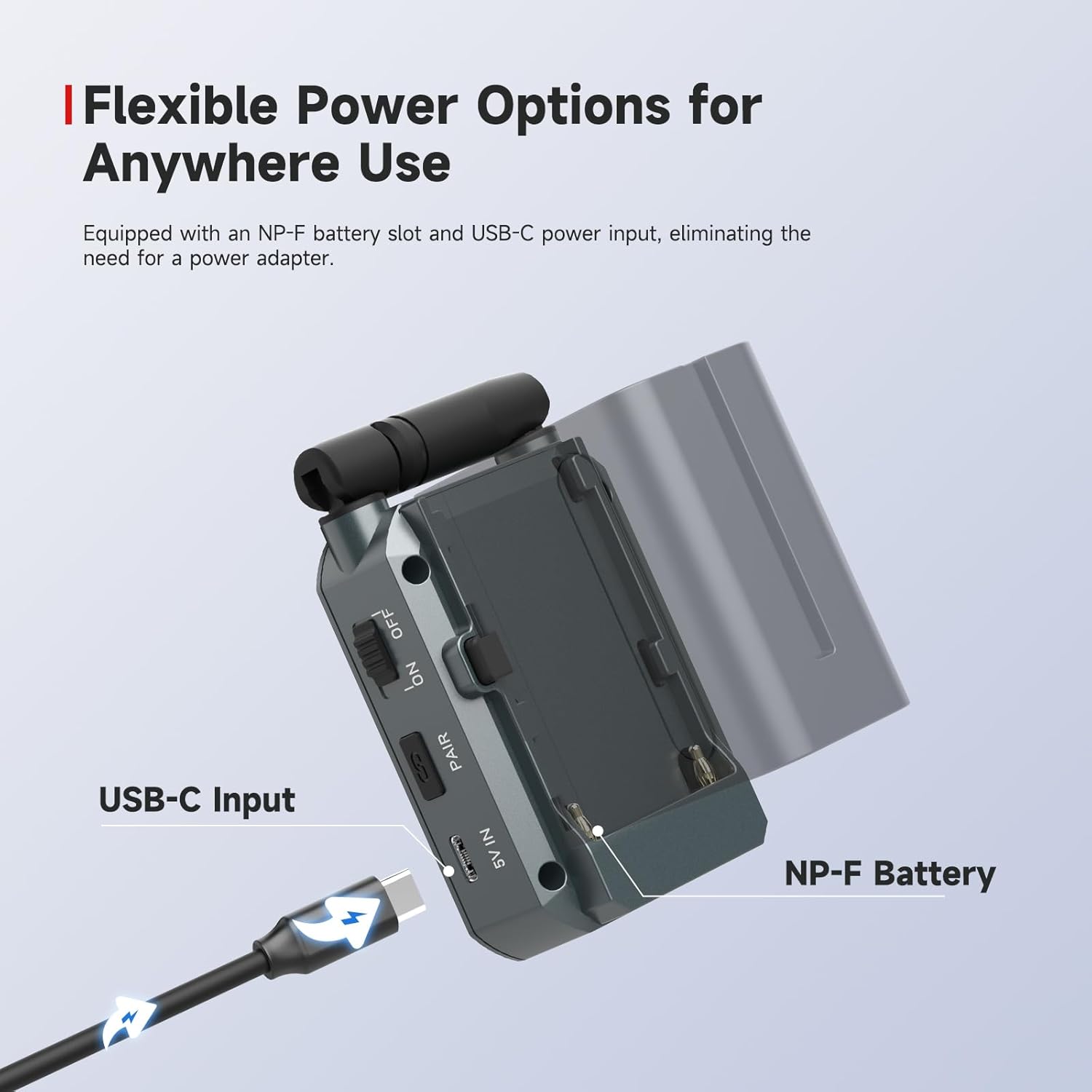
This view illustrates the key controls and power interfaces on the side of the unit, including the ON/OFF power switch, the PAIR button for device synchronization, the 5V IN USB-C port for power input, and the NP-F battery slot for portable power.

The image above shows the HDMI connectivity options. The transmitter unit features one HDMI IN port and one HDMI OUT (loop out) port. The receiver unit features two HDMI OUT ports for connecting to multiple monitors.
3.2 Instructional Video: Product Overview and Basic Operations
Video 3.1: This video provides a visual guide to the SYNCO XVision HD Wireless Video Transmission System, covering unboxing, product introduction, power options, port identification, and basic operational steps including power on/off and initial pairing.
4. Setup Instructions
4.1 Powering the Device
The SYNCO XVision HD offers flexible power options:
- NP-F Battery: Press the lock button and slide a fully charged NP-F battery (7.4-8.4V) into the battery slot.
- USB-C Power: Connect a 5V 2A power source to the USB-C port using the provided USB charging cable.

This image demonstrates how to connect the USB-C power cable and how to insert an NP-F battery into the dedicated slot, providing versatile power solutions for your setup.
4.2 Antenna Deployment
Before powering on, ensure the antennas are unfolded and positioned vertically for optimal signal transmission and reception.
4.3 Power On/Off
To power on the device, slide down the power switch. To power it off, slide the switch up. The device will automatically reconnect to the previously paired device upon startup.
4.4 Pairing the Transmitter and Receiver
To pair the transmitter (TX) and receiver (RX) units:
- Ensure both the TX and RX units are powered on.
- Long press the PAIR buttons on both the transmitter and receiver simultaneously for 5 seconds to enter pairing mode.
- Once paired, the screen on both units will display "Paired".
Note: A single transmitter (TX) supports up to four receivers (RX), including RX units and APP monitoring devices. Pair receivers one at a time. The device will exit pairing mode if no device is found within 90 seconds.
4.5 Connecting to Camera and Monitor
- Connect an HDMI cable from your camera's HDMI OUT port to the HDMI IN port on the transmitter unit.
- Connect an HDMI cable from the receiver's HDMI OUT port to the HDMI IN port of your monitor.
- The transmitter will receive the camera signal, and the receiver will output the signal to the monitor, providing real-time video monitoring.

This illustration demonstrates a typical connection setup, where the transmitter receives video from a camera and wirelessly sends it to the receiver, which then outputs to a monitor for viewing.
5. Operating Instructions
5.1 Display Information
The large display screen on both units provides real-time status information, including:
- Transmitter (TX) / Receiver (RX) status
- WiFi connection status
- Connection signal strength
- Battery power level
- Video resolution (e.g., 1080P 60fps)
- Bitstream information

This close-up shows the intuitive display, providing essential operational data at a glance for easy monitoring.
5.2 SYNCO Link App Features
The SYNCO Link App enhances monitoring and control capabilities:
- Real-time monitoring on mobile devices.
- Precise image adjustments: zebra stripes, mirror, inverse colors.
- Built-in video saving, screenshot, and playback functions for easy review of key moments.

The SYNCO Link App provides advanced tools for optimizing shooting results and managing video content directly from your smartphone or tablet.
6. Maintenance
- Keep the devices clean and free from dust and moisture. Use a soft, dry cloth for cleaning.
- Avoid exposing the units to extreme temperatures or direct sunlight for prolonged periods.
- Ensure proper ventilation during operation to prevent overheating. The low-power design helps minimize heat generation.
- Store the devices in a protective case when not in use to prevent physical damage.
- Regularly check all cables and connections for wear and tear.
7. Troubleshooting
- No Signal:
- Check all HDMI cable connections between the camera, transmitter, receiver, and monitor.
- Ensure both transmitter and receiver units are powered on and fully charged or connected to a stable power source.
- Verify that the units are successfully paired (check the display for "Paired" status).
- Confirm that the camera is outputting a video signal and the monitor is set to the correct HDMI input.
- Reduce the distance between the TX and RX units and ensure there are no major obstructions.
- Intermittent Signal/Poor Quality:
- Ensure antennas are fully unfolded and oriented correctly.
- Minimize interference from other wireless devices (e.g., Wi-Fi routers, other wireless video systems).
- Check the signal strength indicator on the display. If low, reduce distance or clear line of sight.
- Ensure the video resolution and frame rate are supported by both the system and the connected monitor.
- Device Not Powering On:
- Check the NP-F battery for charge and proper insertion.
- Verify the USB-C power connection and ensure the power source (5V 2A) is functioning.
- Ensure the power switch is in the "ON" position.
- Pairing Issues:
- Ensure both units are powered on and within close proximity during pairing.
- Long press the PAIR buttons on both units for 5 seconds.
- If pairing multiple receivers, pair them one at a time.
8. Specifications
| Feature | Specification |
|---|---|
| Model Number | XH-HD-1T1R |
| Transmission Range | Up to 300m / 985 ft (Line of Sight) |
| Latency | 0.04s (40ms) |
| Video Resolution | 1080P HD (60fps) |
| Input/Output | Dual HDMI (TX: 1x HDMI IN, 1x HDMI OUT; RX: 2x HDMI OUT) |
| Power Input | NP-F Battery Slot, USB-C (5V 2A) |
| Item Weight | 1.01 pounds |
| Package Dimensions | 8.07 x 4.92 x 2.01 inches |
9. Warranty and Support
For warranty information and technical support, please refer to the official SYNCO website or contact their customer service. Keep your purchase receipt for warranty claims.
Related documentsXH-HD-1T1R


Ask a question about this manual
Ask about setup, troubleshooting, compatibility, parts, safety, or missing instructions. Manuals+ will review the question and use this page’s manual context to help answer it.