
1. Introduction
This manual provides detailed instructions for the installation, configuration, and operation of your Fuers 1080p 4-channel CCTV DVR Recorder. This device is a hybrid 6-in-1 system supporting various camera types including HD-XVI, TVI, CVBS, CVI, AHD, and IP cameras. It features H.265+ video compression for efficient storage, human detection capabilities, and remote access via a mobile application. A 500GB hard drive is pre-installed for immediate recording.
2. What's in the Box?
Verify that all components are present in your package:
- 1 x Fuers 1080P 4CH DVR Recorder
- 1 x 500G Hard Drive (Pre-installed on DVR)
- 1 x 12V Power Supply
- 1 x USB Mouse
- 1 x User Manual

Image: Contents of the Fuers 1080p 4CH DVR Recorder package.
3. Technical Specifications
| Feature | Specification |
|---|---|
| Product Dimensions | 7.5 x 7.5 x 1.6 inches (19cm x 19cm x 4cm) |
| Item Weight | 2.42 pounds |
| Model Number | SF20250713B0F32LRPVH |
| Connectivity Technology | HDMI, USB, VGA, LAN |
| Compatible Devices | HD-XVI, TVI, CVBS, CVI, AHD, IP Cameras (up to 1080P) |
| Memory Storage Capacity | 500 GB (pre-installed), expandable up to 14 TB |
| Video Compression | H.265+ |
| Channels | 4 Channels |
4. Setup Guide
4.1. Initial Connections
Before powering on the DVR, connect the necessary peripherals:
- Connect Monitor: Attach a monitor to the DVR using either the VGA or HDMI port.
- Connect Mouse: Plug the USB mouse into one of the USB ports on the rear panel.
- Connect Power: Connect the 12V power adapter to the DVR's DC12V input. Do not plug into a power outlet yet.

Image: Rear panel of the DVR showing connection ports.
4.2. Connect Cameras
Connect your compatible analog HD-XVI, TVI, CVBS, CVI, AHD, or IP cameras to the DVR's video input ports (V1-V4). Ensure secure connections for both video and power. Note: Cameras and video cables are not included with the DVR.
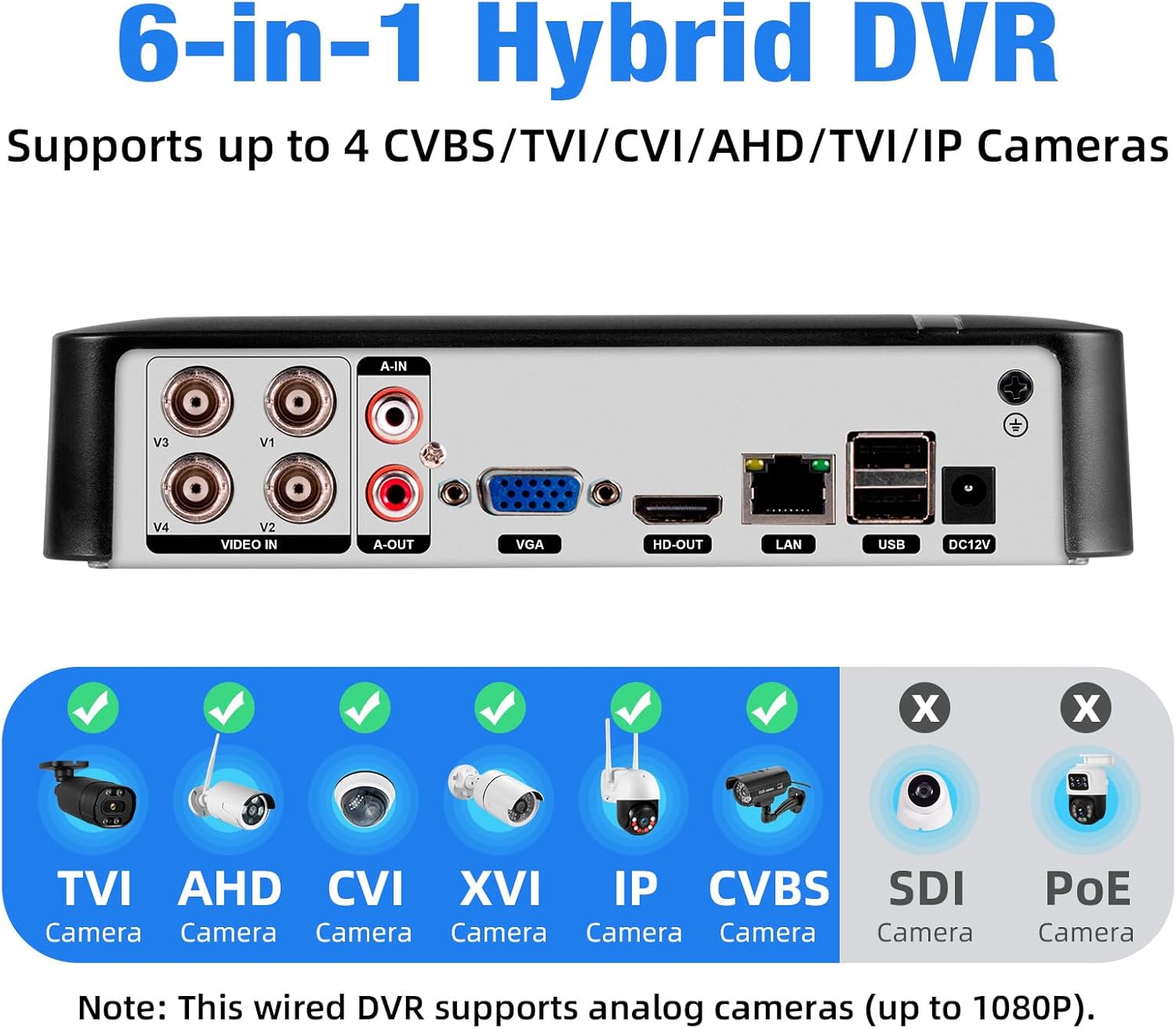
Image: Supported camera types for the 6-in-1 Hybrid DVR.
4.3. Network Connection (Optional for Remote Access)
For remote viewing and advanced features, connect the DVR to your network using an Ethernet cable plugged into the LAN port. The DVR can function locally without an internet connection for recording and local viewing.
4.4. Power On and Initial Configuration
Plug the DVR's power adapter into a power outlet. The system will boot up, and a startup wizard will guide you through initial settings such as language, date/time, and network configuration.
4.5. Mobile App Setup for Remote Access
To access your DVR remotely, download the free iCSee app on your smartphone. Scan the QR code displayed on the DVR's monitor (usually found in Main Menu > Info > Version) to add your device to the app.

Image: Steps for connecting the DVR to the mobile application.
Video: A demonstration of connecting the DVR, cameras, and setting up the mobile application for remote viewing.
5. Operating Instructions
5.1. Video Recording
The DVR utilizes advanced H.265+ video compression, which significantly reduces file sizes by up to 50% compared to H.264, allowing for longer recording times on the pre-installed 500GB hard drive. The system supports continuous recording and can be expanded with up to a 14TB hard drive.

Image: H.265+ video compression efficiency.

Image: DVR with 500GB pre-installed HDD, expandable to 14TB.
5.2. Human Detection and Alerts
The DVR features human detection technology to minimize false alarms. When human motion is detected, the system can send immediate push notifications to your smartphone and/or email alerts, keeping you informed of significant events.

Image: Human detection and alert notifications.
5.3. Remote Access and Playback
Utilize the iCSee mobile app or VMS software on your computer to view live camera feeds and playback recorded footage from anywhere. The smart playback feature allows you to quickly locate specific events on a timeline, saving time when reviewing surveillance data.

Image: Remote viewing on multiple devices.

Image: Smart playback timeline for event location.
6. Maintenance
Regular maintenance ensures optimal performance and longevity of your DVR system:
- Hard Drive Management: Periodically check the hard drive status through the DVR's system settings. Ensure sufficient space is available for recordings. Consider backing up important footage to external storage.
- Software Updates: Check the manufacturer's website or the DVR's system settings for available firmware updates. Keeping the firmware updated can improve performance and security.
- Physical Cleaning: Keep the DVR unit clean and free from dust. Use a soft, dry cloth to wipe the exterior. Ensure ventilation openings are not obstructed to prevent overheating.
- Power Supply: Use only the provided power adapter or a compatible replacement to avoid damage to the DVR.
7. Troubleshooting
This section addresses common issues you might encounter:
- No Video Output: Ensure the monitor cable (VGA/HDMI) is securely connected to both the DVR and the monitor. Verify the monitor is powered on and set to the correct input source.
- Cameras Not Displaying: Check that all cameras are properly connected to the DVR's video input ports and are receiving power. Ensure the camera type is compatible with the DVR (e.g., 1080P, HD-XVI, TVI, CVI, AHD, IP).
- No Recording to Hard Drive: Verify that the 500GB hard drive is correctly installed and recognized by the DVR. Check the recording schedule and settings in the DVR's menu. If the hard drive is full, ensure overwrite is enabled or manually delete old footage.
- Remote Access Issues: Confirm the DVR is connected to the internet via the LAN port. Check your network settings and ensure the iCSee app is correctly configured with the device's serial number or QR code. Ensure your router is allowing necessary ports if manual configuration is required.
- System Login Problems: If you forget your password, refer to the DVR's system reset procedures or contact customer support. The factory default user password is often displayed during initial setup.
8. Warranty and Support
For warranty information, technical support, or service inquiries, please refer to the contact details provided on the product packaging or the official Fuers website. Keep your purchase receipt as proof of purchase for warranty claims.