
Introduction
This manual provides detailed instructions for the operation and maintenance of your Aiandcc 64GB MP3 Player (Model M12). Please read this guide thoroughly to ensure proper use and to maximize your device's features, including Bluetooth 5.3, HiFi sound, and FM radio capabilities.
Product Overview
The Aiandcc M12 is a compact and portable MP3 player designed for music enthusiasts. It features 64GB of built-in storage, expandable via TF card, Bluetooth 5.3 for wireless audio, and an integrated FM radio. The device is equipped with a 1.8-inch screen and intuitive push-button controls.

Figure 1: Aiandcc M12 MP3 Player overview with key features and dimensions. Shows the device's front, side, and back views, highlighting the volume buttons, USB-C port, and headphone jack.
Setup
1. Charging the Device
Before first use, fully charge your MP3 player. Connect the included Type-C charging cable to the device and a power source. A full charge typically takes approximately 3 hours and provides up to 48 hours of music playback, depending on volume and usage.

Figure 2: The MP3 player connected via its Type-C USB cable for charging. The image illustrates the charging port and cable.
2. Connecting to a Computer and Transferring Music
To transfer audio files to your MP3 player, connect it to your computer using the provided USB-C cable. The device will prompt you to select "Transfer" mode. Your computer will recognize the MP3 player as a removable drive. You can then drag and drop music files into the device's internal storage or an inserted TF card.
Video 1: Demonstrates connecting the MP3 player to a computer via USB-C, selecting "Transfer" mode, and copying audio files to the device's storage. It also shows how to rename files for alphabetical or numerical sorting.
For optimal organization, it is recommended to prefix song titles with letters (A-Z) or numbers (0001-1000).
3. Inserting a TF Card (Micro SD Card)
The MP3 player has 64GB of built-in memory and supports expansion up to 128GB via a TF (Micro SD) card (not included). Locate the TF card slot on the side of the device and gently insert the card until it clicks into place.
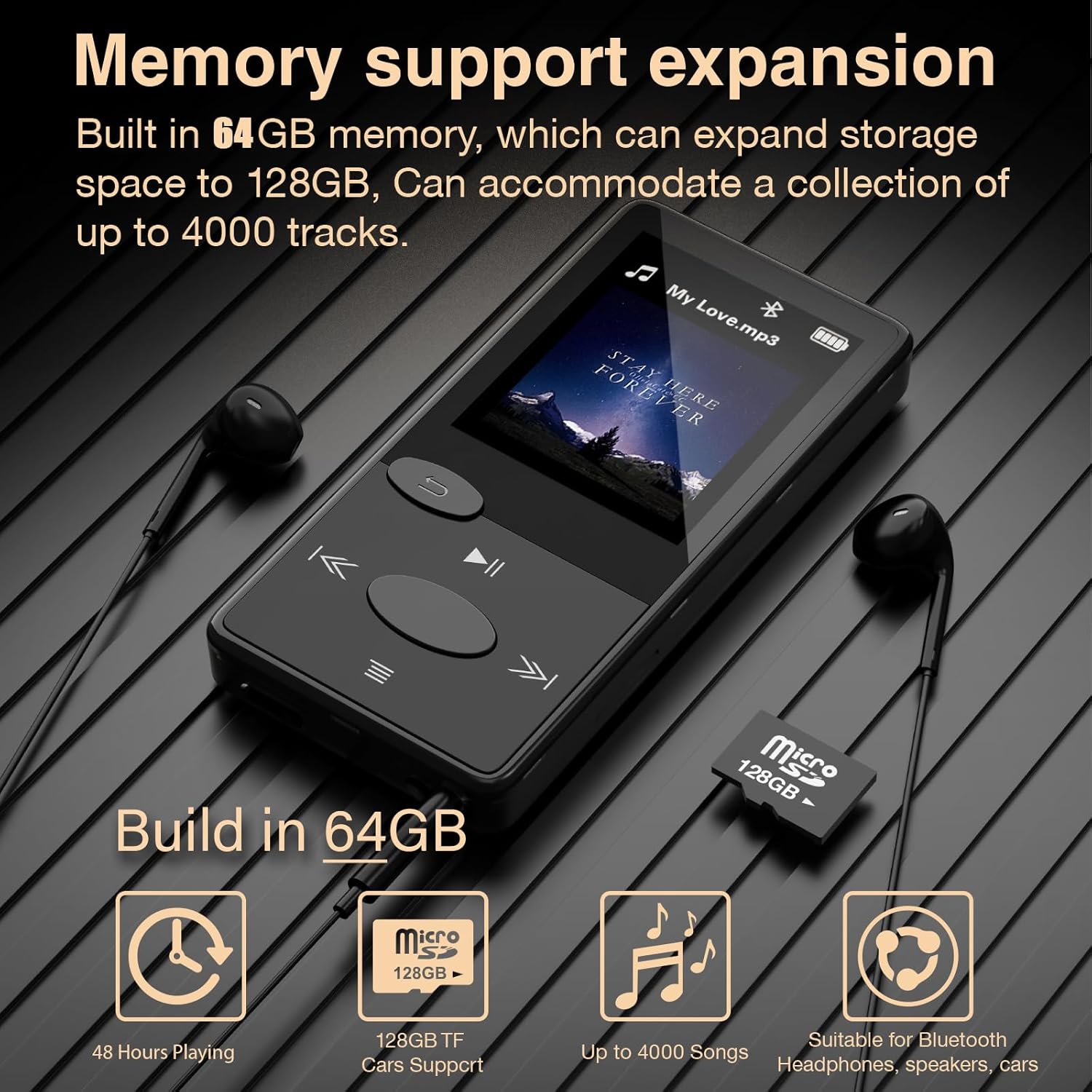
Figure 3: The MP3 player with a TF card being inserted into its dedicated slot, illustrating memory expansion capability.
Operating Instructions
1. Basic Music Playback
After transferring music, navigate to the "Music" interface. You can browse by "All Songs," "Local folder," "Card folder," "Artists," or "Albums." Select a song to begin playback. The device requires wired headphones for audio output as it does not have a built-in speaker.

Figure 4: The MP3 player displaying the music selection menu and a song playing, with wired headphones connected.
2. Bluetooth Connection
The MP3 player supports Bluetooth 5.3 for connecting to wireless headphones, speakers, or car Bluetooth systems. Upon startup, Bluetooth is automatically enabled. Navigate to the Bluetooth interface, select "Search Devices," and choose your desired device from the list. Once connected, the Bluetooth icon on the screen will turn blue.
Video 2: Demonstrates connecting the MP3 player to a Bluetooth speaker, adjusting equalizer settings, selecting play modes (shuffle, repeat, sequential), setting A-B repeat, adjusting variable speed playback, and setting a volume limit. It also shows how to access FM radio (requires wired headphones).
The optimal Bluetooth connection distance is 5-10 meters. If you return to the home screen without pausing, music will continue to play via Bluetooth.

Figure 5: The MP3 player illustrating its stable Bluetooth 5.0 connection capability with headphones, audio speakers, and car systems.
3. Equalizer Settings
While music is playing, press the Menu button (three horizontal lines) to access playback options. Select "Equalizer" to choose from various music styles like Rock, Funk, Hip-hop, Jazz, Classic, or Electric to customize your audio experience.
4. Play Modes
From the playback options menu, select "Play Modes" to choose how your music plays. Options include "Shuffle," "Repeat All," "Single Repetition," and "Sequential Play."
5. Repeat Mode (A-B Repeat)
To repeat a specific segment of a song, enter "Repeat Mode" from the playback options. The letter "A" will blink. Press the Right button to set the starting point. Then, "B" will blink; press the Right button again to set the endpoint. The segment "A-B" will turn red, indicating the repeat segment is set. Press the Right button again to cancel the repeat and resume normal playback.
6. Variable Speed Playback
The "Variable Speed Playback" option allows you to adjust the playback speed of your audio files. You can choose speeds ranging from -8 to +8 for different listening rates.
7. Volume Limit
Use the "Volume Limit" setting to set a maximum adjustable volume for your music. This can help protect your hearing or manage audio output in certain environments. You can also adjust the volume directly using the dedicated volume keys on the side of the player.
8. FM Radio
To use the FM Radio function, you must connect wired headphones, as they act as the antenna. Navigate to the "FM Radio" option from the main menu. You can then scan for stations and listen to broadcasts.
Maintenance
- Keep the device dry and away from moisture.
- Clean the screen and body with a soft, dry cloth. Avoid abrasive cleaners.
- Do not expose the device to extreme temperatures.
- Avoid dropping or subjecting the device to strong impacts.
- Store in a cool, dry place when not in use.
Troubleshooting
- Device Unresponsive: If the MP3 player becomes unresponsive after prolonged use or switching many songs, press and hold the power button for 8 seconds to perform a quick restart. Ensure the device has sufficient power.
- Data Transfer Failure: If data transfer fails when connected to a computer, try replacing the USB-C data cable and attempting the transfer again.
- No Sound: Ensure wired headphones are properly connected for direct audio or that a Bluetooth device is successfully paired and connected. Check the volume levels on both the player and the connected audio device.
- Bluetooth Connection Issues: Ensure the Bluetooth device is in pairing mode and within the optimal range (5-10 meters). Try turning Bluetooth off and on again on the MP3 player.
- FM Radio Not Working: Confirm that wired headphones are plugged into the device, as they serve as the antenna for FM radio reception.

Figure 6: Illustration of the manual restart function for the MP3 player, advising to press and hold the power button for 8 seconds if unresponsive.
Specifications
| Feature | Detail |
|---|---|
| Model Name | M12 |
| Memory Storage Capacity | 64 GB (expandable up to 128 GB via TF card) |
| Bluetooth Version | 5.3 |
| Screen Size | 1.8 Inches (4.57 CM) |
| Item Weight | 29g (1.02 ounces) |
| Dimensions (L x W x T) | 8.2 CM x 4.0 CM x 0.95 CM (3.23 x 1.57 x 0.37 inches) |
| Battery Life | Up to 48 hours music playback |
| Charging Time | Approx. 3 hours (via Type-C USB) |
| Special Features | FM Radio, HiFi Sound, Push Button Controls, Auto Power Off |
| Included Components | MP3 Player, Wired Earphones, Type-C Charging Cable |

Figure 7: Detailed specifications of the Aiandcc M12 MP3 Player, including memory, battery, and supported formats.
Warranty and Support
For warranty information or technical support, please refer to the product packaging or contact Aiandcc customer service directly. Our dedicated support team is available to assist you with any questions or issues you may encounter.
You can also visit the official Aiandcc website for additional resources and FAQs.