
Introduction
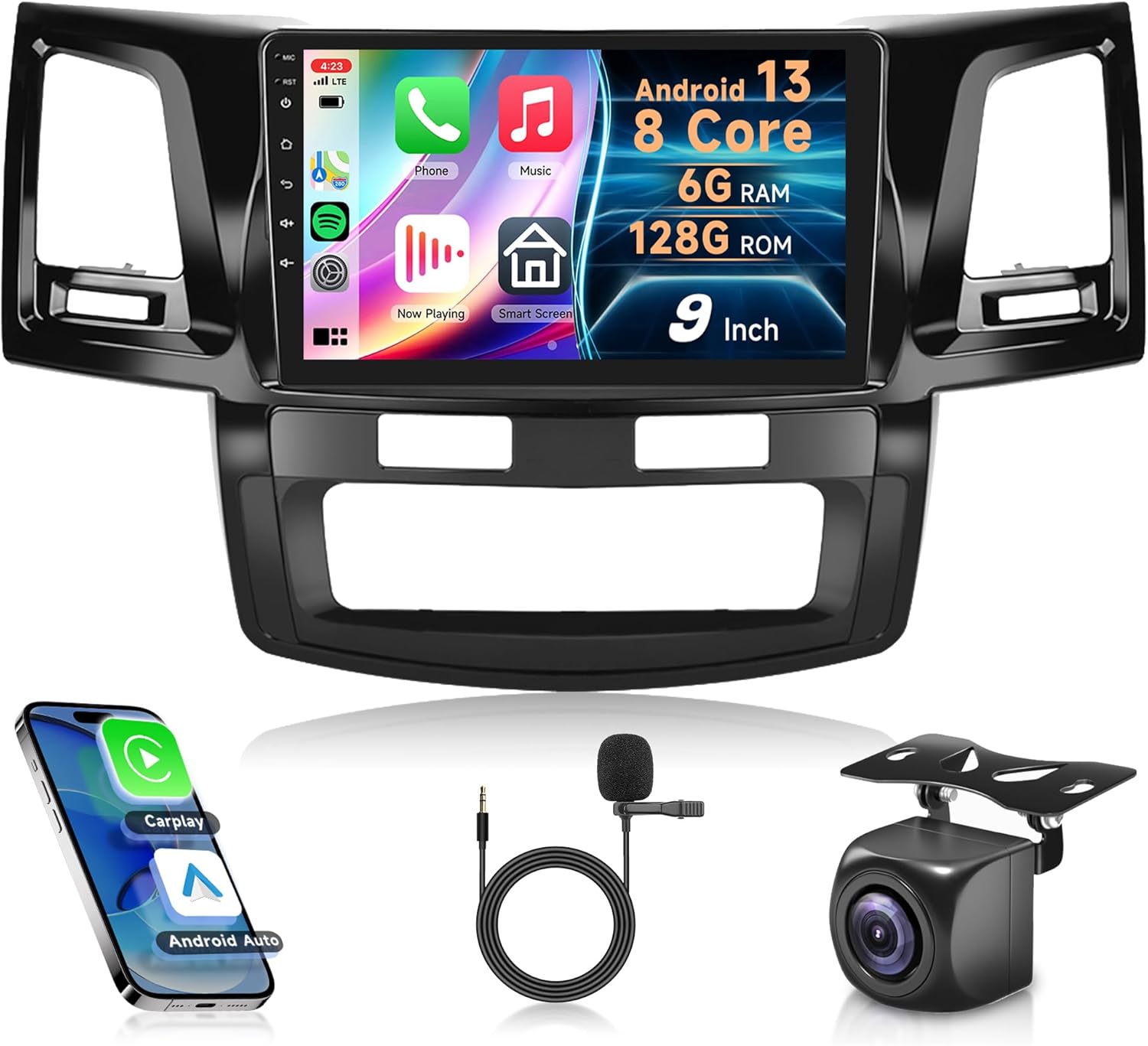
This manual provides detailed instructions for the installation, operation, and maintenance of your Rimoody Android Car Stereo. This unit is designed specifically for Toyota Fortuner and Hilux models from 2005 to 2014, offering advanced features like wireless CarPlay, Android Auto, GPS navigation, and a 9-inch touchscreen display.
Setup and Installation
Package Contents
Before installation, please verify all components are present:
- Android Car Stereo Unit
- Backup Camera
- Power Cable
- RCA Cable
- USB Cable
- GPS Antenna
- External Microphone
- Installation Tools (if included)

Wiring Connections

- Connect the Power Cable to the vehicle's wiring harness. Ensure correct polarity.
- Attach the RCA Cable for audio/video output to external amplifiers or monitors if applicable.
- Plug in the USB Cable for data transfer and device charging.
- Connect the Rear Camera Input Cable to the included backup camera.
- Securely connect the GPS Antenna and position it for optimal signal reception.
- Connect the External Microphone for hands-free calling.
Physical Installation
Carefully remove the original car radio. Install the new Rimoody unit into the dashboard, ensuring all cables are properly routed and secured. Refer to your vehicle's specific disassembly instructions if needed.
Operating Instructions
Power On/Off
Press and hold the power button (usually located on the front panel or integrated into the volume knob) to turn the unit on or off.
Touchscreen Interface
The 9-inch IPS touchscreen provides responsive control. Navigate through menus by tapping icons and swiping.
Wireless CarPlay & Android Auto
Connect your iPhone or Android phone wirelessly to access navigation, music, calls, and messages directly from the car stereo display.

GPS Navigation
The built-in GPS module supports both online and offline maps. Use voice guidance and real-time traffic information (requires internet connection for real-time data).

Bluetooth Connectivity
Pair your mobile device via Bluetooth for hands-free calling and audio streaming.
- Hands-Free Calling: Make and receive calls directly from the stereo.
- Bluetooth Music Playback: Stream audio from your paired device.
- Phone Book Sync: Automatically load your phone's contacts.

FM/RDS Radio
Tune into your favorite FM radio stations. The RDS (Radio Data System) function provides station information where available.
DSP (Digital Signal Processor)
Utilize the DSP tuning software to adjust audio frequency, AE, and a 32-band equalization for optimal sound quality.
Steering Wheel Control (SWC)
Program your steering wheel buttons to control various functions of the stereo for convenience and safety.

Rear View Camera
When shifting into reverse gear, the display automatically switches to the rear view camera feed, assisting with safe parking and obstacle avoidance.
Split Screen Functionality
Run two applications simultaneously on the screen, such as navigation and music playback. Adjust the size and position of each app as needed.

Customizable UI Themes
Choose from 59 different user interface themes to personalize your stereo's appearance.
Home Page APP Customization
Long press on app icons to switch or customize the display of applications on the home page.
Maintenance
Cleaning
Use a soft, dry cloth to clean the touchscreen and unit exterior. Avoid abrasive cleaners or solvents.
Software Updates
Periodically check the manufacturer's website or contact support for available software updates to ensure optimal performance and access to new features.
Troubleshooting
Common Issues and Solutions
- No Power: Check power cable connections and vehicle's fuse box.
- No Sound: Verify speaker connections, volume levels, and audio source selection. Check DSP settings.
- GPS Signal Lost: Ensure GPS antenna is properly connected and positioned with a clear view of the sky.
- Bluetooth Pairing Issues: Ensure Bluetooth is enabled on both devices. Forget previous pairings and try reconnecting.
- Rear Camera Not Displaying: Check camera connections and ensure the vehicle is in reverse gear.
- Touchscreen Unresponsive: Try restarting the unit. If issue persists, contact support.
Specifications
| Feature | Detail |
|---|---|
| Model | 6G+128G |
| Compatibility | Toyota Fortuner Hilux 2005-2014 |
| Operating System | Android |
| CPU | 8 Core |
| Memory (RAM) | 6GB |
| Storage (ROM) | 128GB |
| Display Size | 9 Inches IPS Touch Screen |
| Connectivity | 4G-WiFi, Bluetooth, USB |
| Features | Wireless Carplay, Android Auto, Mirror Link, GPS Navigation, DSP-36, FM/RDS Radio, Steering Wheel Control, Split Screen, 59 UI Themes |
| Included Components | Backup Camera, External Microphone |
| Item Weight | 4.29 pounds |
| Package Dimensions | 18 x 11.5 x 4.25 inches |

Warranty and Support
Warranty: The product comes with a 1-year exchange warranty.
Returns: 90 days free return for refund or exchange.
Technical Support: Lifetime technical support is available.
For further assistance, please visit the Rimoody Store on Amazon or contact customer service.
