
1. Product Overview
This manual provides detailed instructions for the installation, operation, and maintenance of your EKAT 4+64G Android Car Stereo. This unit is specifically designed for BMW X1 E84 models manufactured between 2009 and 2015, offering advanced features such as Android 13, wireless Carplay and Android Auto, a 10-inch IPS touchscreen, 32-band EQ DSP, WiFi, GPS navigation, mirror link, and AHD rear view camera support.

Image: The EKAT Android Car Stereo seamlessly integrated into the dashboard of a BMW X1 E84.
2. Package Contents
Before beginning installation, please verify that all components listed below are present in your package:
- Car Radio Unit
- Installation Cable
- Rear Camera
- GPS Antenna
- Instruction Manual (this document)
- RCA Cable
- USB Cable
- MIC (Microphone)
- Radio Antenna
- Canbus Decoder (if applicable for your vehicle model)
- Installation Tool

Image: A visual representation of all items included in the product package, including the main unit, cables, and accessories.
3. Setup and Installation
Professional installation is recommended. Ensure the vehicle's battery is disconnected before starting the installation process to prevent electrical damage.
3.1. Pre-Installation Check
- Confirm compatibility with your BMW X1 E84 (2009-2015).
- Verify all package contents are present.
- Familiarize yourself with your vehicle's dashboard removal process.
3.2. Dashboard Disassembly
Carefully remove the original car stereo and associated trim panels. Refer to your vehicle's service manual for specific instructions on dashboard disassembly.

Image: A visual comparison of the BMW X1 E84 dashboard, illustrating the appearance before and after the EKAT Android Car Stereo is installed.
3.3. Wiring Connections
Connect the provided wiring harness to the car stereo and the vehicle's existing wiring. Ensure all connections are secure.
- Power Cable: Connect the main power harness.
- RCA Cable: For audio/video input/output.
- USB Cable: For external USB devices.
- Camera Input: Connect the AHD Rear View Camera cable.
- Radio Antenna: Connect the vehicle's radio antenna.
- GPS Antenna: Mount the GPS antenna in a location with a clear view of the sky (e.g., dashboard, A-pillar).
- MIC: Connect the external microphone for hands-free calling and voice commands.
- Canbus Decoder: Connect the Canbus decoder if your vehicle requires it for steering wheel controls and other factory features.
3.3.1. Reversing Camera Wiring
For the AHD Rear View Camera, follow these specific wiring instructions:
- Connect the Red Cable to the positive pole of the car's reversing light cable.
- Connect the Black Cable to the negative pole of the car's reversing light cable.
- The other two red extension cables typically do not need to be connected.

Image: Detailed wiring diagram for connecting the AHD rear view camera to the car stereo and vehicle's power system.
3.4. Unit Installation
Once all wiring is complete, carefully mount the EKAT Android Car Stereo into the dashboard opening. Secure it using the appropriate brackets and screws. Reassemble the dashboard trim panels.
3.5. Initial Power-On and Configuration
Reconnect the vehicle's battery. Power on the car stereo. The unit will boot into the Android 13 system. Follow the on-screen prompts for initial setup, including language selection, time zone, and Wi-Fi connection.
4. Operating Instructions
4.1. Android 13 System
Your car stereo runs on Android 13, providing a familiar and intuitive interface. Navigate through apps and settings using the 10-inch IPS touchscreen. The system features 4GB RAM and 64GB ROM for smooth operation and ample storage.

Image: An illustration highlighting the Android 13 operating system, 4GB RAM, and 64GB internal storage of the car stereo.
4.2. Wireless Carplay and Android Auto
Connect your iPhone or Android smartphone wirelessly to access navigation, music, calls, messages, and more directly on the car stereo's screen. This feature allows for voice control and a safer driving experience.
- Ensure Bluetooth and Wi-Fi are enabled on your smartphone.
- On the car stereo, open the Carplay or Android Auto application.
- Follow the on-screen instructions to pair your device.

Image: Display of the Carplay and Android Auto interfaces, demonstrating smartphone integration for navigation, music, and communication.
4.3. Mirror Link Function
Mirror Link allows you to display your smartphone's screen directly onto the car stereo. This supports both iOS and Android devices.
- Open the "Mirror Link" app on the car stereo.
- Follow the specific instructions for your phone's operating system (iOS/Android) to establish the connection. This usually involves scanning a QR code or connecting via USB.

Image: Visual representation of the Mirror Link feature, AHD rear view camera display, and the dual USB input ports.
4.4. GPS Navigation
The unit includes a built-in GPS navigation system. It supports both online and offline maps. Connect to Wi-Fi to download offline maps for use without an internet connection.
- Access navigation applications from the main menu.
- For offline maps, connect to Wi-Fi, open your preferred map application, and download the necessary regional data.
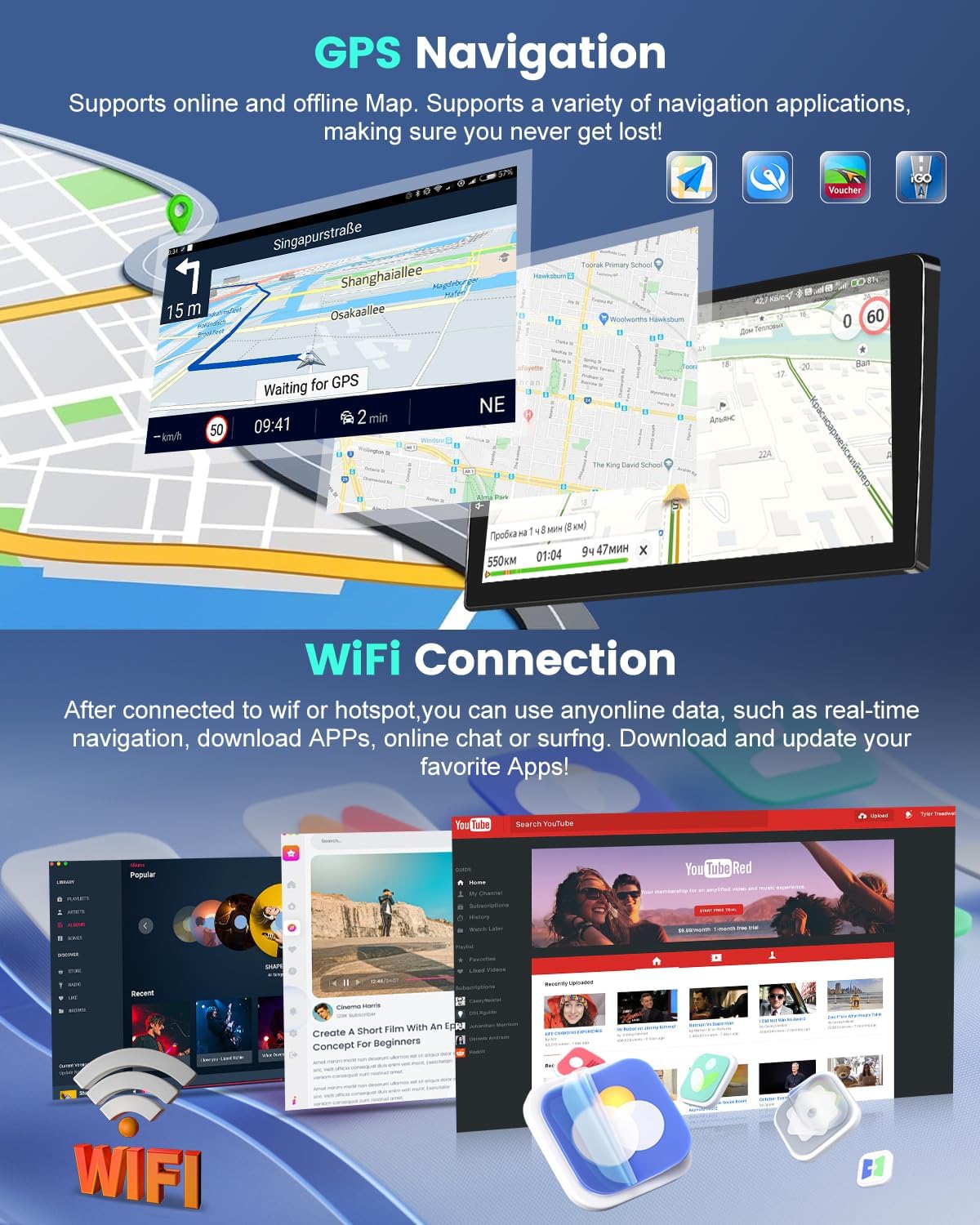
Image: The car stereo displaying GPS navigation routes and options for Wi-Fi connectivity.
4.5. Wi-Fi and Hotspot Connectivity
Connect the car stereo to a Wi-Fi network or use your smartphone's hotspot to access online features, download apps, browse the internet, and receive real-time traffic updates for navigation.

Image: The car stereo screen displaying various applications and web content, demonstrating its fast Wi-Fi connectivity.
4.6. DSP Sound Quality and EQ
The built-in Digital Sound Processor (DSP) with 32-band EQ allows for extensive audio customization. Activate the AI DSP feature (activation may be required) to enhance your music experience with various sound effects, equalization, compression, reverb, and filtering options, including subwoofer support.

Image: The car stereo's display showing the AI DSP interface with various sound effect options and a 32-band equalizer for audio tuning.
4.7. AHD Rear View Camera
When the vehicle is shifted into reverse gear, the car stereo automatically displays the feed from the AHD rear view camera, providing a clear view of the area behind your car for safer parking and maneuvering.
4.8. Bluetooth Connectivity
Bluetooth 5.1 provides stable and fast connectivity for hands-free calling and wireless audio streaming from your phone. Pair your device through the Bluetooth settings menu.
4.9. FM/RDS Radio
Access various radio stations with clear sound and quality. The RDS (Radio Data System) feature displays station information, song titles, and traffic updates where available.
4.10. Steering Wheel Control (SWC)
If your vehicle is equipped with steering wheel controls and the Canbus decoder is correctly installed, you can configure the car stereo to respond to these controls for functions like volume adjustment, track skipping, and mode switching.

Image: Illustration of how the car stereo integrates with and retains original factory car features, such as steering wheel controls and climate control information.
4.11. Dual USB Ports
The unit features dual USB ports for connecting external devices such as USB drives for media playback or for charging your mobile phone.
4.12. Split Screen Function
Utilize the split-screen feature to run two applications simultaneously, such as navigation on one side and music playback on the other.
4.13. Multiple UI Designs
Customize the appearance of your car stereo with multiple user interface designs and theme options. You can set the main page layout according to your preferences.

Image: Examples of different user interface designs and customization options available on the car stereo.
5. Maintenance
To ensure the longevity and optimal performance of your EKAT Android Car Stereo, follow these maintenance guidelines:
- Screen Cleaning: Use a soft, lint-free cloth slightly dampened with water or a screen cleaner specifically designed for electronics. Avoid harsh chemicals or abrasive materials.
- Software Updates: Periodically check for system software updates via Wi-Fi to ensure you have the latest features and security patches.
- Avoid Extreme Temperatures: Do not expose the unit to extreme heat or cold for extended periods.
- Cable Connections: Periodically check all cable connections to ensure they are secure and free from corrosion.
6. Troubleshooting
If you encounter issues with your car stereo, refer to the following common troubleshooting steps:
- No Power:
- Check all power connections and fuses.
- Ensure the vehicle's battery is properly connected and charged.
- No Sound:
- Verify speaker connections.
- Check volume levels and mute settings.
- Ensure the correct audio source is selected.
- GPS Signal Loss:
- Ensure the GPS antenna is mounted in a clear location.
- Check the GPS antenna connection to the unit.
- Bluetooth Pairing Issues:
- Ensure Bluetooth is enabled on both the stereo and your phone.
- Delete previous pairings and try again.
- Restart both devices.
- Touchscreen Unresponsive:
- Restart the unit.
- Ensure the screen is clean and free from debris.
- System Freezes/Slow Performance:
- Close unnecessary background applications.
- Perform a factory reset (note: this will erase all user data and settings).
If problems persist after attempting these steps, please contact customer support.
7. Specifications
| Feature | Specification |
|---|---|
| Brand | EKAT |
| Model Name | Android Car Stereo |
| Operating System | Android 13 |
| RAM | 4GB |
| ROM (Internal Storage) | 64GB |
| Screen Size | 10 Inches |
| Display Type | IPS Touchscreen |
| Screen Resolution | 1280*720P |
| Connectivity Technology | Bluetooth 5.1, Wi-Fi |
| Special Features | Wireless Carplay, Android Auto, DSP (32EQ), GPS Navigation, Mirror Link, AHD Rear View Camera, FM RDS Radio, Steering Wheel Control, Dual USB Port, Split Screen Function, Voice Assistant |
| Supported Satellite Navigation System | GLONASS, GPS, Galileo |
| Compatible Devices | Android, iOS |
| Item Weight | 1.82 Kilograms |
8. Warranty Information
The EKAT Android Car Stereo comes with a 2-year warranty from the date of purchase. This warranty covers manufacturing defects and malfunctions under normal use. Please retain your proof of purchase for warranty claims. The warranty does not cover damage caused by improper installation, misuse, accidents, or unauthorized modifications.
9. Customer Support
For technical assistance, troubleshooting, or warranty inquiries, please contact the seller directly. You can typically find the seller's contact information on your purchase platform (e.g., Amazon order details) or by navigating to the seller's storefront.

Image: Instructions on how to locate and contact the seller (HSJMG) for customer support regarding your purchase.
The seller, HSJMG, is committed to providing high-standard customer service and will assist you with any issues.