
1. Introduction and Compatibility
This user manual provides instructions for the Generic Magnetic Detachable Wireless Keyboard and Mouse Combo, designed specifically for the Honor Pad MagicPad 2 12.3-inch Tablet. This accessory transforms your tablet into a portable workstation, offering protection, functionality, and style.
Important Compatibility Note: This product is exclusively designed for the HONOR Pad MagicPad 2 12.3-inch tablet. It is not compatible with other tablet models. Please verify your tablet model before attempting installation or use to ensure proper fit and function.

Figure 1: Reminder to confirm device model for compatibility.
2. Setup and Connection
2.1 Keyboard Connection
To connect the wireless keyboard to your Honor Pad MagicPad 2 12.3-inch Tablet, follow these steps:
- Step 1: Ensure the keyboard is charged. Slide the power switch to the "ON" position. The power indicator light will illuminate.
- Step 2: Press the "Connect" button on the keyboard. The Bluetooth indicator light will begin to flash, indicating it is in pairing mode.
- Step 3: On your Honor Pad MagicPad 2, go to Settings > Bluetooth and turn Bluetooth ON. Your tablet will search for available devices.
- Step 4: Select "Bluetooth 3.0 Keyboard" (or similar name) from the list of available devices on your tablet.
- Step 5: After initial pairing, the keyboard will automatically connect to your tablet when powered on, allowing for quick switching between entertainment and work modes.
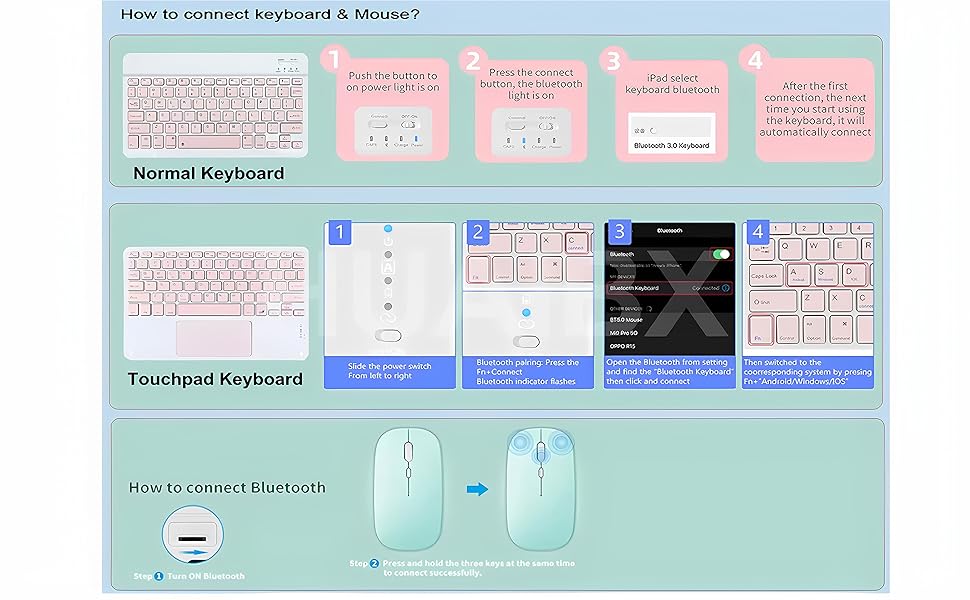
Figure 2: Detailed steps for connecting the keyboard and mouse.
2.2 Mouse Connection
To connect the wireless mouse to your Honor Pad MagicPad 2 12.3-inch Tablet, follow these steps:
- Step 1: Turn on the mouse. Locate the switch on the bottom of the mouse and slide it to the Bluetooth icon position.
- Step 2: On your Honor Pad MagicPad 2, go to Settings > Bluetooth and ensure Bluetooth is ON.
- Step 3: The mouse will appear in the list of available devices (e.g., "Bluetooth Mouse"). Select it to pair.
- Note: If your mouse supports dual mode (Bluetooth and 2.4G USB receiver), ensure the switch is set to Bluetooth for tablet connection. The 2.4G mode is typically for computers with a USB port.
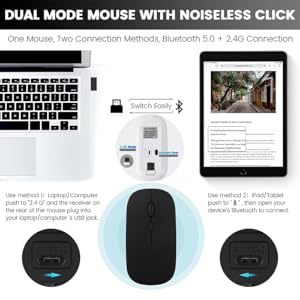
Figure 3: Dual mode mouse connection methods.
3. Operating Instructions
3.1 Keyboard Usage
The keyboard features scissor-style mechanical keys designed for a quiet, smooth, and comfortable typing experience. It ensures productivity whether you are working, studying, or enjoying multimedia content.
Some models may include a backlight feature. Refer to your specific keyboard model for backlight activation instructions, often involving a dedicated key or a function key combination.

Figure 4: Detachable keyboard case in use.
3.2 Adjustable Viewing Angles
The keyboard case features a clamshell magnetic design that supports multiple adjustable viewing angles. This allows you to find the most comfortable position for typing, reading, or gaming, enhancing your overall experience.

Figure 5: Tablet case adjusted for multiple viewing angles.

Figure 6: Adjustable viewing angle with anti-slip grooves for stability.
3.3 Battery and Charging
The keyboard case charges via a Type-C port. A full charge typically takes 2-3 hours, providing continuous operation and over 30 days of standby time. This extended battery life is ideal for prolonged use without frequent recharging.

Figure 7: Type-C charging port and battery life indication.
4. Maintenance
To ensure the longevity and optimal performance of your keyboard and mouse combo:
- Cleaning: Use a soft, dry cloth to wipe down the keyboard and case. For stubborn dirt, a slightly damp cloth can be used, but ensure no moisture enters the electronic components.
- Storage: When not in use, store the tablet with the keyboard case closed to protect both devices from dust and scratches.
- Charging: Use the provided Type-C cable or a certified equivalent for charging. Avoid overcharging or completely draining the battery frequently to extend its lifespan.
- Protection: The case is designed to offer full protection against fingerprints, impacts, scratches, and dust. Avoid dropping the device or exposing it to extreme temperatures or liquids.
5. Troubleshooting
If you encounter issues with your keyboard and mouse combo, try the following troubleshooting steps:
- Keyboard/Mouse Not Connecting:
- Ensure both the keyboard and mouse are fully charged.
- Verify that Bluetooth is enabled on your Honor Pad MagicPad 2.
- Turn off and then turn on the keyboard/mouse. Repeat the pairing process (Section 2.1 and 2.2).
- Forget the device in your tablet's Bluetooth settings and attempt to pair again.
- Keys Not Responding:
- Check if the keyboard is connected via Bluetooth.
- Ensure the keyboard battery is not depleted.
- Restart your tablet and try again.
- Mouse Cursor Not Moving:
- Check if the mouse is connected via Bluetooth.
- Ensure the mouse battery is not depleted.
- Try using the mouse on a different surface.
- Intermittent Connection:
- Ensure there are no other strong wireless signals interfering with the Bluetooth connection.
- Keep the keyboard/mouse within close proximity to the tablet.
- Ensure the keyboard/mouse is fully charged.
6. Specifications
| Feature | Detail |
|---|---|
| Brand | Generic |
| Compatible Devices | HONOR Pad MagicPad 2 12.3-inch |
| Connectivity Technology | Bluetooth |
| Special Features | Backlit (for some models), Case, Ergonomic, Portable, Trackpad (for some models) |
| Keyboard Backlighting Color Support | RGB (for backlit models) |
| Number of Keys | 79 |
| Keyboard Description | Multi Functional |
| Battery Requirement | No (internal rechargeable battery) |
| Charging Time | 2-3 hours |
| Standby Time | 30+ days |
7. Warranty and Support
Warranty: This product typically comes with a 30-day warranty from the date of purchase. Please refer to your purchase documentation for specific warranty terms and conditions.
Customer Support: For any questions, technical assistance, or warranty claims, please contact the seller or manufacturer directly through the platform where the product was purchased. Ensure you have your order details and product model information ready.