
1. Introduction
Thank you for choosing the Omexcart Tokqi M01 Gimbal Advantage. This 3-axis smartphone gimbal is designed to provide stable and smooth video footage, enhancing your mobile videography experience. It features advanced anti-shake algorithms, AI intelligent tracking, and an integrated LED light for various shooting conditions. This manual will guide you through the setup, operation, and maintenance of your new device.

Figure 1.1: Omexcart Tokqi M01 Gimbal with a smartphone mounted. This image illustrates the compact and ergonomic design of the gimbal, ready for use with a mobile phone.
2. Key Features
- 3-Axis Stabilization: Utilizes gyroscope and advanced anti-shake algorithms for smooth, stable footage.
- Foldable Design: Easy to carry and store, making it highly portable.
- AI Intelligent Tracking: Supports face tracking and self-selected target tracking, ensuring the subject remains in focus even if briefly obscured.
- Integrated LED Light: Features cool and warm color LED light with multiple modes and brightness levels for optimal lighting.
- Multi-Functional Controls: Intuitive buttons and rocker for quick access to gimbal modes, camera functions, and light adjustments.
- Versatile Shooting Modes: Includes Semi Follow, Full Follow, Inception Space, POV, Fully Locked, Semi-Mad Dog Mode, and Mad Dog Mode.
- Quick Landscape/Portrait Switch: Seamlessly switch between horizontal and vertical shooting orientations.
- App Support: Compatible with both iOS and Android applications for extended shooting methods and features.
- Front/Rear Camera Switch: Easily switch between front and rear cameras with beauty function support.
- 1/4-inch Nut Joint: Compatible with tripods or extension rods for expanded shooting possibilities.
3. What's in the Box
Please check the package contents upon unboxing to ensure all items are present:
- Omexcart Tokqi M01 Gimbal
- Charging Cable
- Tripod Stand
- User Manual (this document)
4. Setup Guide
4.1 Charging the Gimbal
Before first use, fully charge the gimbal using the provided charging cable. Connect the cable to the gimbal's charging port and a USB power adapter (not included). The indicator lights will show charging status.
4.2 Unfolding the Gimbal
Gently unfold the gimbal from its compact, folded state. Ensure all joints click into place securely before proceeding.
4.3 Mounting Your Smartphone
- Extend the phone clamp and carefully insert your smartphone.
- Ensure the phone is centered and securely held by the clamp.
4.4 Balancing the Gimbal
For optimal performance, it is crucial to balance your smartphone on the gimbal. Adjust the phone's position within the clamp until it remains level when the gimbal is powered off. This reduces motor strain and improves stabilization.
4.5 App Installation (Optional but Recommended)
Download the official Omexcart Tokqi app from your device's app store (available for iOS and Android). The app unlocks advanced features and shooting modes.
- Search for "Omexcart Tokqi" or scan the QR code provided in the quick start guide (if applicable).
- Install the app and follow the on-screen instructions to connect your gimbal via Bluetooth.
5. Operation Guide
5.1 Multi-Functional Keyboard Overview

Figure 5.1: Multi-Functional Keyboard. This diagram highlights the various buttons and controls on the gimbal handle, including the M Button/Power Button, Camera Button, Fill Light Power Button, Rocker, Zoom Key, and Trigger Key.
- M Button/Power Button: Press and hold to power on/off. Short press to switch gimbal modes (horizontal/vertical shooting) and check remaining power.
- Camera Button: Press to take a photo or start/stop recording. Double press to switch between front and rear cameras.
- Fill Light Power Button: Press to switch light modes (Cool, Natural, Warm) and adjust brightness levels.
- Rocker: Control the gimbal's pan and tilt movements for precise framing.
- Zoom Key: Use to zoom in or out (requires app connection).
- Trigger Key: Press and hold for quick mode changes like lock follow, gimbal return, Inception mode, lock mode, or mad dog mode.
5.2 AI Intelligent Tracking
The AI intelligent tracking feature allows the gimbal to automatically follow a selected subject. This is particularly useful for vlogging or dynamic shots where the subject is moving.

Figure 5.2: AI Intelligent Tracking. This image demonstrates the gimbal's ability to keep a subject, such as a person, in the center of the frame, even if they are briefly obscured. The trigger key can be pressed for boxed or default targeting.
To activate: Within the app, select the tracking mode and draw a box around your desired subject on the screen. The gimbal will then automatically adjust to keep the subject in the frame. The protagonist is always in the C position, and the target can quickly resume tracking even after being briefly obscured.
5.3 Adjustable Fill Light
The integrated LED fill light provides additional illumination for your shots, adaptable to various lighting conditions.

Figure 5.3: Adjustable Fill Light. This image shows the gimbal's built-in light offering Cold, Natural, and Warm light settings, along with a Flash Mode, suitable for both daytime brightening and nighttime fill.
Press the Fill Light Power Button to cycle through 3 light modes (Cool, Natural, Warm) and 9 brightness levels. This allows for optimal lighting in both daytime and nighttime scenarios.
5.4 Gimbal Modes
The M01 Gimbal offers several modes to suit different shooting requirements. Press the M Button to cycle through these modes:

Figure 5.4: Eight Gimbal Modes. This visual guide illustrates the various operational modes of the gimbal, including Semi Follow, Full Follow, Inception Space, POV, Fully Locked, Semi-Mad Dog Mode, and Mad Dog Mode, each designed for specific camera movements.
- Semi Follow: The gimbal follows your pan movements while keeping the tilt and roll axes locked.
- Full Follow: The gimbal follows both your pan and tilt movements, providing dynamic tracking.
- Inception Space: Creates a spinning effect, rotating the phone 360 degrees along the roll axis.
- POV (Point of View): All three axes (pan, tilt, roll) follow your movements, mimicking a first-person perspective.
- Fully Locked: All three axes are locked, keeping the phone pointed in a fixed direction regardless of gimbal movement.
- Semi-Mad Dog Mode: A more aggressive follow mode, allowing for faster and more dynamic movements.
- Mad Dog Mode: The most aggressive follow mode, designed for rapid and extreme camera movements.
5.5 Quick Switch Between Landscape and Portrait
The gimbal allows for easy and quick switching between horizontal (landscape) and vertical (portrait) shooting orientations without bumping your phone.

Figure 5.5: Landscape and Portrait Switching. This image illustrates the seamless transition between horizontal and vertical phone orientations on the gimbal, enabling versatile shooting angles.
To switch, simply rotate the phone clamp manually or use the designated button/gesture within the app (refer to app instructions for specific controls).
5.6 Inverted Shot
Achieve unique perspectives by using the inverted shot feature, allowing you to capture footage from a lower angle.

Figure 5.6: Inverted Shot. This image demonstrates how to hold the gimbal upside down to capture footage from a low perspective, such as eye-level with a pet.
To perform an inverted shot, simply hold the gimbal upside down. The gimbal will automatically adjust to maintain stabilization.
5.7 LIFE Mode (App Feature)
The LIFE Mode, accessible through the Omexcart Tokqi app, provides a wealth of templates and intelligent auxiliary lenses to help you create professional-looking videos with ease.
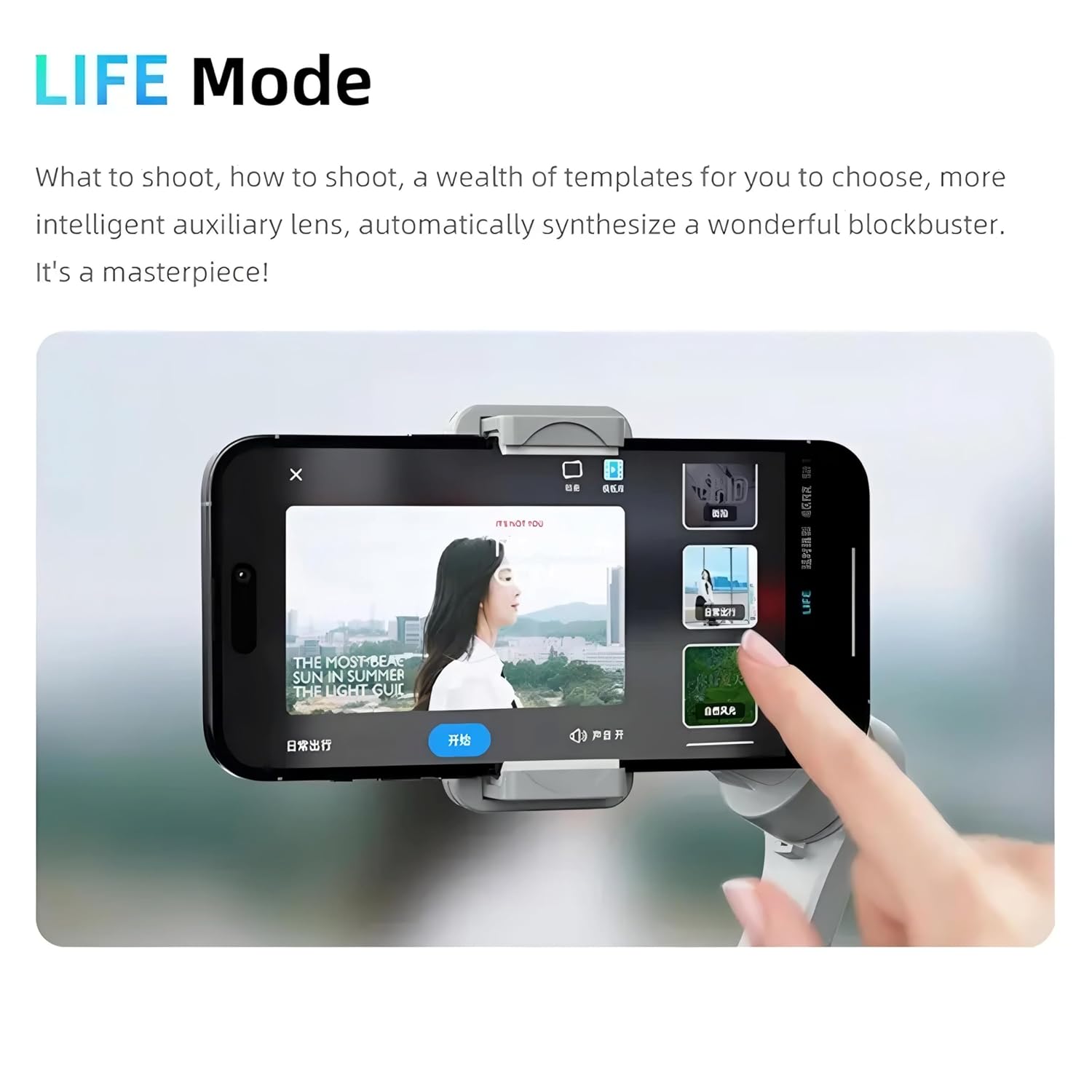
Figure 5.7: LIFE Mode. This image displays the user interface of the Omexcart Tokqi app's LIFE Mode, showing various templates and options for creating cinematic videos.
Explore the various templates and features within the app to automatically synthesize wonderful blockbusters from your footage.
5.8 Live Streaming and Content Creation
The Omexcart Tokqi M01 Gimbal is an ideal tool for live streaming and content creation, supporting various platforms and applications.

Figure 5.8: Preferred Equipment for Live Streaming. This image shows the gimbal being used with a smartphone on a tripod, indicating its suitability for live streaming and content creation, with various app icons suggesting compatibility with beauty photo software and short video platforms.
The original camera of your phone, beauty photo software, short video applications, and live streaming software are all capable of utilizing the gimbal's face tracking and stabilization features.
6. Maintenance
6.1 Cleaning
Wipe the gimbal with a soft, dry cloth. Do not use liquid cleaners or solvents, as they may damage the device. Avoid getting moisture into the ports or buttons.
6.2 Storage
When not in use, fold the gimbal and store it in a cool, dry place, away from direct sunlight and extreme temperatures. Keep it away from dust and moisture.
6.3 Battery Care
To prolong battery life, avoid fully discharging the battery frequently. Charge the gimbal regularly, even if not in use for extended periods (e.g., once every 3 months).
7. Troubleshooting
| Problem | Possible Cause | Solution |
|---|---|---|
| Gimbal does not power on. | Low battery. | Charge the gimbal fully. |
| Footage is shaky/unstable. | Phone not balanced correctly. | Re-balance the smartphone on the gimbal. |
| App cannot connect to gimbal. | Bluetooth off or pairing issue. | Ensure Bluetooth is enabled on your phone. Restart both the gimbal and the app. Try re-pairing. |
| Gimbal motors feel weak or overheat. | Overload or improper balancing. | Ensure phone is within weight limits and properly balanced. Power off and let cool down. |
| AI tracking not working. | Poor lighting, subject too far, or app issue. | Ensure adequate lighting. Keep subject within optimal range. Restart app and gimbal. |
8. Specifications
| Feature | Detail |
|---|---|
| Product Dimensions | 6 x 2 x 4 cm (60D x 20W x 40H Millimeters) |
| Item Weight | 500 g (500 Grams) |
| Brand | Omexcart |
| Model | Tokqi M01 |
| Compatible Devices | Cellphone |
| Colour | Gray |
| Manufacturer | Omexcart LLP |
| Country of Origin | India |
| Included Components | Charging cable, Tripod stand |
9. Warranty & Support
For warranty information and support, please contact Omexcart LLP directly. Details regarding warranty period and terms are typically provided with your purchase documentation or can be obtained by contacting the manufacturer's customer service.
For technical assistance or inquiries, please reach out to Omexcart customer support. Keep your purchase receipt or order details handy when contacting support.