
1. Product Overview
The LKTOP 100W Avata 2 Battery Charging Hub Kit is designed for efficient and versatile charging of DJI Avata 2 intelligent flight batteries. This kit includes a 3-port fast charging hub and a 100W drone car charger, providing flexible power solutions for both home and on-the-go use. Featuring an LED screen and APP control, it offers smart management and multiple safety protections to ensure optimal battery health and extended flight time.
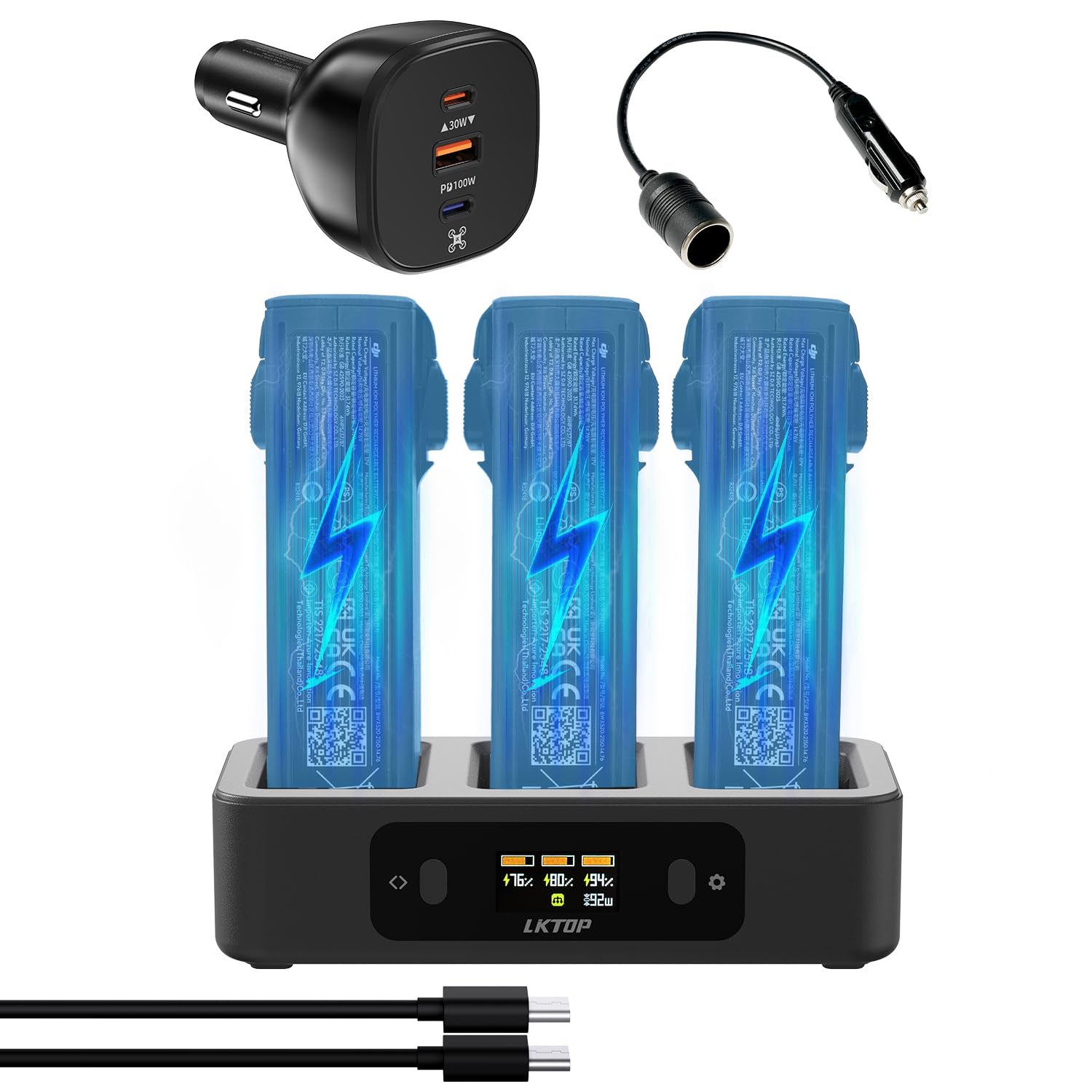
Figure 1: LKTOP 100W Avata 2 Battery Charging Hub Kit with Car Charger.
Key Features:
- 100W High-Power Output: Charges 3 DJI Avata 2 intelligent flight batteries in approximately 70 minutes in parallel mode.
- Dual Charging Modes: Supports sequential charging (first battery fully charges in 40 minutes) and parallel charging for flexibility.
- 2-in-1 Power Bank Function: Functions as a power supply via its USB-C port to charge remote controllers, action cameras, phones, or other devices when no external power source is available.
- Smart Management: Equipped with an LED screen for monitoring charging parameters and an APP control function for mode switching and safe charging.
- Comprehensive Safety: Features a heat dissipation port and 6 protection mechanisms (over-temperature, short-circuit, over-voltage, under-voltage, over-current, and over-power).
2. Setup
2.1 Unboxing and Components
Your LKTOP 100W Avata 2 Battery Charging Hub Kit includes the following components:
- 1x Charging Hub (AC341)
- 1x 100W USB-C to USB-C Cable
- 1x Instruction Manual for Charging Hub
- 1x 130W Drone Car Charger (LKCC-100P)
- 1x Car Charger Extension Cable
- 1x Instruction Manual for Car Charger

Figure 2: Contents of the LKTOP 100W Avata 2 Battery Charging Hub Kit.
2.2 Connecting the Charging Hub
To begin charging, connect the charging hub to a compatible power source using the provided 100W USB-C to USB-C cable. For optimal performance, use a LKTOP/DJI 100W USB-C Power Adapter for home use or the included LKTOP 100W Drone Car Charger for in-car use. The hub requires a minimum of 65W, and ideally 100W, from the power source.

Figure 3: Charging hub connected to the 100W Drone Car Charger in a vehicle.
3. Operating Instructions
3.1 Inserting Batteries
Insert up to three DJI Avata 2 intelligent flight batteries into the designated slots on the charging hub. Ensure they are securely seated. The charging process will begin automatically.

Figure 4: Three DJI Avata 2 batteries inserted into the charging hub for simultaneous charging.
3.2 Charging Modes
The charging hub offers two primary charging modes:
- Sequential Mode: Charges batteries one by one, prioritizing the battery with the highest charge level first. A single battery can be fully charged in approximately 40 minutes.
- Parallel Mode: Charges all inserted batteries simultaneously. Three batteries can be fully charged in approximately 70 minutes.
You can switch between these modes using the buttons on the hub or via the dedicated mobile application.
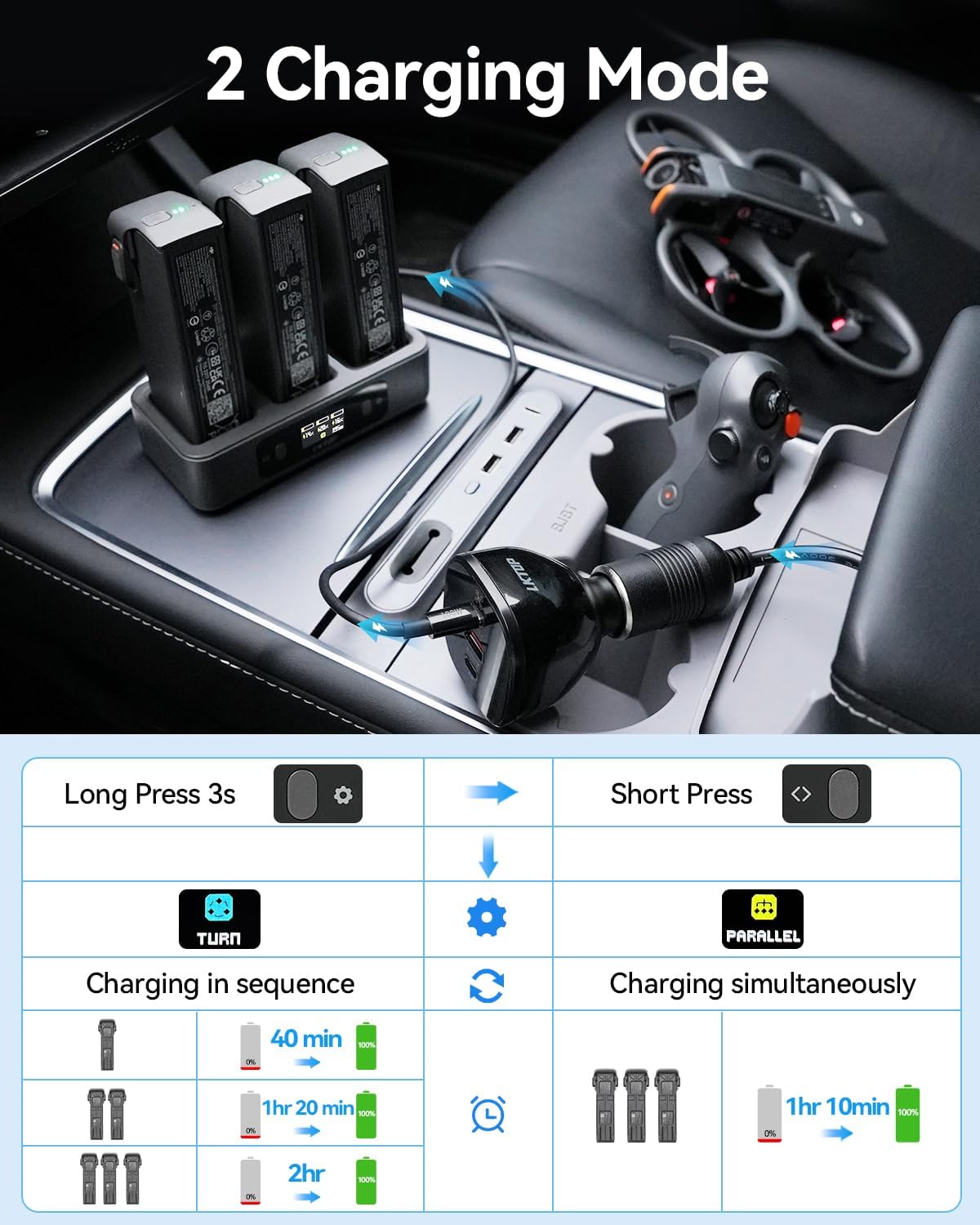
Figure 5: Illustration of sequential and parallel charging modes and their respective charging times.
3.3 LED Screen Display
The integrated LED screen provides real-time information about the charging process, including:
- Charging Mode (Sequential or Parallel)
- Current Battery Level (%)
- Input Charging Power (W)
- Charging Voltage & Current (V, A)
- Battery Cycle Count
- Battery Temperature (°C)
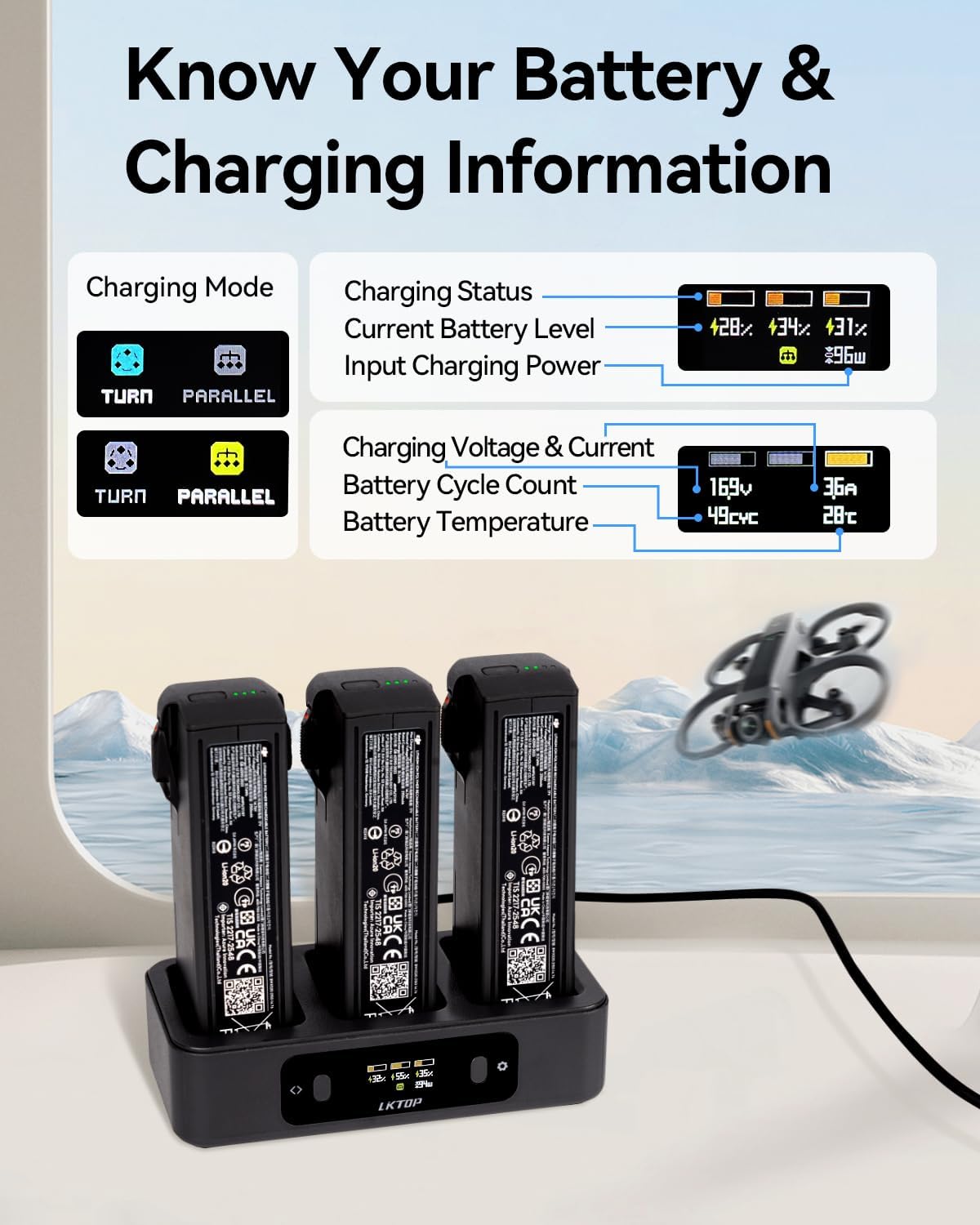
Figure 6: Detailed information displayed on the LED screen during charging.
3.4 Power Bank Functionality
The charging hub can also act as a power bank. With a DJI Avata 2 battery inserted, connect your remote controller, action camera, smartphone, or other USB-C compatible devices to the hub's USB-C port to charge them.

Figure 7: Charging a remote controller using the hub's power bank function.
3.5 Mobile App Control
For enhanced control and monitoring, download the "Polying" mobile application. Follow these steps to connect and operate the charging hub via the app:
- Scan the QR code (provided in the product packaging or on the image below) to download the "Polying" app.
- Power on the charging hub.
- Ensure Bluetooth is enabled on your mobile device.
- Open the app, log in, connect to the device, follow the prompts, and select binding.
- Operate the functions of the charging hub and receive real-time upgrades.

Figure 8: Steps for connecting and controlling the charging hub via the Polying mobile application. Download the app here.
3.6 Official Product Videos
Video 1: LKTOP 100W Avata 2 Parallel Charging Hub (2X Fast) - Demonstrates the fast parallel charging capabilities of the hub.
Video 2: LKTOP 100W Avata 2 Charging Hub for DJI - Provides a general overview of the charging hub's features and design.
Video 3: LKTOP 100W Avata 2 Parallel Charging Hub - Another demonstration of the parallel charging function.
Video 4: LKTOP 100W Avata 2 Super Fast Charging Hub for DJI - Highlights the super fast charging capabilities.
Video 5: DJI Avata 2 100W Battery Charging Hub By LKTOP - A detailed look at the charging hub for DJI Avata 2.
4. Maintenance
4.1 General Care
- Keep the charging hub clean and free from dust and debris. Use a soft, dry cloth for cleaning.
- Avoid exposing the device to extreme temperatures or direct sunlight for prolonged periods.
- Store the charging hub in a cool, dry place when not in use.
4.2 Safety Protections
The LKTOP charging hub is equipped with multiple safety features to protect your batteries and the device:
- Over-temperature Protection
- Short-circuit Protection
- Over-voltage Protection
- Under-voltage Protection
- Over-current Protection
- Over-power Protection
These protections ensure safe and reliable charging, preventing damage to your batteries and extending their lifespan.

Figure 9: Overview of the 6 safety protection features.
5. Troubleshooting
5.1 Common Issues and Solutions
- Charging Not Initiating:
- Ensure the power adapter connected to the charging hub provides at least 65W (ideally 100W) output. Lower wattage adapters may not activate the charging process.
- Verify that the USB-C cable is securely connected to both the power adapter and the charging hub.
- Confirm that the batteries are correctly inserted into the charging slots.
- Slow Charging:
- Check if your power adapter is delivering sufficient wattage (100W recommended for fastest charging).
- Ensure you are using a high-quality USB-C cable capable of handling 100W power delivery.
- The charging speed may vary based on the battery's current charge level and temperature.
- LED Screen Not Displaying Information:
- Ensure the charging hub is properly powered on and connected to a power source.
- If the screen is unresponsive, try disconnecting and reconnecting the power.
- Batteries Not Securely Held:
- While the design aims for a snug fit, some users have noted batteries can be less secure. Ensure batteries are fully clicked into place.
6. Specifications
| Product Name | LKTOP 100W Avata 2 Battery Charging Hub |
| Model Number | AC341 (Charging Hub), LKCC-100P (Car Charger) |
| Compatibility | DJI Avata 2 Intelligent Flight Battery (BWX520-2150-14.76) |
| Input (Charging Hub) | 5V-20V = 5A (100W Max) |
| Output (Charging Hub) | 5V=3A, 9V=3A, 12V=3A (36W Max) |
| Recommended Power Adapter | LKTOP/DJI 100W USB-C Power Adapter (for home), LKTOP 100W Drone Car Charger (for car) |
| Charging Environment Temperature | 5°C - 40°C |
| Product Dimensions (Charging Hub) | 5.2 x 2.6 x 1.5 inches (13.2 x 6.6 x 3.8 cm) |
| Product Weight (Charging Hub) | 7.05 oz ± 10% (approx. 200g) |
| Color | Black |
| Manufacturer | Shenzhen Like Flight Technology Co., Ltd; Shenzhen Junkaida Intelligent Technology Co., Ltd. |

Figure 10: Detailed product parameters and dimensions of the charging hub.
7. Warranty and Support
7.1 Warranty Information
This product is covered by a standard manufacturer's warranty. For specific details regarding warranty duration and coverage, please refer to the warranty card included in your product packaging or contact LKTOP customer support.
Protection plans are available for purchase separately to extend coverage beyond the manufacturer's warranty. Options include 2-Year and 3-Year Protection Plans.
7.2 Customer Support
For any questions, technical assistance, or support needs, please contact LKTOP customer service through the retailer where the product was purchased or visit the official LKTOP website for contact information.
You can also visit the LKTOP Store on Amazon for more products and support resources.