
MOLGRIA GK75 HE
MOLGRIA x SKYLOONG GK75 HE USB Wired Magnetic-Switch Mechanical Keyboard User Manual
Model: GK75 HE
Introduction
Thank you for purchasing the MOLGRIA x SKYLOONG GK75 HE USB Wired Magnetic-Switch Mechanical Keyboard. This manual provides detailed instructions for setting up, operating, and maintaining your new keyboard. Please read this manual thoroughly before use to ensure optimal performance and longevity of your device.
Package Contents
Verify that all items are present in the package:
- MOLGRIA x SKYLOONG GK75 HE Keyboard
- Type C-to-USB Cable
- Keycap Puller
- User Manual (this document)
Setup Guide
- Unpack the Keyboard: Carefully remove the keyboard and all accessories from the packaging.
- Connect the USB Cable: Insert the Type-C end of the provided USB cable into the port on the keyboard. Connect the standard USB-A end to an available USB port on your computer (PC or Mac).
- System Recognition: Your operating system should automatically detect and install the necessary drivers for the keyboard. This process may take a few moments.
- Test Functionality: Open a text editor or any application to test the keyboard's basic functionality by typing.
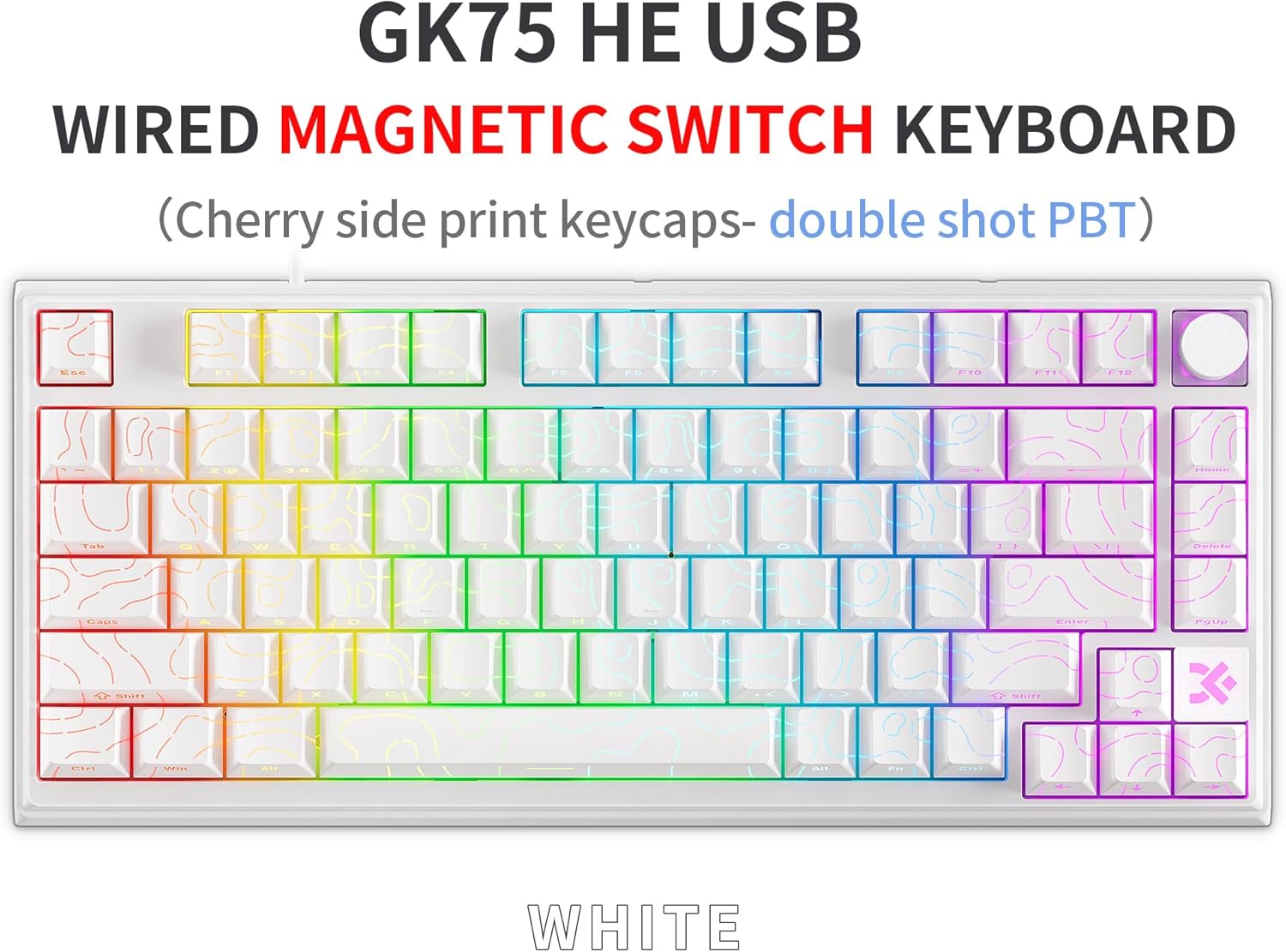
Image: The GK75 HE keyboard with its USB-C cable connected, ready for use.
Operation
Basic Keyboard Functions
The GK75 HE keyboard functions as a standard QWERTY keyboard. All keys are pre-programmed for their respective characters and functions. The 75% layout provides a compact design while retaining essential keys.
RGB Backlighting Control
The keyboard features adjustable RGB backlighting with south-facing LEDs for enhanced shine-through on the double-shot PBT keycaps. Specific key combinations (often involving the Fn key) are used to cycle through lighting modes, adjust brightness, and change colors. Refer to the quick guide or software for detailed key combinations.
Knob Functionality
The integrated knob on the keyboard is primarily used for volume control (turn left/right to decrease/increase volume). Pressing the knob typically mutes/unmutes audio. This knob's function can also be customized using the dedicated software.
Software Customization
For advanced customization, download the official MOLGRIA/SKYLOONG software from the manufacturer's website. The software allows you to:
- Remap keys and create macros.
- Customize RGB lighting effects, colors, and brightness.
- Adjust the functionality of the knob.
- Fine-tune magnetic switch trigger points (Rapid Trigger accuracy as low as 0.01mm).
The software is compatible with both Mac and Windows operating systems.
Hot-Swappable Magnetic Switches
The GK75 HE features hot-swappable magnetic switches, allowing for easy replacement or customization without soldering. These switches utilize the Hall Effect for precise trigger sensitivity.

Image: Exploded view of a customized magnetic switch, detailing its internal components and Hall Effect technology.
The keyboard's multi-layer gasket-mounted structure with sound dampening foam further enhances the typing experience by reducing vibration and noise.

Image: Cross-section diagram illustrating the "Game Gasket Structure" with its various layers, including the sound-absorbing foam.
Maintenance
- Cleaning: Use a soft, dry cloth to wipe the keyboard surface. For deeper cleaning, use a keycap puller to remove keycaps and clean underneath with compressed air or a small brush. Avoid using harsh chemicals or abrasive materials.
- Keycap Removal: Use the provided keycap puller to gently remove keycaps. Pull straight up to avoid damaging the switch stem.
- Switch Replacement: If replacing switches, ensure the keyboard is unplugged. Use a switch puller (not included) to carefully remove the old switch and align the new switch pins correctly before pressing it into place.
- Storage: When not in use for extended periods, store the keyboard in a clean, dry environment away from direct sunlight and extreme temperatures.
Troubleshooting
- Keyboard not responding:
- - Ensure the USB cable is securely connected to both the keyboard and the computer.
- - Try connecting the keyboard to a different USB port on your computer.
- - Test the keyboard on another computer to rule out system-specific issues.
- - Restart your computer.
- RGB lighting not working or incorrect:
- - Check the keyboard's lighting control key combinations (e.g., Fn + specific keys) to ensure lighting is enabled and set to the desired mode.
- - Ensure the keyboard software is installed and updated, and check its settings for lighting control.
- Keys not registering or double-typing:
- - This could indicate a faulty switch. Since the switches are hot-swappable, consider replacing the affected switch if you have spares.
- - Ensure no debris is lodged under the keycap or switch.
- - If using the software, check if any key remapping or macro settings are interfering.
- Knob not functioning:
- - Verify that the knob is clean and free of obstructions.
- - Check the keyboard software for any custom assignments that might override its default volume control.
Specifications
| Feature | Detail |
|---|---|
| Model | GK75 HE |
| Connectivity | USB-C Wired |
| Switch Type | Skyloong Customized Magnetic Switches (Hot-Swappable) |
| Keycap Material | Double-shot PBT |
| Keycap Profile | Cherry Profile |
| Backlighting | RGB, South-Facing LEDs |
| Layout | 75% (80 Keys) |
| Special Features | Volume Knob, Gasket-Mounted Structure, Sound Dampening Foam, Programmable |
| Compatible Devices | MAC, PC, Smartphone, Tablet PC |
| Dimensions (Approx.) | 16.1 x 7.6 x 1.92 inches |
| Item Weight (Approx.) | 2.39 pounds |
Warranty and Support
MOLGRIA products are designed for reliability and performance. For warranty information, technical support, or to download the latest software and drivers, please visit the official MOLGRIA or SKYLOONG website. Keep your purchase receipt as proof of purchase for warranty claims.
For further assistance, you may contact customer support through the contact information provided on the official website.