
DAILINK Q8
DAILINK Q8 1080P HD Webcam with Microphone User Manual
Model: Q8
1. Introduction
This manual provides detailed instructions for the DAILINK Q8 1080P HD Webcam. It covers product features, setup, operation, maintenance, and troubleshooting to ensure optimal performance and user experience. Please read this manual thoroughly before using the device.
The DAILINK Q8 Full HD 1080P Webcam is an essential accessory for online communication. Featuring a crystal-clear 1080P resolution at 30 frames per second, this USB camera delivers exceptional image quality for video conferences. Its integrated microphone captures clear and crisp audio, while its innovative design allows for 360-degree rotation for optimal framing. Compatible with Windows, MacOS, and Linux, it offers instant plug-and-play installation without complex setup. This versatile webcam is suitable for various daily uses, including remote work, distance learning, and live streaming on platforms like Zoom and Skype, significantly enhancing the quality of your video communications.
2. Product Overview

Image 1: The DAILINK Q8 1080P HD Webcam, featuring a sleek design with an integrated clip and USB cable.
2.1 Key Features
- Full HD 1080P Resolution: Delivers sharp 1920x1080 pixel video at 30 frames per second for clear visuals.
- Integrated Microphone: Features noise-canceling technology for clear and natural audio, reducing background noise.
- Automatic Light Correction: Adapts to various lighting conditions, including low light, to ensure clear visibility.
- Plug and Play: No driver installation required; simply connect via USB.
- Wide Compatibility: Supports Windows (2000, XP, XP2, Vista, Win7, Win8, Win10), Mac OS, and Linux operating systems.
- 360° Adjustable Rotation: Allows for flexible positioning and optimal framing on various surfaces.
- 90-Degree Wide Angle View: Captures a broader perspective, suitable for group calls or presentations.
2.2 Package Contents
- DAILINK Q8 Webcam
- Integrated Mounting Bracket
- User Manual (this document)
2.3 Product Diagram

Image 2: Exploded view diagram showing the Full HD Optical Lens, 1080P HD Camera, Microphone, and Tripod Ready Universal Clip.

Image 3: Front view of the DAILINK Q8 Webcam with dimensions (100mm width, 50mm height, 25mm depth) and an indication of the noise-canceling microphone.
3. Setup Instructions
3.1 Connecting the Webcam
- Position the Webcam:
- Place the webcam on top of your monitor or laptop screen using the integrated universal clip.
- Alternatively, place it flat on a table or mount it on a tripod using the tripod-ready base.

Image 4: Demonstrates various mounting options for the webcam: flat on a table, clipped above a screen, and installed with a tripod. The image also shows the 360-degree rotation capability.
- Connect to Computer: Insert the USB-A cable from the webcam into an available USB port on your computer (PC, laptop, desktop, or Android TV).
- Automatic Installation: The webcam is plug-and-play. Your operating system will automatically detect and install the necessary drivers. No manual software installation is typically required.

Image 5: Illustrates the simple USB plug-and-play connection and icons representing wide compatibility with various communication and streaming platforms.
Note: For some computers, an adapter may be required if only USB-C ports are available.
4. Operating Instructions
4.1 Using the Webcam for Video Calls and Streaming
- Open Application: Launch your preferred video conferencing or streaming application (e.g., Zoom, Skype, Microsoft Teams, YouTube, OBS).
- Select Webcam: In the application's settings, navigate to the video/camera and audio/microphone input options. Select "DAILINK Q8 Webcam" (or similar name) as your video and audio source.
- Adjust Position: Utilize the 360° adjustable feature to achieve the desired camera angle and framing.
- Verify Quality: Ensure the video and audio are functioning correctly within your application.
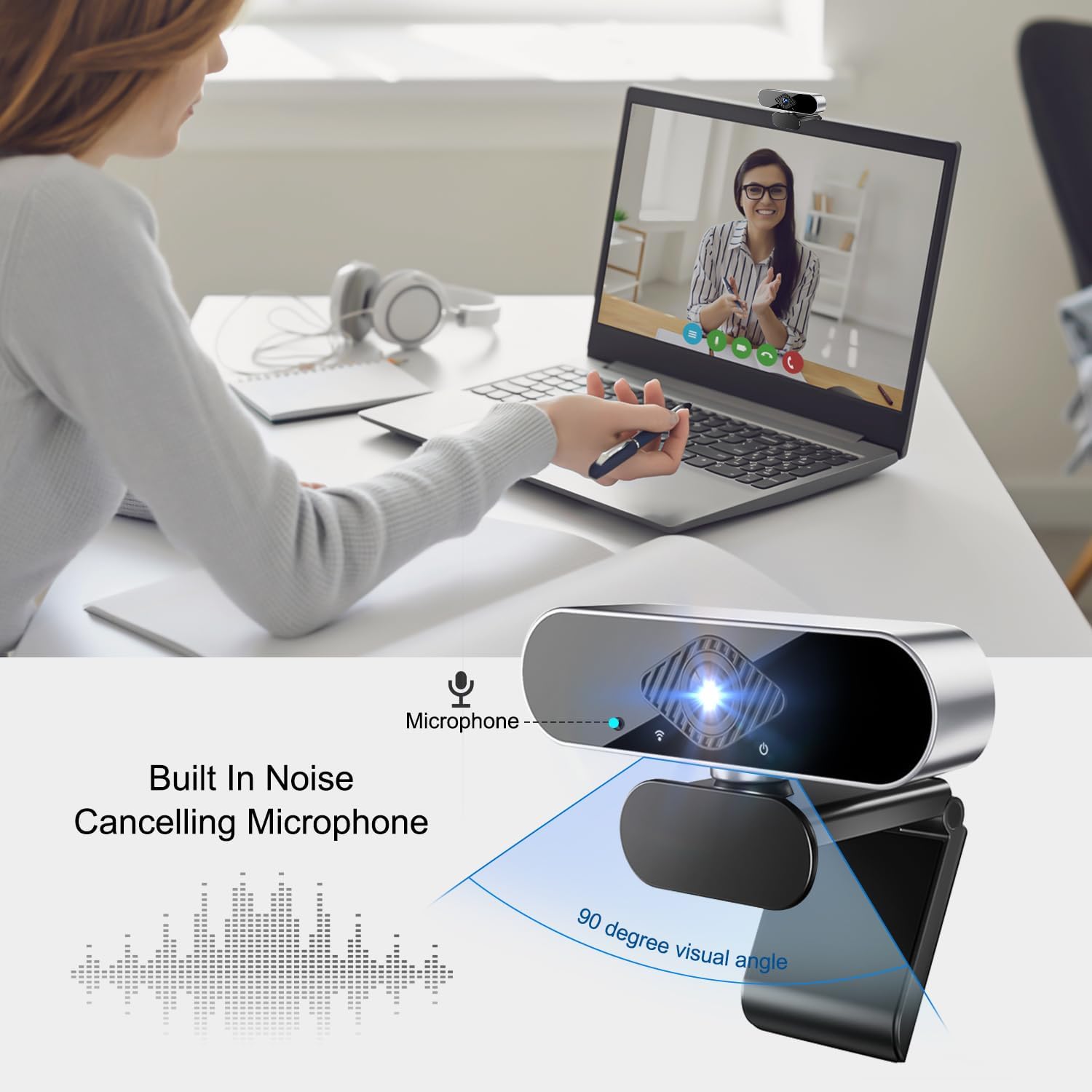
Image 6: Shows the DAILINK Q8 Webcam mounted on a laptop, with a visual representation of its built-in noise-canceling microphone and 90-degree visual angle.
4.2 Optimizing Video Resolution
To ensure the best image quality, verify and adjust the camera resolution settings on your computer or within your streaming software:
- Computer Camera Settings:
- Open your computer's camera application.
- Go to [Settings], then select Photo Settings, and then Photo Quality.
- Live Streaming Software Settings:
- Open the live streaming software you intend to use.
- Navigate to [Camera Settings] and select the resolution (e.g., 1920 x 1080).

Image 7: Compares 1080p and 720p video quality, highlighting the sharpness of Full HD. It also illustrates the webcam's automatic light correction feature, showing improved visibility in both bright and low-light conditions.
5. Compatibility
The DAILINK Q8 Webcam offers broad compatibility with various operating systems and applications:
- Operating Systems: Windows 2000, XP, XP2, Vista, Win7, Win8, Win10, Mac OS, Linux.
- Devices: PC, laptop, desktop computers, Android TV with a USB port.
- Applications: Compatible with major video conferencing and streaming platforms such as Skype, Zoom, Microsoft Teams, YouTube, OBS, and more.
6. Maintenance
To ensure the longevity and optimal performance of your DAILINK Q8 Webcam, follow these maintenance guidelines:
- Cleaning: Gently wipe the lens with a soft, lint-free cloth. Avoid using harsh chemicals or abrasive materials that could scratch the lens or housing.
- Storage: When not in use, store the webcam in a clean, dry place away from direct sunlight and extreme temperatures.
- Cable Care: Avoid bending or twisting the USB cable excessively to prevent internal damage.
- Environmental Conditions: The webcam is not waterproof. Avoid exposure to liquids and high humidity.
7. Troubleshooting
7.1 Common Issues and Solutions
- Webcam not detected:
- Ensure the USB cable is securely connected to both the webcam and your computer.
- Try connecting the webcam to a different USB port.
- Restart your computer.
- Verify that your operating system is up to date.
- No video or black screen:
- Check if the webcam is selected as the video source in your application's settings.
- Ensure no other application is currently using the webcam.
- Confirm that your computer's privacy settings allow applications to access the camera.
- Poor image quality:
- Clean the webcam lens gently with a soft cloth.
- Adjust the lighting in your environment. The webcam has automatic light correction, but sufficient ambient light improves performance.
- Verify that the resolution is set to 1920x1080 in your application's settings (refer to Section 4.2).
- No audio or poor audio quality:
- Ensure the webcam's microphone is selected as the audio input device in your application's settings.
- Check your computer's sound settings to ensure the microphone is enabled and not muted.
- Reduce background noise in your environment.
8. Specifications
| Feature | Detail |
|---|---|
| Brand | DAILINK |
| Model | Q8 |
| Color | Black |
| Video Resolution | 1080p (1920x1080) |
| Effective Fixed Resolution | 2 Megapixels |
| Sensor Technology | CMOS |
| Connectivity Technology | USB |
| Special Features | Compatible Windows/MacOS/Linux, Built-in Microphone, Full HD 1080p, Plug and Play, 360 Degree Rotation |
| Focus Type | Auto Focus |
| Dimensions (L x W x H) | 3 x 5 x 5 cm; 130 grams |
| Water Resistance Level | Not waterproof |
9. Warranty and Support
Information regarding specific warranty terms and conditions for the DAILINK Q8 Webcam is not available in this document. For warranty claims or technical support, please refer to the seller's return policy or contact the manufacturer directly through their official channels.
For general inquiries or further assistance, please visit the DAILINK official website or contact their customer service.
Ask a question about this manual
Ask about setup, troubleshooting, compatibility, parts, safety, or missing instructions. Manuals+ will review the question and use this page’s manual context to help answer it.