
1. Product Overview
The MAHVEC Android 15 Car Stereo is an advanced in-dash navigation and entertainment system designed specifically for Chevrolet Chevy Camaro models from 2008 to 2015. This unit features a 9-inch IPS touchscreen, powered by a Qualcomm Snapdragon 8-Core processor, offering seamless integration with your vehicle's dashboard and enhanced driving experience.
Key features include Wireless CarPlay and Android Auto, online OTA system upgrades, DSP Hi-Res Audio, GPS navigation, Wi-Fi 6 connectivity, Bluetooth 5.1, steering wheel controls, Mirror Link, split-screen functionality, dual USB input, subwoofer output, and an included AHD backup camera.

Image 1.1: Comparison of the car's dashboard before and after installing the MAHVEC Android 15 Car Stereo.
2. Setup and Installation
2.1 Compatibility Check
This car radio is compatible with Chevrolet Chevy Camaro models from 2008 to 2015. Before installation, verify your car's model year and dashboard shape. If uncertain, consult MAHVEC support with a photo of your dashboard for compatibility confirmation.
2.2 Package Contents
The package includes the main head unit, a plug-and-play wiring harness, GPS antenna, USB cables, RCA cables, radio adapter cable, rear camera input cable, an AHD backup camera, and installation tools. Refer to the 'Package and Size' diagram for a complete list of included accessories and their connections.

Image 2.1: Diagram illustrating the dimensions of the head unit and the various cables and accessories included in the package.
2.3 Installation Steps
- Remove Existing Unit: Carefully remove your vehicle's original radio and dashboard trim.
- Connect Wiring Harness: Connect the provided plug-and-play wiring harness to your vehicle's existing wiring. Ensure all connections are secure.
- Connect GPS Antenna: Attach the GPS antenna and route it to a location with a clear view of the sky, typically on the dashboard or under the windshield.
- Connect USB Cables: Connect the USB cables for external devices or media.
- Install AHD Backup Camera: Route the backup camera cable from the rear of the vehicle to the head unit. Connect the camera to the designated input.
- Mount the Head Unit: Secure the MAHVEC car stereo into the dashboard opening.
- Test Functionality: Before reassembling the dashboard, power on the unit and test all functions, including audio, touchscreen, GPS, and backup camera.
- Reassemble Dashboard: Once all functions are verified, reassemble the dashboard trim.
3. Operating Instructions
3.1 Power On/Off and Basic Navigation
The unit powers on automatically with the vehicle's ignition. Use the touchscreen for navigation through the Android 15 interface. The intuitive layout allows access to various applications and settings.
3.2 Wireless CarPlay & Android Auto
Connect your smartphone wirelessly to access CarPlay or Android Auto. This allows for voice-assist control, navigation, music streaming, and hands-free calls directly from the stereo's display.

Image 3.1: Wireless CarPlay and Android Auto functionality, including voice control commands.
3.3 GPS Navigation and Wi-Fi
Utilize online or offline GPS navigation for route guidance. The system supports Wi-Fi 6 (5/6GHz) for faster internet connectivity, enhancing map updates and online services.

Image 3.2: GPS navigation display and Wi-Fi 6 speed comparison.
3.4 Audio Features (DSP Hi-Res Audio, FM/RDS, Bluetooth 5.1)
Experience enhanced sound quality with DSP Hi-Res Audio, offering deeper bass and clear vocals. The integrated FM/RDS radio provides access to local stations. Bluetooth 5.1 enables hands-free calling and audio streaming from your mobile device.
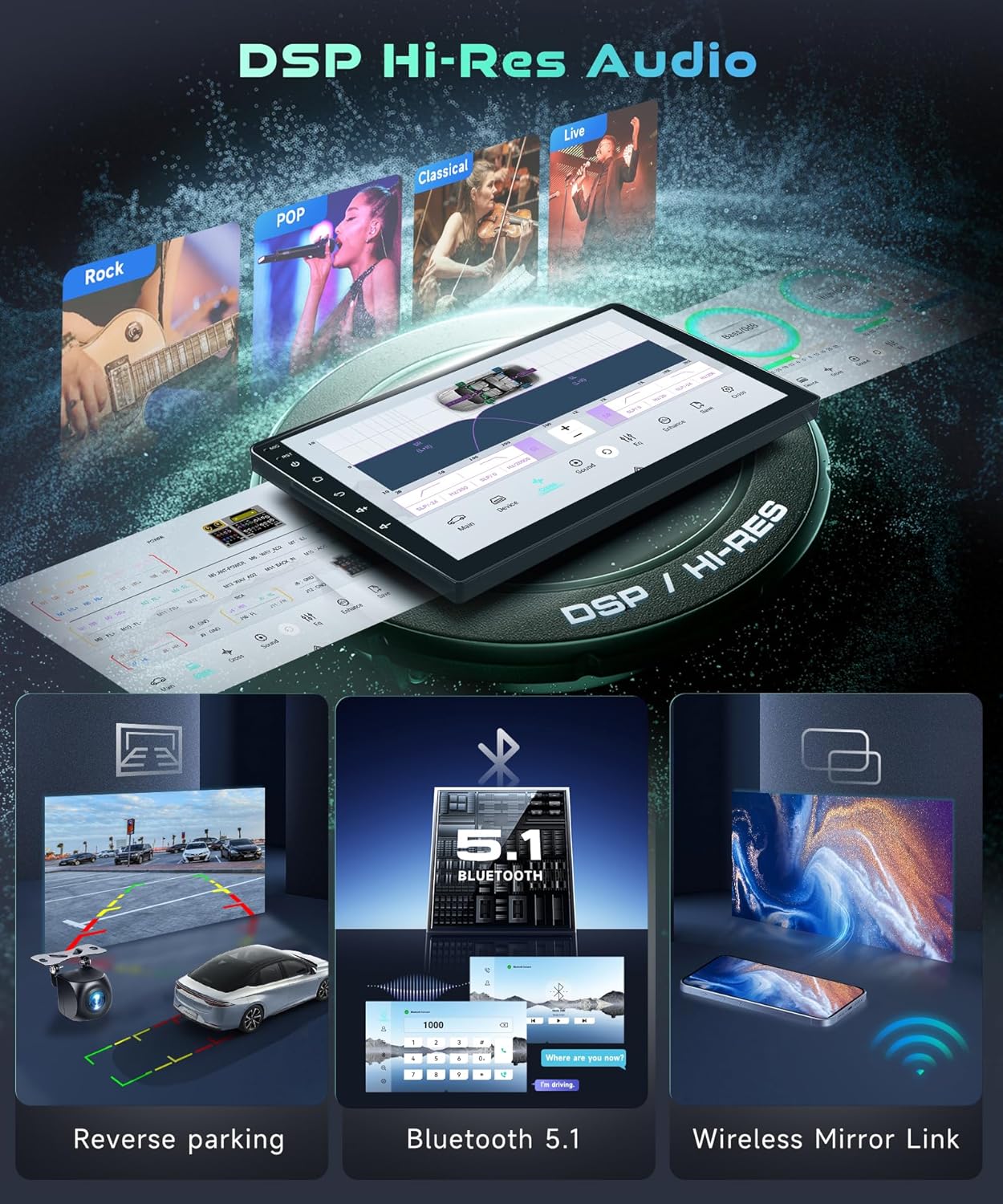
Image 3.3: Overview of DSP Hi-Res Audio, Bluetooth 5.1, and Wireless Mirror Link features.
3.5 3D Dynamic Car Effects and UI Customization
The system includes a 3D car model display, allowing users to customize body colors and rotate the model 360°. Advanced ShaderLab options enable customization of UI and font colors, and support switching between night and day modes for optimal visibility.
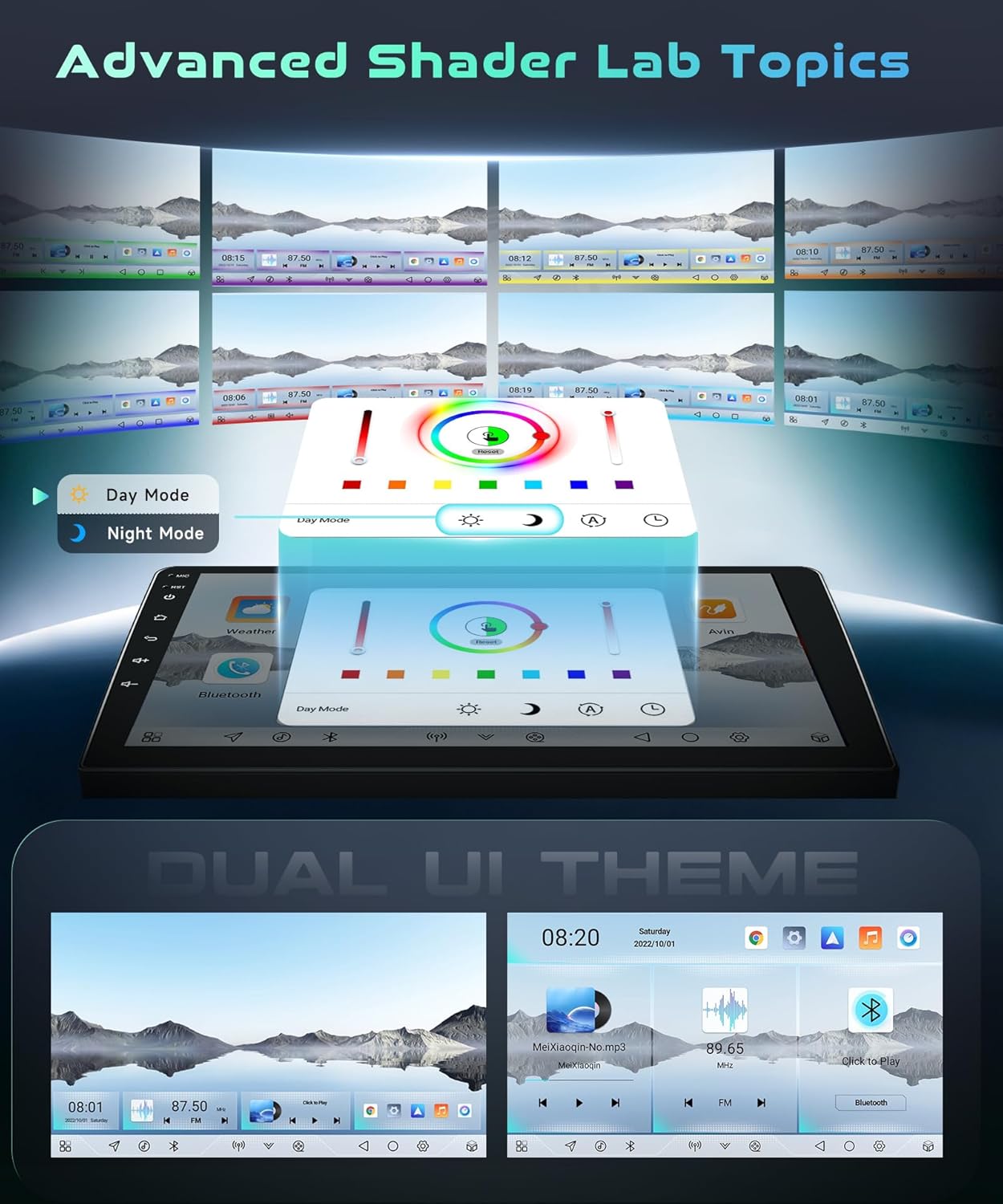
Image 3.4: Customization options for UI themes and day/night modes.
3.6 AHD Backup Camera
The included AHD backup camera automatically displays a clear, wide-angle view with reverse lines on the screen when the vehicle is in reverse gear, aiding in safe parking and maneuvering.
3.7 Steering Wheel Controls
The unit supports existing steering wheel controls for convenient operation of volume, track changes, and call management without taking your hands off the wheel.
4. Maintenance
4.1 Screen Cleaning
To clean the 9-inch IPS touchscreen, use a soft, lint-free cloth. For stubborn smudges, lightly dampen the cloth with water or a screen-safe cleaning solution. Avoid abrasive materials or harsh chemicals that could damage the screen.
4.2 Software Updates (OTA System)
The MAHVEC car stereo supports Online-Upgrade OTA (Over-The-Air) System updates. This allows for convenient software enhancements, new features, and security improvements without manual downloads. Ensure the unit is connected to Wi-Fi to receive these updates.
5. Troubleshooting
5.1 No Power
- Check all power connections to ensure they are securely plugged in.
- Verify the vehicle's fuse for the radio is intact.
- Ensure the vehicle's ignition is on.
5.2 No Sound
- Check the volume level on the unit and ensure it is not muted.
- Verify speaker connections are correct and secure.
- If using external amplifiers, check their power and connections.
5.3 GPS Not Working / Inaccurate
- Ensure the GPS antenna is properly connected and placed in a location with a clear view of the sky.
- Check GPS settings within the unit to ensure GPS is enabled.
- Update map data if necessary via Wi-Fi.
5.4 Wireless CarPlay/Android Auto Connectivity Issues
- Ensure Bluetooth and Wi-Fi are enabled on your smartphone and the car stereo.
- Forget the device from both your phone's Bluetooth settings and the car stereo's settings, then attempt to reconnect.
- Restart both your smartphone and the car stereo.
5.5 Backup Camera Not Displaying
- Verify the backup camera cable is securely connected to the correct input on the head unit.
- Ensure the camera is receiving power (often from the reverse light circuit).
- Check camera settings in the unit to ensure it is enabled.
6. Specifications
| Item Weight | 3.3 pounds |
| Package Dimensions | 12.99 x 10.63 x 7.09 inches |
| Display Size | 9 Inches |
| Model Name | MAHVEC Camaro |
| Vehicle Service Type | Car |
| Special Feature | 8 CORE, DSP Hi-Res Audio, Qualcomm Snapdragon Chip, Wireless CarPlay/Android Auto |
| Connectivity Technology | Bluetooth, USB, Wi-Fi |
| Map Type | Worldwide |
| Included Components | AHD Backup Camera |
| Audio Output Mode | Stereo |
| Mounting Type | Dashboard Mount |
7. Warranty Information
The MAHVEC Android 15 Car Stereo comes with a 2-year warranty from the date of purchase. This warranty covers manufacturing defects and malfunctions under normal use. Please retain your proof of purchase for warranty claims. For detailed warranty terms and conditions, refer to the documentation included with your product or contact MAHVEC customer support.
8. Support
For technical assistance, troubleshooting, or any product-related inquiries, please contact MAHVEC customer support. We offer 24-hour technical support to ensure your satisfaction.
8.1 How to Contact Support
- Visit the official MAHVEC website for contact information.
- Refer to the contact details provided in your product packaging.
- If purchased through Amazon, you can contact the seller (MAHVEC) directly through your order details or by visiting the MAHVEC storefront and using the "Ask a question" feature.

Image 8.1: Steps to contact MAHVEC technical support via Amazon.