
1. Introduction
This manual provides comprehensive instructions for the Denash X99D3M M ATX Motherboard. It is designed to assist users with the proper installation, configuration, and maintenance of the motherboard to ensure stable and efficient operation of your computer system. Please read this manual thoroughly before proceeding with installation.

Image 1.1: Overview of the Denash X99D3M M ATX Motherboard. This image displays the general layout of the motherboard, highlighting key components such as the CPU socket, RAM slots, and various expansion ports.
2. Product Features
- CPU Support: Designed for LGA 2011-3 sockets, supporting E5 V3/V4 and i7 58xx/68xx series CPUs.
- Memory: Features 4 x DDR4 DIMM slots, supporting up to 128GB of DDR4 2666, 2400, or 2133MHz memory.
- Storage: Equipped with 4 x SATA 2.0 ports and 1 x NVME M.2 interface (supporting NGFF and NVME protocols).
- Expansion: Includes 1 x PCIE x16 graphics card slot and 1 x PCIE X1 slot.
- Connectivity: Offers 4 x USB 2.0 and 4 x USB 3.0 ports, 1 x RJ45 network port, and PS/2 keyboard/mouse universal port.
- Durability: Constructed with metal and PCB materials, featuring all solid-state capacitors for stable performance and extended lifespan.
3. Package Contents
Verify that all items are present in the package:
- 1 x Denash X99D3M M ATX Motherboard
- 1 x Metal I/O Plate
- 1 x SATA Data Cable
4. Setup and Installation
Before beginning installation, ensure your workspace is clean, well-lit, and static-free. It is recommended to wear an anti-static wrist strap to prevent damage to components.
4.1. CPU Installation
- Locate the LGA 2011-3 CPU socket on the motherboard.
- Gently push down the load lever and pull it away from the socket to open the CPU retention frame.
- Carefully align the CPU with the socket, ensuring the gold triangle on the CPU matches the triangle on the socket. Do not force the CPU into place.
- Lower the CPU into the socket. Close the retention frame and secure it with the load lever.
- Apply thermal paste to the CPU and install the CPU cooler according to its manufacturer's instructions.

Image 4.1: Close-up of the LGA 2011-3 CPU socket. This image shows the socket where the processor is installed, emphasizing the retention mechanism.
4.2. Memory (RAM) Installation
- Open the clips at both ends of the DDR4 DIMM slots.
- Align the notch on the RAM module with the key in the DIMM slot.
- Press down firmly on both ends of the RAM module until the clips snap into place.

Image 4.2: View of the four DDR4 DIMM slots. This image illustrates the memory slots where RAM modules are to be installed.
4.3. Storage Device Installation (SATA & M.2)
- SATA Drives: Connect SATA data cables from your storage drives (HDDs/SSDs) to the SATA 2.0 ports on the motherboard. Connect SATA power cables from your power supply to the drives.
- M.2 NVME SSD: Locate the M.2 slot. Insert the M.2 SSD at a 30-degree angle, then gently push it down and secure it with the provided screw. Ensure the jumper switch for the M.2 interface is set correctly for Serial ATA or PCIE mode as required by your M.2 device.

Image 4.3: Close-up of the SATA 2.0 ports and M.2 NVME interface. This image details the connectivity options for storage devices.
4.4. Power Connections
- Connect the 24-pin ATX power connector from your power supply to the main power socket on the motherboard.
- Connect the 8-pin CPU power connector (EPS12V) from your power supply to the CPU power socket near the CPU.
4.5. Front Panel and I/O Connections
- Connect the front panel headers (power switch, reset switch, HDD LED, power LED) to their respective pins on the motherboard. Refer to the motherboard's silkscreen labels for correct orientation.
- Connect USB 2.0 and USB 3.0 front panel cables to the corresponding USB headers.
- Connect the audio front panel cable to the audio header.
- Install your graphics card into the PCIE x16 slot and secure it.
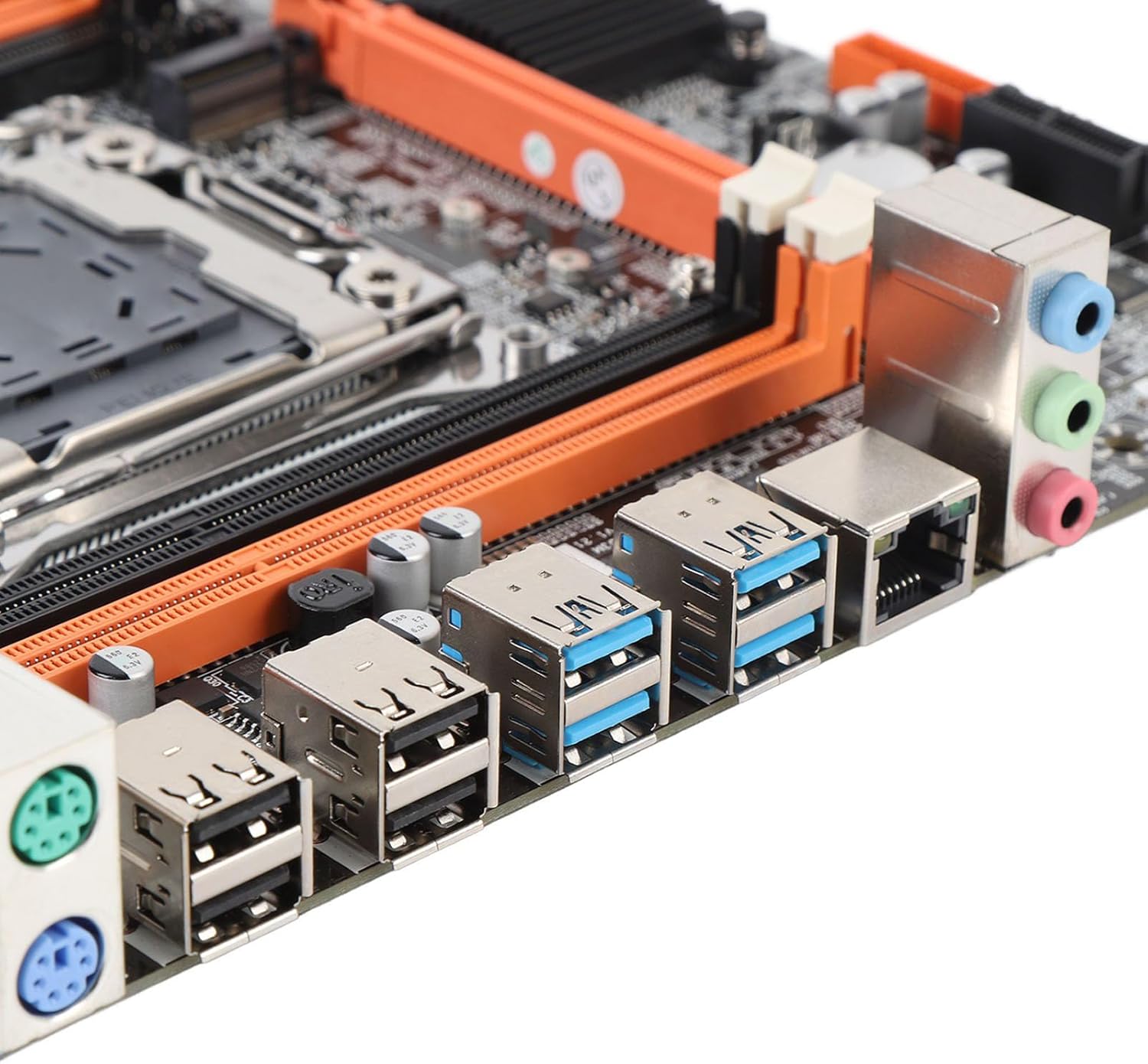
Image 4.4: Rear I/O ports including USB, LAN, and audio jacks. This image shows the external connectivity options available on the motherboard.
5. Operating Instructions
5.1. Initial Boot-up
- After completing all hardware installations, connect your monitor, keyboard, and mouse.
- Power on your system. The system should display the BIOS/UEFI splash screen.
- Press the designated key (usually DEL or F2) during boot to enter the BIOS/UEFI setup.
5.2. BIOS/UEFI Configuration
In the BIOS/UEFI, you can configure various system settings, including boot order, date/time, and hardware parameters. Ensure your boot device (e.g., SSD with OS) is prioritized in the boot sequence.
5.3. Driver Installation
After installing your operating system, install the necessary drivers for the motherboard chipset, network, audio, and any other integrated components. These drivers are typically provided on a CD/DVD or can be downloaded from the manufacturer's website.
6. Specifications
| Item Type | Motherboard |
| Motherboard Architecture | M ATX |
| Chipset | X99H |
| Supported CPU Types | for LGA 2011-3 (E5 V3/V4, i7 58xx/68xx) |
| Memory Type | DDR4 2666, 2400, 2133MHz |
| Memory Slots | 4 × DDR4 DIMM (Max 128GB) |
| Onboard Network Card | Yes |
| Graphics Card Standard | PCI Express 16X |
| USB Ports | 4 x USB 2.0, 4 x USB 3.0 |
| Serial ATA Ports | 4 x Serial ATA 2.0 |
| Built-in Battery | CR2032 x 1 (240mAh) |
| Expansion Slots | 1 x PCIE x16, 1 x PCIE X1, 1 x NVME M.2 Interface |
| I/O Ports | PS/2, 1 x RJ45, USB 2.0, USB 3.0, Audio |
| Product Dimensions | 10.24 x 7.87 x 1.97 inches |
| Item Weight | 1.46 pounds |
| Model Number | Denashckge97d20i |
7. Troubleshooting
- No Power: Ensure all power cables (24-pin ATX, 8-pin CPU) are securely connected to the motherboard and power supply. Verify the power supply switch is on.
- No Display: Check that the monitor is connected to the graphics card (not the motherboard's I/O if a dedicated GPU is installed). Reseat the graphics card and RAM modules.
- System Instability/Crashes: This can be caused by incompatible RAM, insufficient power, or overheating. Verify RAM compatibility and seating. Check CPU cooler installation and fan operation.
- Peripheral Not Detected: Ensure USB devices are properly connected. Try different USB ports. Check for necessary drivers.
- BIOS Reset: If system settings become unstable, you can clear the CMOS by removing the CR2032 battery for a few minutes or using the CMOS clear jumper (refer to motherboard diagram for location).
8. Maintenance
- Cleaning: Regularly clean dust from the motherboard and components using compressed air. Ensure the system is powered off and unplugged before cleaning.
- BIOS/UEFI Updates: Periodically check the manufacturer's website for BIOS/UEFI updates. Updates can improve stability, compatibility, and performance. Follow the update instructions carefully to avoid damaging the motherboard.
- Cable Management: Ensure cables are neatly routed to improve airflow and prevent interference.
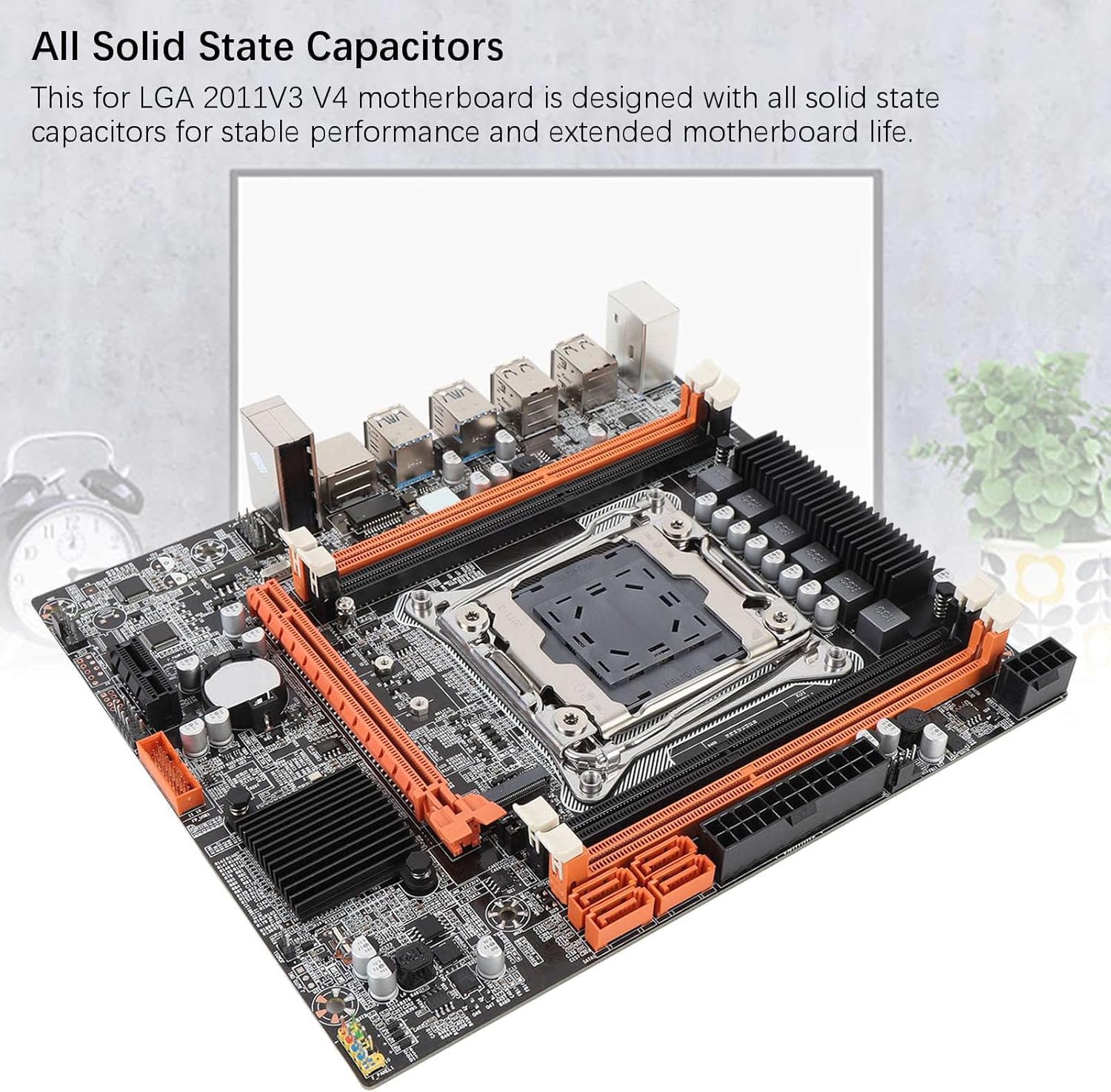
Image 8.1: Close-up of solid-state capacitors. These components contribute to the motherboard's stable performance and longevity.
9. Warranty and Support
For warranty information and technical support, please refer to the documentation provided with your purchase or visit the official Denash website. Keep your proof of purchase for warranty claims.