
1. Product Overview
The MAHVEC Car Stereo is an advanced infotainment system designed specifically for Toyota RAV4 models from 2007 to 2011. It features a Snapdragon 8-Core Processor, Android 13 operating system, and a 9-inch IPS touchscreen display, offering a modern upgrade to your vehicle's dashboard.
Key Features:
- Processor: Qualcomm Snapdragon 8-Core Processor
- Memory: 4GB RAM + 64GB ROM
- Operating System: Android 13
- Display: 9-inch 1280*720 IPS Touchscreen
- Connectivity: Wireless CarPlay & Android Auto, Bluetooth 5.1, WiFi 6, Dual USB
- Audio: DSP Hi-Res Audio, FM/RDS Radio, Subwoofer Output
- Navigation: Online/Offline GPS Navigation
- Additional Features: Steering Wheel Controls, Mirror Link, Split Screen, 3D Dynamic Car Effects, UI Customization, AHD Backup Camera included, OTA Updates.

Image: MAHVEC Car Stereo installed in a Toyota RAV4 dashboard, showcasing the 9-inch display with app icons.
2. Setup and Installation
2.1 Compatibility Check
This car stereo is compatible with Toyota RAV4 models from 2007 to 2011. Before installation, verify your car's model year and dashboard shape. The unit features a plug-and-play wiring harness for simplified installation. Refer to the image below for dashboard compatibility.

Image: Before and After Installation for Toyota RAV4 2007-2011, showing dashboard compatibility. Ensure your dashboard matches the 'Can be installed' configuration.
2.2 Package Contents
Verify that all components are present in the package:
- MAHVEC Car Stereo Unit
- Power Cable
- RCA Cable
- GPS Antenna
- USB Cables (Dual)
- Radio Adapter Cable
- Microphone (MIC)
- AHD Backup Camera
- Rear Camera Input Cable
- Installation Tool
- User Manual

Image: Diagram illustrating the dimensions of the MAHVEC car stereo unit and included accessories.
2.3 Wiring and Connections
The unit comes with a plug-and-play wiring harness. Connect the harness to your vehicle's existing wiring. Ensure all connections are secure.
- Power Cable: Connect to the vehicle's power supply.
- RCA Cables: For external audio/video input/output.
- GPS Antenna: Mount in a location with a clear view of the sky for optimal signal reception.
- USB Cables: Connect external USB devices.
- Radio Adapter Cable: For FM/AM radio reception.
- Microphone: For hands-free calling and voice commands.
- AHD Backup Camera: Connect the camera to the rear camera input cable. This typically requires running a wire to the rear of the vehicle and connecting to the reverse light trigger for automatic activation.

Image: Rear view of the MAHVEC car stereo unit showing various ports and connections, including GPS antenna and cooling fan.
3. Operating Instructions
3.1 Power On/Off and Basic Navigation
Press the power button to turn the unit on or off. The 9-inch IPS touchscreen allows for intuitive navigation through menus and applications. Swipe, tap, and pinch gestures are supported.
3.2 Wireless CarPlay & Android Auto
Connect your smartphone wirelessly to access CarPlay or Android Auto. This enables voice-assist control for navigation, music, calls, and messages. Ensure Bluetooth and Wi-Fi are enabled on your phone for connection.

Image: Wireless CarPlay and Android Auto interface with voice control options (Google Assistant, Siri).
3.3 GPS Navigation
Utilize the built-in GPS for online or offline navigation. Download offline maps for areas with limited network coverage. The system supports various navigation applications.

Image: Android 13 interface with GPS navigation and WiFi 6 speed comparison.
3.4 Bluetooth 5.1
Pair your phone via Bluetooth for hands-free calling and audio streaming. Access your phone's contacts and call history directly from the stereo.
3.5 DSP Hi-Res Audio
Adjust audio settings using the Digital Sound Processor (DSP) to customize sound output. This includes equalizer settings, balance, fader, and subwoofer controls for an optimized listening experience.
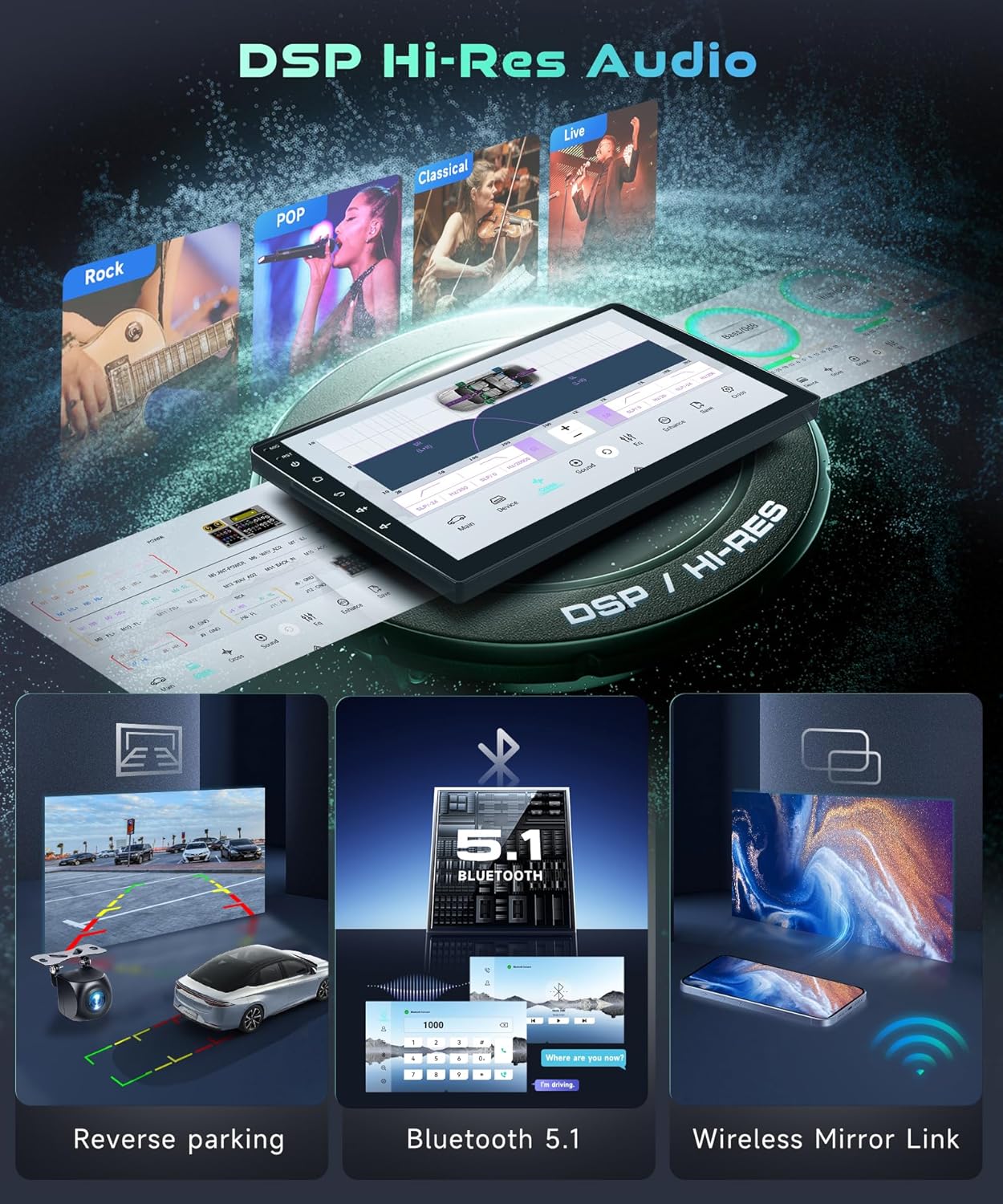
Image: MAHVEC car stereo's DSP audio settings interface with equalizer controls.
3.6 Other Functions
- FM/RDS Radio: Tune into local radio stations with RDS information display.
- Steering Wheel Controls (SWC): Configure the unit to work with your vehicle's existing steering wheel controls for safe operation.
- Mirror Link: Mirror your smartphone screen onto the stereo display.
- Split Screen: Run two applications simultaneously on the screen.
- 3D Dynamic Car Effects & UI Customization: Personalize the user interface with different themes, colors, and a 3D car model display. Switch between day and night modes for optimal visibility.
- AHD Backup Camera: The included camera provides a wide-angle, HD view with reverse lines when shifting into reverse.

Image: DSP Hi-Res Audio features, reverse parking camera view, Bluetooth 5.1, and wireless Mirror Link.

Image: Advanced Shader Lab Topics showing UI customization, day/night modes, and dual UI themes.

Image: AHD Backup Camera features including wide angle, HD image, reverse lines, and waterproof design.
4. Maintenance
4.1 Software Updates (OTA)
The unit supports Over-The-Air (OTA) updates. Regularly check for and install available updates to enhance performance, add new features, and ensure system security. Access the update feature through the system settings menu.
4.2 Cleaning
To clean the touchscreen, use a soft, lint-free cloth. For stubborn smudges, lightly dampen the cloth with water or a screen-safe cleaner. Avoid abrasive materials or harsh chemicals. Periodically clean the backup camera lens to ensure a clear view.
5. Troubleshooting
- No Sound or CarPlay/Android Auto Connection Issues: If the radio sound works but CarPlay/Android Auto does not connect, or the screen goes black, check for system updates. Updating the system often resolves such issues.
- Bluetooth Connection Interruption: If experiencing occasional confusion when switching between Bluetooth headphones and the car stereo, briefly toggling airplane mode on your phone can often resolve the issue. This is typically a phone behavior rather than a head unit problem.
- Backup Camera Display Issues: Ensure the backup camera is properly aligned. Incorrect alignment can lead to misleading on-screen guidelines. Regularly clean the camera lens, as external cameras can get dirty quickly.
- Loose Mounting/Rattling: If the head unit feels slightly loose or makes noise on bumpy roads, check the mounting points to ensure they are secure. A more robust mounting solution may be required if the issue persists.
6. Specifications
| Item Weight | 1.76 pounds |
| Package Dimensions | 11.02 x 6.18 x 3.82 inches |
| Display Size | 9 Inches |
| Screen Resolution | 1280*720 IPS |
| Processor | Qualcomm Snapdragon 8-Core |
| RAM | 4GB |
| ROM | 64GB |
| Operating System | Android 13 |
| Connectivity Technology | Bluetooth 5.1, USB, Wi-Fi 6 |
| Special Features | DSP Hi-Res Audio, Wireless CarPlay/Android Auto, AHD Backup Camera |
| Vehicle Service Type | Car (Toyota RAV4 2007-2011) |
| Mounting Type | Dashboard Mount |
7. Warranty and Support
7.1 Warranty Information
This MAHVEC Car Stereo comes with a 2-year warranty. Please retain your proof of purchase for warranty claims. Additionally, a 30-day free return and exchange policy is available.
7.2 Customer Support
For any questions regarding compatibility, installation, or operation, please contact MAHVEC customer service. We aim to provide a 24-hour customer service reply.
If you are uncertain about compatibility, you can send a dashboard photo to MAHVEC for a 24-hour compatibility check.
Visit the MAHVEC Store for more information and support resources.