
Introduction
This manual provides detailed instructions for the setup, operation, maintenance, and troubleshooting of your eufy Security eufyCam E40 Add-On Camera. The eufyCam E40 is an outdoor wireless solar security camera designed to provide 2K resolution surveillance with integrated solar charging capabilities and MaxColor Night Vision.
Important Note: The eufyCam E40 add-on camera requires a HomeBase S380 or HomeBase 2 (sold separately) for operation. It cannot function independently.
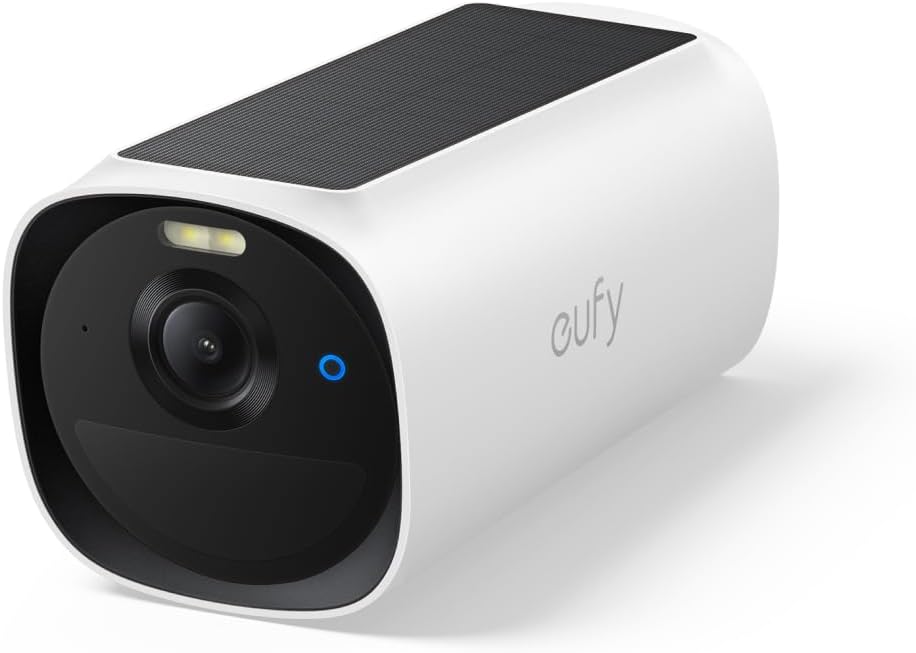
Image: Front view of the eufy Security eufyCam E40 Add-On Camera, showcasing its compact design and integrated solar panel.
Setup
What's in the Box
- 1x eufyCam E40 Camera
- 1x Wall Mount
- 1x Screw Pack
- Charging Cable
Prerequisites
- A functional eufy HomeBase S380 or HomeBase 2.
- A smartphone or tablet with the eufy Security app installed.
- A stable Wi-Fi connection.
Installation Steps
- Charge the Camera: Before initial use, fully charge the eufyCam E40 using the provided charging cable. Connect the cable to the camera's charging port and a standard USB power adapter (not included). The LED indicator will show charging status.
- Download the eufy Security App: Search for "eufy Security" in your device's app store (App Store for iOS, Google Play for Android) and install the application.
- Add Camera to App:
- Open the eufy Security app and log in or create an account.
- Tap the "+" icon to add a new device.
- Select "eufyCam E40" from the list of devices.
- Follow the on-screen instructions to pair the camera with your HomeBase. This typically involves pressing a sync button on the camera and HomeBase.
- Mount the Camera:
- Choose an outdoor location with optimal sunlight exposure for the integrated solar panel. Ensure the camera has a clear view of the area you wish to monitor.
- Use the provided wall mount and screw pack to securely attach the camera to a wall or other suitable surface.
- Adjust the camera angle to cover the desired surveillance area.
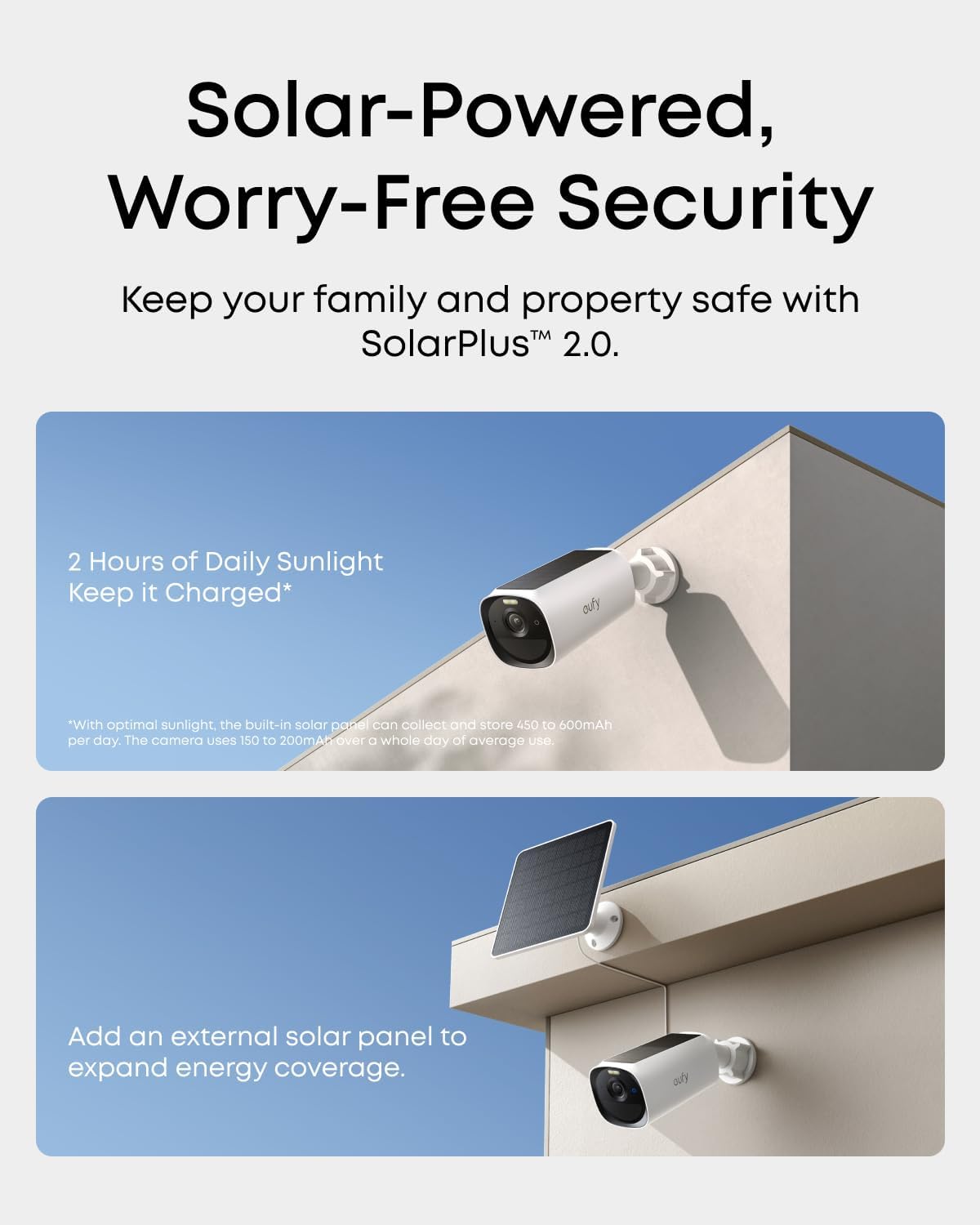
Image: An eufyCam E40 camera mounted on an exterior wall, demonstrating its solar panel for continuous charging.
Operating Instructions
eufy Security App Interface
The eufy Security app is your primary interface for managing the eufyCam E40. From the app, you can view live footage, access recorded events, adjust settings, and receive notifications.

Image: A smartphone displaying the eufy Security app's live view, showing a clear, full-color night vision feed from the eufyCam E40.
MaxColor Night Vision
The eufyCam E40 features 2K QHD resolution and MaxColor Vision, providing vivid, full-color surveillance footage even in ultra-low light conditions. This technology utilizes an f/1.0 lens and AI-powered image signal processing to deliver brighter and clearer night recordings.
SolarPlus 2.0 Technology
The integrated solar panel, powered by SolarPlus 2.0 technology, ensures continuous security by efficiently charging the camera's battery. With optimal sunlight, the camera can maintain its charge. It is designed to stay powered even on cloudy days or in partial shade. An external solar panel can be added for expanded energy coverage if needed.
Advanced PIR Motion Detection
The camera incorporates an upgraded Passive Infrared (PIR) sensor for reliable motion detection. You can configure motion detection sensitivity and set custom activity zones within the eufy Security app to focus on specific areas and reduce false alerts.
Smart Home Integration
The eufyCam E40 seamlessly integrates with popular smart home platforms, including Apple HomeKit, Amazon Alexa, and Google Assistant. This allows for hands-free control and convenient voice commands for your security system.

Image: A person interacting with a tablet displaying smart home controls, with logos for Apple Home, Hey Google, and Alexa, indicating compatibility.
Local Storage and No Monthly Fee
The eufyCam E40 utilizes your HomeBase for local storage, eliminating the need for monthly subscription fees for basic functionality. The HomeBase S380 offers 16 GB of built-in storage and is expandable up to 16 TB with a portable hard drive (not included), providing ample space for recorded videos.

Image: An illustration of the eufy HomeBase S380, highlighting its 16 GB built-in storage and up to 16 TB expandable storage capabilities.
Maintenance
Cleaning the Camera
To ensure optimal performance, periodically clean the camera lens and the solar panel. Use a soft, damp cloth to gently wipe away dust, dirt, or debris. Avoid using harsh chemicals or abrasive materials that could damage the surfaces.
Optimizing Solar Charging
For best solar charging results, ensure the camera's integrated solar panel receives at least 2 hours of direct daily sunlight. Keep the panel free from obstructions like leaves, snow, or excessive dirt. If the camera is in a shaded area, consider adding an external eufy solar panel for improved charging efficiency.
Firmware Updates
eufy regularly releases firmware updates to improve camera performance, add new features, and enhance security. Ensure your camera's firmware is up-to-date by checking for updates within the eufy Security app. Follow the app's instructions to perform any available updates.
Troubleshooting
- Camera Not Connecting to HomeBase:
- Ensure both the camera and HomeBase are powered on and within range of each other.
- Verify your HomeBase is connected to the internet.
- Try restarting both the camera and HomeBase.
- Attempt to re-add the camera through the eufy Security app's device pairing process.
- Poor Night Vision Clarity:
- Clean the camera lens to remove any smudges or dirt.
- Ensure there are no obstructions directly in front of the camera that could interfere with its night vision sensors.
- Check the camera's settings in the eufy Security app to ensure MaxColor Night Vision is enabled and configured correctly.
- Camera Not Charging via Solar Panel:
- Confirm the solar panel is receiving direct sunlight for at least 2 hours daily.
- Clean the solar panel surface to remove any dirt or debris.
- If the camera is in a consistently shaded area, consider relocating it or installing an external eufy solar panel.
- Frequent False Motion Alerts:
- Adjust the motion detection sensitivity settings in the eufy Security app.
- Define or refine activity zones to exclude areas with irrelevant motion (e.g., public sidewalks, moving tree branches).
- Ensure the camera is mounted securely to prevent movement from wind.
Specifications
| Model Name | T8144 |
| Indoor/Outdoor Usage | Outdoor |
| Power Source | Solar Powered (Built-in Rechargeable Battery) |
| Connectivity Protocol | Wi-Fi |
| Video Capture Resolution | 2K QHD |
| Viewing Angle | 130 Degrees |
| International Protection Rating | IP66 (Weatherproof) |
| Item Dimensions (L x W x H) | 5.24 x 2.64 x 2.68 inches |
| Item Weight | 1.58 pounds |
| Compatible Devices | Smartphone (Apple HomeKit, Amazon Alexa, Google Assistant) |

Image: The eufyCam E40 mounted on a wall during rainfall, illustrating its IP66 weatherproof rating.
Warranty and Support
Warranty Information
For detailed warranty information regarding your eufy Security eufyCam E40, please refer to the warranty card included in your product packaging. You can also find the most up-to-date warranty policy by visiting the official eufy Security website.
Customer Support
Should you encounter any issues or require technical assistance with your eufyCam E40, please visit the eufy support website at support.eufylife.com. You can also contact eufy customer service directly through the contact information provided on their website or within the eufy Security app.