
Introduction
This manual provides essential information for the setup, operation, and maintenance of your VINABTY replacement remote control. This remote is designed to function as a direct replacement for your original Philips Smart LED TV remote, requiring no programming.
Compatibility
This remote control is compatible with the following Philips Smart LED TV models:
- 398GM10BEPHND000CR
- 398GM10BEPHNE000CR
- 43PUS8389/12
- 48OLED759/12
- 43PUS8909/12
- 50PUS8909/12
It features a lightweight and ergonomic design, providing a comfortable grip and stable performance with a transmission distance of up to 10 meters.
Setup
Battery Installation
The remote control requires two AAA batteries (not included) for operation. Follow these steps to install the batteries:
- Locate the battery compartment cover on the back of the remote control.
- Slide the cover downwards or press the latch (if present) to open the compartment.
- Insert two AAA batteries, ensuring the positive (+) and negative (-) terminals align correctly with the markings inside the compartment.
- Replace the battery compartment cover by sliding it back into place until it clicks securely.

Image: Back of the remote control with the battery compartment open, illustrating where to insert two AAA batteries.
Once batteries are installed, the remote is ready for use with your compatible Philips Smart LED TV. No additional programming or pairing is required.
Operating Instructions
This section details the functions of the buttons on your VINABTY replacement remote control.
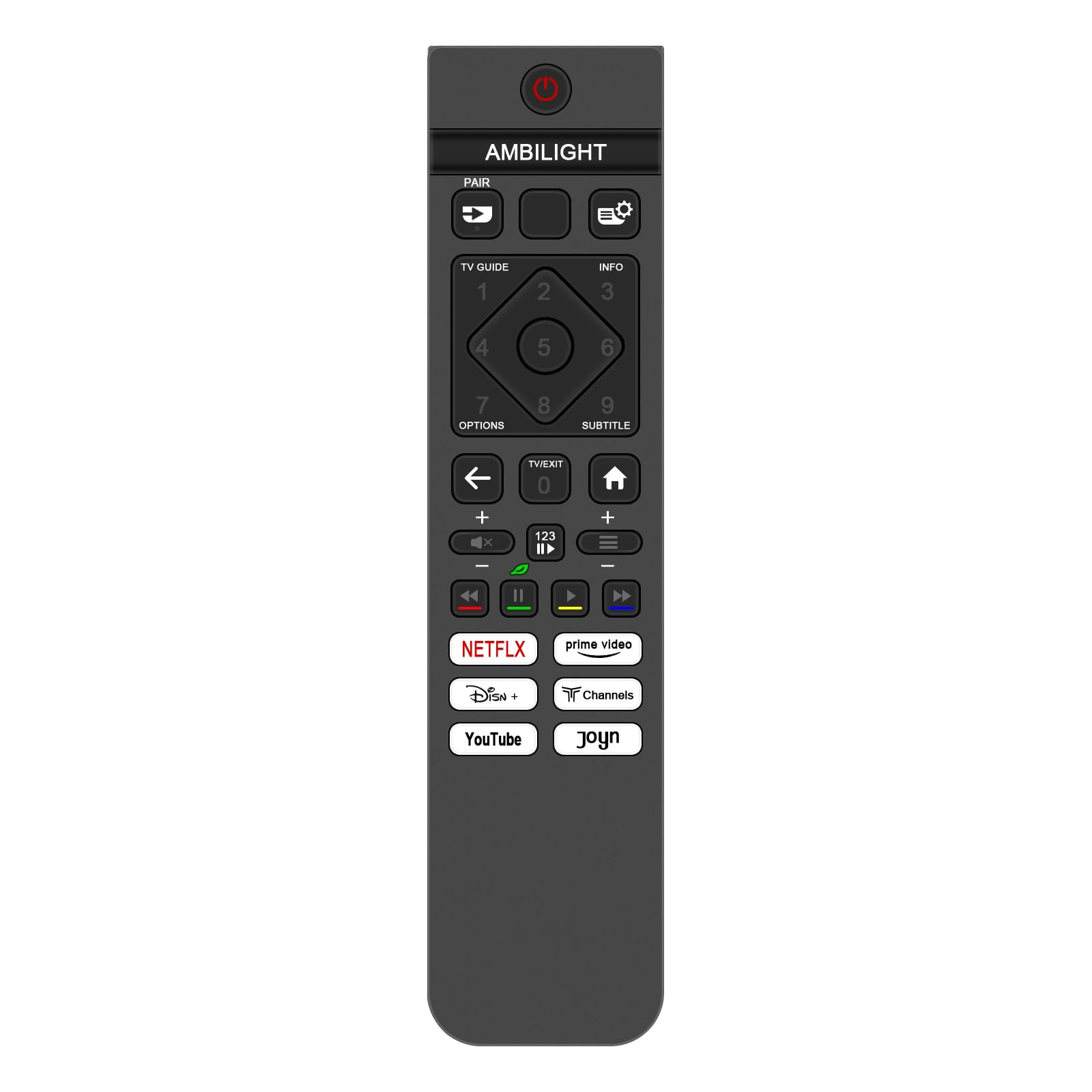
Image: Front view of the remote control, highlighting the layout and functions of various buttons.
- Power Button (●): Turns the TV on or off.
- Ambilight Button: Controls the Ambilight feature of your Philips TV.
- PAIR Button: Used for pairing the remote if required by specific TV models (though generally not needed for this replacement remote).
- TV GUIDE Button: Accesses the electronic program guide.
- INFO Button: Displays information about the current program or input.
- Settings/Gear Icon Button: Opens the TV's settings menu.
- Number Pad (0-9): Used for direct channel selection or inputting numbers.
- OPTIONS Button: Accesses contextual options or menus.
- SUBTITLE Button: Toggles subtitles on or off.
- Navigation Pad (Up, Down, Left, Right, OK): Navigates through menus and selects items.
- Back Arrow Button: Returns to the previous screen or menu.
- TV/EXIT Button: Switches to TV mode or exits the current menu/app.
- Home Button: Returns to the TV's home screen or smart hub.
- Volume Up/Down (+/-): Adjusts the TV volume.
- Mute Button (X icon): Mutes or unmutes the TV audio.
- Channel Up/Down (P+/-): Changes TV channels.
- Media Control Buttons (Rewind, Play/Pause, Fast Forward, Stop): Controls media playback.
- Netflix Button: Direct access to the Netflix application.
- Prime Video Button: Direct access to the Prime Video application.
- Disney+ Button: Direct access to the Disney+ application.
- Channels Button: Direct access to the Channels application.
- YouTube Button: Direct access to the YouTube application.
- Joyn Button: Direct access to the Joyn application.
Point the remote control directly at the TV's infrared receiver for optimal performance. Ensure there are no obstructions between the remote and the TV.
Maintenance
Proper care and maintenance will extend the life of your remote control.
- Cleaning: Use a soft, dry cloth to clean the remote control. For stubborn dirt, slightly dampen the cloth with water or a mild cleaning solution, then wipe dry immediately. Do not use abrasive cleaners or solvents.
- Battery Replacement: Replace batteries when the remote's response becomes sluggish or stops working. Always replace both batteries at the same time with new ones of the same type (AAA).
- Storage: Store the remote control in a cool, dry place away from direct sunlight and extreme temperatures. If the remote will not be used for an extended period, remove the batteries to prevent leakage.
- Avoid Drops and Impacts: Protect the remote from physical damage by avoiding drops and impacts.
Troubleshooting
If you encounter issues with your remote control, refer to the following common solutions:
| Problem | Solution |
|---|---|
| Remote is not responding. |
|
| Buttons are not working or are sticky. |
|
| Remote range is reduced. |
|
If the problem persists after trying these solutions, please contact customer support.
Specifications
| Feature | Detail |
|---|---|
| Brand | VINABTY |
| Model Number | 398GM10BEPHND000CR |
| Compatible Devices | Philips Smart LED TVs (Specific models listed in Introduction) |
| Connectivity Technology | Infrared (IR) |
| Controller Type | Push Button Control |
| Maximum Range | 10 Meters |
| Power Source | 2 x AAA Batteries (not included) |
| Dimensions | 12 x 6 x 1 cm (approximately 4.72 x 2.36 x 0.39 inches) |
| Weight | 80 g (approximately 2.82 ounces) |
| Color | Black |
| Special Feature | Ergonomic Design |

Image: Remote control dimensions, showing a length of 19.2 cm (7.56 in) and a width of 4.5 cm (1.77 in).
Support
For further assistance or inquiries, please refer to the seller's contact information provided at the point of purchase. If there is an issue with the product or service, contact the seller for a satisfactory response within 24 hours.