
We Technology R03YDFP
We Technology Smart Gate Lock R03YDFP User Manual
Model: R03YDFP
1. Introduction
This manual provides comprehensive instructions for the installation, operation, and maintenance of your We Technology Smart Gate Lock R03YDFP. This 5-in-1 keyless entry system offers multiple access methods including fingerprint, PIN, IC card, Tuya smart app, and mechanical key. Designed for outdoor use, it features a waterproof, heavy-duty build suitable for various gate types.
2. Safety Information
- Read all instructions carefully before installation and use.
- Do not attempt to disassemble or repair the lock yourself. Contact qualified personnel for service.
- Use only specified batteries (4 AA batteries). Do not mix old and new batteries or different types of batteries.
- Keep mechanical keys in a secure location away from the lock.
- Ensure the gate structure is sturdy enough to support the lock's weight and operation.
- Protect the lock from extreme temperatures and direct prolonged exposure to harsh weather conditions beyond its waterproof rating.
3. Package Contents
Verify that all components are present before beginning installation:
- 1 x Smart Gate Lock (Front Panel and Rear Lock Body)
- 1 x User Manual (this document)
- 2 x IC Cards
- 2 x Mechanical Keys
- Installation Hardware (screws, mounting plates, cylinder)
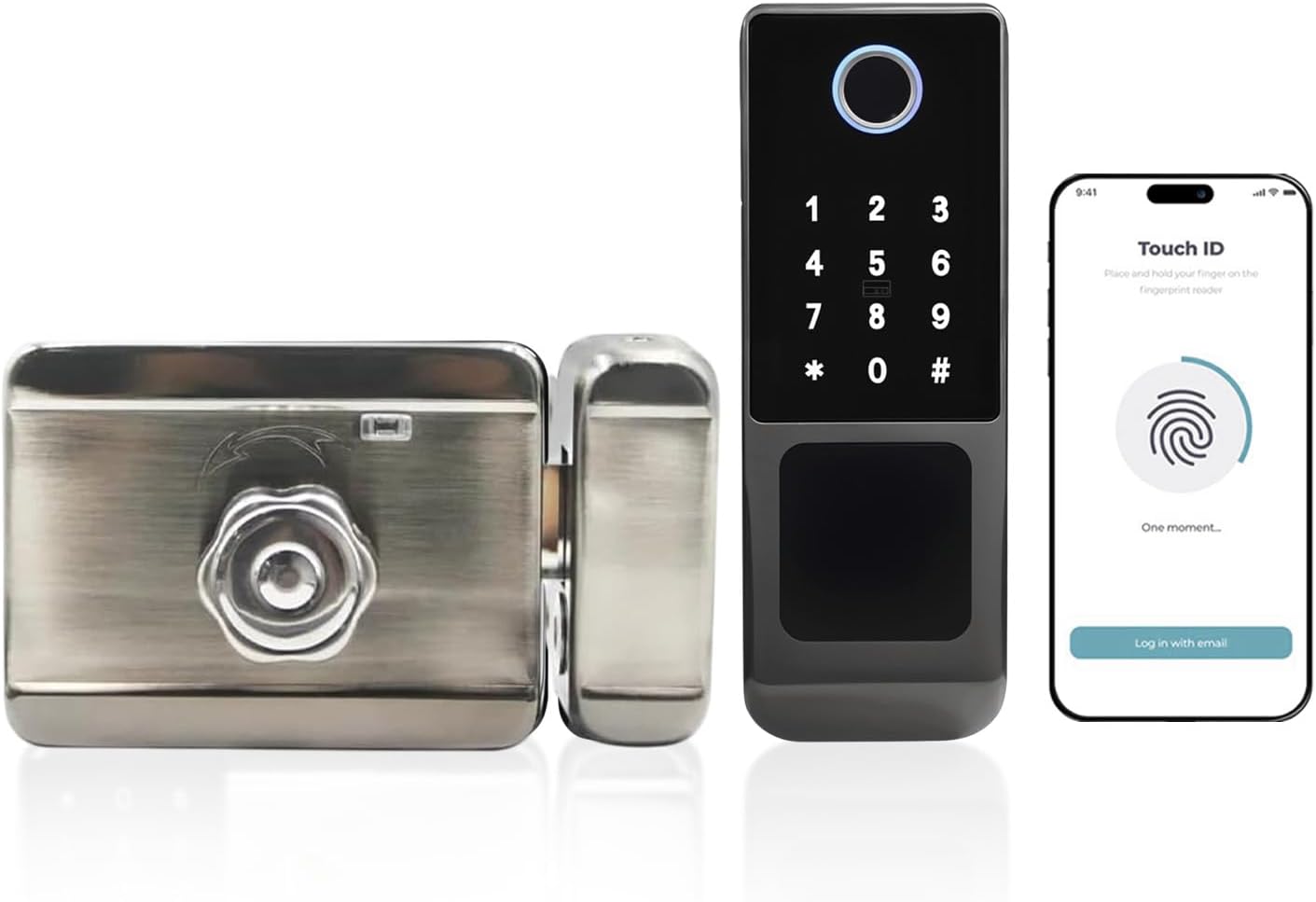
Image: Overview of the We Technology Smart Gate Lock components, showing the front keypad panel, the rear lock mechanism, two IC cards, and two mechanical keys.
4. Product Overview and Dimensions
Familiarize yourself with the lock's components and ensure compatibility with your gate dimensions.
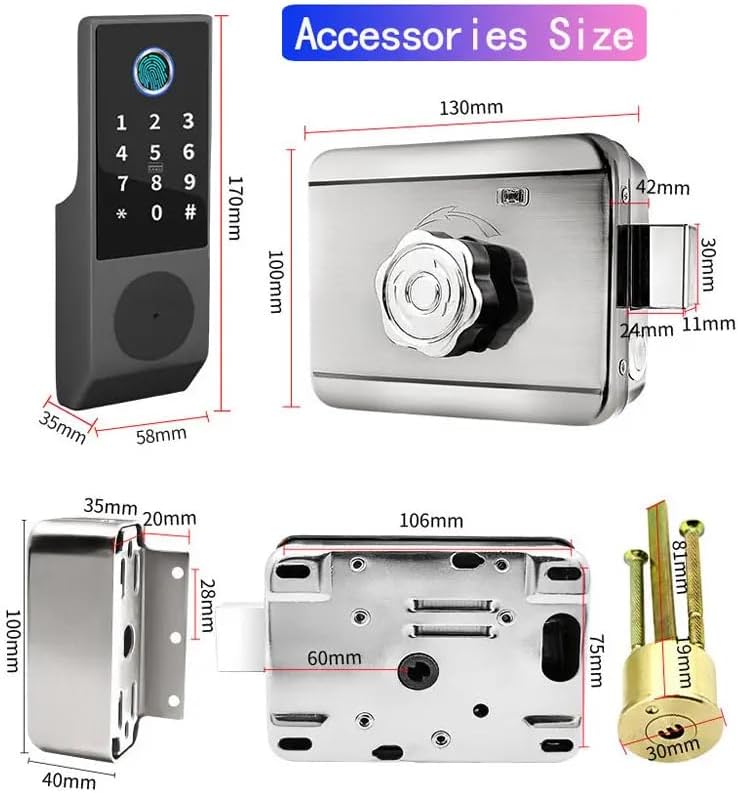
Image: Technical drawing displaying the dimensions of the smart lock's front panel, rear lock body, and mounting accessories in millimeters.
The lock is designed for gates with a thickness between 35mm and 55mm. Refer to the detailed dimension diagram for precise measurements of each component.
5. Setup and Installation
5.1 Pre-Installation Checks
- Confirm your gate thickness is within the 35-55mm range.
- Ensure the gate frame is stable and can support the lock's weight.
- Gather necessary tools: screwdriver, drill (if needed for new holes), measuring tape.
5.2 Physical Installation
- Prepare the Gate: If replacing an existing lock, remove it. For new installations, mark and drill holes according to the provided template (if applicable). The lock is designed for DIY installation without extensive drilling for standard setups.
- Install the Lock Cylinder: Insert the lock cylinder into the designated hole.
- Mount the Front Panel: Position the front keypad panel on the exterior side of the gate.
- Mount the Rear Lock Body: Attach the rear lock body to the interior side of the gate, aligning it with the front panel and cylinder. Secure with screws.
- Connect Wiring: Carefully connect the wiring between the front panel and the rear lock body.
- Install Batteries: Open the battery compartment on the rear lock body and insert 4 AA batteries, ensuring correct polarity.
- Test Operation: After installation, manually test the lock and unlock mechanism using the mechanical key and the interior knob.

Image: Installation diagram illustrating the steps to mount the smart lock, including drilling positions and component attachment.
6. Operating Instructions
6.1 Initial Setup and Admin User Creation
Upon first use, it is crucial to create an Administrator user. Until an Admin is set, the lock may operate in a test mode where any input could unlock it.
- Enter Command Mode: Press *# on the keypad.
- Log In (Default Admin): Enter the default administrator password (usually 123456) followed by #. The lock will provide voice prompts.
- Enter Admin Command Section: Press 1.
- Add Admin: Press 1 again to add a new administrator.
- Register Fingerprint: Place your finger on the fingerprint sensor four times, lifting between each scan, until confirmed by a voice prompt.
- Set New Admin Password: Enter your desired new administrator password (6-8 digits) followed by #. Repeat to confirm.
- Register IC Card (Optional): Hold an IC card against the designated sensor until confirmed.
- Exit Admin Mode: Wait for approximately one minute for the system to automatically exit admin mode, or press * repeatedly until the menu exits.
Once a new administrator is set, the default password (123456) will no longer function, and only registered methods will unlock the gate.
6.2 Adding and Managing Users
Users can be added via fingerprint, PIN, or IC card. All user management is performed through the administrator menu or the Tuya Smart app.
- To Add a User (Keypad):
- Press *#, then enter Admin Password #.
- Press 2 to enter the User Command section.
- Follow voice prompts to add a fingerprint, PIN, or IC card.
- To Delete a User (Keypad):
- Press *#, then enter Admin Password #.
- Press 3 to enter the Delete User section.
- Follow voice prompts to delete by user ID, fingerprint, PIN, or IC card.

Image: Visual representation of the five access methods: mobile app, fingerprint, numeric password, IC card, and mechanical key.
6.3 Tuya Smart App Integration
The lock connects via 2.4GHz Wi-Fi and Bluetooth for remote management through the Tuya Smart app.
- Download App: Download the "Tuya Smart" app from your device's app store (iOS or Android).
- Register/Log In: Create an account or log in to your existing Tuya Smart account.
- Add Device: Follow the in-app instructions to add your smart gate lock. This typically involves putting the lock into pairing mode (refer to the lock's voice prompts or specific app instructions for pairing).
- Remote Management: Once connected, you can remotely unlock the gate, generate temporary PINs, view access logs, and manage users from anywhere with an internet connection.

Image: A mobile phone displaying the Tuya Smart app interface, showing options to unlock the gate and manage settings.

Image: A delivery person receiving a one-time access code on their phone, generated via the Tuya app, to open the smart gate lock.
6.4 Unlock Methods
- Fingerprint: Place a registered finger on the sensor. The lock will unlock in approximately 0.3 seconds.
- PIN Code: Enter your registered PIN code followed by #. The keypad supports anti-peeping functionality, allowing you to enter random digits before or after your actual PIN.
- IC Card: Present a registered IC card to the card reader area.
- Mechanical Key: Insert the mechanical key into the keyhole and turn to unlock. This is for emergency access or when batteries are depleted.
- Tuya App: Use the unlock function within the Tuya Smart app.

Image: A user entering a password on the smart lock keypad, with an illustration of the anti-peeping password feature.

Image: A person using the fingerprint sensor on the smart lock, highlighting the 0.3-second biometric identification speed.

Image: A person using a traditional mechanical key to unlock the smart gate lock, showing the keyhole location.

Image: A person holding an IC card near the smart lock to gain entry.
6.5 Auto-Lock Feature
The lock is equipped with an auto-lock function that engages automatically when the gate is closed. If the gate is unlocked but not opened within a short period, it will also re-lock automatically.

Image: Diagram illustrating the automatic locking mechanism of the gate lock.
7. Maintenance
- Battery Replacement: Replace all 4 AA batteries when the low battery warning is indicated. Do not wait for complete battery depletion to avoid being locked out.
- Cleaning: Wipe the lock's exterior with a soft, damp cloth. Avoid abrasive cleaners or solvents that could damage the finish or electronic components.
- Weather Protection: While the lock is weatherproof, regular inspection for any signs of wear or damage from prolonged exposure to harsh elements is recommended. Ensure all seals are intact.
- Mechanical Key: Periodically check the mechanical keyhole for obstructions and ensure smooth operation.
8. Troubleshooting
- Lock Not Responding:
- Check battery level. Replace batteries if low.
- Ensure the keypad is clean and free from debris.
- If completely unresponsive, use the mechanical key for access.
- Fingerprint Not Recognized:
- Ensure your finger is clean and dry.
- Try different angles or re-register your fingerprint if issues persist.
- Ensure you are using a registered fingerprint.
- PIN Code Not Working:
- Verify the PIN code is correct.
- Ensure you are pressing # after entering the PIN.
- If using anti-peeping, ensure the correct PIN is embedded within the random digits.
- Tuya App Connectivity Issues:
- Ensure your Wi-Fi network is 2.4GHz.
- Check if the lock is within range of your Wi-Fi router.
- Restart the lock (remove and reinsert batteries) and attempt to re-pair with the app.
- Verify your phone's Bluetooth is enabled during pairing.
- Difficulty with Installation:
- Double-check all measurements and ensure proper alignment of components.
- Ensure the gate thickness is compatible.
- Refer to the installation diagram carefully. If issues persist, consider professional installation.
9. Specifications
| Brand | We Technology |
| Model Name | R03YDFP Smart Waterproof Door Lock |
| Lock Type | Biometric, Keypad, Rim Lock |
| Material | Aluminum |
| Color | Black |
| Item Dimensions (L x W x H) | 6.6 x 6.5 x 2.5 inches (16.76 x 16.51 x 6.35 cm) |
| Item Weight | 1.44 ounces (approx. 40.8 grams) |
| Power Source | 4 x AA Batteries (not included) |
| Connectivity | Bluetooth, Wi-Fi (2.4GHz) |
| Control Method | App, Remote, Touch |
| Special Features | Alarm, Anti-Peeping Password, Auto-Lock, One-Touch Lock, Weather Resistant |
| Compatible Gate Thickness | 35-55mm |
| Included Components | User Manual, 2 IC Cards, 2 Lock Sides, 2 Mechanical Keys |
10. Warranty and Support
For warranty information, technical support, or assistance with your We Technology Smart Gate Lock R03YDFP, please refer to the contact information provided with your purchase documentation or visit the official We Technology website. Ensure you have your product model number (R03YDFP) and purchase details available when contacting support.
Ask a question about this manual
Ask about setup, troubleshooting, compatibility, parts, safety, or missing instructions. Manuals+ will review the question and use this page’s manual context to help answer it.