
1. Introduction
This manual provides essential information for the safe operation, setup, and maintenance of your JELDROP Y3 MAX Advanced Brushless Motor Drone. Please read this manual thoroughly before operating the drone to ensure proper function and to prevent damage or injury.
2. Safety Guidelines
Operating a drone requires responsibility. Adhere to the following safety guidelines:
- Pre-Flight Check: Always inspect the drone, remote controller, and batteries for any damage before each flight.
- Environmental Conditions: Do not fly in strong winds, rain, snow, or fog. Maintain visual line of sight with the drone at all times.
- Flight Area: Operate in open areas, away from people, animals, buildings, and power lines. Avoid flying over private property without permission.
- Battery Safety: Use only approved chargers and batteries. Do not overcharge or puncture batteries. Discontinue use if batteries are swollen or damaged.
- Propeller Safety: Keep hands, face, and loose clothing away from rotating propellers. Ensure propellers are securely attached before flight.
- Respect Local Regulations: Be aware of and comply with all local laws and regulations regarding drone operation.
3. Package Contents
Verify that all items are present in your package:
- JELDROP Y3 MAX Drone
- Remote Controller
- Rechargeable Drone Batteries (Quantity may vary)
- Spare Propellers
- Propeller Guards
- USB Charging Cables
- Storage Case
- User Manual (this document)

Image 3.1: Overview of the JELDROP Y3 MAX Drone and its included accessories, such as the remote controller, two batteries, spare propellers, propeller guards, charging cables, and a carrying case.
4. Component Identification
4.1 Drone Components
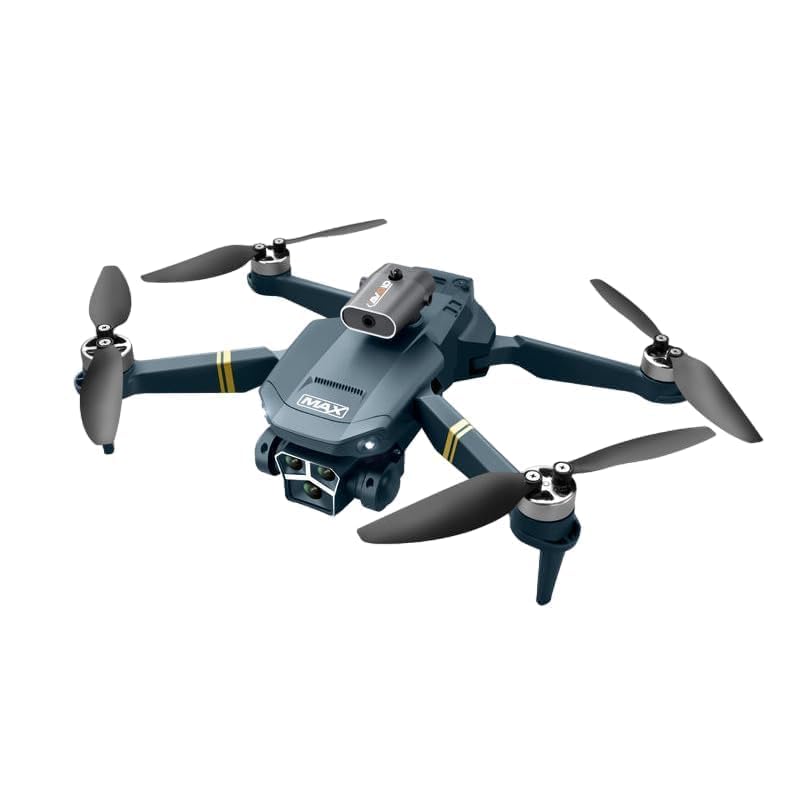
Image 4.1: The JELDROP Y3 MAX drone in its unfolded state, highlighting the four propellers, brushless motors, the main 4K camera, and the front-facing obstacle avoidance sensors.
- Propellers: Four rotating blades for lift and propulsion.
- Brushless Motors: Provide efficient and powerful flight.
- 4K UHD Camera: Front-mounted camera for high-resolution photo and video capture.
- Obstacle Avoidance Sensors: Detect obstacles in multiple directions.
- Battery Compartment: Houses the modular flight battery.
- LED Indicators: Provide status information during flight and charging.
4.2 Remote Controller Components
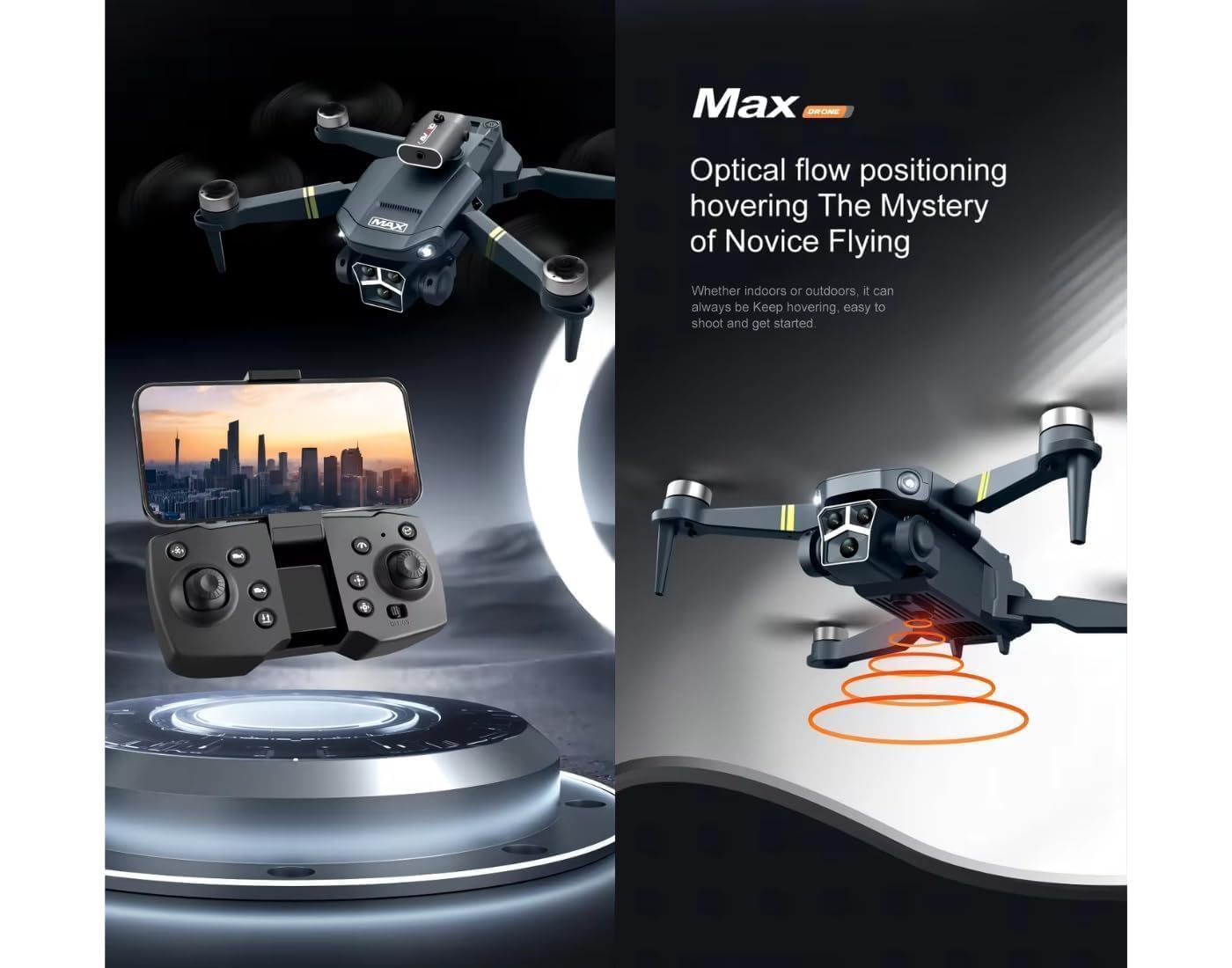
Image 4.2: The remote controller for the JELDROP Y3 MAX drone, featuring a smartphone holder and various control buttons labeled for functions such as one-click obstacle avoidance, lens control, throttle, one-click takeoff/landing, 360-degree rolling, headless mode, power switch, and fine adjustment buttons.
- Left Joystick (Throttle/Yaw): Controls altitude and rotation.
- Right Joystick (Pitch/Roll): Controls forward/backward and left/right movement.
- Smartphone Holder: Secures your mobile device for FPV viewing.
- One-Click Takeoff/Landing Button: Initiates automatic takeoff or landing.
- Obstacle Avoidance Key: Activates or deactivates smart obstacle avoidance.
- Lens Up/Down: Adjusts camera angle.
- 360° Rolling: Executes a 360-degree flip.
- Headless Mode: Simplifies flight orientation.
- Power Switch: Turns the controller on/off.
- Fine Adjustment Buttons: For minor trim adjustments during flight.
5. Setup
5.1 Charging Batteries
- Connect the drone battery to the USB charging cable.
- Plug the USB cable into a suitable USB power adapter (not included).
- The indicator light on the battery will show charging status (e.g., red for charging, green for fully charged).
- Ensure both drone and remote controller batteries are fully charged before flight.
5.2 Installing Drone Battery
- Ensure the drone is powered off.
- Insert the fully charged modular battery into the battery compartment on the drone until it clicks securely into place.
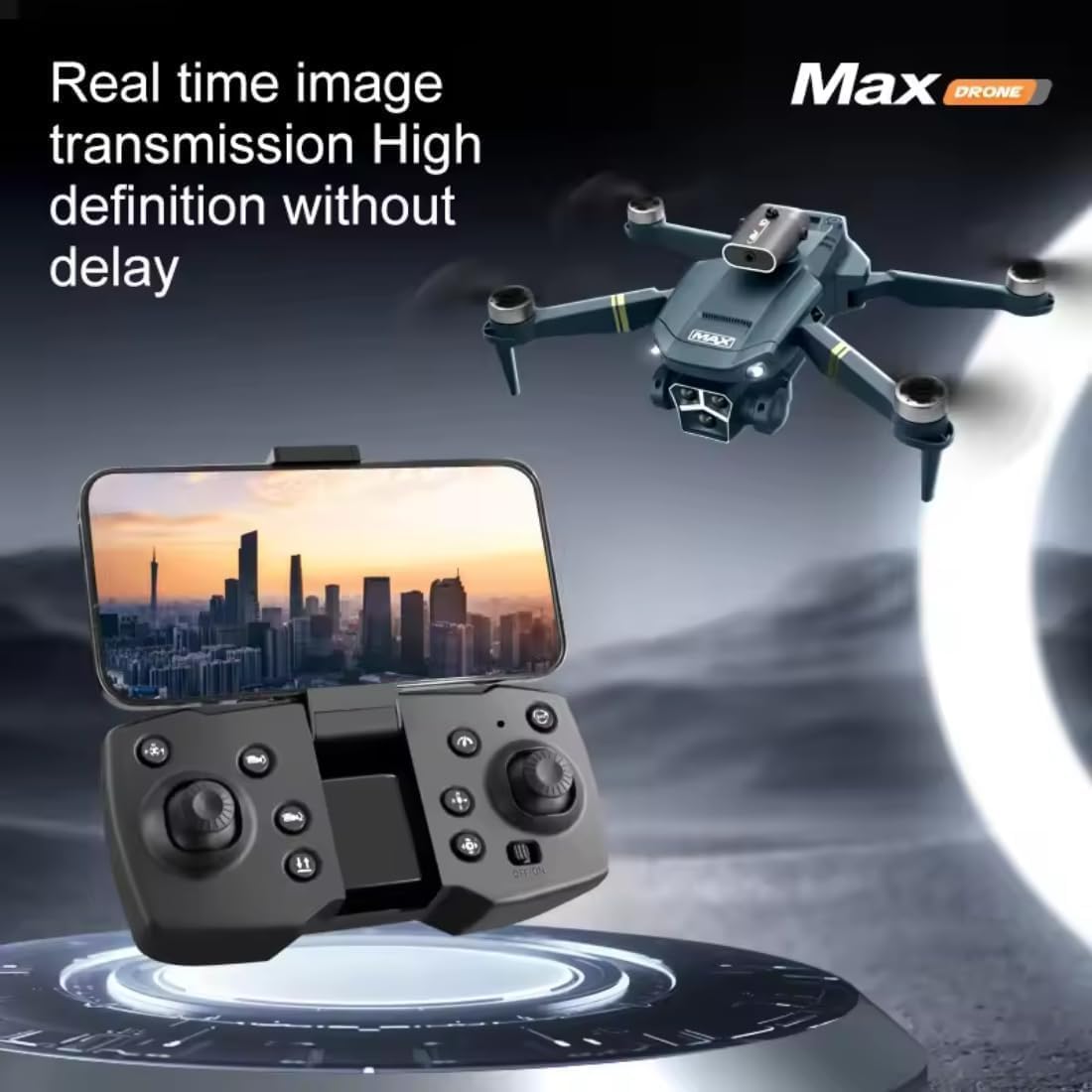
Image 5.1: A visual representation of the modular drone battery, emphasizing its durable and long-lasting design, and how it is inserted into the drone for power.
5.3 Attaching Propellers and Guards
- Unfold the drone arms.
- Match the propellers to the correct motor shafts (usually indicated by markings like A and B).
- Press down firmly to secure the propellers.
- Attach the propeller guards by snapping them onto the drone arms for added protection.
5.4 Remote Controller Setup
- Install required batteries (if not rechargeable) into the remote controller.
- Extend the smartphone holder and place your mobile device securely.
5.5 App Installation
- Scan the QR code in the quick start guide or search for the official JELDROP drone app in your device's app store.
- Install the app on your smartphone.
- Ensure your phone's Wi-Fi is enabled.
6. Operating Instructions
6.1 Power On and Pairing
- Power on the drone by pressing and holding the power button.
- Power on the remote controller.
- The drone and controller will automatically attempt to pair. Wait for indicator lights to confirm successful pairing.
- Connect your smartphone to the drone's Wi-Fi network (e.g., "JELDROP-Y3MAX-XXXX").
- Open the JELDROP drone app to view the live camera feed.
6.2 Calibration
Before first flight or after a crash, calibrate the drone's gyroscope and compass as instructed in the app or quick start guide.
6.3 Takeoff and Landing
- Manual Takeoff: Push both joysticks down and outwards to start the motors. Slowly push the left joystick (throttle) upwards to ascend.
- One-Click Takeoff: Press the dedicated one-click takeoff button on the remote controller. The drone will automatically ascend to a safe hovering height.
- Manual Landing: Slowly pull the left joystick (throttle) downwards until the drone lands. Release the joystick once motors stop.
- One-Click Landing: Press the dedicated one-click landing button. The drone will automatically descend and land.
6.4 Flight Controls
- Left Joystick:
- Up/Down: Ascend/Descend (Throttle)
- Left/Right: Rotate Left/Right (Yaw)
- Right Joystick:
- Up/Down: Fly Forward/Backward (Pitch)
- Left/Right: Fly Left/Right (Roll)
6.5 Intelligent Flight Modes
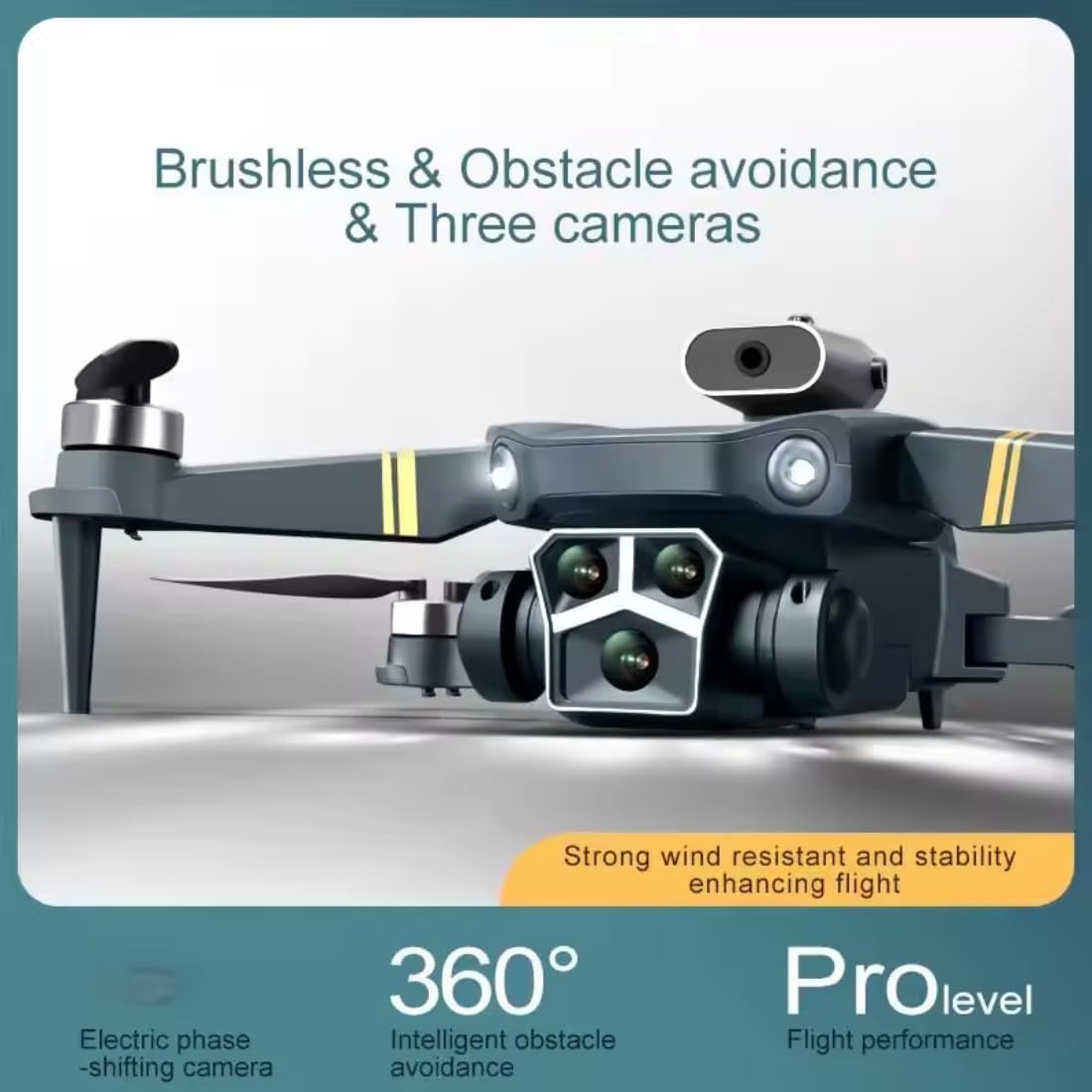
Image 6.1: The JELDROP Y3 MAX drone illustrating its intelligent obstacle avoidance system, which uses four-way detection (front, back, left, right) to warn and avoid obstacles during flight.
- Smart Obstacle Avoidance: The drone is equipped with four-way detection (front, back, left, right) to automatically detect and avoid obstacles. Activate this feature using the dedicated button on the remote.
- Optical Flow Positioning: This feature assists in stable hovering, especially indoors or in areas with good ground texture, by using a downward-facing sensor to maintain position.

Image 6.2: The JELDROP Y3 MAX drone demonstrating its optical flow positioning capability, which enables stable hovering both indoors and outdoors, simplifying flight for novice users.
6.6 Camera Operation

Image 6.3: A detailed view of the JELDROP Y3 MAX drone's front, showcasing its triple camera setup and the integrated obstacle avoidance sensor, highlighting its advanced imaging and safety features.
- Photo/Video: Use the dedicated buttons on the remote or within the app to capture photos or start/stop video recording.
- Camera Angle Adjustment: Use the 'Lens Up/Down' buttons on the remote to remotely adjust the camera's vertical angle.
- Real-time Transmission: The 5G Wi-Fi connectivity provides high-definition, real-time image transmission to your smartphone.

Image 6.4: The JELDROP Y3 MAX drone in flight, with the remote controller and a smartphone displaying the live, high-definition, real-time image transmission without delay.
7. Maintenance
7.1 Cleaning
- Wipe the drone and remote controller with a soft, dry cloth after each use.
- Do not use solvents or harsh chemicals.
- Ensure no dust or debris obstructs the camera lens or sensors.
7.2 Battery Care
- Store batteries in a cool, dry place, away from direct sunlight and extreme temperatures.
- Do not fully discharge batteries before storing for extended periods; charge them to about 50-60%.
- Inspect batteries regularly for any signs of damage or swelling.
7.3 Storage
- Fold the drone arms and place it in its protective carrying case when not in use.
- Remove batteries from the remote controller if storing for a long duration.
8. Troubleshooting
| Problem | Possible Cause | Solution |
|---|---|---|
| Drone does not power on | Low or uncharged battery; improperly installed battery | Charge battery fully; ensure battery is correctly inserted and clicked into place. |
| Drone cannot pair with remote | Remote controller not powered on; drone and remote too far apart; interference | Ensure remote is on; bring drone and remote closer; try pairing in an open area. |
| No live video feed on phone | Phone not connected to drone's Wi-Fi; app not open or crashed | Connect to drone's Wi-Fi; restart app; ensure 5G Wi-Fi is supported by phone. |
| Drone drifts during flight | Improper calibration; strong wind; uneven propeller wear | Recalibrate gyroscope/compass; fly in calm conditions; check and replace damaged propellers. |
| Obstacle avoidance not working | Feature deactivated; sensors obstructed or dirty; flying too fast | Activate obstacle avoidance; clean sensors; reduce flight speed. |
9. Specifications
| Feature | Detail |
|---|---|
| Brand | JELDROP |
| Model Name | Y3 MAX (RM) |
| Color | Black with Red |
| Video Capture Resolution | 4K UHD |
| Connectivity Technology | 5G Wi-Fi |
| Video Capture Format | MP4 |
| Control Type | Remote Control |
| Optical Sensor Technology | CMOS |
| Obstacle Avoidance | Smart 4-way detection |
| Motor Type | Brushless |
| Batteries Included | Yes (Rechargeable) |
| Remote Control Included | Yes |
| ASIN | B0F2N7N7V4 |
| Date First Available | 27 March 2025 |
10. Warranty and Support
For warranty information and technical support, please refer to the documentation included with your purchase or contact JELDROP customer service directly. Contact details can typically be found on the product packaging or the official JELDROP website.