
Introduction
This manual provides essential information for setting up, operating, and maintaining your Philips 40PFS6000 HD LED Smart TV. Please read these instructions carefully to ensure optimal performance and longevity of your device. This television combines a compact design with advanced features like Pixel Plus HD, Dolby Audio, and the Titan OS smart platform, offering a comprehensive entertainment experience.

Figure 1: Philips 40PFS6000 HD LED Smart TV
Setup Guide
1. Unpacking the Box
Carefully remove all components from the packaging. Ensure all items listed below are present.
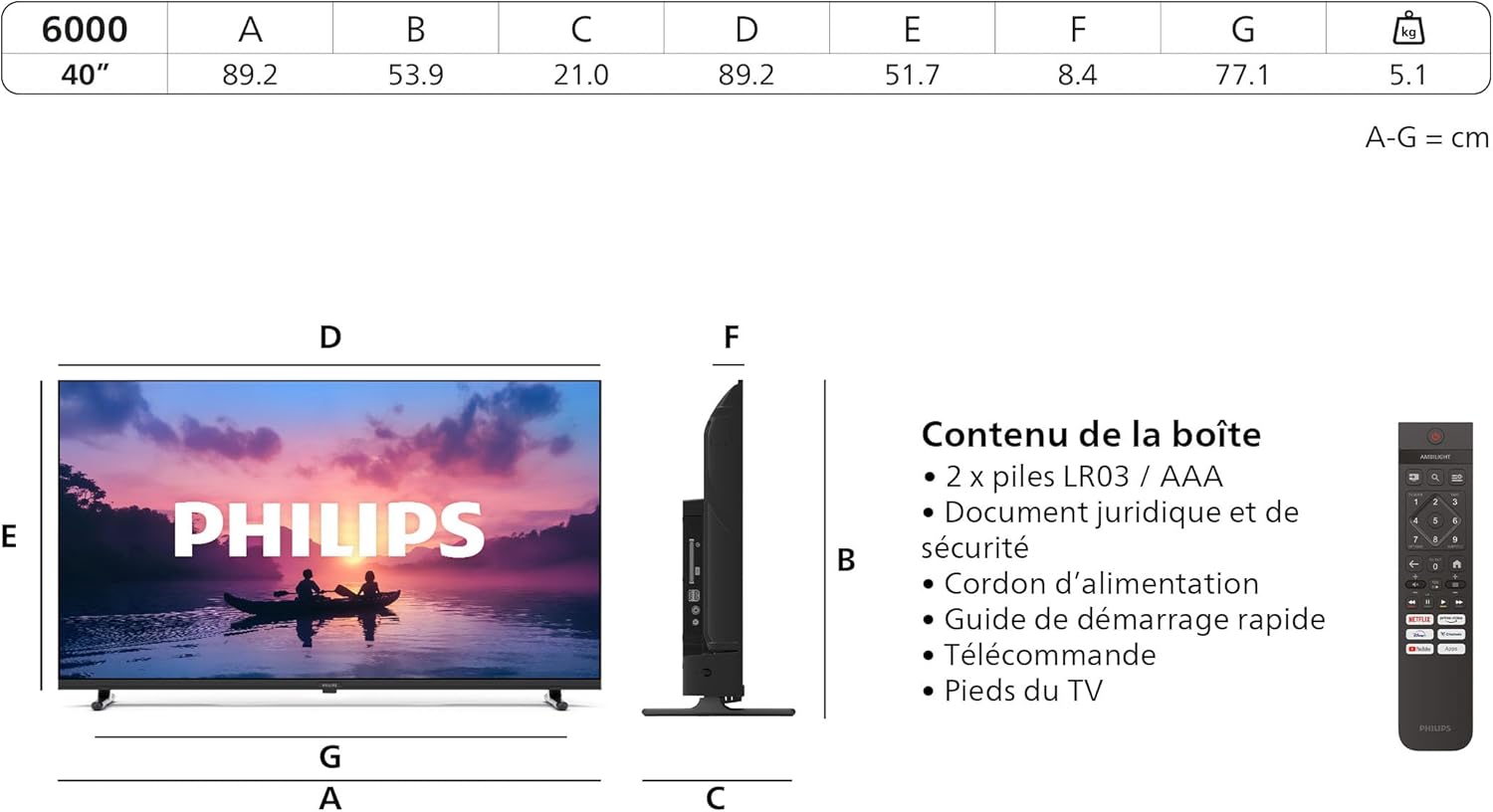
Figure 2: Box Contents and Dimensions
Box Contents:
- TV Unit
- Remote Control with 2 AAA batteries
- Power Cable
- TV Stand
- User Manual & Warranty Card
- Legal and Safety Document
2. Attaching the TV Stand
Place the TV screen face down on a soft, flat surface to prevent damage. Align the TV stand with the designated slots on the bottom of the TV and secure it with the provided screws. Refer to the quick start guide for detailed illustrations.
3. Connecting Power
Connect the power cable to the TV's power input and then plug it into a wall outlet. Ensure the power outlet is easily accessible.
4. Initial Setup and First Use
Upon first power-on, the TV will guide you through the initial setup process, including language selection, network connection, and channel scanning. Follow the on-screen instructions.
Operating Your TV
1. Basic Controls
Use the remote control to navigate your TV. The remote allows you to power on/off, adjust volume, change channels, and access smart features.
2. Smart TV Features (Titan OS)
Your Philips TV runs on Titan OS, providing access to a variety of streaming services and applications. Connect your TV to the internet via Wi-Fi or Ethernet to explore these features.

Figure 3: Titan OS Interface with Streaming Applications
3. Picture and Display Settings
The TV features Philips Pixel Plus HD engine for optimized image quality, delivering sharp images, rich colors, and smooth motion. It also supports HDR10 for enhanced contrast and vibrant visuals.

Figure 4: Picture Enhancement Technologies
Adjust picture modes (e.g., Standard, Vivid, Movie) in the TV settings menu to suit your viewing preferences.
4. Audio Settings (Dolby Audio)
Experience clear and immersive sound with Dolby Audio. The Vocal Boost feature enhances dialogue clarity without affecting background sound, ensuring you don't miss any words.

Figure 5: Dolby Audio Experience
Access sound settings to customize equalizer, balance, and other audio preferences.
5. Voice Control (Alexa & Google Assistant)
The TV is compatible with Alexa and Google Assistant. Use your voice to control the TV, search for content, or get information. A remote control with a microphone is required to activate the voice assistant.
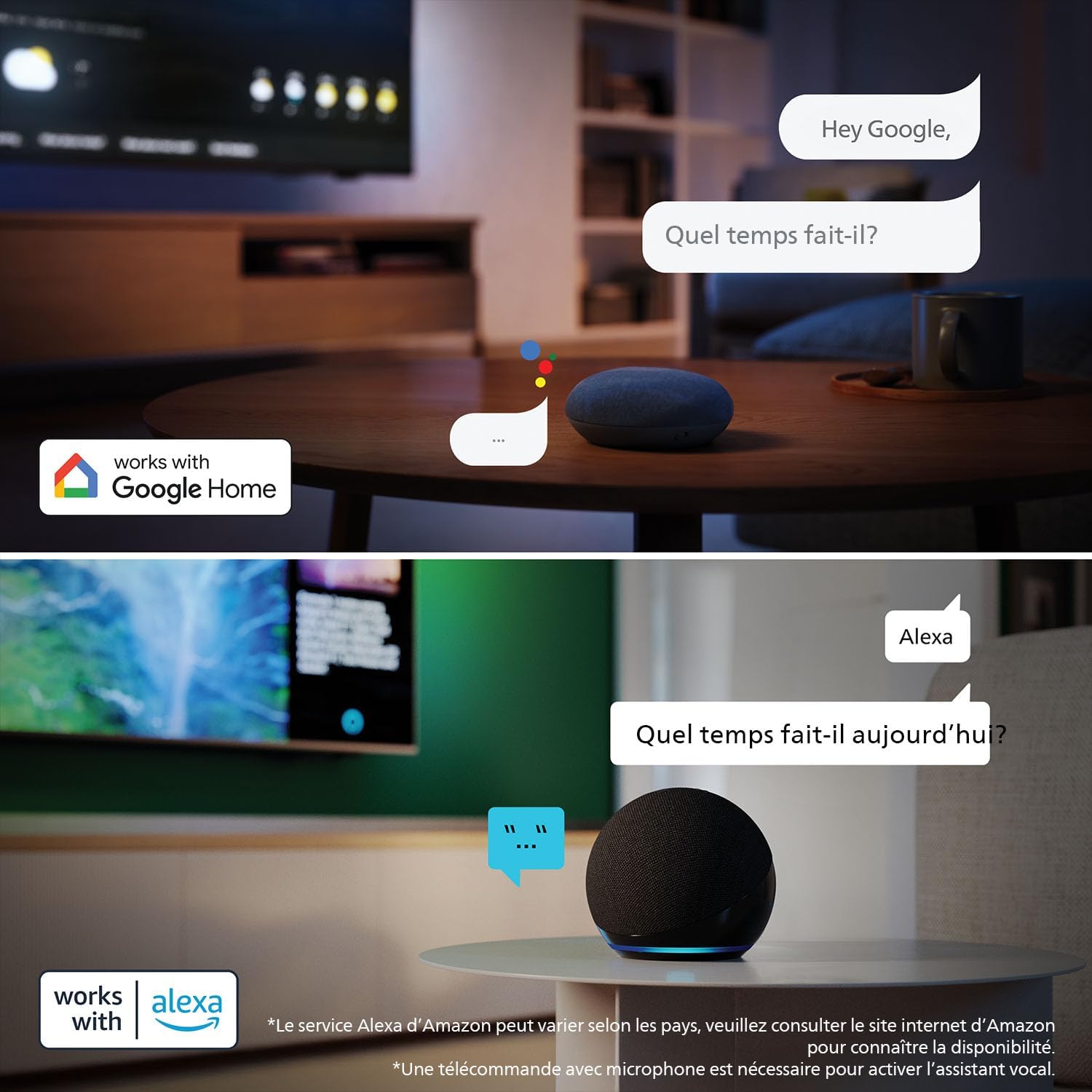
Figure 6: Voice Control with Alexa and Google Assistant
6. Connectivity
Your TV offers various connection options for external devices.

Figure 7: TV Connection Ports
Available Ports:
- HDMI: Connect Blu-ray players, game consoles, and other HDMI-enabled devices.
- USB: Connect USB drives for media playback.
- Wi-Fi: Wireless internet connection.
- Network (Ethernet): Wired internet connection.
- Satellite: For satellite TV reception.
- TV Antenna: For terrestrial TV reception.
- Digital Audio Out: For connecting to external audio systems.
Maintenance and Care
1. Cleaning Your TV
To clean the screen, gently wipe it with a soft, lint-free cloth. For the TV casing, use a soft, damp cloth. Avoid using abrasive cleaners or solvents.
2. Software Updates
Your TV may receive software updates to improve performance and add new features. Ensure your TV is connected to the internet to receive these updates automatically or check for them manually in the settings menu.
Troubleshooting Common Issues
If you encounter problems with your TV, refer to the following common issues and solutions:
- No Picture, No Sound: Check if the power cable is securely connected and the TV is turned on. Verify the correct input source is selected.
- Remote Control Not Working: Ensure batteries are correctly inserted and not depleted. Point the remote directly at the TV's IR sensor.
- No Internet Connection: Check your Wi-Fi router or Ethernet cable. Reconnect to the network in the TV settings.
- Poor Picture Quality: Adjust picture settings. Ensure the input source is providing a high-quality signal.
- No Sound from External Device: Check audio cables and ensure the TV's audio output settings are correct.
For more detailed troubleshooting, visit the Philips support website.
Technical Specifications
| Feature | Specification |
|---|---|
| Brand | PHILIPS |
| Model Number | 40PFS6000/12 |
| Screen Size | 40 Inches (100 cm) |
| Display Technology | LED |
| Resolution | 720p (1920 x 1080 pixels) |
| Refresh Rate | 60 Hz |
| Operating System | Titan OS |
| Connectivity | HDMI, USB, Wi-Fi |
| Number of USB Ports | 2 |
| Special Features | Ambient light sensor, Local dimming, Integrated speaker, Sleep timer, Automatic volume leveler |
| Dimensions (WxDxH) | 89.2 x 21.0 x 53.9 cm (with stand) |
| Energy Efficiency Class | E |
Energy Information
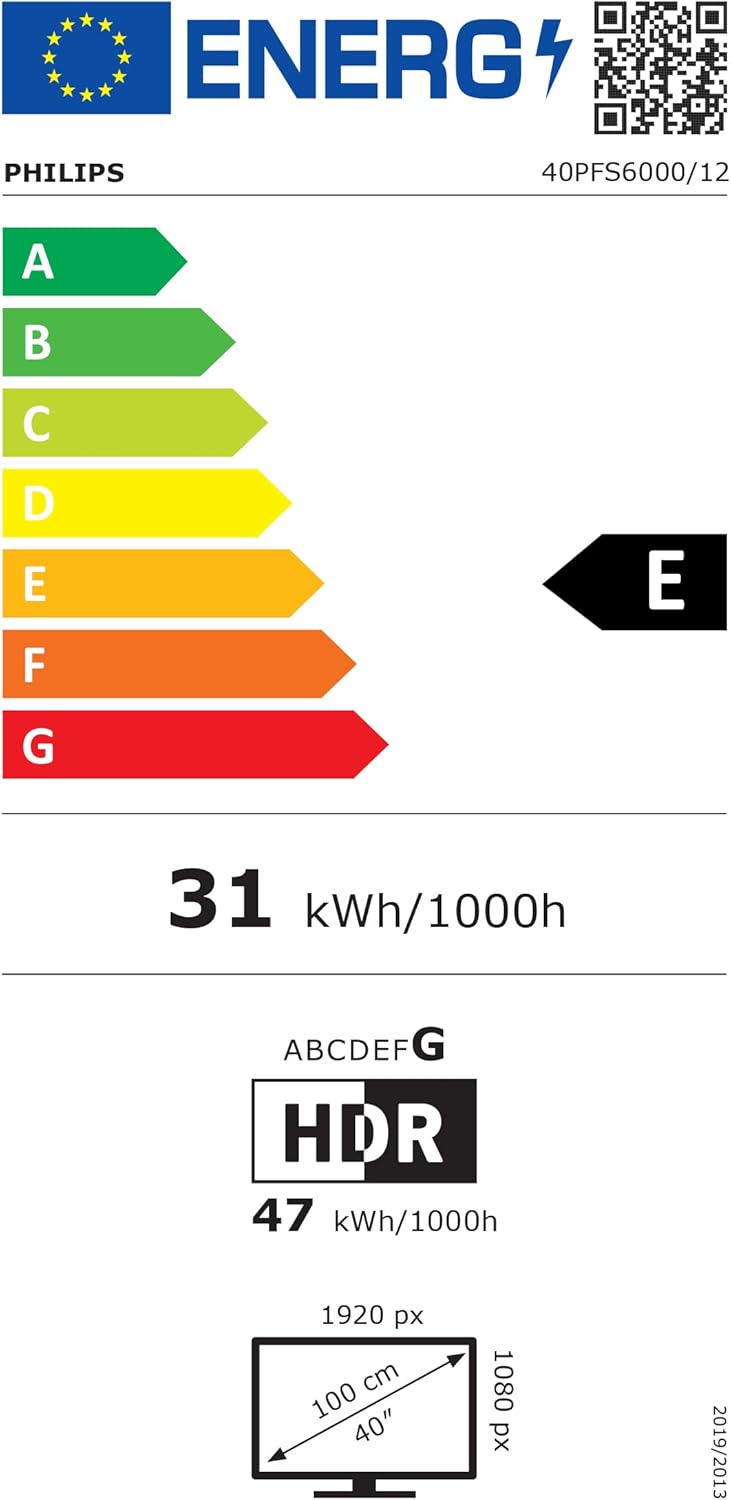
Figure 8: Energy Efficiency Label
For detailed energy information and product data sheet, please refer to the EPREL database:
Warranty and Customer Support
Warranty Information
This Philips TV comes with a manufacturer's warranty of 2 years. Please retain your proof of purchase for warranty claims. The warranty covers manufacturing defects under normal use conditions.
Customer Support
For technical assistance, troubleshooting, or warranty service, please contact Philips customer support. You can find contact information and additional resources on the official Philips support website:
Manufacturer: TP Vision