
Halitaa B0F2MWSWVQ
Halitaa Farmhouse Executive Desk User Manual
Model: B0F2MWSWVQ
Introduction
Welcome to the user manual for your Halitaa Farmhouse 47" Executive Desk. This desk is designed to provide a functional and stylish workspace for your home office or study, featuring a hutch, two drawers, a storage cabinet, LED lighting, and a convenient charging station. Please read this manual thoroughly before assembly and use to ensure proper setup and operation.
Product Overview
The Halitaa Farmhouse Executive Desk combines rustic aesthetics with modern functionality. Key features include:
- Spacious 47-inch work surface with integrated hutch.
- Two smooth-gliding drawers for organized storage.
- A versatile storage cabinet with adjustable shelves.
- Built-in charging station with 4 outlets and 2 USB ports.
- Smart LED lights with app and remote control for customizable ambiance.
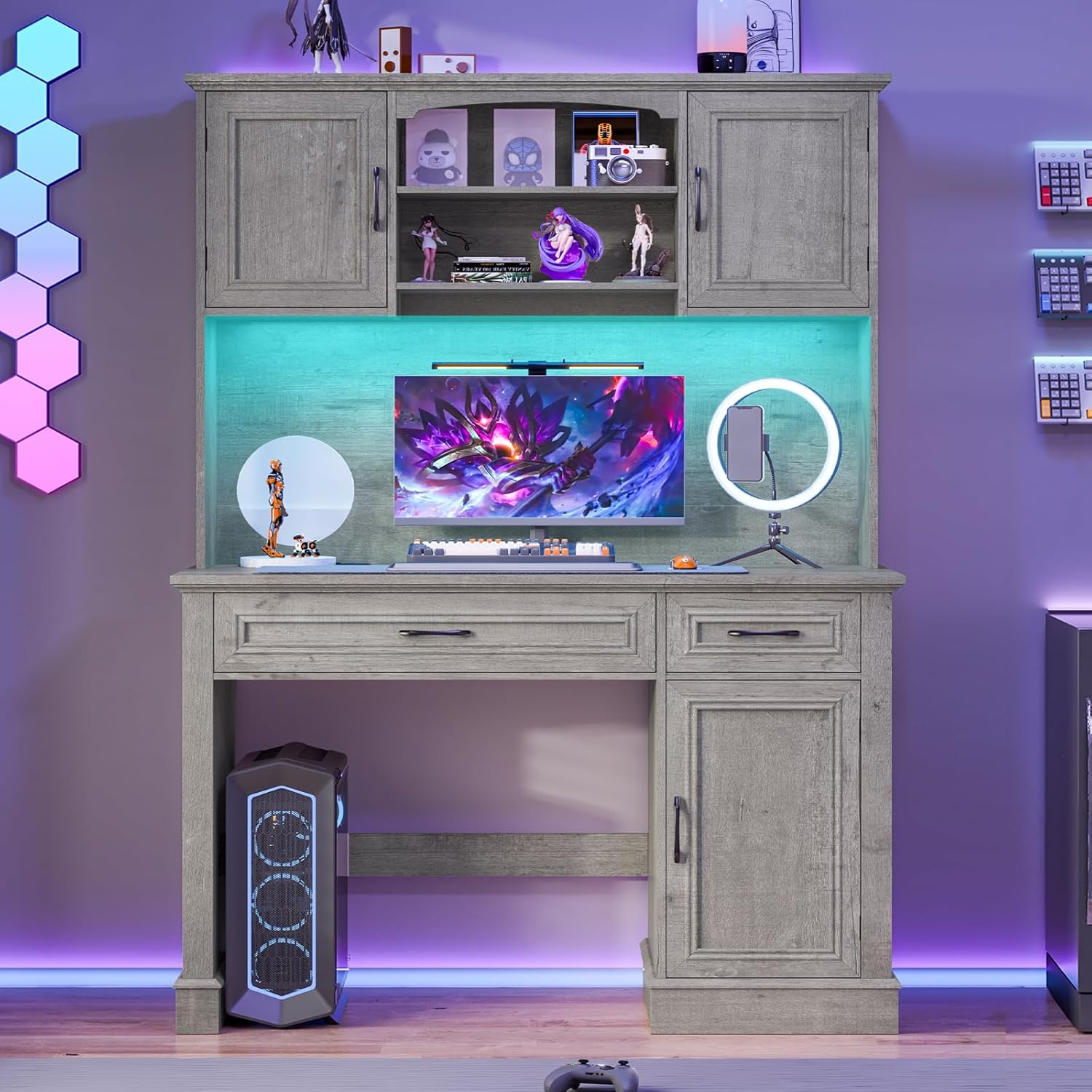
Figure 1: Overview of the Halitaa Farmhouse Executive Desk, showcasing its hutch, drawers, and integrated LED lighting.

Figure 2: Detailed dimensions of the desk, including height, width, and depth of the main desk and hutch components.
Setup and Assembly
Assembly of your Halitaa Executive Desk is designed to be straightforward. We recommend having a helper to expedite the process and ensure precision.
1. Unpacking and Inspection
- Carefully unpack all components from the robust packaging.
- Verify all parts against the included parts list in your assembly manual.
- Inspect all pieces for any damage. If any parts are damaged or missing, contact customer support immediately.
2. Assembly Steps
Follow the detailed, step-by-step instructions provided in the separate assembly guide included with your desk. Ensure all screws and fasteners are securely tightened, but do not overtighten.

Figure 3: The desk surface showing the integrated charging station and open drawers, highlighting the organized storage space.
Operating Instructions
1. Charging Station
The built-in charging hub features 4 standard outlets and 2 USB ports. To use:
- Plug the desk's main power cord into a grounded wall outlet.
- Press the one-button on-off switch to activate the charging station.
- Connect your devices (phones, tablets, laptops, etc.) to the available outlets or USB ports.
- Always turn off the charging station using the switch when not in use to ensure safety.

Figure 4: A close-up view of the integrated charging station, showing its outlets and USB ports in use.
2. Smart LED Lights
The desk is equipped with Bluetooth-enabled LED lights for customizable ambiance.
- App Control: Download the designated app (refer to the LED light manual for app name) on your smartphone. Connect via Bluetooth to control colors, brightness, and modes.
- Remote Control: Use the included remote to adjust light settings.
- Music Sync: The lights can sync with music, creating dynamic visual effects.
- Timing Function: Set schedules for the lights to turn on or off automatically.

Figure 5: The desk illuminated by its smart LED lights, illustrating the various control options including app and button control.
3. Storage Features
- Drawers: Utilize the two drawers for storing notebooks, pens, and other office essentials.
- Storage Cabinet: The cabinet features adjustable shelves. To adjust, carefully remove the shelves and reposition them to your desired height using the pre-drilled holes.
- Hutch Shelves: The open shelves in the hutch provide additional space for display or storage.

Figure 6: A composite image detailing the desk's storage features, including the farmhouse-style barn doors, multiple drawers, and the spacious storage cabinet.

Figure 7: A close-up view of the storage cabinet, illustrating the adjustable shelves for customized storage.
Maintenance and Care
Proper care will extend the life and appearance of your desk.
- Cleaning: Wipe surfaces with a soft, damp cloth. Avoid harsh chemicals or abrasive cleaners.
- Spills: Immediately wipe up any spills to prevent damage to the engineered wood finish.
- Heat and Moisture: Keep the desk away from direct heat sources and excessive moisture. Use coasters for drinks.
- Charging Station: Ensure the charging station remains dry. Unplug it from the wall outlet when cleaning or if not in use for extended periods.
- Weight Capacity: Do not overload the desk or shelves beyond their intended weight capacity.
Troubleshooting
| Problem | Possible Cause | Solution |
|---|---|---|
| Desk wobbles after assembly. | Loose fasteners or uneven floor. | Check and tighten all screws. Ensure the desk is on a level surface. |
| Charging station not working. | Not plugged in, switch off, or overloaded. | Ensure the desk is plugged into a live outlet. Press the on/off switch. Unplug some devices if overloaded. |
| LED lights not responding. | Bluetooth disconnected, remote battery low, or power issue. | Check Bluetooth connection on your device. Replace remote battery. Ensure desk is powered. |
| Drawers stick or are difficult to open. | Misaligned slides or obstruction. | Ensure drawer slides are properly aligned and free of debris. Re-check assembly of drawer rails. |
Specifications
| Feature | Detail |
|---|---|
| Brand | Halitaa |
| Model | B0F2MWSWVQ |
| Dimensions (D x W x H) | 19.68"D x 47.24"W x 66.92"H |
| Color | Grey |
| Material | Engineered Wood |
| Number of Drawers | 2 |
| Number of Cabinets | 1 (with adjustable shelves) |
| Charging Station | 4 Outlets, 2 USB Ports, One-button On/Off Switch |
| LED Lights | Bluetooth controlled, App/Remote control, Music Sync, Timing Function |
| Assembly Required | Yes |
Important Safety Information
Please adhere to the following safety guidelines:
- Always follow the assembly instructions carefully.
- Enlist a helper if necessary for assembly.
- Do not overload the desk or its storage compartments.
- Keep the charging station dry and away from heat sources.
- Unplug the charging station when not in use or during electrical storms.
- Do not use the desk or charging station if any part is damaged.
- Keep small parts and packaging materials away from children.
Warranty Information
Halitaa products are manufactured with quality and durability in mind. For specific warranty details regarding your Farmhouse Executive Desk, please refer to the warranty card included with your purchase or visit the official Halitaa website. Typically, warranties cover manufacturing defects under normal use conditions.
Customer Support
If you have any questions, require assistance with assembly, or need to report damaged/missing parts, please contact Halitaa customer support:
- Online Support: Visit the Halitaa Store on Amazon for FAQs and contact options.
- Email: Refer to your product packaging or included documentation for direct email support.
- Phone: Refer to your product packaging or included documentation for phone support.
Please have your model number (B0F2MWSWVQ) and purchase date ready when contacting support.
Ask a question about this manual
Ask about setup, troubleshooting, compatibility, parts, safety, or missing instructions. Manuals+ will review the question and use this page’s manual context to help answer it.